
Purpose of This Screen
Navigation Path:
Sales Module → Lead → Click Lead’s Name
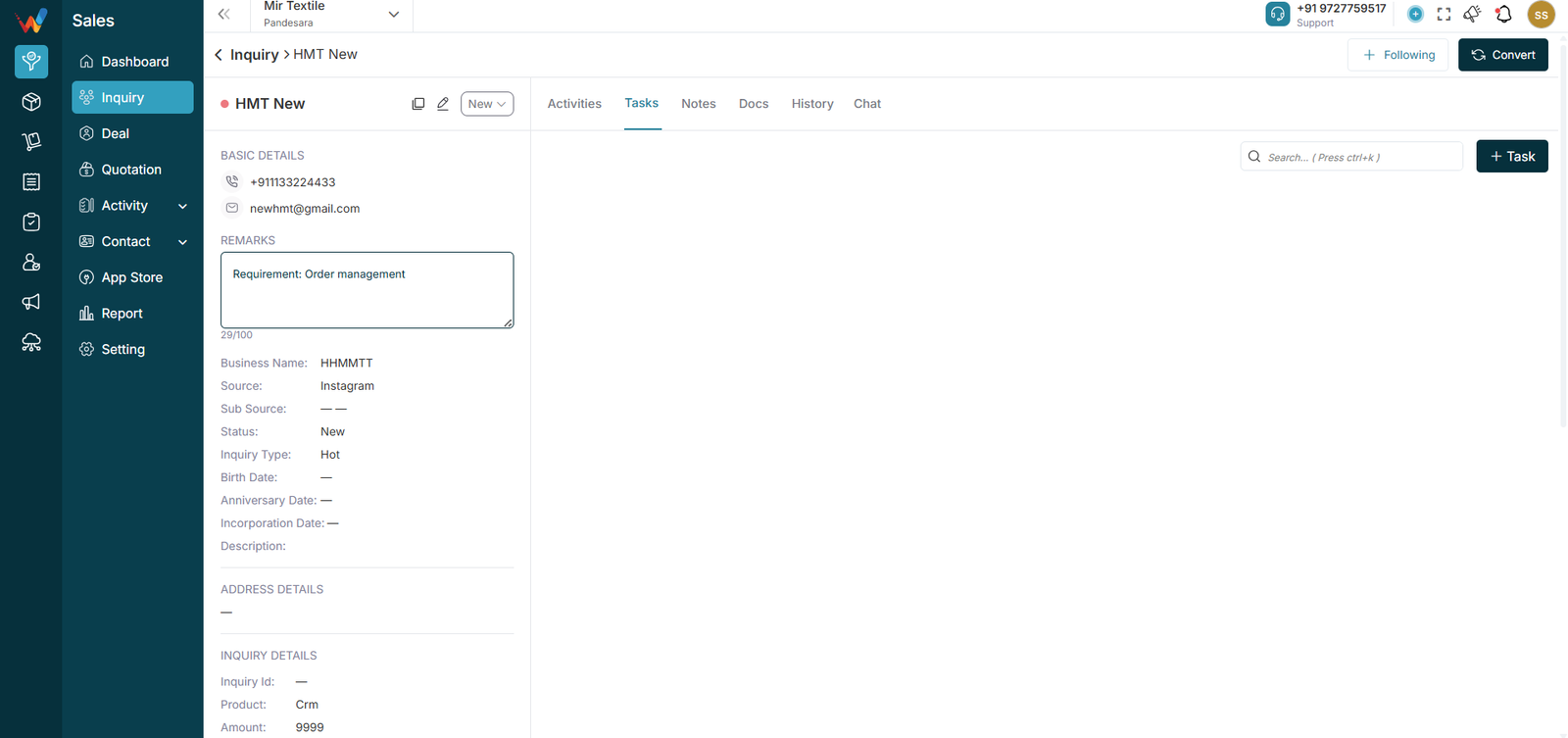
The Lead Detail screen is used to:
- View complete lead information
- Update status
- Add follow-ups
- Log calls, meetings, and visits
- Send WhatsApp or Email
- Add tasks
- Store notes and documents
- Track full lead history
- Convert lead into Deal
Top Header Area
Back to Lead List
Lead name with icons:
- Edit icon (opens Edit Lead form)
- Copy icon (duplicates lead)
- Status dropdown (editable)
- Follow button (subscribe to updates, if enabled)
- Convert button (convert to Deal)
Left Panel – Lead Information Summary
Typically includes:
Basic details: phone, email
Remarks box (quick entry, often limited length)
Business information:
- Business name
- Source / sub-source
- Status
- Lead type
- Special dates
- Description
Address details
Lead details:
- Lead ID
- Product
- Amount
- Website
- Assigned user (owner)
Right Panel – Activity Management
Tabs Available
- Activities
- Tasks
- Notes
- Docs
- History
- Chat
Activities Tab
Includes:
- Activity count
Filters:
- All
- Call
- Meeting
- Visit
Activity cards with:
- Type
- Description
- Created by
- Created date
- Status tag (Log, Held, Call Later, Interested, etc.)
Three-dot menu (edit/delete based on permissions)
Log and Follow-up
Log records a completed interaction
Follow-up schedules the next interaction
Communication Button
Options includes:
(Depends on integrations.)
Activity Logged Detailed View
When It Appears
Triggered when the user opens any logged activity such as:
- Follow-up call
- Initial call
- Demo meeting
- Visit
What It Shows
View mode (read-only)
Three-dot menu (edit/delete if permitted)
Activity type header:
- Activity title
- Response status (Held, Unheld, Interested, etc.)
- Duration
Detailed fields:
- Direction
- Date and time
- Summary
- Attendees
- Linked lead
- Mobile number
- Email ID
- Updated by / created by
Why This Sidebar Matters
It ensures:
- No activity can be denied
- Managers can review call quality
- Timeline integrity
- Team accountability
- Strong sales tracking discipline
Tasks, Notes, Docs, History, Chat
Tasks Tab
Used to assign tasks related to the lead, such as:
- Send quotation
- Call tomorrow
- Visit warehouse
Notes Tab
Used for internal notes and future reference.
Docs Tab
Used to store lead-wise documents:
- Quotation PDF
- Product catalogue
- Agreement copy
History Tab
Shows complete change history, such as:
- Lead created
- Status changes
- Assigned user changes
- Product updates
- Other modifications
(Also used for transparency and audit.)
Chat Tab
Used to chat with clients when WhatsApp API integration is enabled.
Edit Lead
Opened via the Edit icon.
Fields commonly include:
- Lead name
- Contact number
- Source
- Status
- Lead type
- Product
- Business name
- Address
- Amount
Make changes and click Submit to save changes.