
Create Orde
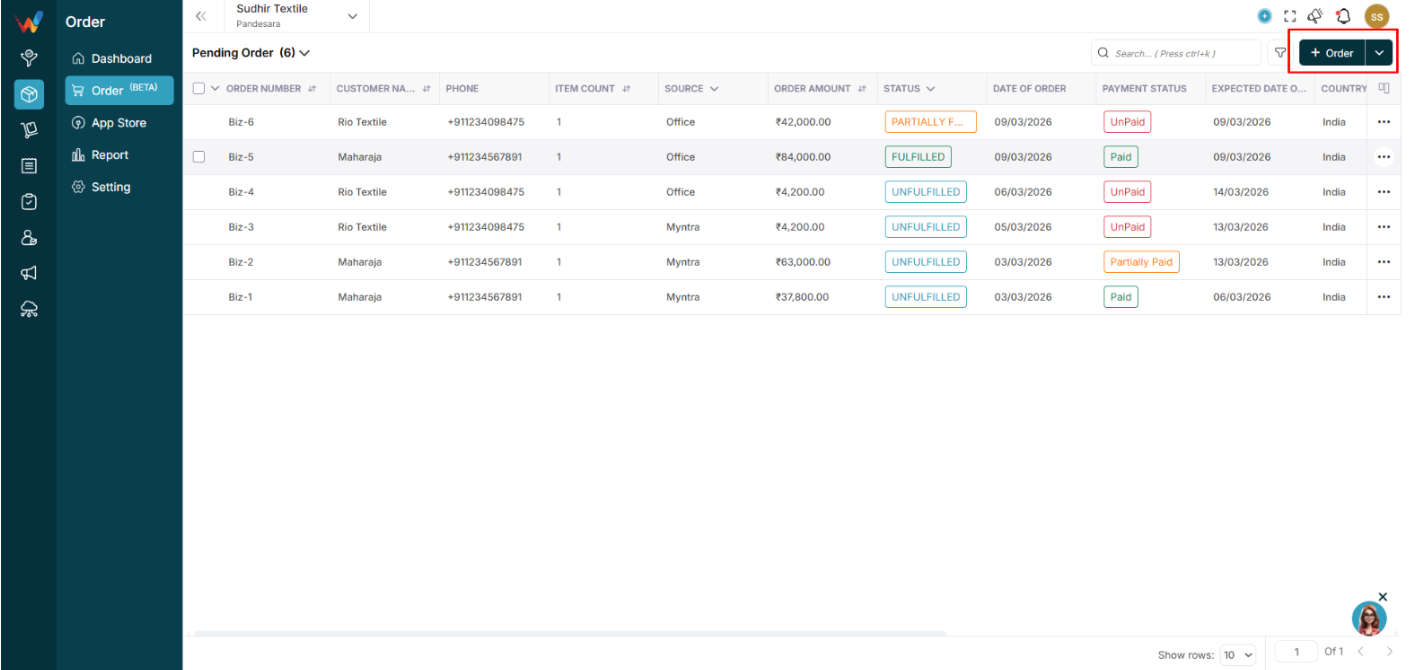
1.1 How to Open Create Order
Click + Order.
1.2 Screen Layout
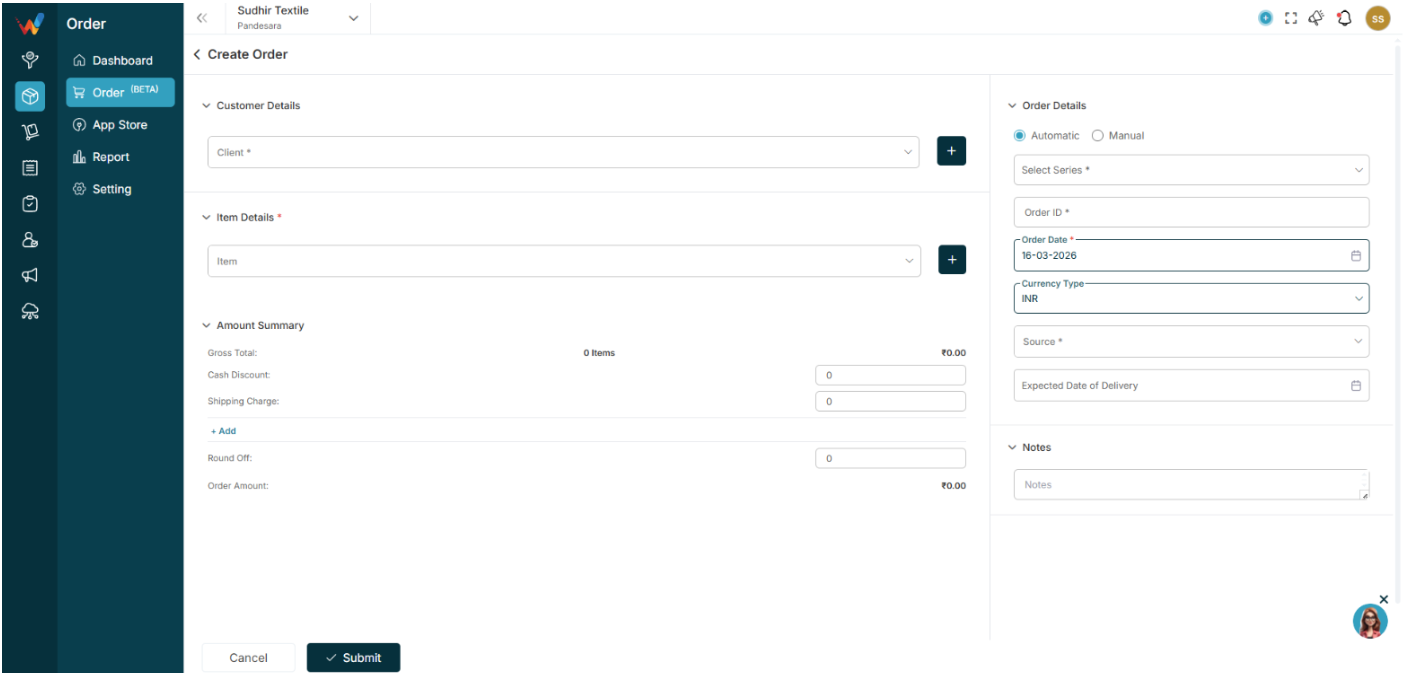
The Create Order screen has two sections:
- Left side: Customer and Item
- Right side: Order Details
1.3 Customer Details
- Client (mandatory)
- Quick Add (plus) option
1.4 Item Details
- Add Item
- Multiple items supported
- Quantity and Rate defined
1.5 Amount Summary
Auto-calculates:
- Gross Total
- Discount
- Shipping Charge
- GST (IGST, CGST, SGST)
- Round Off
- Order Amount
1.6 Order Details
Order ID options:
- Automatic: System generates Order ID
- Manual: User enters Order ID
Fields:
- Series
- Order ID
- Order Date
- Currency
- Source (Office, Shopify, etc.)
- Expected Date of Delivery
- Notes
Click Submit to create the order.
Order Detail View
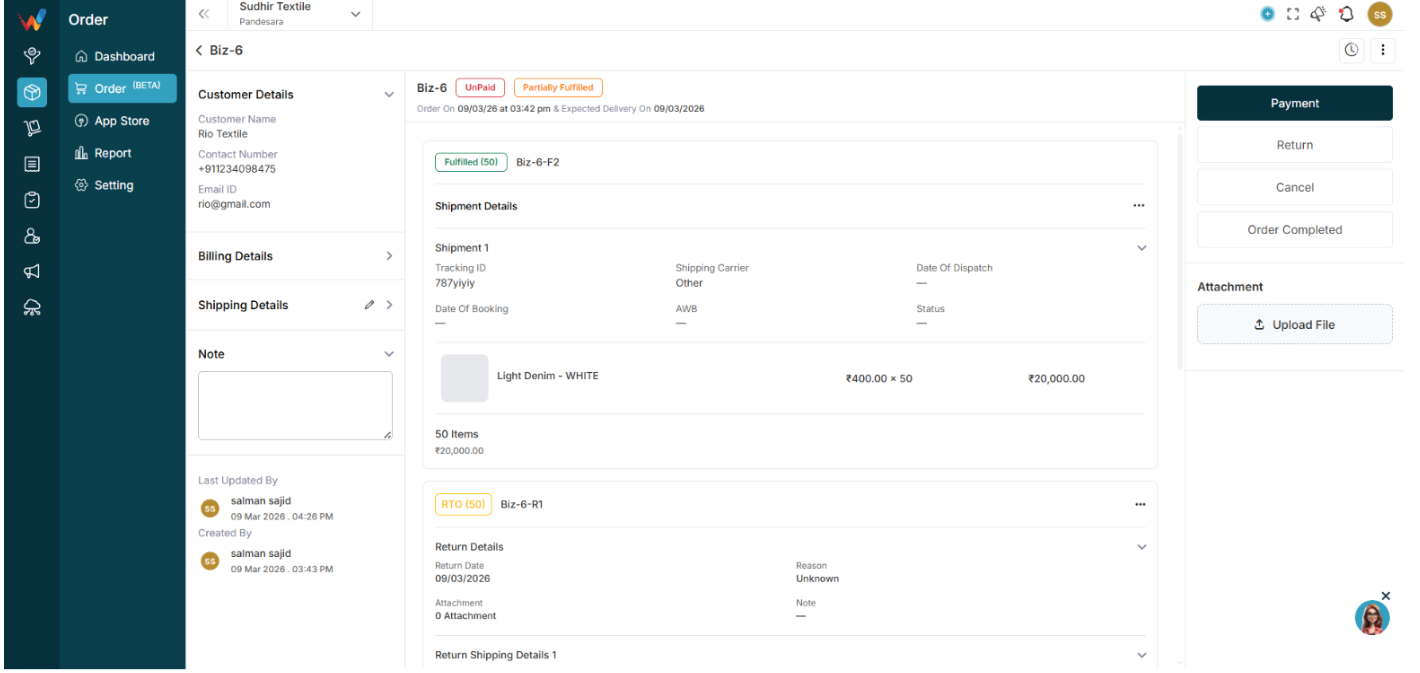
When clicking an order, the top section shows:
- Order ID
- Payment Status
- Fulfillment Status
- Order Date
- Expected Delivery Date
2.1 Left Panel
- Customer Details
- Billing Details
- Shipping Details
- Notes
- Created By
- Last Updated By
2.2 Shipment Section
Shows:
- Shipment number
- Tracking ID
- Shipping Carrier
- AWB
- Dispatch Date
- Shipment Status
Items are listed with:
- Quantity
- Rate
- Total
2.3 Amount Summary
Displays:
- Gross Total
- Discounts
- Shipping
- Tax breakup
- Order Amount
- Paid
- Return
- Outstanding Amount
Order Actions
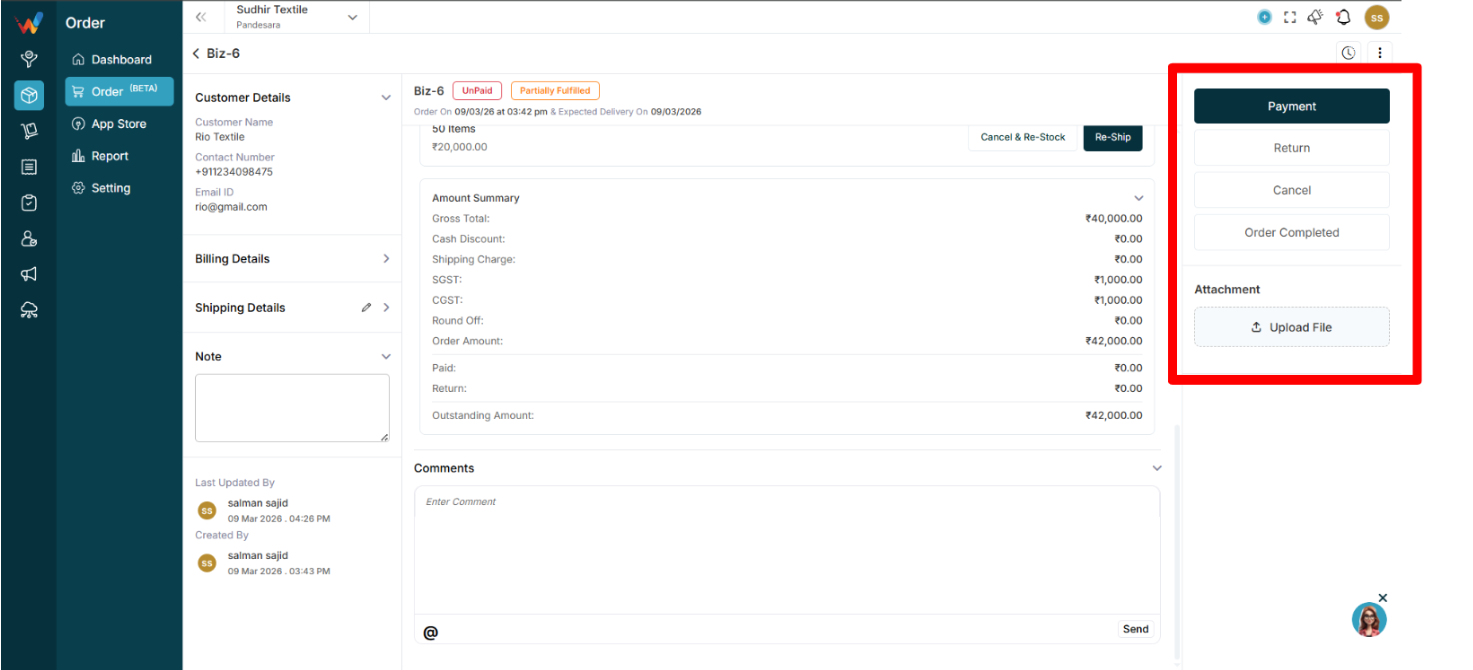
Right side panel actions include:
- Payment
- Return
- Cancel
- Order Completed
3.1 Payment
Open the Payment modal.
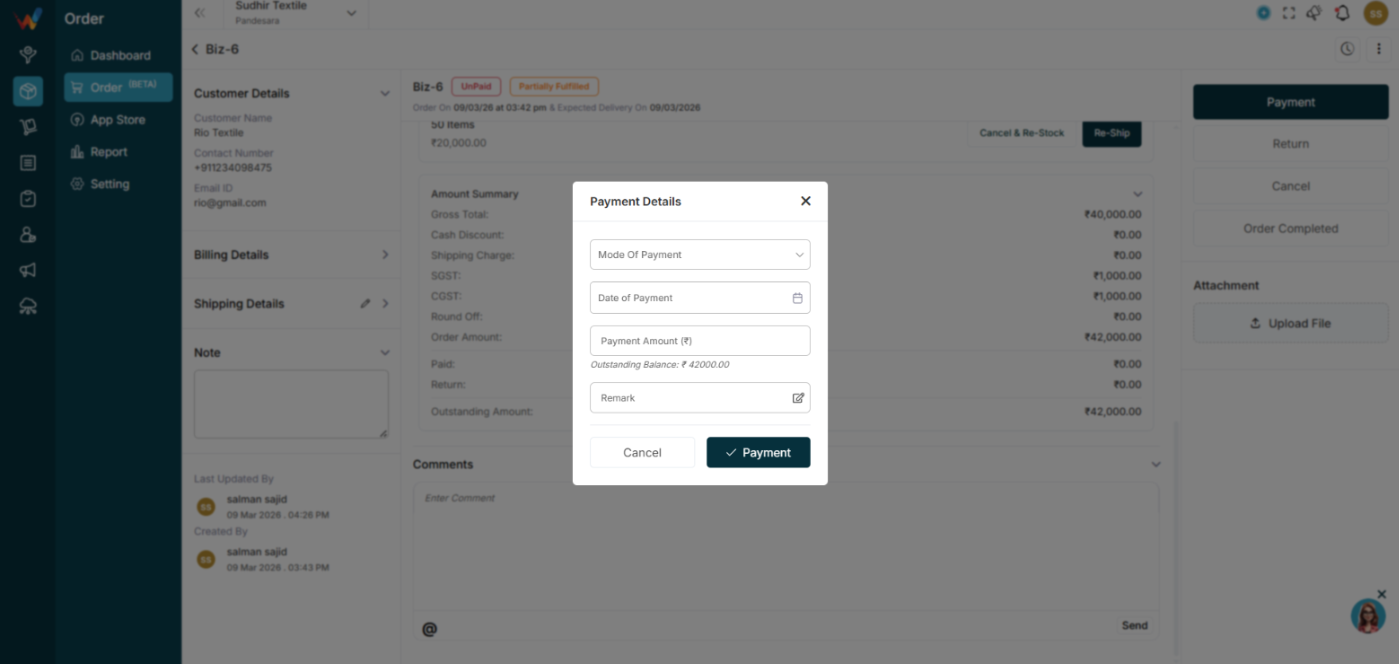
Fields:
- Mode of Payment
- Date
- Payment Amount
- Remark
System updates:
- Paid amount
- Outstanding balance
- Payment status
3.2 Fulfill Item
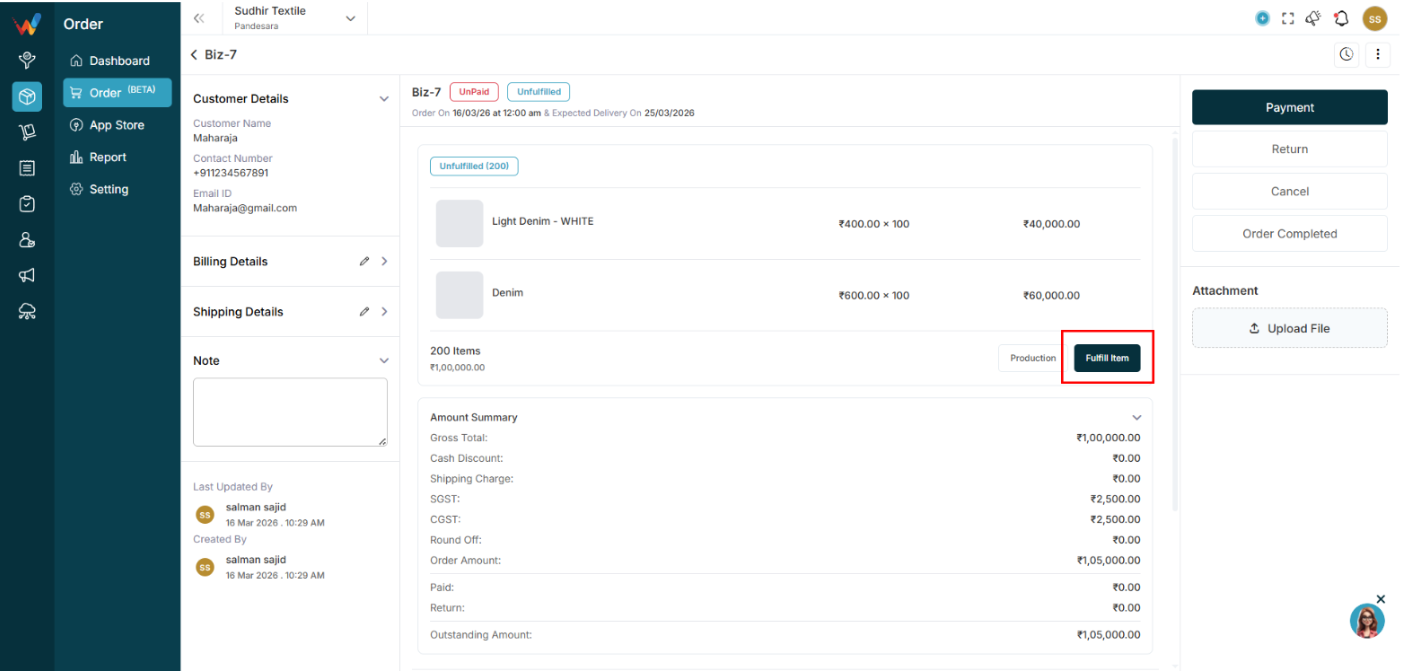
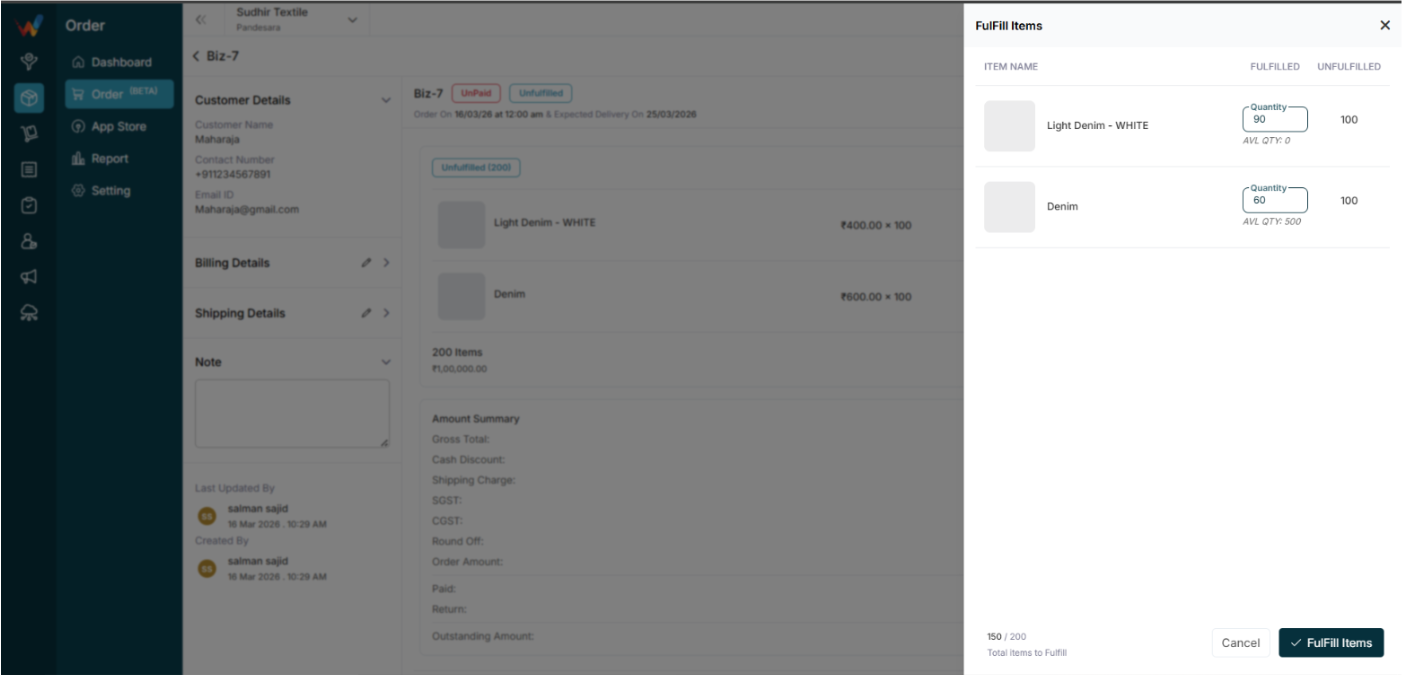
Users can:
- Fulfill partial quantity
- Track unfulfilled items
Status updates:
- Unfulfilled
- Partially Fulfilled
- Fulfilled
3.3 Production

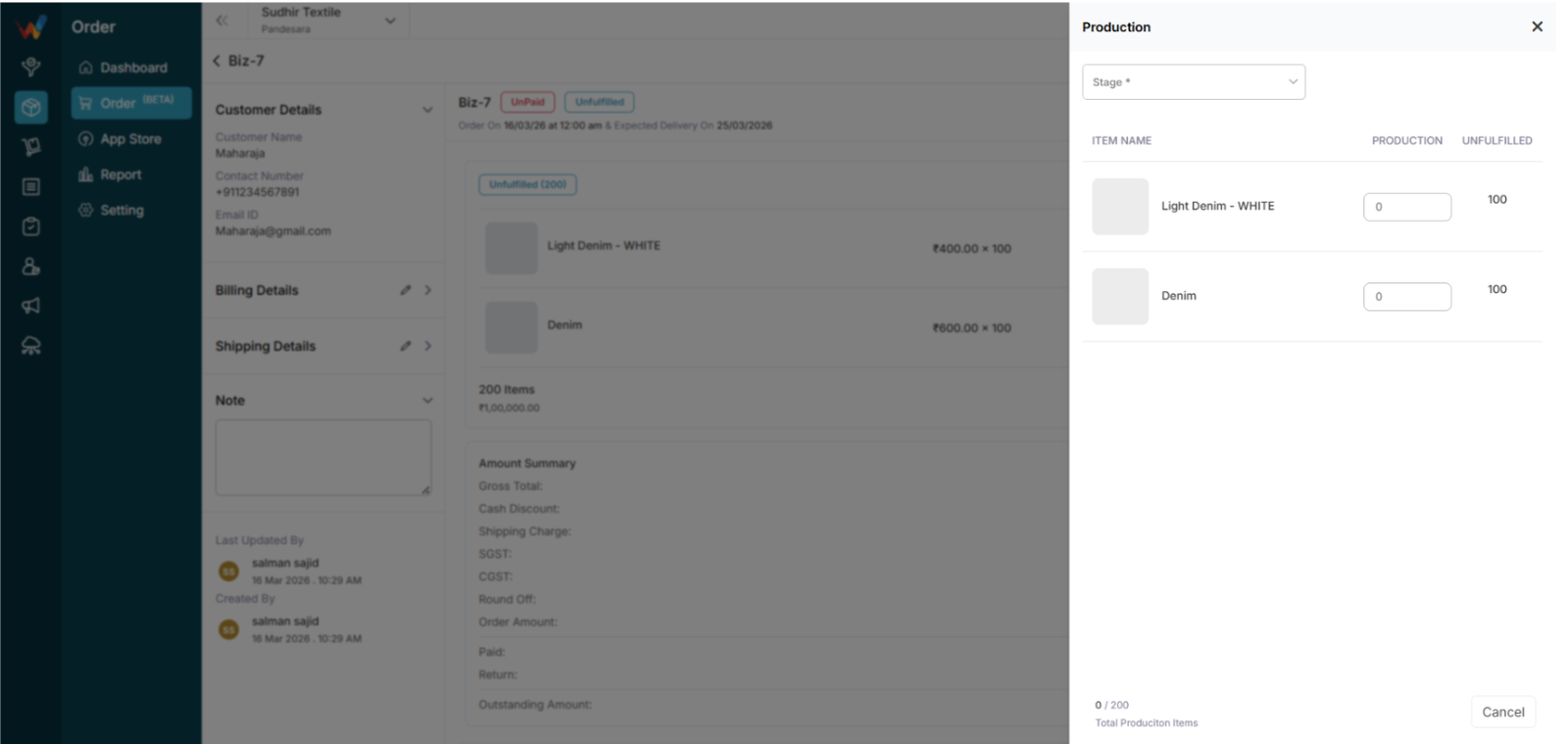
If production is enabled:
- Select stage
- Enter production quantity
- Track production versus pending
3.4 Return
Click Return to open the Create Return screen.
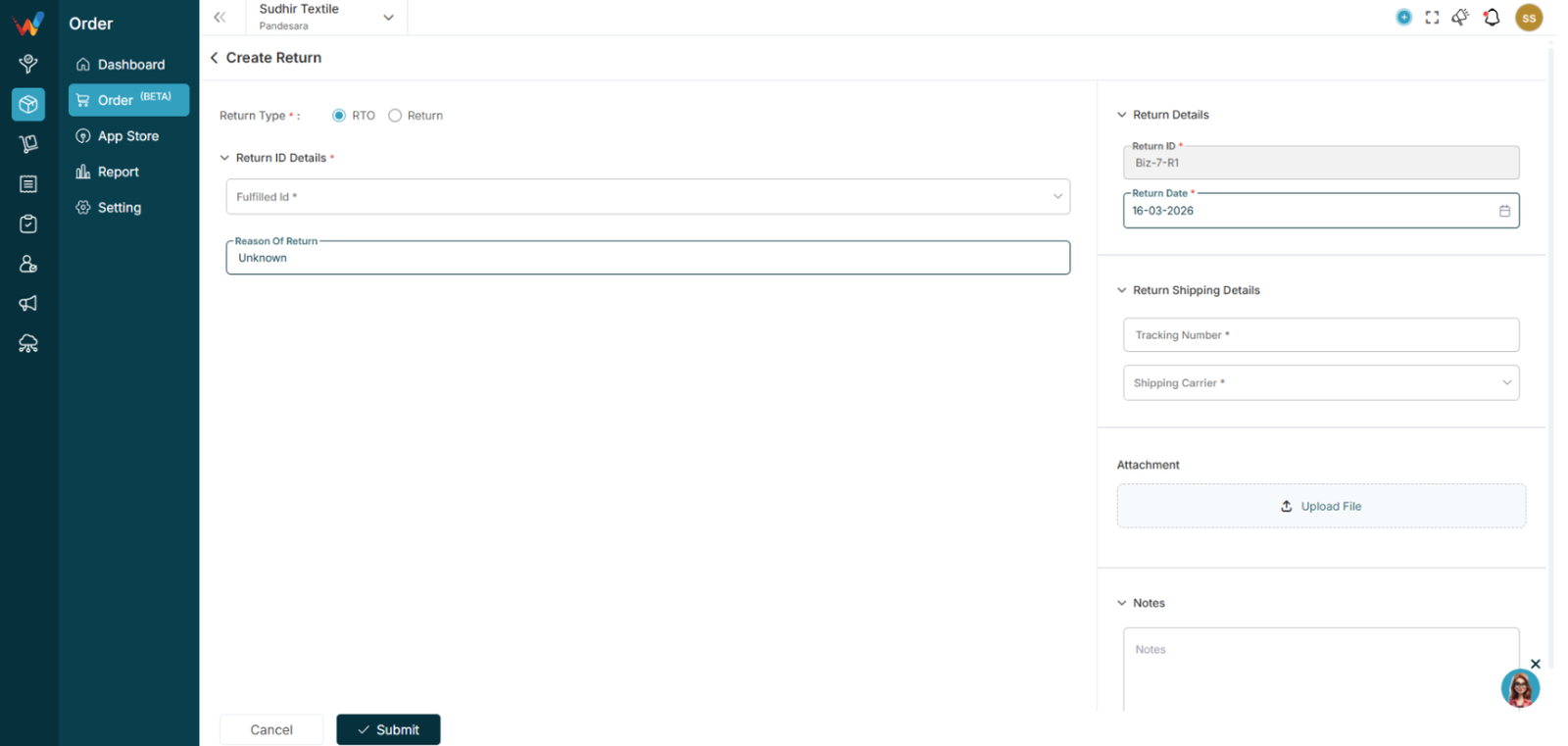
Return options:
- RTO
- Return
Fields:
- Fulfilled ID
- Reason of Return
- Return ID
- Return Date
- Tracking Number
- Shipping Carrier
- Notes
- Attachment
3.5 Cancel
Cancels the order before fulfillment.