
Understanding User Roles
1.1 Understanding User Roles
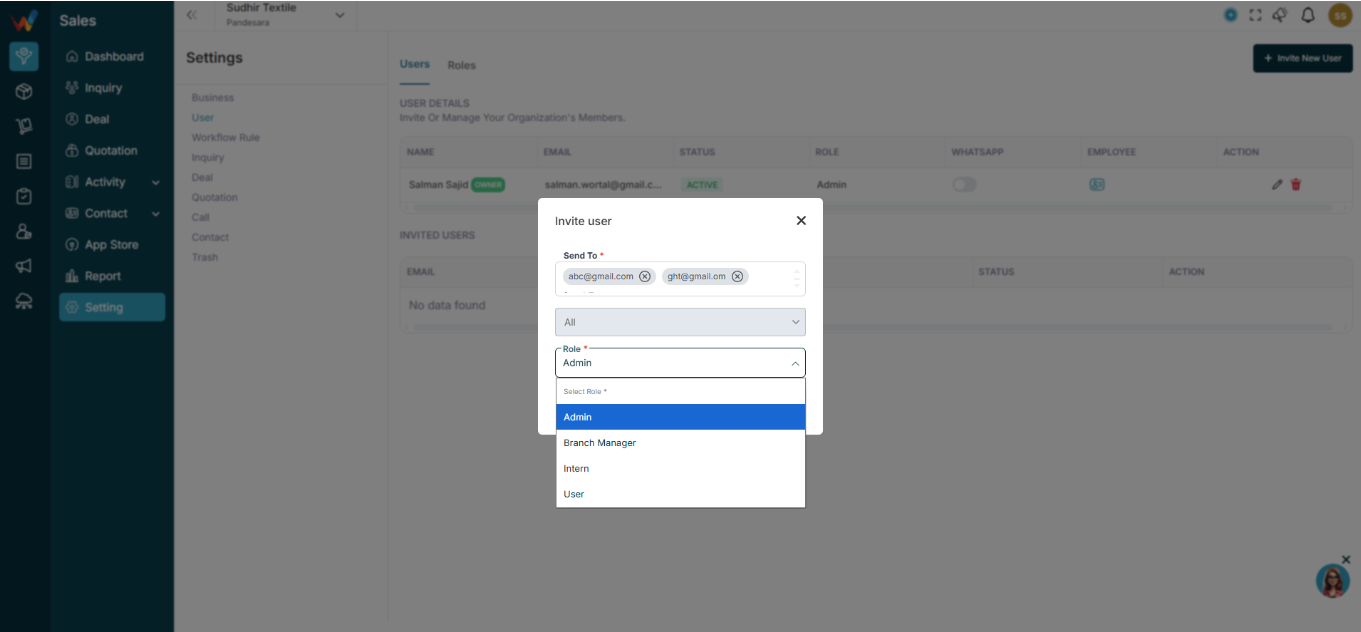
When assigning role, you can select:
- Admin
- Branch Manager
- User
- Intern
- And able to create a custom role as well
Each role has predefined permissions (based on your RBAC(Role-Based Access Control)).
Assign Branch Access
2.1 Assign Branch Access
While editing user access, you can:
- Select single branch
- Select multiple branches
- Select All branches
Example:
- Delhi
- Mumbai
- Bangalore
Branch-wise access ensures:
- Sales person sees only their branch data
- Branch manager sees their branch operations
- Admin sees all branches
Edit User Access
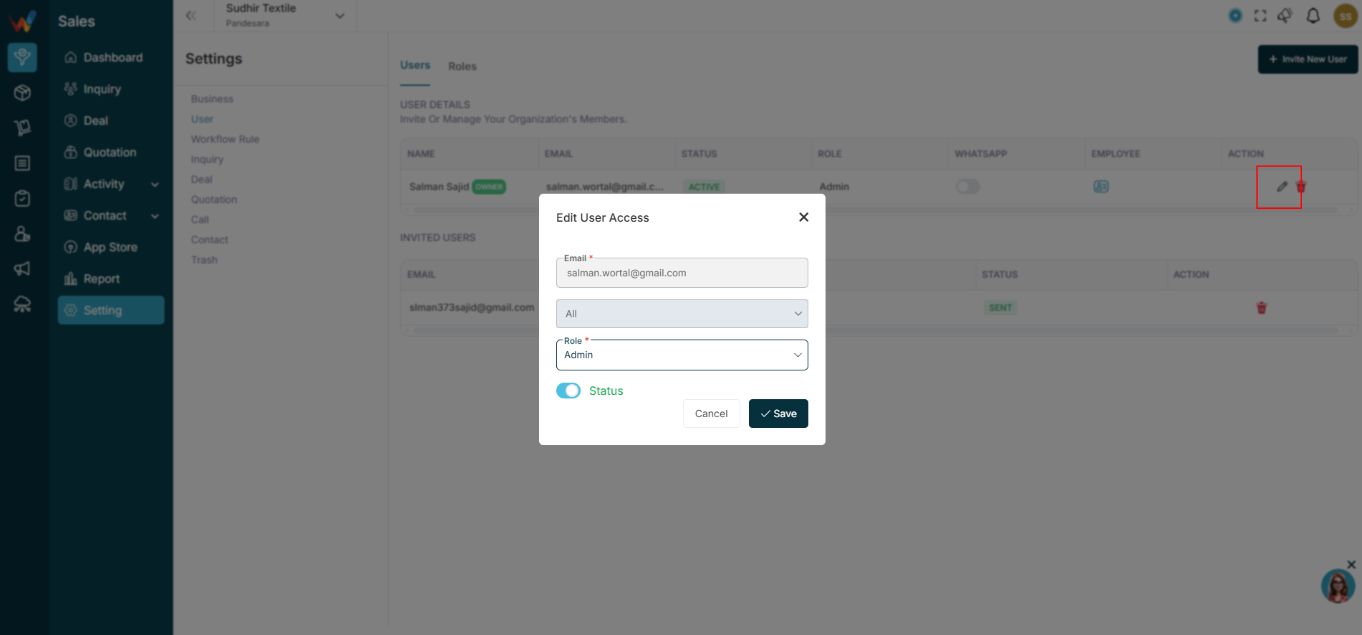
3.1 Edit User Access
Go to:
Settings → Users → Click Edit Icon
Popup shows:
- Branch selection
- Role
- Status Toggle
You can:
- Change role
- Add / Remove branch access
- Activate / Deactivate user
Click Save.
Activate / Deactivate User
4.1 Activate / Deactivate User
Inside Users list, status shows:
- ACTIVE (Green)
- INACTIVE (Red)
If you turn status off:
- User cannot login
- Data remains safe
- Access is blocked
Useful when:
- Employee leaves
- Temporary suspension
- Role change
WhatsApp Access Toggle
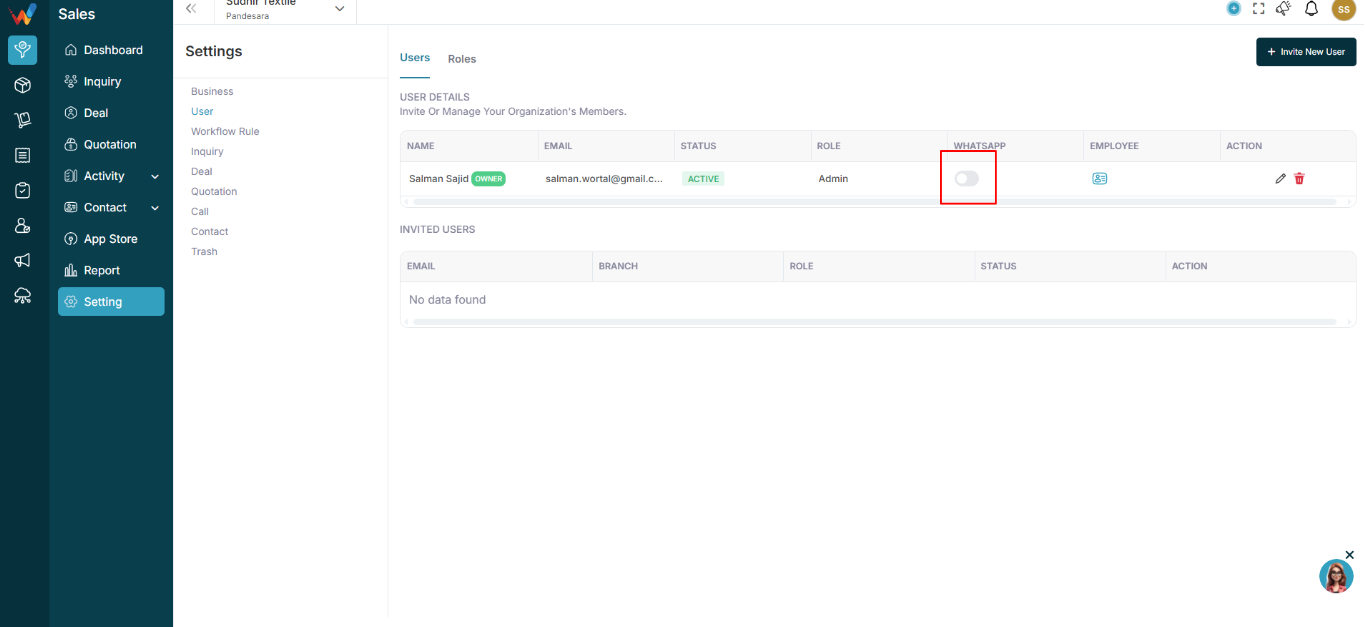
5.1 WhatsApp Access Toggle
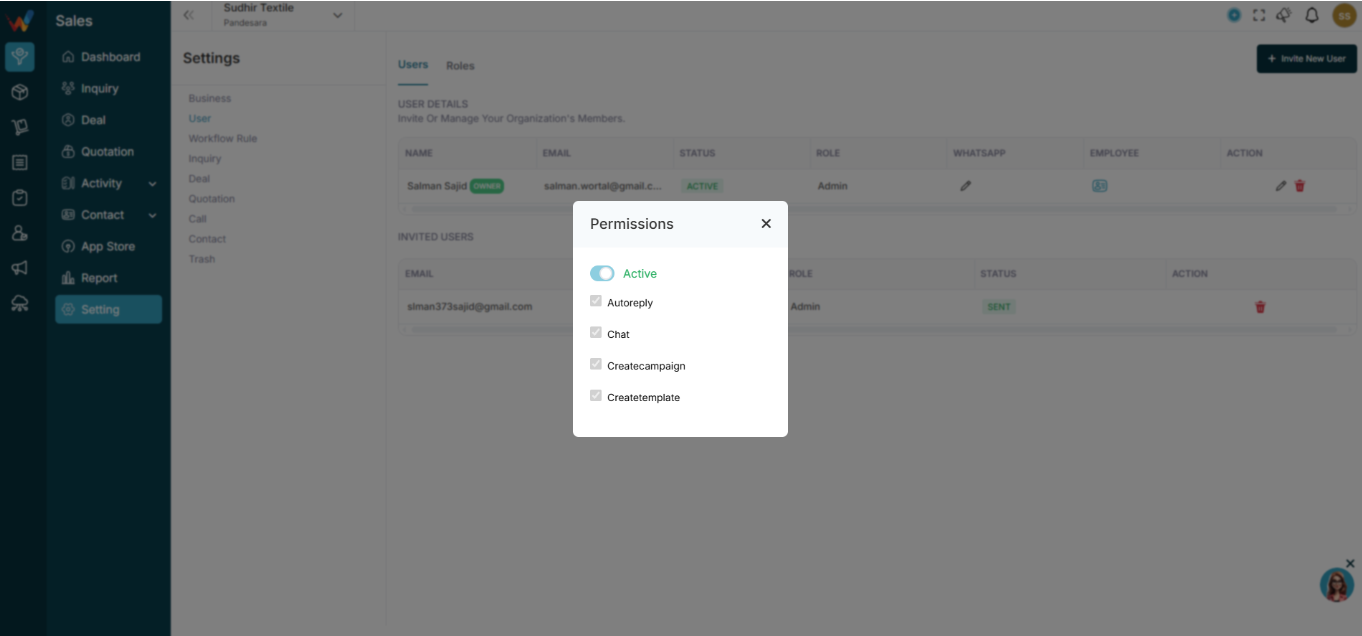
In Users table you will see:
WhatsApp toggle
This controls:
- WhatsApp integration access
- Chat / sharing features
Delete User
6.1 Delete User
Click the Delete icon.
6.2 Important
- Deleting user removes login access
- Past activity remains in reports
- Recommended to Deactivate instead of Delete