
Quotation Settings – Navigation
Navigation Path:
Sales Module → Settings → Quotation
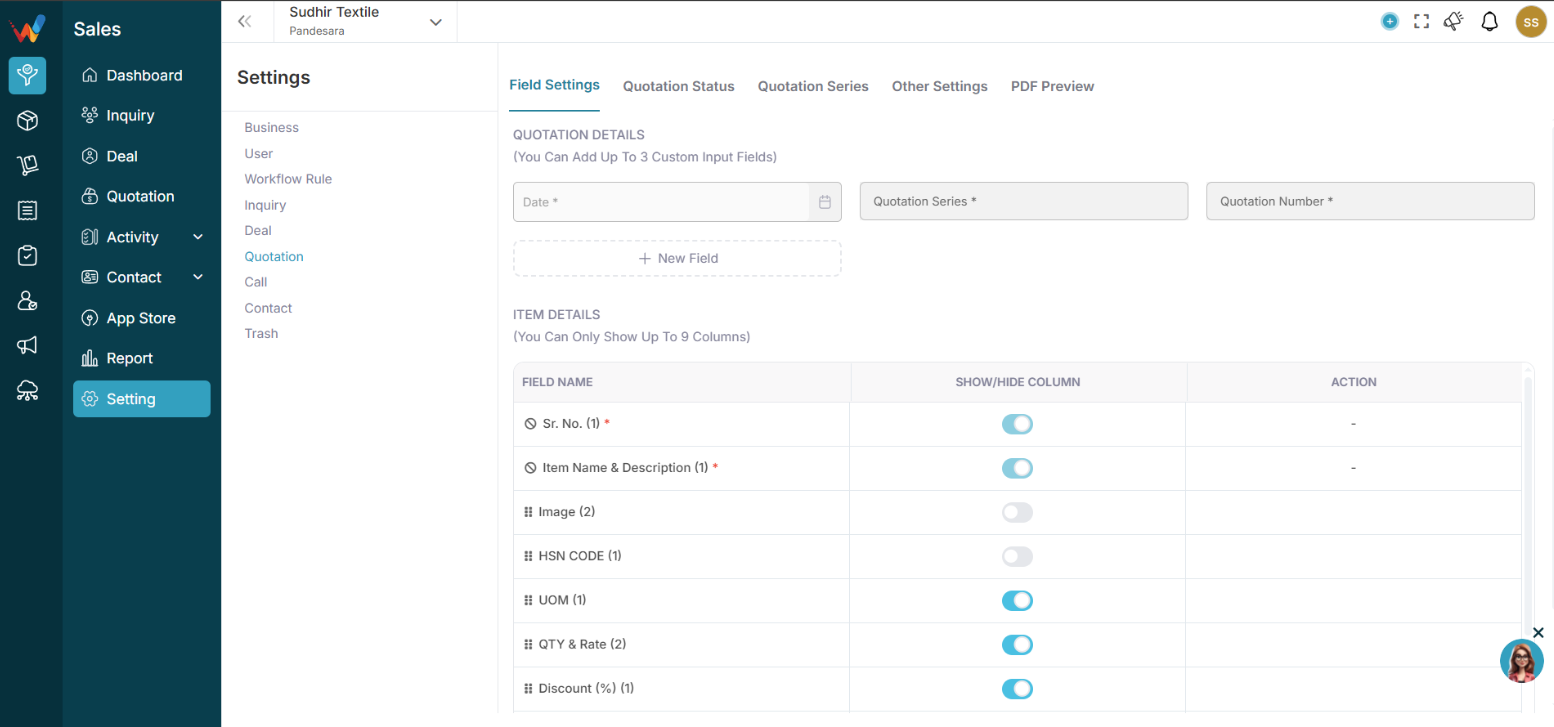
You will see these tabs:
- Field Settings
- Quotation Status
- Quotation Series
- Other Settings
- PDF Preview
Field Settings
2.1 Section 1: Field Settings
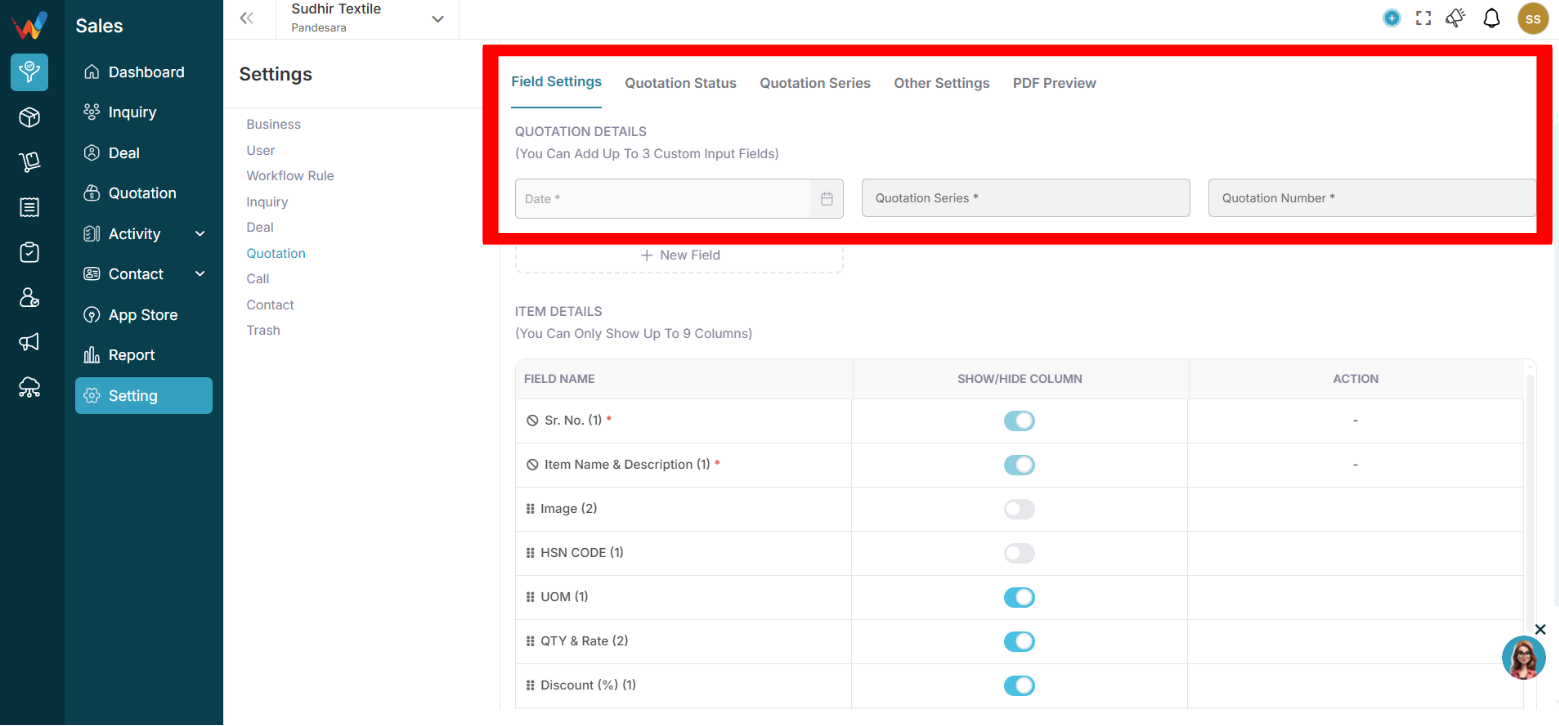
This controls:
- Quotation Header Fields
- Custom Input Fields (Max 3)
2.2 Quotation Header Fields
2.2.1 Standard Fields
Standard fields include:
- Date
- Quotation Series
- Quotation Number
- Contact Detail
- Name
- Contact Person
2.2.2 Field Actions (3 Dot Menu)
 You can:
- Activate
- Edit
- Delete (if custom)
Click the 3 dots on a field to manage.
2.3 Add Custom Field (Max 3)
Click:
New Field
Examples for Textile:
- Agent Name
- Contact Number
2.4 Item Details Section
You can enable or disable columns (Max 9 visible).
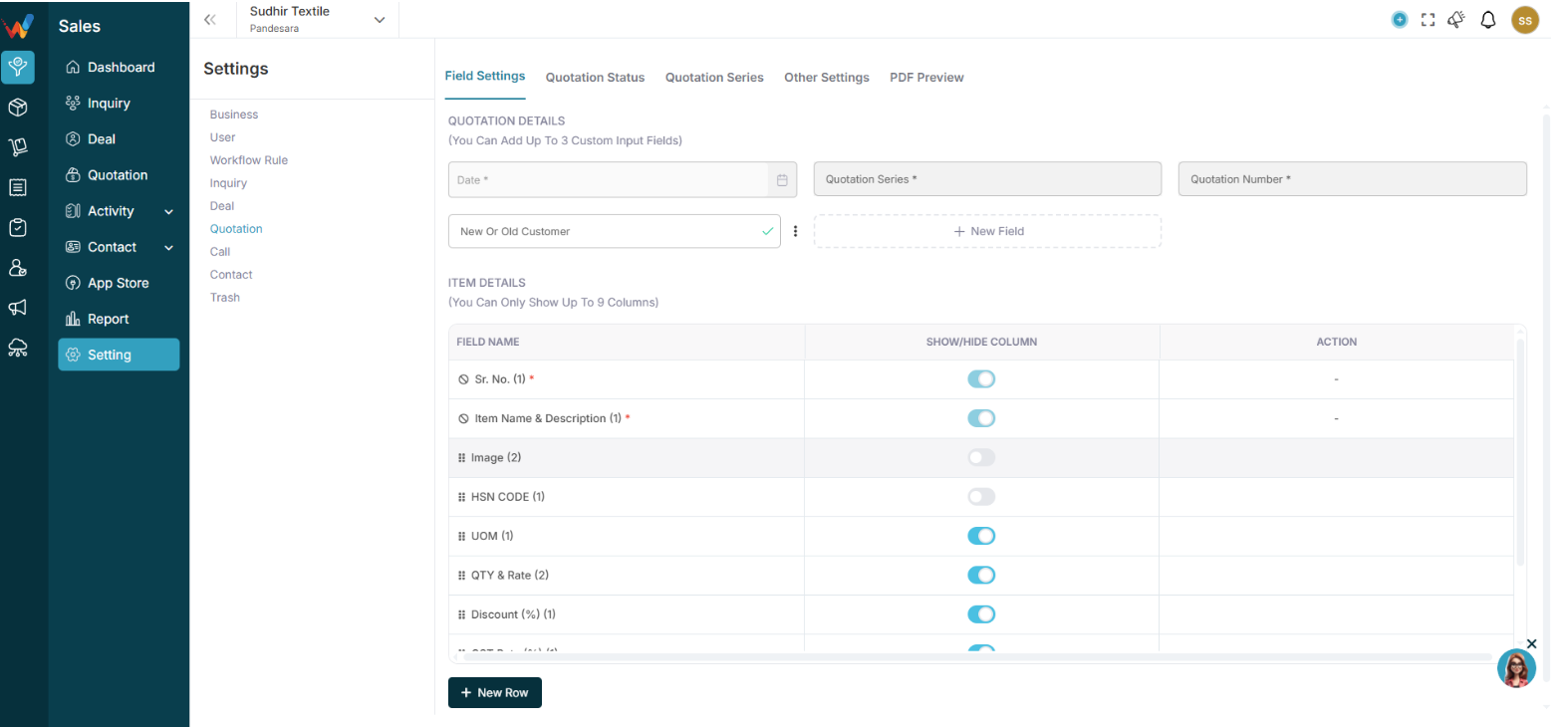
Available columns:
- Sr. No.
- Item Name and Description
- HSN Code
- Image
- Quantity
- Rate
- UOM
- Discount (%)
- GST Rate (%)
- Amount
- Total Amount
Use toggle to:
✔ Show
❌ Hide
2.5 Recommended Textile Item Setup
Recommended (show):
- Item Name and Description
- Quantity
- Rate
- GST Rate
- Amount
- Total
Optional:
- HSN Code (if GST billing required)
- Image (for catalogue-based quoting)
Quotation Status
3.1 Section 2: Quotation Status
Controls quotation lifecycle.
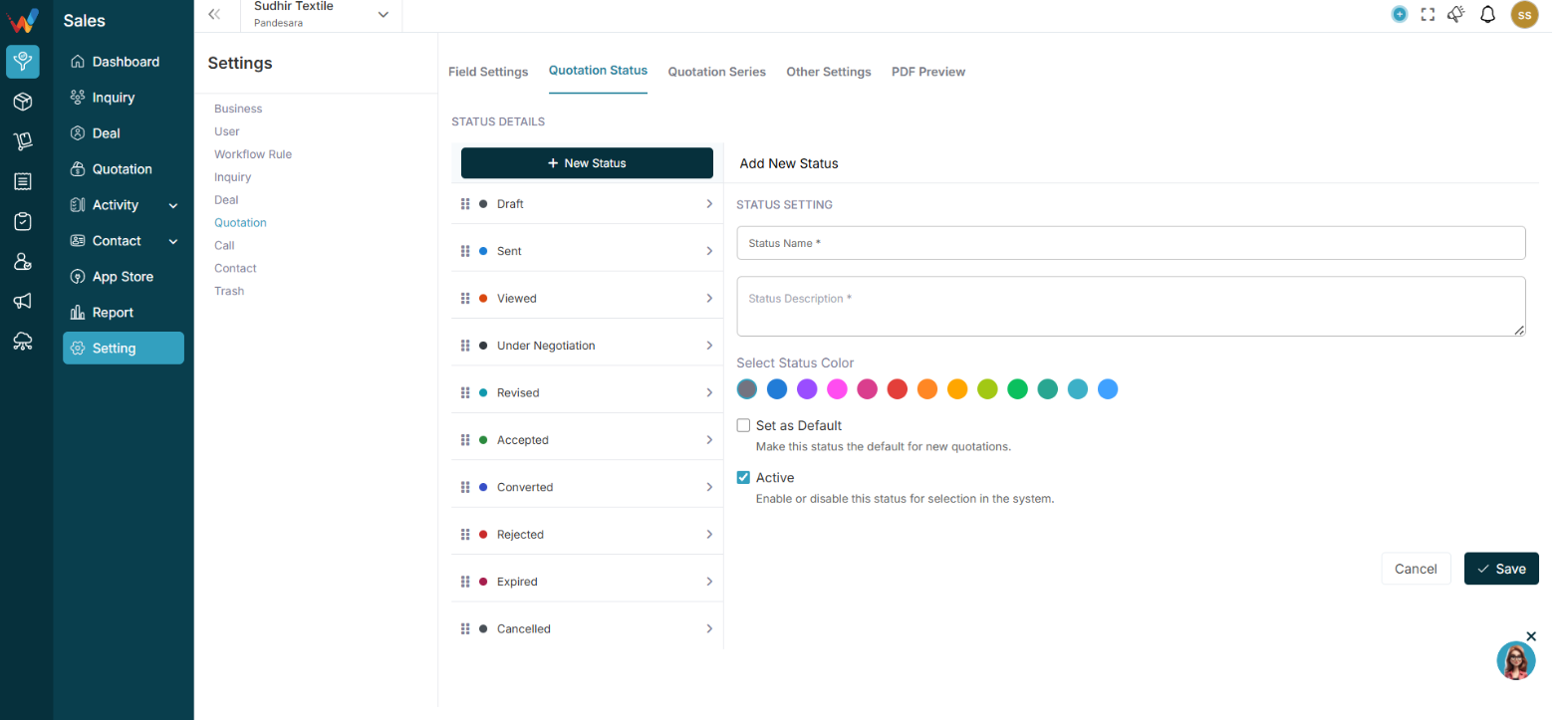
Default statuses include:
- Draft
- Sent
- Viewed
- Under Negotiation
- Revised
- Accepted
- Converted
- Rejected
- Expired
- Cancelled
3.2 Add New Status

Enter:
- Status Name
- Status Description
- Select Colour
- Set as Default (optional)
- Active toggle
3.3 Textile Quotation Flow Example
Draft → Sent → Viewed → Negotiation → Revised → Accepted → Converted
Quotation Series
4.1 Section 3: Quotation Series

Controls numbering format.
You can define:
- Series Name
- Prefix
- Suffix
- Starting Number
- Default Series
4.2 Example Textile Series Setup
Series Name: FY 2025-26
Prefix: QT-
Suffix: 25-26
Starting No: 001-
Final quotation number format:
QT-001-25-26
4.3 Best Practice
- Separate series per financial year
- Set a default series
- Avoid manual numbering
Other Settings
5.1 Section 4: Other Settings
Includes:
5.1.1 Terms and Conditions
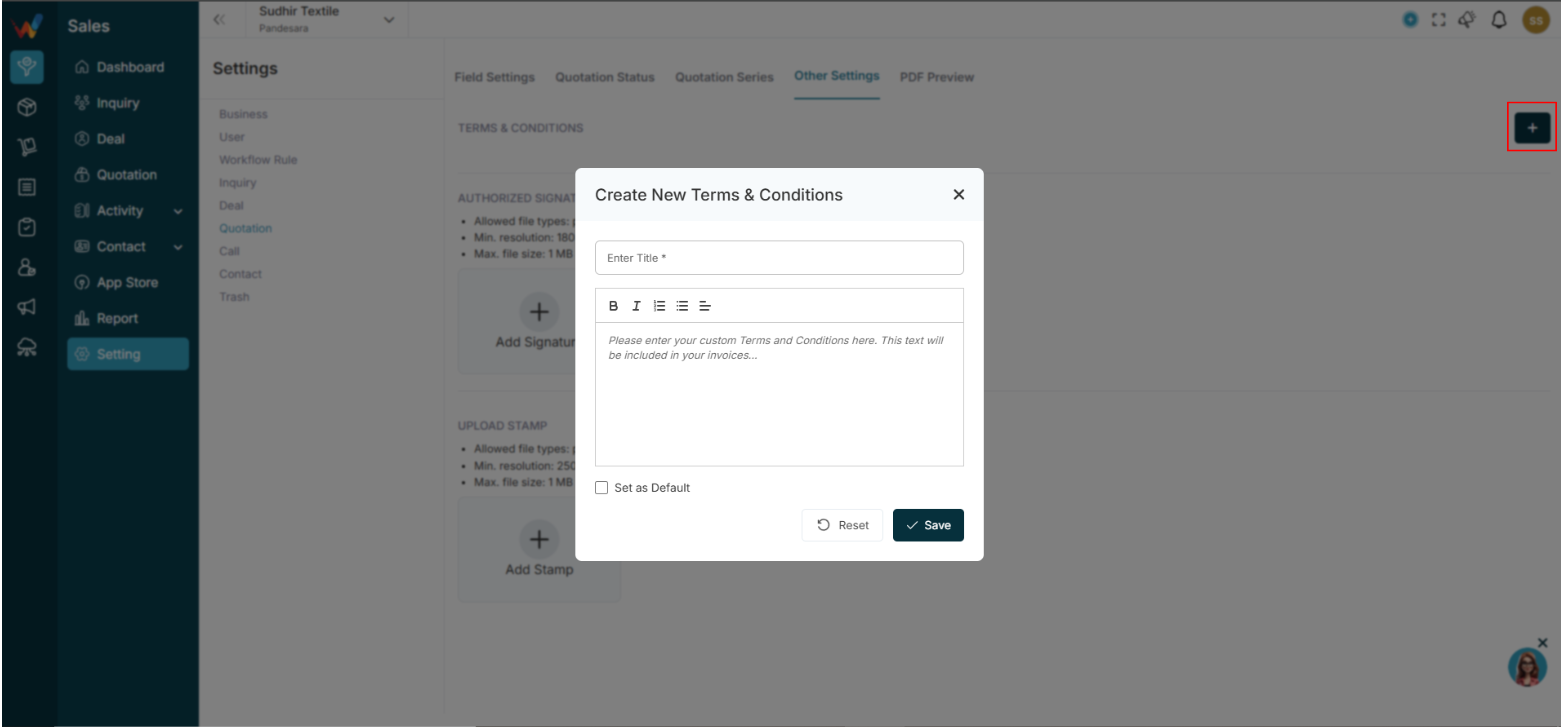
Add:
- Payment terms
- Delivery conditions
- Return policy
- Validity period
These appear in the PDF.
5.1.2 Authorized Signature
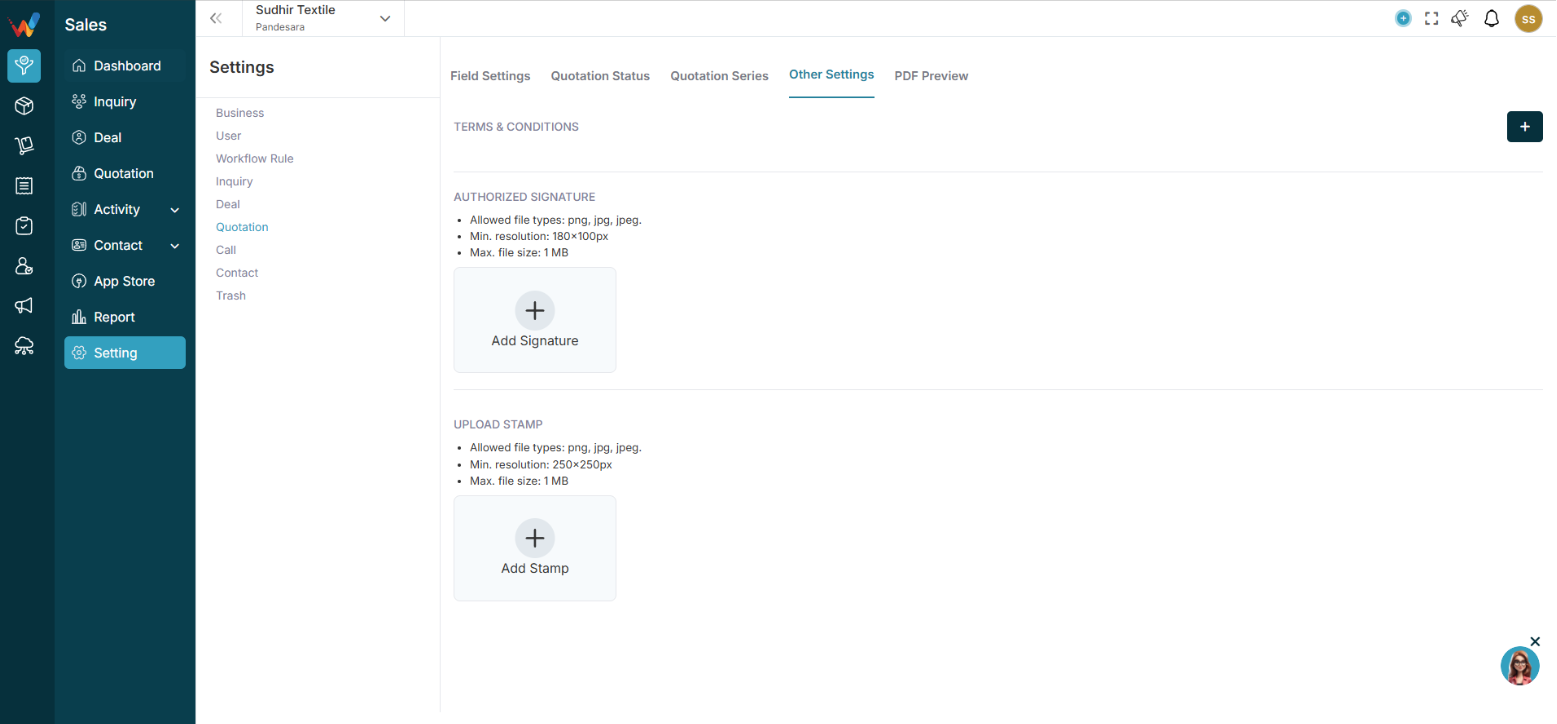
Upload:
- Signature image
Max size 1MB
Minimum resolution required
Appears in the quotation PDF.
5.1.3 Upload Stamp
Upload company stamp for:
- Professional appearance
- Legal clarity
PDF Preview Settings
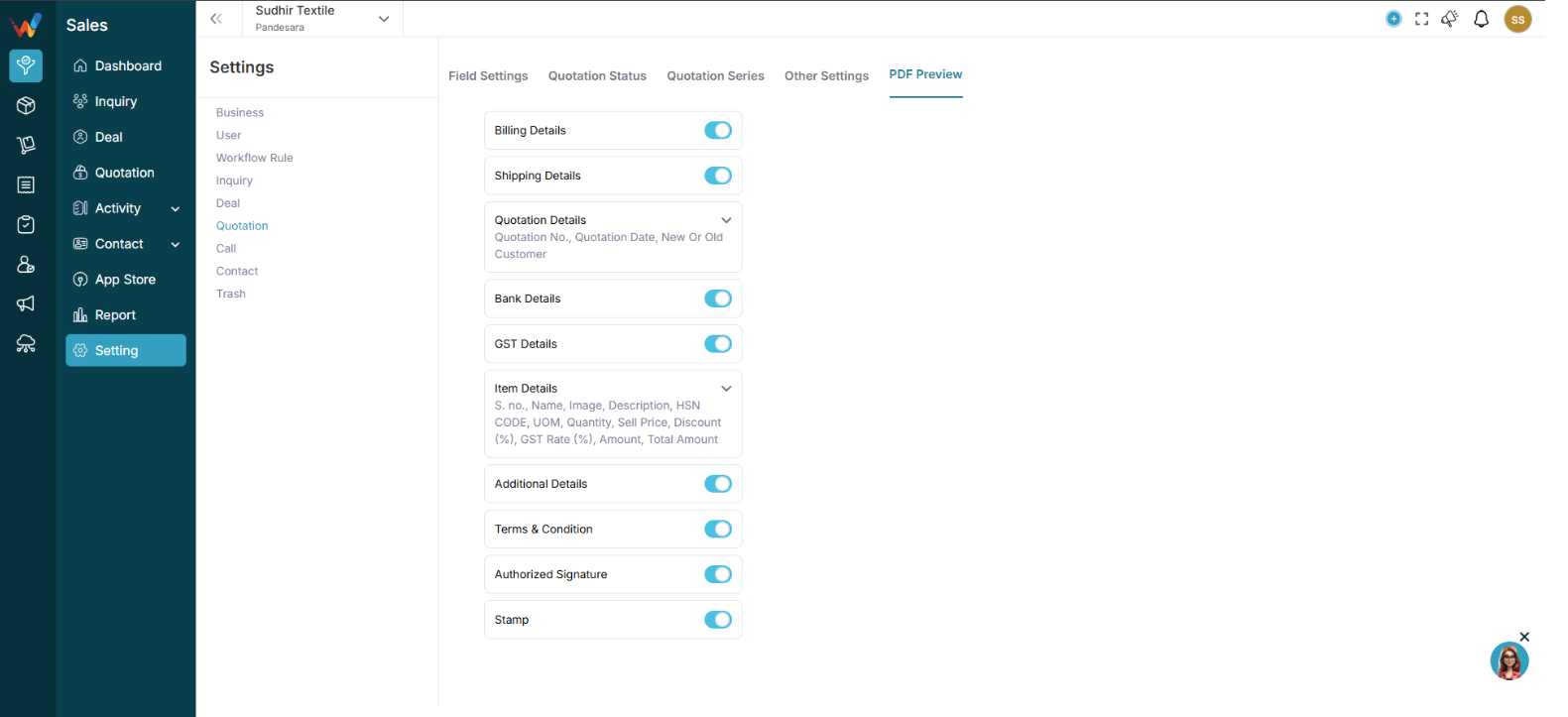
6.1 Section 5: PDF Preview Settings
Controls what appears in the final quotation PDF.
Toggle sections:
- Billing Details
- Shipping Details
- Bank Details
- GST Details
- Item Details
6.2 Item Details Toggle
You can control:
- Show or hide HSN
- Show or hide Image
- Show or hide Discount
- Show or hide GST enable
- Lock required fields
6.3 Textile PDF Recommendation
Show:
- Item Name
- Quantity
- Rate
- GST
- Total Amount
- Bank Details
- Authorized Signature
Optional:
- Hide HSN for non-GST customers
- Hide Image if bulk order