
Navigation Path:
Billing Module → Invoice → Click on + Invoice
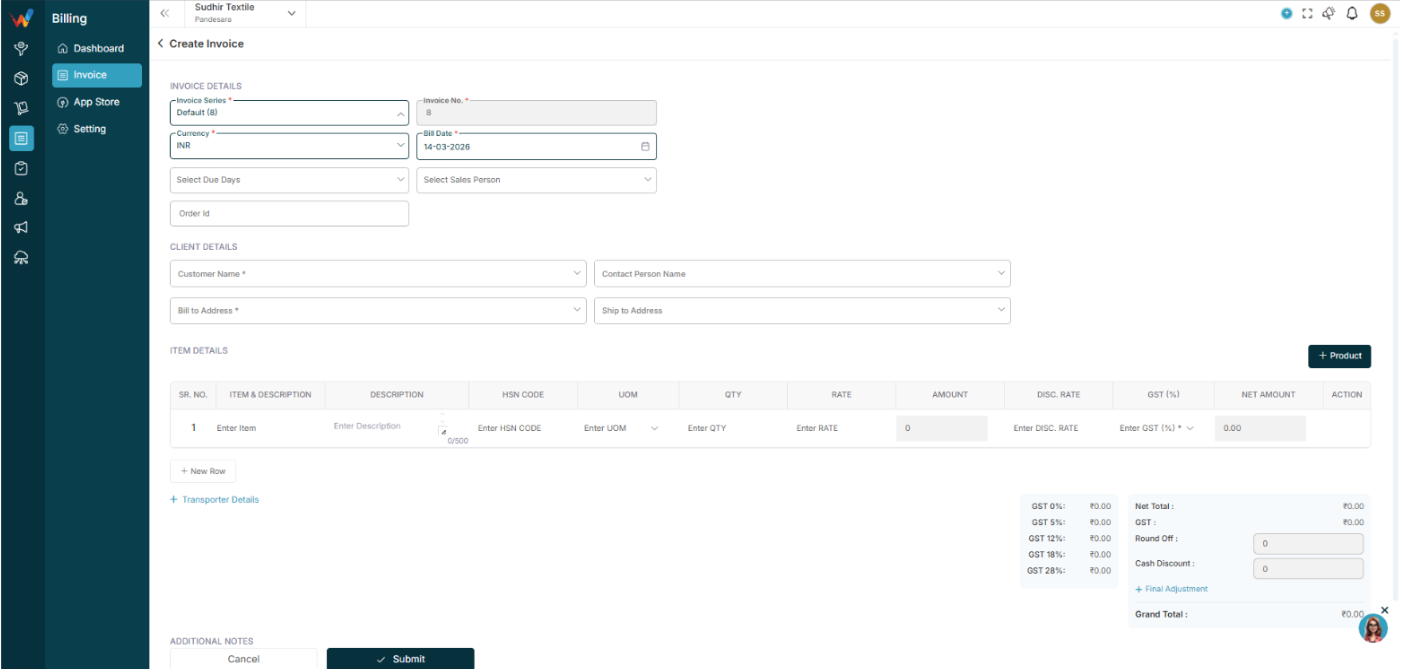
1.1 Invoice Details Section
1.1.1 Invoice Series (Mandatory)
Field type
Dropdown.
Purpose
Defines invoice numbering format.
Behavior:
- User selects series (example: Sale, FY, etc.)
- System generates invoice number based on series configuration
- Controls prefix, suffix, and starting number logic
Important
Invoice number logic depends on Voucher Series configuration.
1.1.2 Invoice No. (Mandatory)
Auto-filled based on selected series.
1.1.3 Currency (Mandatory)
Field type
Dropdown.
Default
INR.
1.1.4 Bill Date (Mandatory)
Field type
Date picker.
Purpose
Defines invoice date.
1.1.5 Select Due Days
Field type
Dropdown.
Purpose
Defines payment term duration. The system may calculate due date automatically based on selected days.
1.1.6 Select Sales Person
Field type
Dropdown.
Purpose
Assigns responsible salespeople.
Used for:
- Performance tracking
- Sales reporting
- Commission calculation (if enabled)
1.1.7 Order ID
Field type
Optional.
Purpose
Used to link invoices with a specific order record.
Client Details Section
2.1 Customer Name (Mandatory)
Field type
Dropdown selection.
When selected:
- Billing address auto-fetches
- GSTIN auto-fetches
- Customer details populate below
2.2 Contact Person Name
Field type
Optional.
Purpose
Used when a customer organization has multiple contacts.
2.3 Bill to Address (Mandatory)
Field type
Dropdown selection.
Purpose
Defines official billing address.
2.4 Ship to Address
Field type
Optional.
Purpose
Used when delivery location differs from billing address.
Item Details Section
This is the most important section of invoice creation.
3.1 Table Columns
- SR. NO.
Auto-generated sequence number. - Item and Description
Select item from product master.
If item not available:
Click Product button to create a new product - Description
Optional item-level notes.
Character limit: 500. - HSN Code
Required for GST compliance. Defines tax category. - UOM
Unit of Measurement.
Example: PCS, KG, MTR, etc. - QTY
Quantity of product. - Rate
Price per unit. - Amount
Auto-calculated field.
Formula:
Amount = Quantity × Rate
Users cannot manually override calculated logic. - GST (Percent)
Dropdown selection.
Options include: 0 percent, 5 percent, 12 percent, 18 percent, 28 percent.
The system calculates tax based on the selected rate. - Net Amount
Auto-calculated.
Formula:
Net Amount = Amount + GST - Action Column
Used to delete an item row. - New Row
Adds an additional item row for multi-product invoices.
Transporter Details
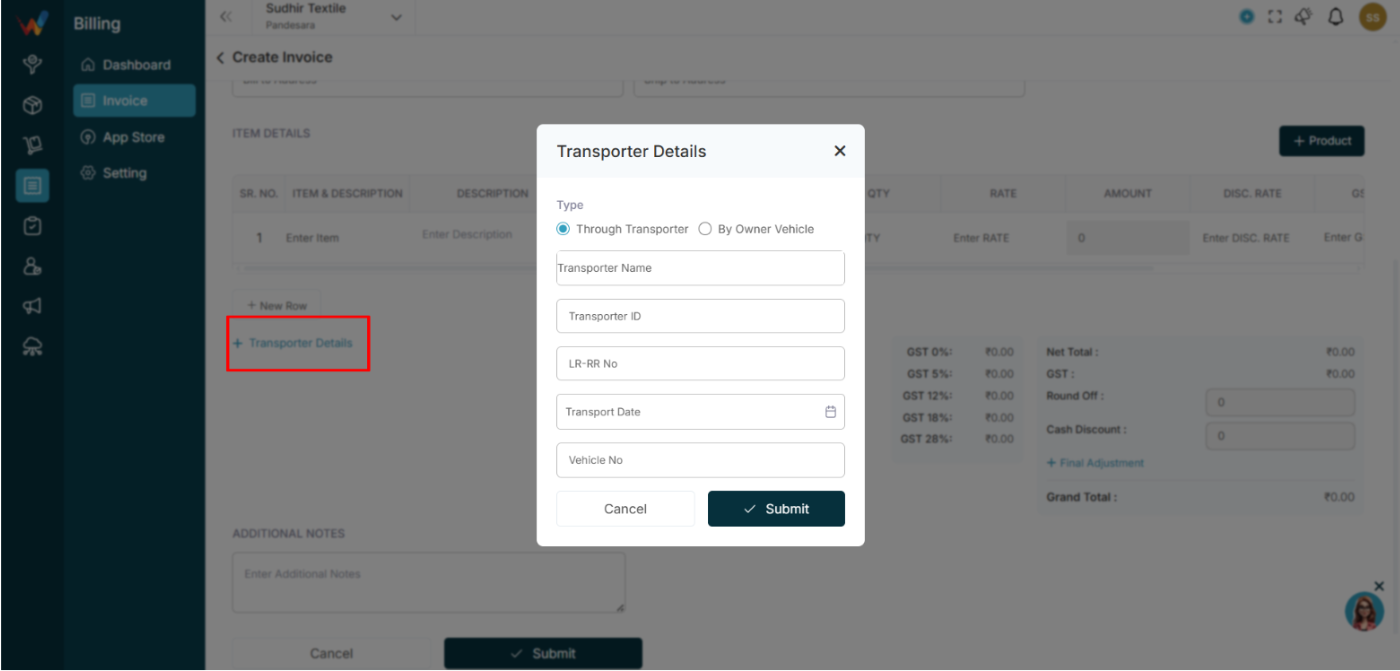
Expandable section. Used when goods movement requires transporter details.
Important for:
- E-Way Bill
- Logistics tracking
Tax and Summary Section (Right Side Panel)
This section calculates totals in real time.
5.1 GST Breakdown
System shows cumulative values for:
- GST 0%
- GST 5%
- GST 12%
- GST 18%
- GST 28%
5.2 Net Total
Sum of all item amounts before GST.
5.3 GST
Total GST amount.
5.4 Round Off
Manual adjustment field used to adjust final decimal difference.
5.5 Cash Discount
Optional deduction field.
5.6 Final Adjustment
Additional manual adjustment option.
5.7 Grand Total
Final payable amount.
Formula:
Grand Total = (Net Total + GST plus or minus Round Off minus Discount plus or minus Adjustment)
Additional Notes Section
Free text field.
Used for:
- Payment terms
- Delivery instructions
- Bank details
- Special conditions
Bottom Action Buttons
7.1 Cancel
Closes the screen without saving.
7.2 Submit
Validates mandatory fields. Creates invoice record. Invoice appears in the Invoice List.