
Business Impact
1.1 What This Section Directly Impacts
This section directly impacts:
- Lead clarity
- Conversion rate
- Team productivity
- Owner reporting
User Assignment Rules
2.1 What User Assignment Rules Ensure
This is one of the most powerful automation features in your system.
It ensures:
- No lead loss
- Automatic distribution
- Right lead to right person
- Branch-wise control
- Smart routing based on location or source
User Assignment Rules – Complete Guide
3.1 Navigation
Go to:
Settings → Lead Settings → User Assignment
You will see:
- Existing Rules List
- ON/OFF Toggle
- Edit / Delete option
- Create User Assignment Rule
3.2 Part 1: What Is User Assignment Rule?
User Assignment Rule automatically assigns new leads based on:
- Source
- Location (Country/State/City)
- Role or Individual user
- Round Robin logic
Instead of manually assigning every lead, the system does it automatically.
3.3 Part 2: Create New Assignment Rule
Click:
Create User Assignment Rule
3.3.1 Step 1: Enter Rule Name
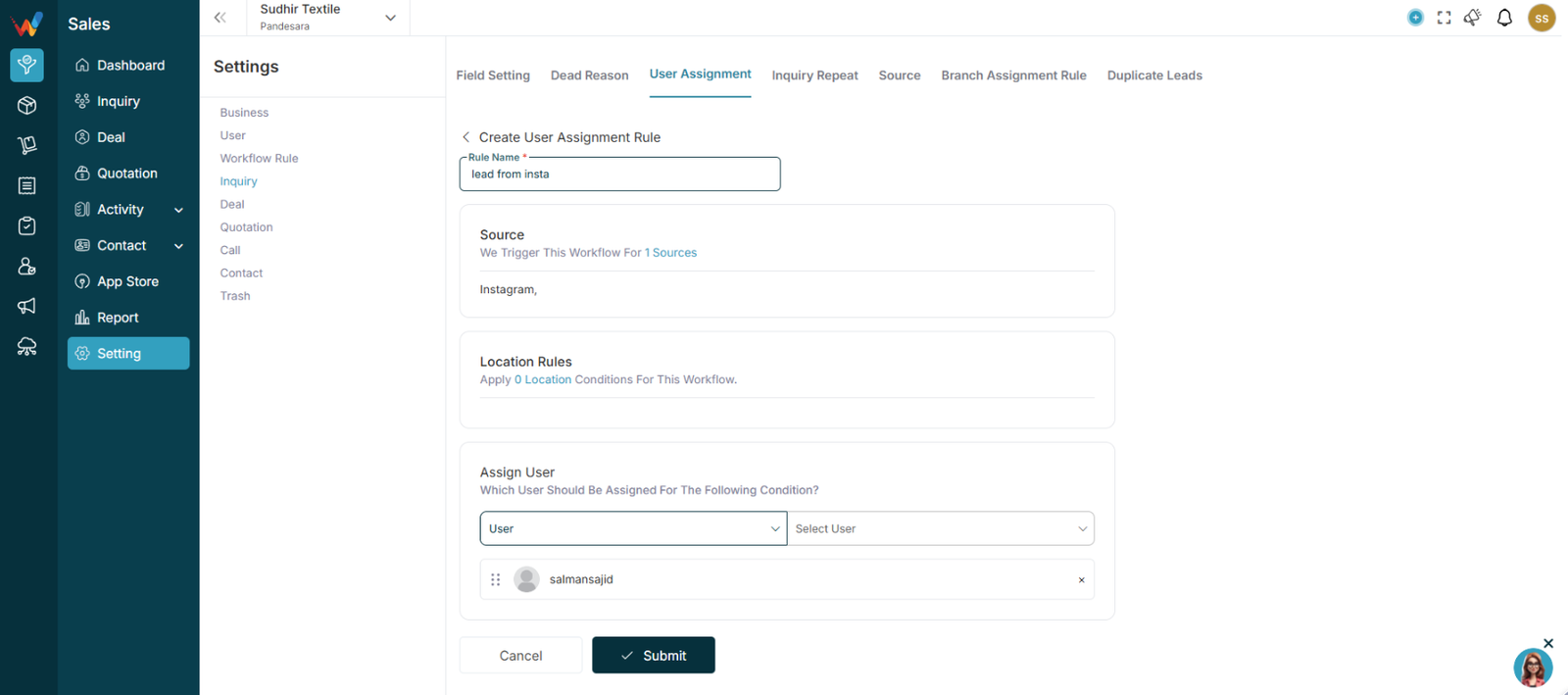
Example:
- Surat Leads
- Hyderabad Event
- Digital Print Team
- Round Robin – Sales
3.4 Part 3: Select Source Trigger
Section:
Source – Which Source Do You Want To Trigger?
You can select:
- All Sources
or - Particular Sources
If selecting Particular Sources, choose from list:
- Google Form
- TextileCRM Demo
- Scribd
- wp-ads-demo
- Webinar
- Webhook
Example:
If source = Hyderabad Expo → Assign to Hyderabad team
3.5 Part 4: Location Rules
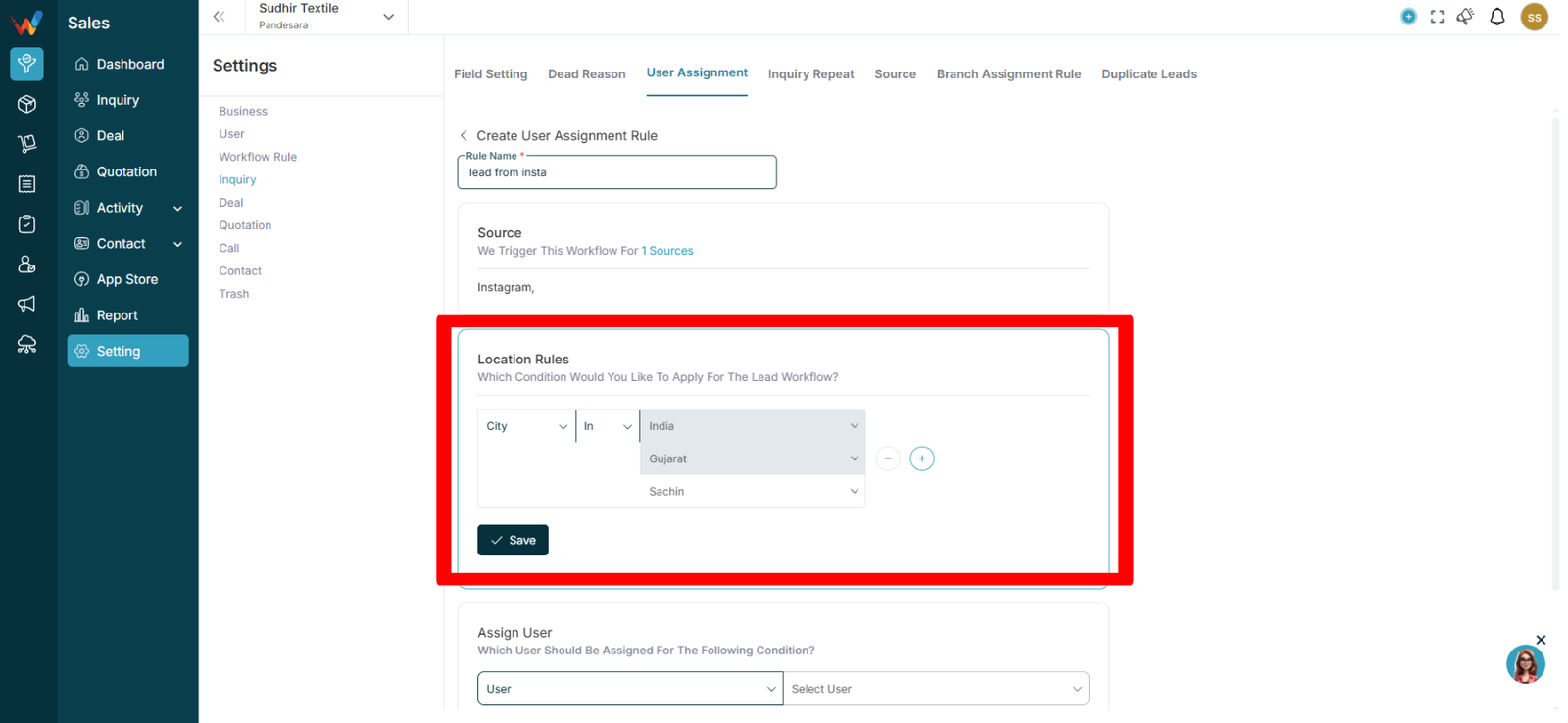
Section:
Location Rules – Apply Location Conditions
You can define conditions based on:
- Country
- State
- City
You can use:
- AND condition
- OR condition
- Multiple rule blocks
Example 1:
Country = India
AND
State = Gujarat
→ Assign to Gujarat Sales Team
Example 2:
City = Surat
OR
City = Ahmedabad
→ Assign to West Region Manager
3.6 Part 5: Assign User Section
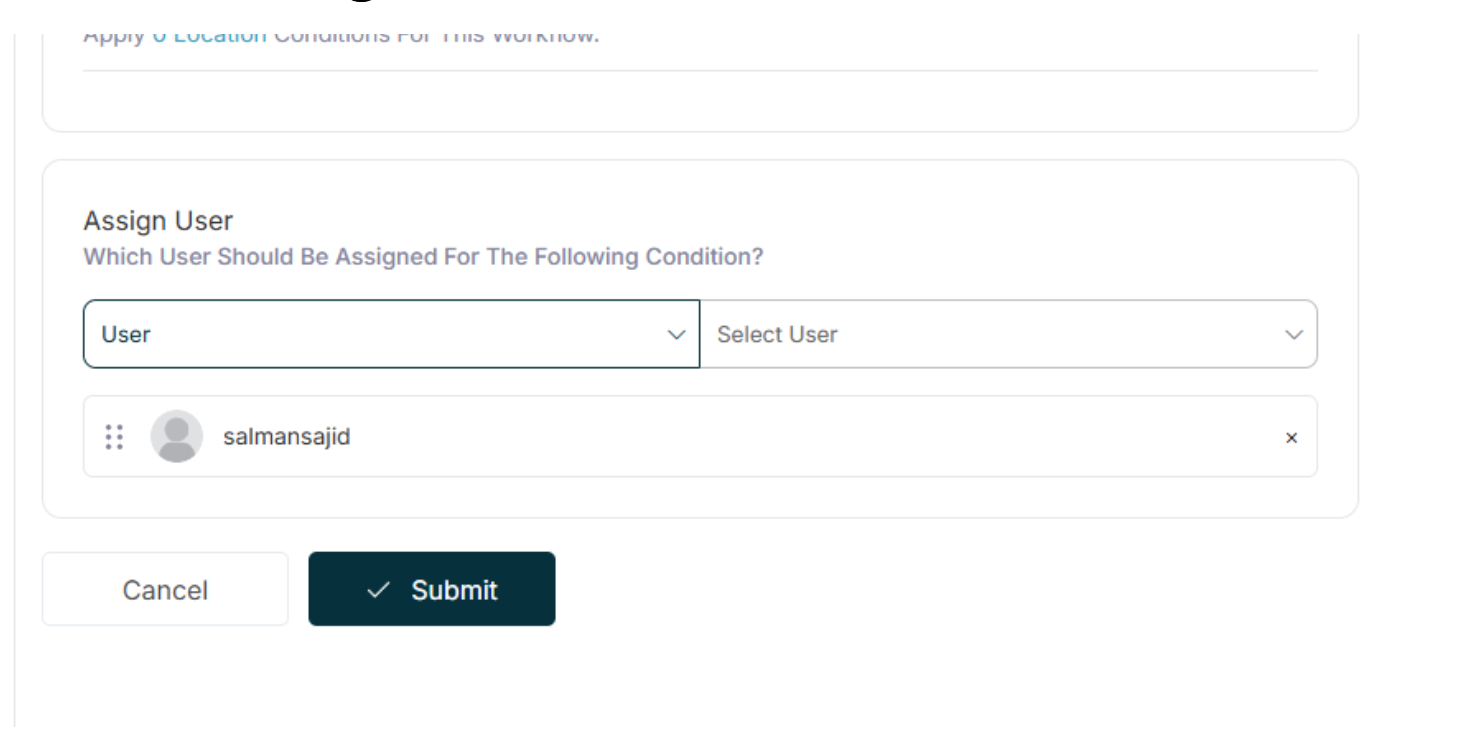
Section:
Which User Should Be Assigned?
You can assign by:
- User
or - Role
3.6.1 Option 1: Assign Specific User
Choose:
User → Select User
Example:
Assign all Surat leads to Tanvi Rathod(user)
3.6.2 Option 2: Assign by Role
Choose:
Role → Select Role
Example:
Assign all Mumbai leads to Sales Head role
The system will assign users under that role.
3.7 Part 6: Round Robin Assignment
In your main User Assignment list, you can enable:
Round Robin
This means:
- Leads will be distributed equally
- One by one among selected users
- Fair distribution
Example:
If 3 sales people:
Lead 1 → User A
Lead 2 → User B
Lead 3 → User C
Lead 4 → User A
3.8 Part 7: ON / OFF Toggle
Every rule has:
ON/OFF toggle
If ON:
Rule is active
If OFF:
Rule will not trigger