
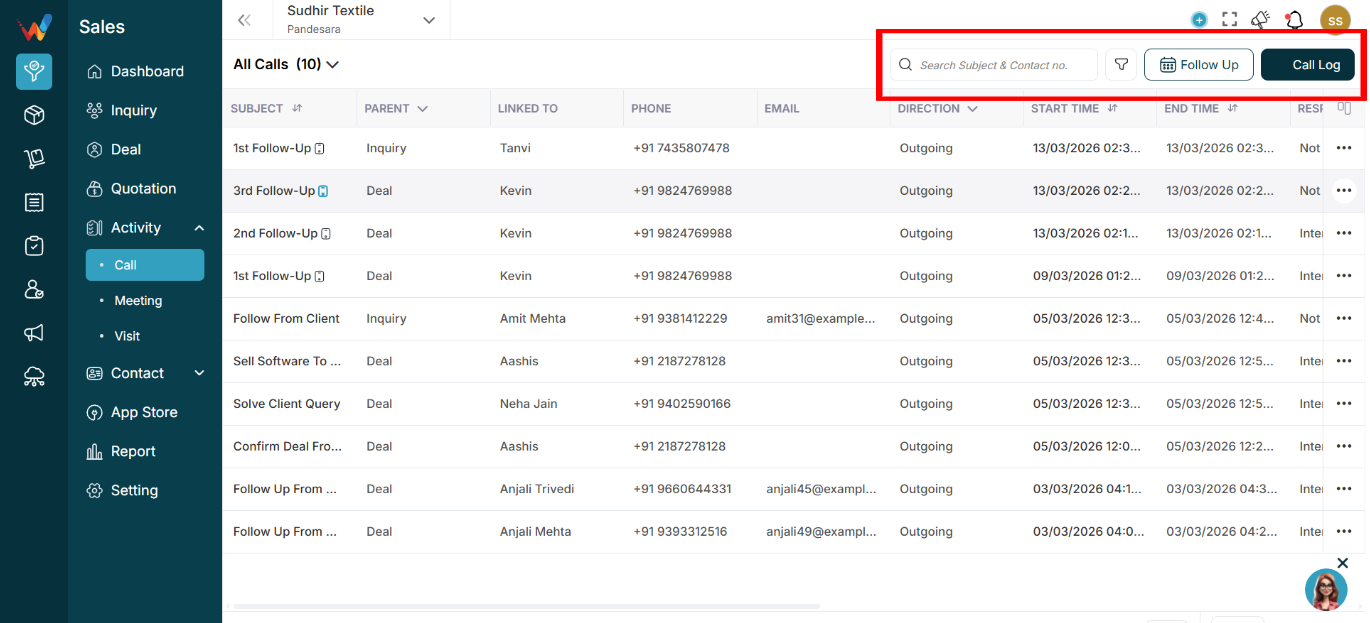
3.1 Search (Subject and Contact No.)
Shortcut Key: Ctrl + K
Used to search calls by:
- Call subject (Initial Call, Follow-up, etc.)
- Phone number
Behavior:
- Real-time filtering
- Changes the visible list only, not the data
3.2 Filter Icon
Opens the filter panel.
Navigation Path:
Sales Module → Activity → Call → Click on Filter Icon
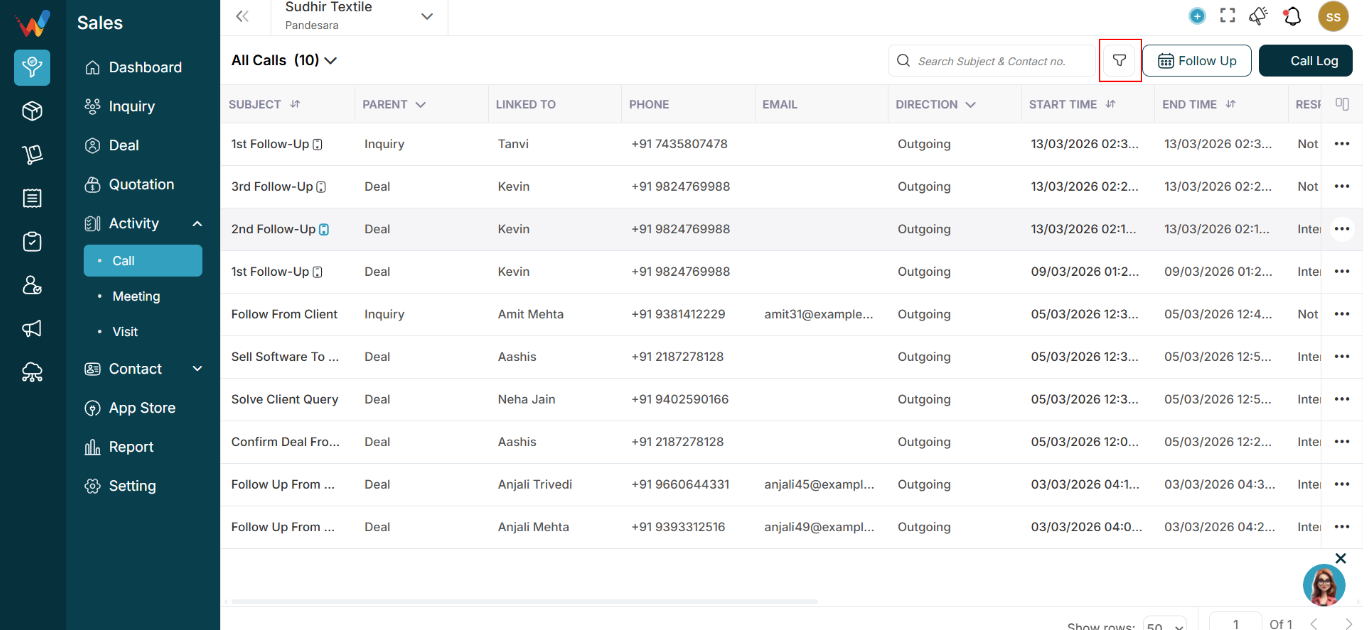

Likely filters include:
- Date range
- Response type
- Direction
- Created by
- Parent (Lead / Deal)
3.3 Follow Up Button
Navigation Path:
Sales Module → Activity → Call → Click on Follow Up
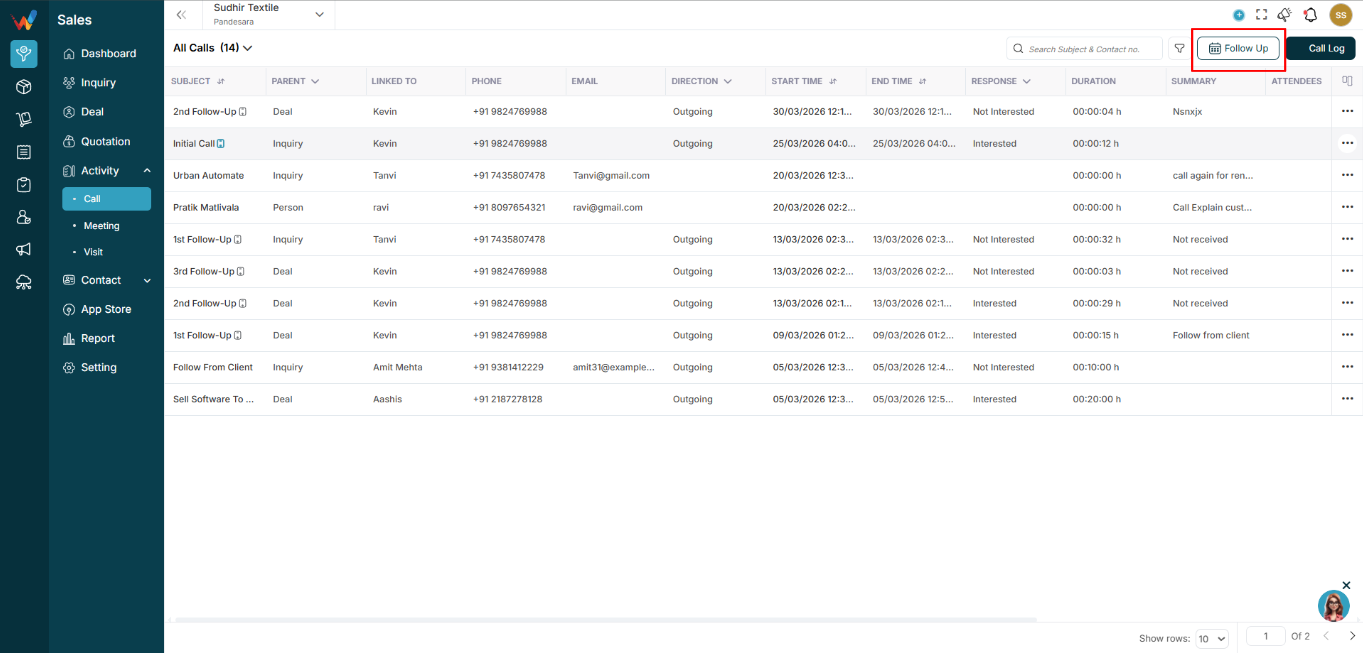
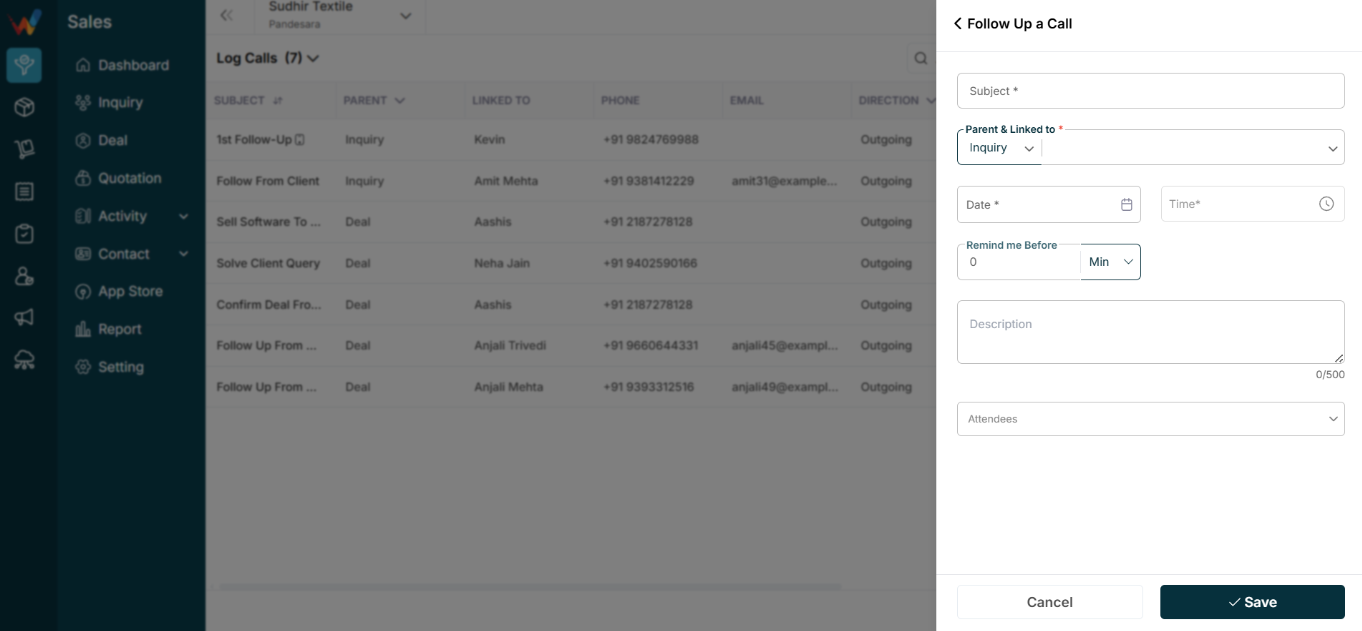
Used to:
- Create a follow-up activity from a selected call
Opens:
- Follow-up scheduling popup
3.4 Call Log Button
Navigation Path:
Sales Module → Activity → Call → Click on Call Log
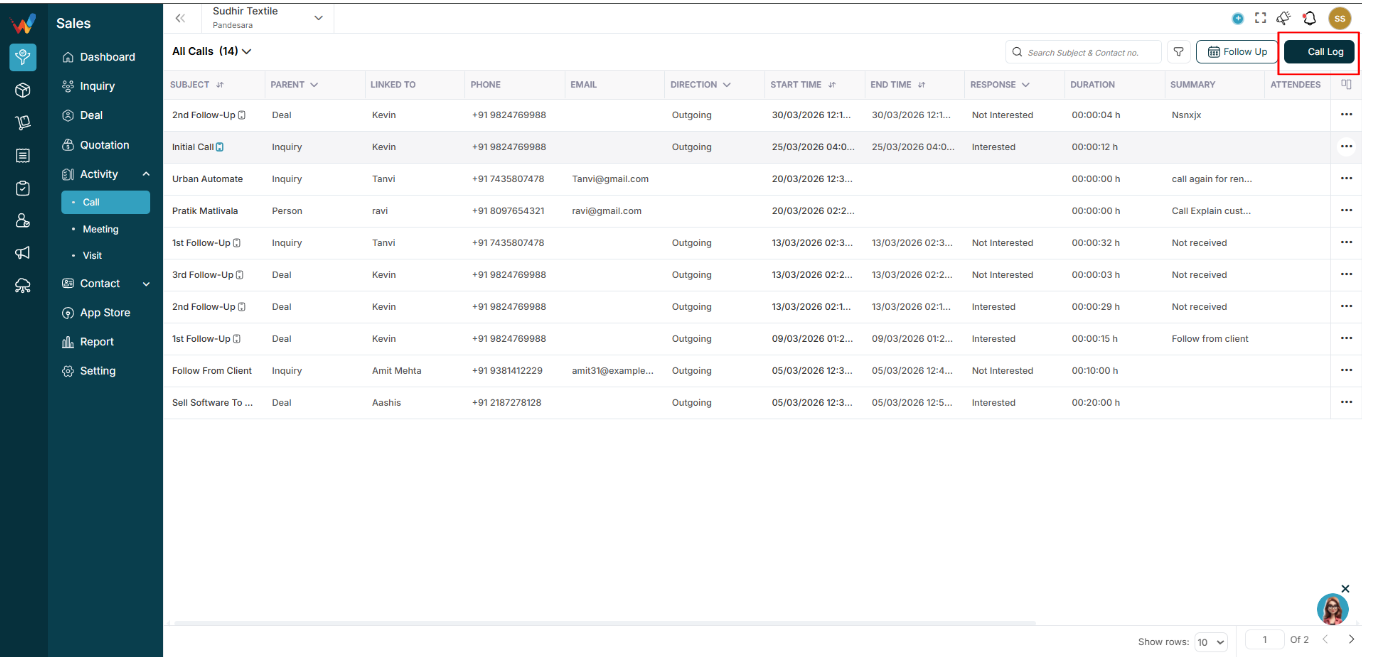
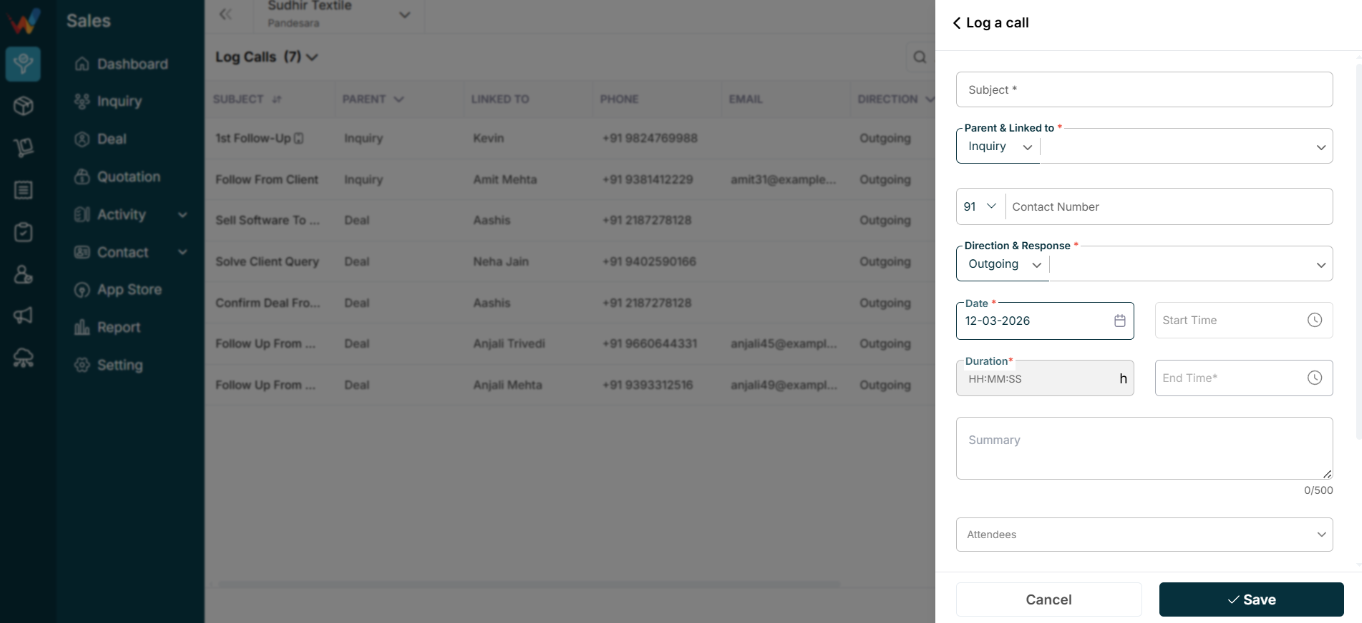
Used to:
- Manually log a new call record
Opens:
- Call logging form
3.5 Column View / Customize Columns
Click column icon → Customize Columns
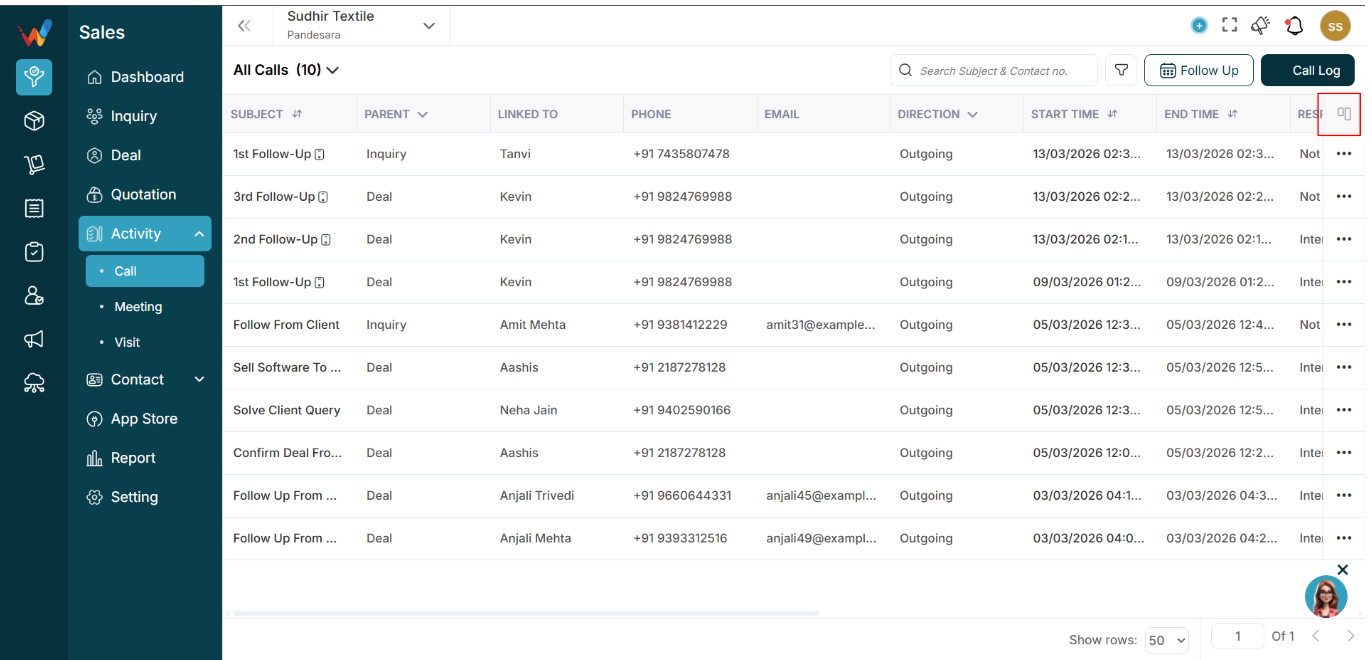
You can:
- Enable or disable columns
- Reorder columns
- Reset to default
Notes:
Locked columns (🔒) cannot be removed.