
Business Impact (User Assignment)
1.1 What This Feature Directly Improves
This feature directly improves:
- Lead response time
- Sales accountability
- Branch performance
- Owner control
Branch Assignment Rule
2.1 What Branch Assignment Rule Controls
This controls:
- Which branch receives the lead
- Based on source or location
- Before user assignment happens
This works before User Assignment Rules.
Branch Assignment Rule – Complete Guide
3.1 Navigation
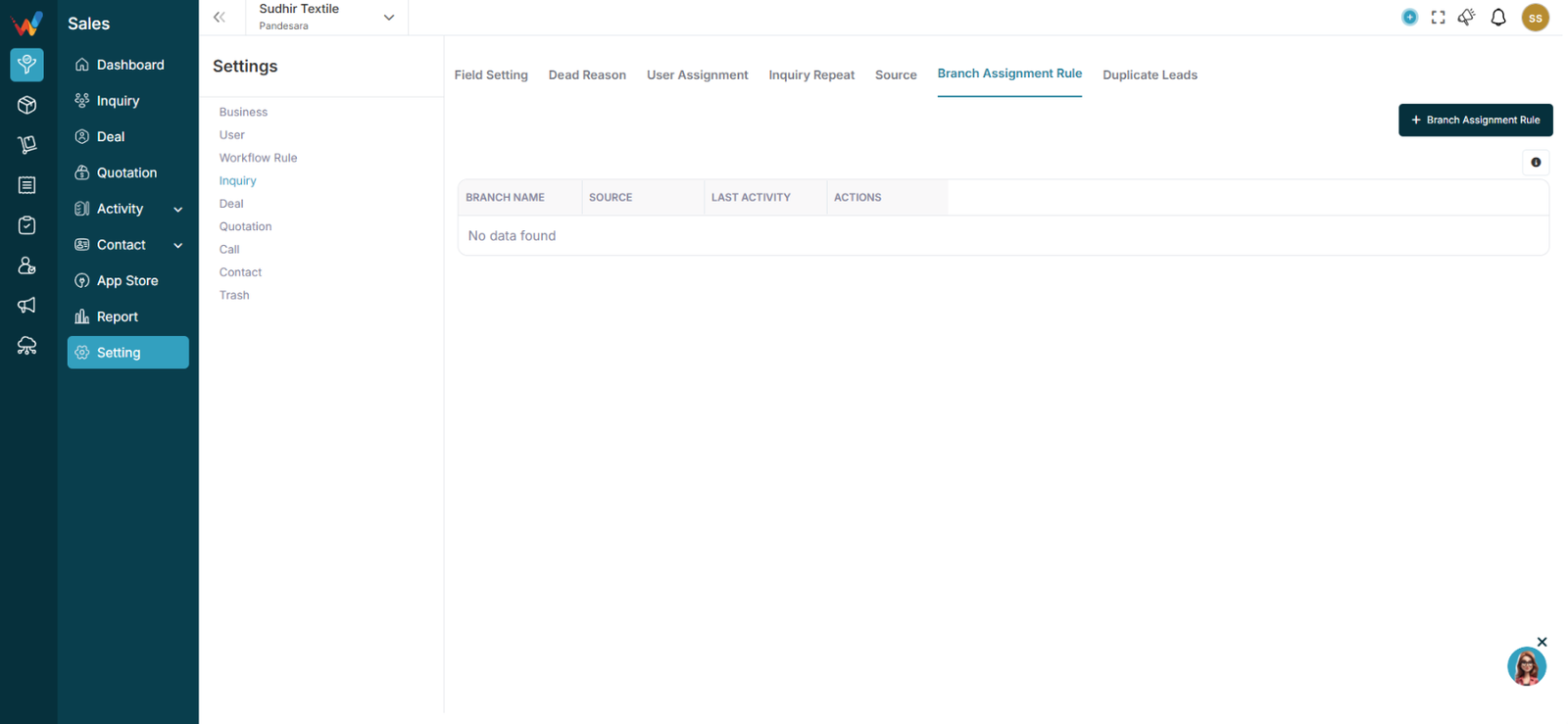
Go to:
Settings → Lead Settings → Branch Assignment Rule
You will see:
- Branch Name
- Source
- Last Activity
- Actions
- Branch Assignment Rule button
3.2 Part 1: What Is Branch Assignment Rule?
Branch Assignment Rule automatically assigns a lead to a specific branch based on:
- Source
- Location (Country / State / City)
If no rule matches:
Lead goes to HQ (Default Branch).
3.3 Part 2: Create New Branch Assignment Rule
Click:
Branch Assignment Rule
3.3.1 Step 1: Select Branch
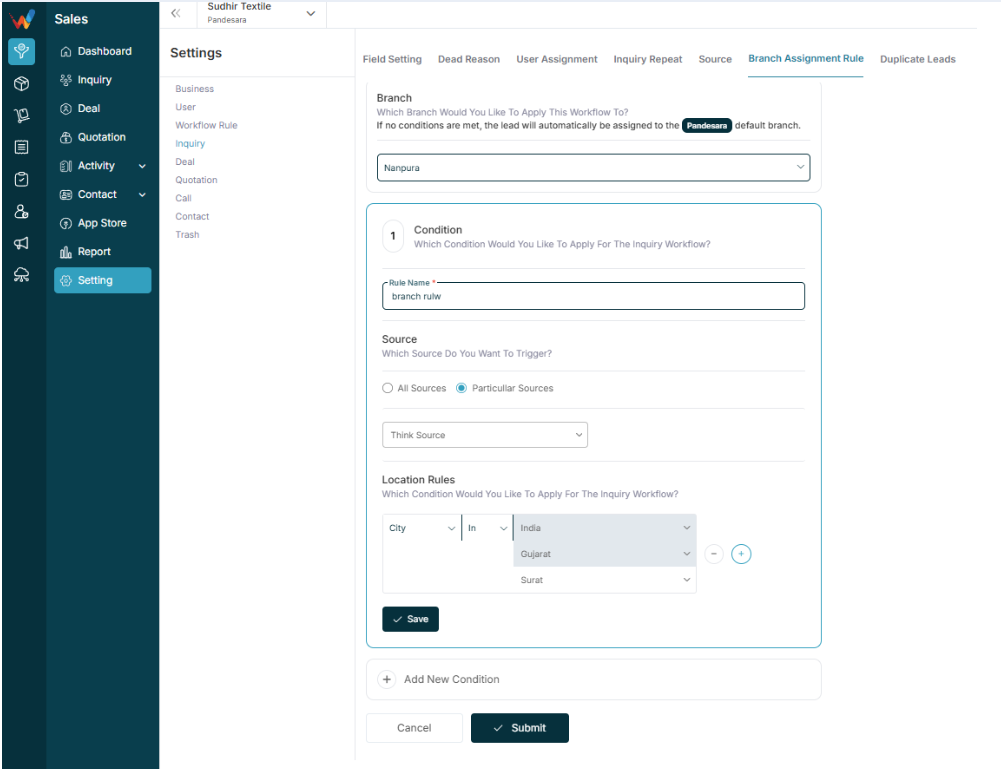
Choose which branch should receive leads when condition matches.
Example:
- HQ
- Delhi
- Mumbai
3.3.2 Step 2: Select Source Trigger
You can choose:
- All Sources
or - Particular Sources
If selecting Particular Sources:
Choose from the dropdown list.
Example:
- Hyderabad Expo
- Google Form
- Webinar
- wp-ads-demo
- Webhook
3.3.3 Step 3: Add Location Rules
You can define conditions using:
Country
State
City
Each rule has:
Field → Operator → Value
You can:
- Add multiple conditions
- Use AND logic
- Add additional condition blocks
Example Scenarios for Business
4.1 Case 1: City-Based Routing
City = Surat
→ Assign to HQ Branch
City = Ahmedabad
→ Assign to Ahmedabad Branch
City = Jaipur
→ Assign to Jaipur Branch
4.2 Case 2: State-Based Routing
State = Gujarat
→ Assign to Gujarat HQ
State = Rajasthan
→ Assign to Jaipur Branch
4.3 Case 3: Country-Based Routing (Export Business)
Country = UAE
→ Assign to International Sales Branch
Country = India
→ Assign to Domestic Branch
4.4 Case 4: Source + Location Combined
Source = Hyderabad expo
AND
City = Hyderabad
→ Assign to Hyderabad Branch
Add Multiple Conditions
5.1 Part 4: Add Multiple Conditions
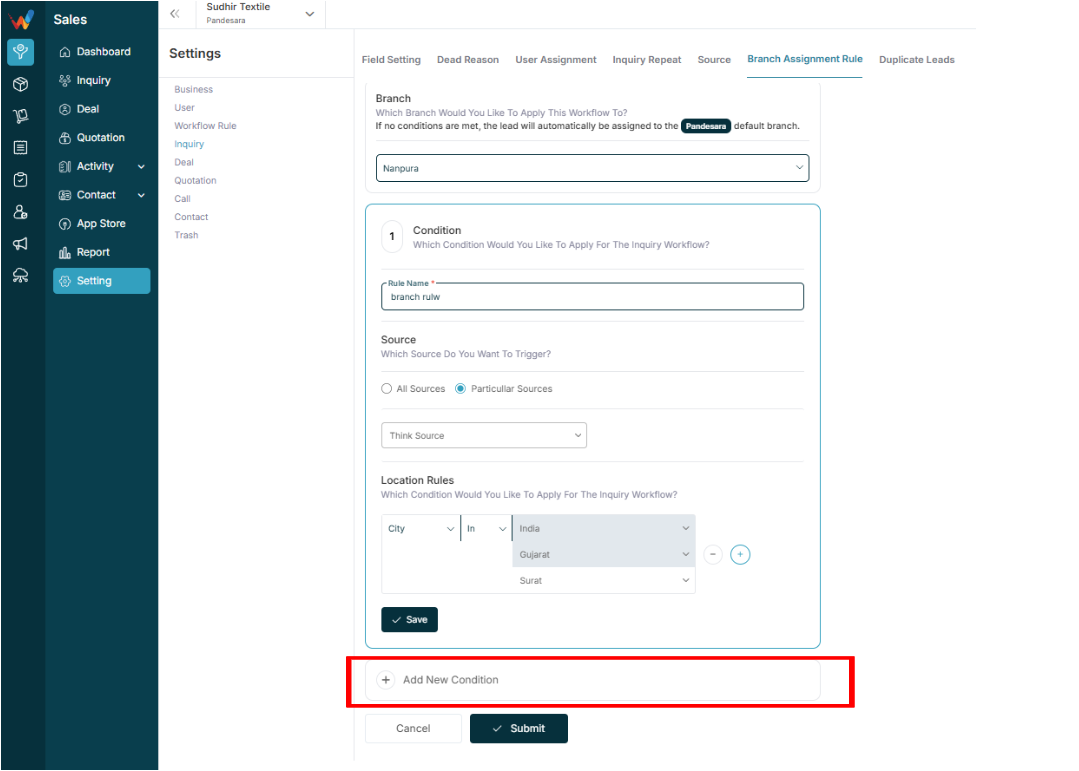
Click:
Add New Condition
You can create multiple condition blocks.
The system evaluates rules in sequence.