
11.1 Header Section
Navigation Path:
Sales Module → Quotation → Click + Quotation

Title
Default: Quotation
Can be changed to:
- Invoice
- Proforma Invoice
- Tax Invoice
Used as the document heading in the PDF.
Currency
Example:
INR
Controls:
- Currency symbol
- Amount formatting
Quotation Status
Default:
Draft
Options may include:
- Draft
- Sent
- Approved
- Rejected
Controls:
- Workflow stage
- Conversion eligibility
11.2 Quotation Details Section
Quotation Date
Date of issue
Used for:
- Legal validity
- Reporting
Quotation Series
Example:
Quotation (FY4132025-26)
Purpose:
- Defines numbering pattern
System auto-generates quotation number based on selected series.
Quotation No
Auto-generated using the selected series and sequence.
11.3 Client Details Section
Person / Organization Name
Select an existing contact.
On selection, the system can auto-fill:
- Billing address
- Shipping address
- GST (if stored)
- Phone
If not found:
User must create the contact first.
Bill To Address
Pulled from saved billing address
Editable if needed
Used in PDF output
Ship To Address (Optional)
Pulled from saved shipping address
Editable if needed
Used when shipping differs from billing
Used in PDF output
11.4 Item Details Section (Core Calculation Area)
Item Table (Customisable Columns)
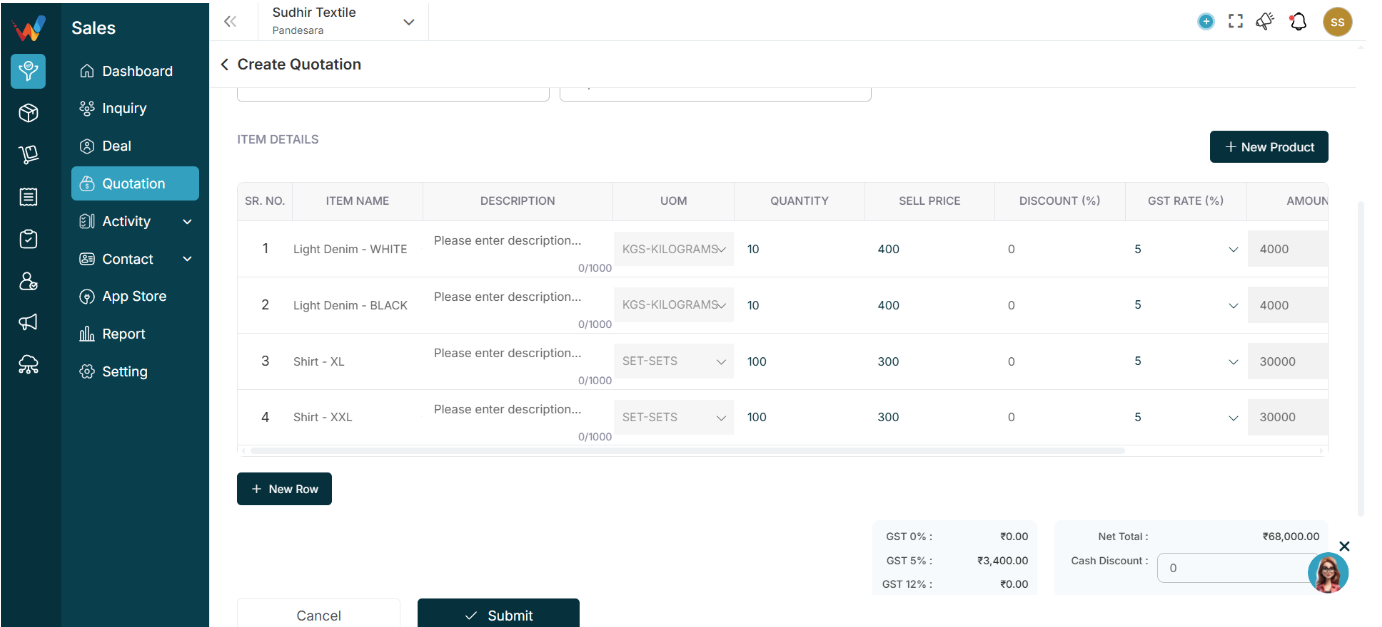
Typical columns:
- SR No
- Item Name
- Description
- Quantity
- Sell Price
- GST Rate (%)
- Amount
- Total Amount
These columns can be configured based on business needs.
Item Name
Dropdown from product master
If not available:
Click + New Product
Selecting a product may auto-fill:
- Description
- Default price
- Default GST rate
Description
Optional product details
Visible in PDF
Character limit: 1000
Quantity
Number of units
Must be numeric
Sell Price
Price per unit before tax
GST Rate (%)
Examples:
- 0%
- 5%
- 12%
- 18%
- 28%
Behavior:
GST is calculated automatically.
Amount
Calculated as:
Quantity × Sell Price
(before GST)
Auto-calculated field.
Total Amount
Calculated as:
Amount + GST
Auto-calculated field.
+ New Row
Adds another product line.
+ New Product (Top Right)
Opens product creation popup.
After save, the new product becomes selectable immediately.
11.5 Tax and Total Summary Panel (Right Side)
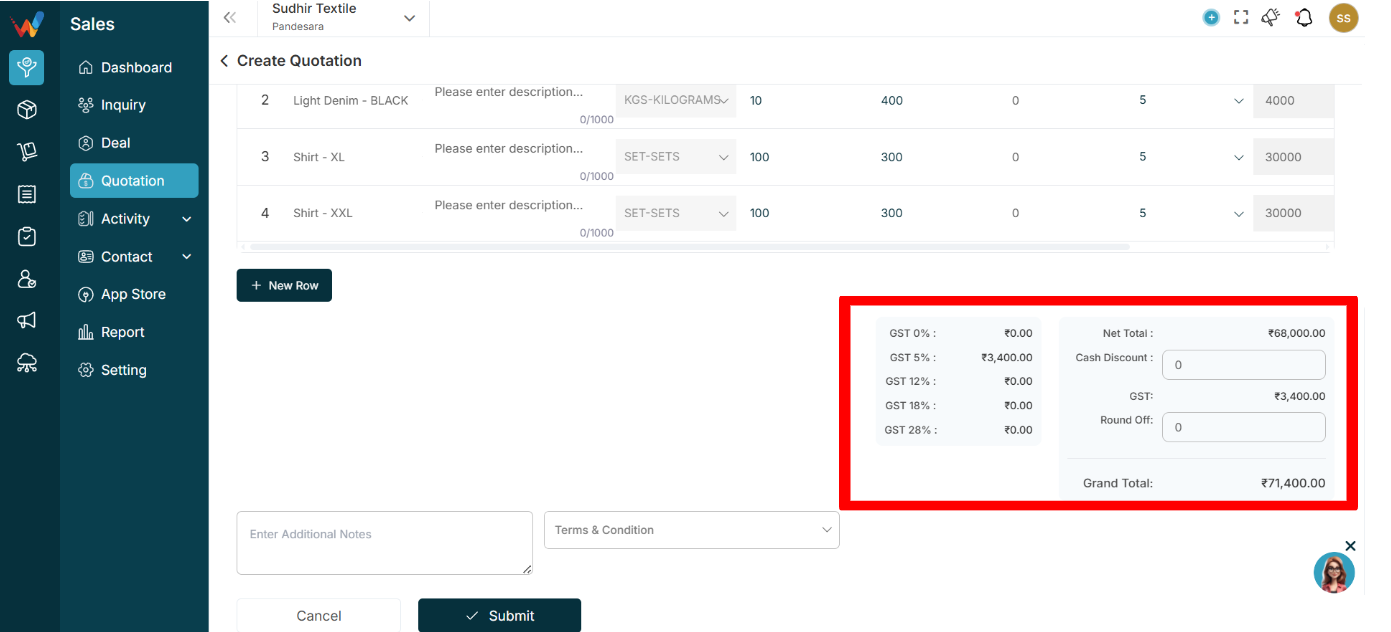
GST Breakdown
Shows tax grouped by rate:
- GST 0%
- GST 5%
- GST 12%
- GST 18%
- GST 28%
Helps with:
- Tax clarity
- GST reporting
Net Total
Total before discount and rounding.
Cash Discount
Manual discount option
Reduces total and can trigger recalculation (based on your tax settings)
GST (Overall)
Total tax amount.
Round Off
Manual rounding adjustment.
Grand Total
Final payable amount
Used in:
- Reports
- Invoice conversion
11.6 Additional Notes
Free text field
Visible in PDF
Used for:
- Payment terms
- Delivery timeline
- Special instructions
11.7 Terms and Condition Dropdown
Navigation Path:
Sales Module → Setting → Quotation → Other Setting and Click (+)
Pulls predefined T&C templates from Settings.
User can choose from available templates.
Appears at the bottom of the quotation PDF.