
1.1 Log a Call (Completed Activity)
Navigation Path:
Sales Module → Activity → Call → Click on Call Log
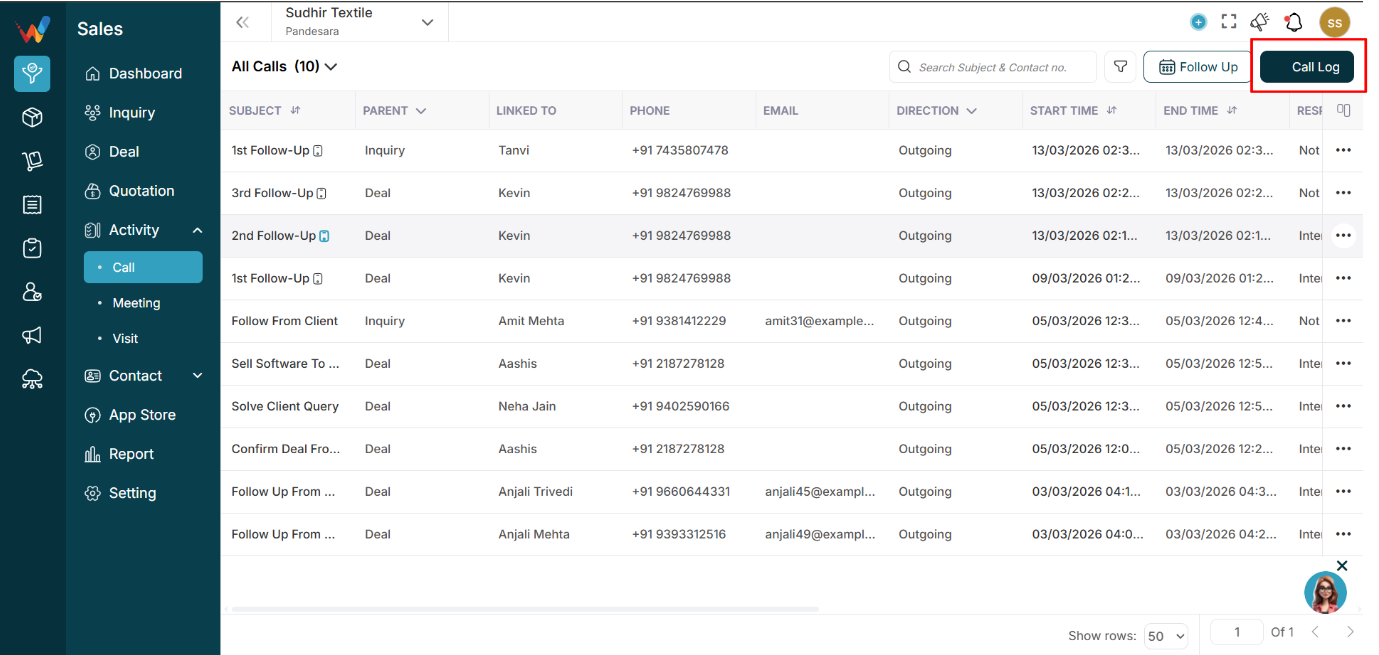
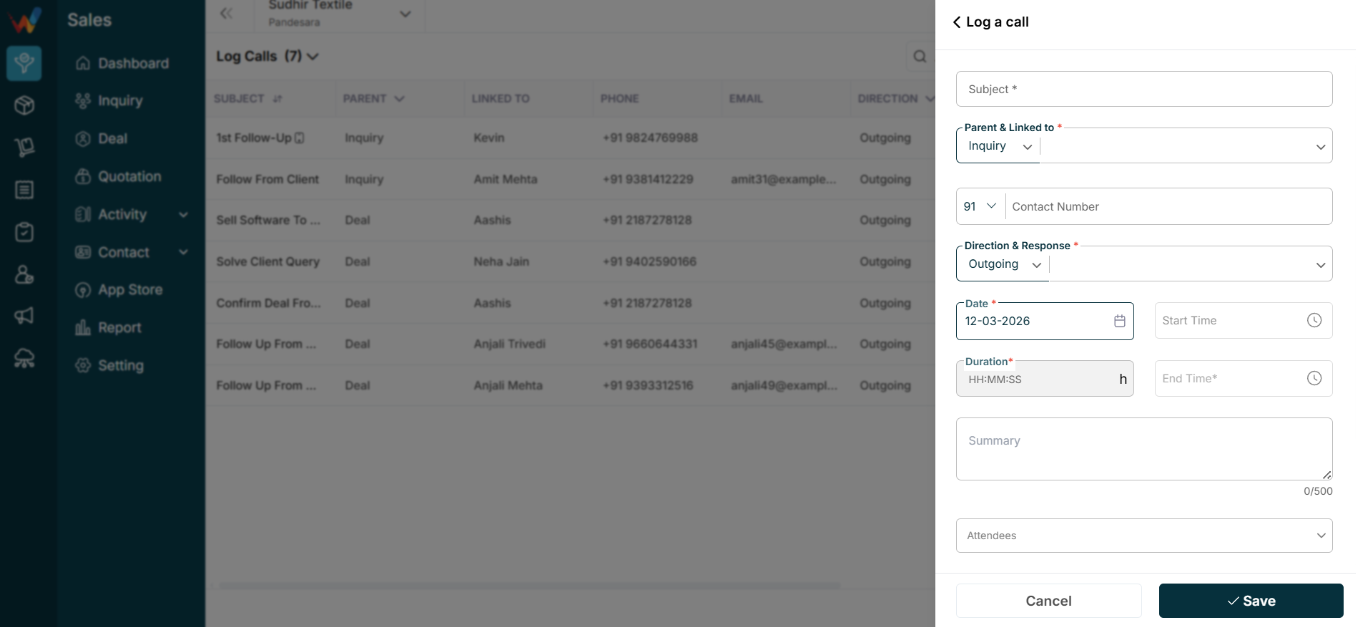
Use this when the call is already completed and you want to add its details in the system
Parent and Linked To *
Dropdown (Lead / Deal / Cold / etc.)
Defines:
- Which module the call belongs to
- Where it appears (Lead timeline or Deal timeline)
- Which reports it impacts
Example:
Parent = Lead → visible in Lead Activities
Contact Number
Enter or select the phone number.
Used for:
- Identifying the contact
- Tracking communication history
If a matching contact exists, it may auto-link.
Direction and Response *
Two key fields:
Direction
- Incoming
- Outgoing
- Missed
Defines who initiated the call.
Response
Outcome examples:
- Interested
- Not Answering
- Call Later
- CNR
- Held
This affects:
- Follow-up decisions
- Reporting metrics
Date *
Date the call occurred.
Start Time
Time the call started.
(Optional depending on configuration.)
End Time *
Time the call ended.
System may auto-calculate this depending on duration rules.
Duration *
Format: HH:MM:SS
Used for:
- Productivity tracking
- Call quality analysis
Summary (0/500)
Short note about the conversation.
Example:
“Client asked for pricing details.”
Appears in:
- Call list Summary column
- Lead or Deal activity timeline
Attendees
Used when multiple users were involved.
Useful for:
- Collaboration and accountability tracking
Attachment (Upload Audio File)
Upload call recording.
Useful when:
- Dialer integration exists
- Recording is fetched automatically
- Manual recording upload
Stored against the activity record.
Follow Up Button (Inside Log Call)
Used to immediately schedule the next activity based on this call.
Options can include:
- Call
- Meeting
- Visit
Purpose:
Reduces the chance of missed follow-ups.
9.2 Follow Up a Call (Scheduled Future Activity)
This is not a completed call. It is a future scheduled follow-up.


Subject *
Example:
“Call for Pricing Confirmation”
Parent and Linked To *
Same as Log Call.
Defines where the follow-up will appear.
Date *
Future follow-up date.
Time *
Scheduled time.
Used for reminder notifications.
Remind Me Before
Examples:
- 0 minutes
- 15 minutes
- 30 minutes
- 1 hour
System may trigger:
- In-app reminders
- Mobile push notifications (if enabled)
Description (0/500)
Details about what needs to be discussed.
Attendees
Assign responsible users who will be part of the call.
Used for:
- Work allocation and team management