
Meeting Bucket Dropdown
4.1 What This Dropdown Does
This dropdown switches between different meeting buckets without applying filters.
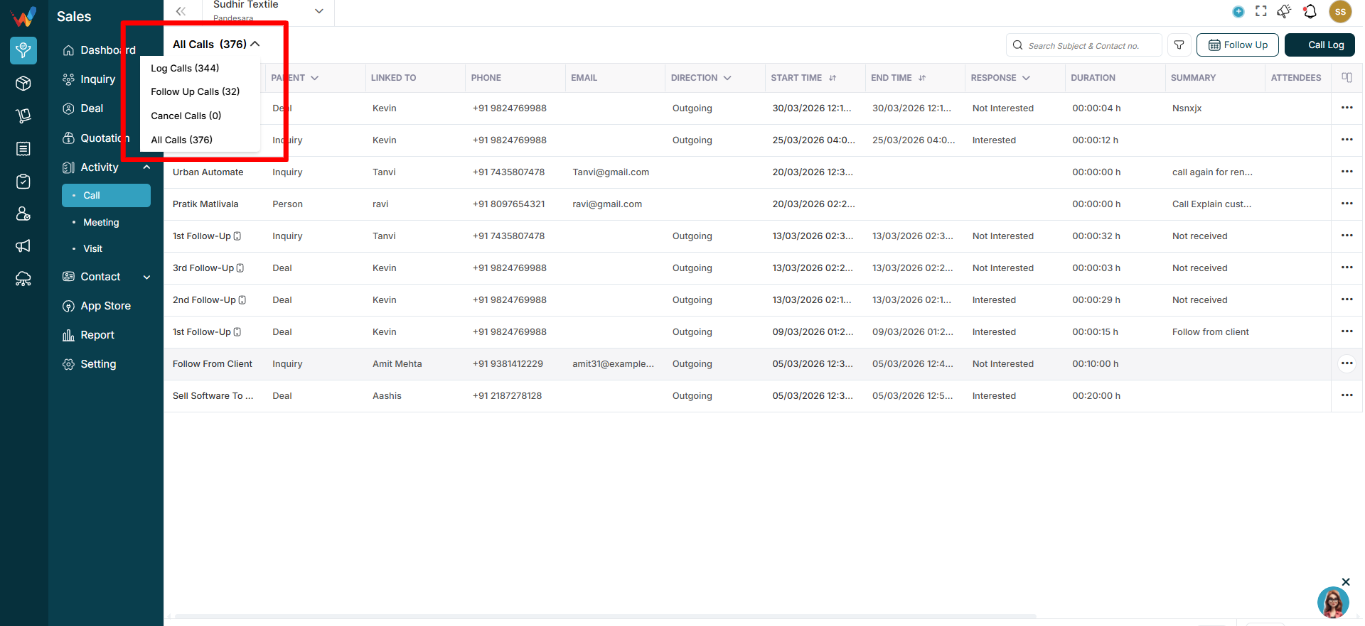
4.2 Available Options
Log Meetings (344)
Shows:
- Only meetings that are already logged (past meetings).
Follow Up Meetings (32)
Shows:
- Meetings that are scheduled for the future as follow-ups.
Cancel Meetings (0)
Shows:
- Meetings that were scheduled earlier but later cancelled.
All Meetings (376)
Shows:
- Logged + follow-up + cancelled meetings together.
Meeting Table Columns
Each row represents one meeting record.
1.1 Subject
Meeting title.
Examples:
- Demo Session
- Demo Done
- Demo Meeting
Helps identify the purpose quickly.
1.2 Parent
Shows which module the meeting belongs to:
- Lead → meeting related to a lead
- Deal → meeting related to a deal or opportunity
1.3 Linked To
The specific person or deal connected to the meeting.
Examples:
- Ahmadzahir Amiri
- Sumit Client
1.4 Start Time
When the meeting started.
1.5 Link
Meeting link (Zoom / Google Meet / Teams, etc.)
If blank:
- Likely an offline or physical meeting
- Or the link was not added
1.6 End Time
When the meeting ended.
1.7 Duration
Auto-calculated (End Time − Start Time)
Helps managers understand time spent.
5.8 Date
Meeting date.
5.9 Summary
Short notes describing what happened.
Example:
“Showed product demo and discussed pricing.”
1.10 Attendees
Internal participants involved in the meeting.
1.11 Created By
The user who originally logged or scheduled the meeting.
1.12 Updated By
The user who last edited the meeting entry.
1.13 Row Action Menu (⋯)
Opens actions such as View, Edit, Delete.