
Customize Columns Panel
1.1 What It Is
Click Customize Columns to open:
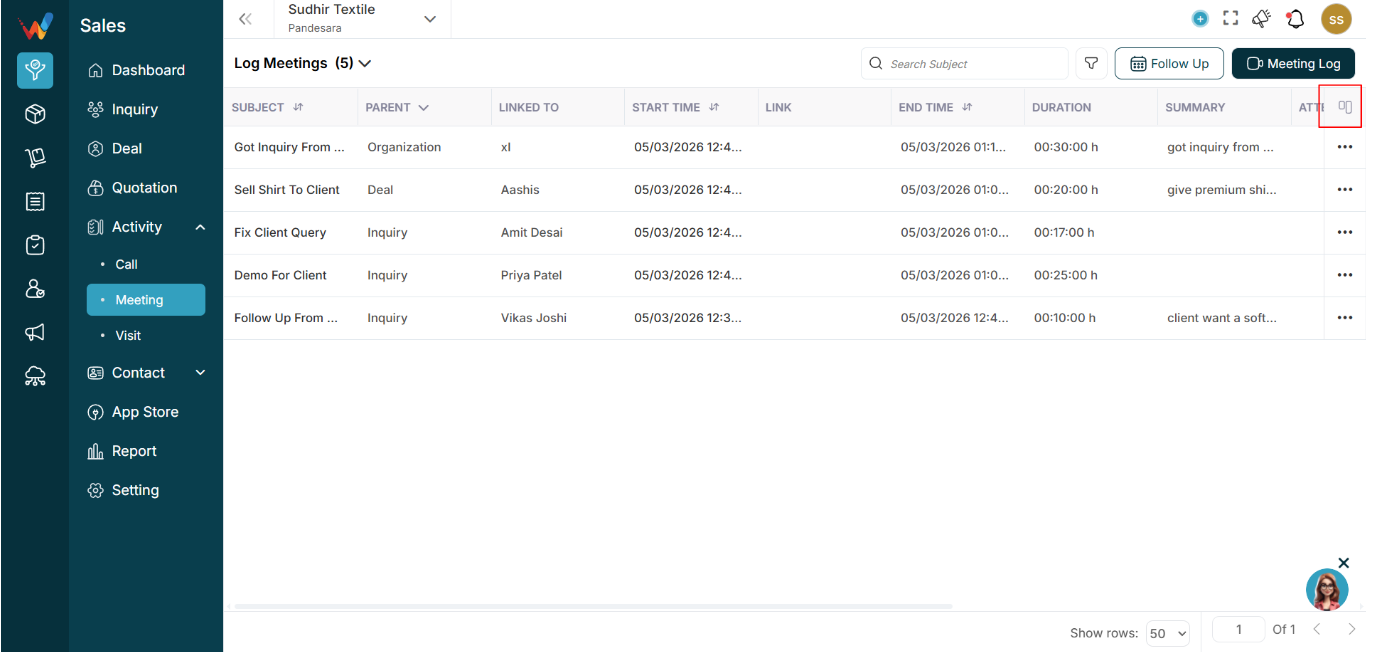

“Customize Columns 13/13”
1.2 What You Can Do
- Turn columns ON or OFF
- Adjust the table view to match what the user needs
Examples:
- Hide Updated At if not needed
- Show Attendees if team tracking is required
1.3 Reset to Default
Restores the system default column layout.
Useful if the layout gets changed unintentionally.
Log Meeting & Follow-up Meeting
2.1 Log a Meeting (Past Meeting Entry)
Use this form when the meeting has already happened and needs to be recorded
Navigation Path:
Sales Module → Activity → Meeting → Click on Meeting Log

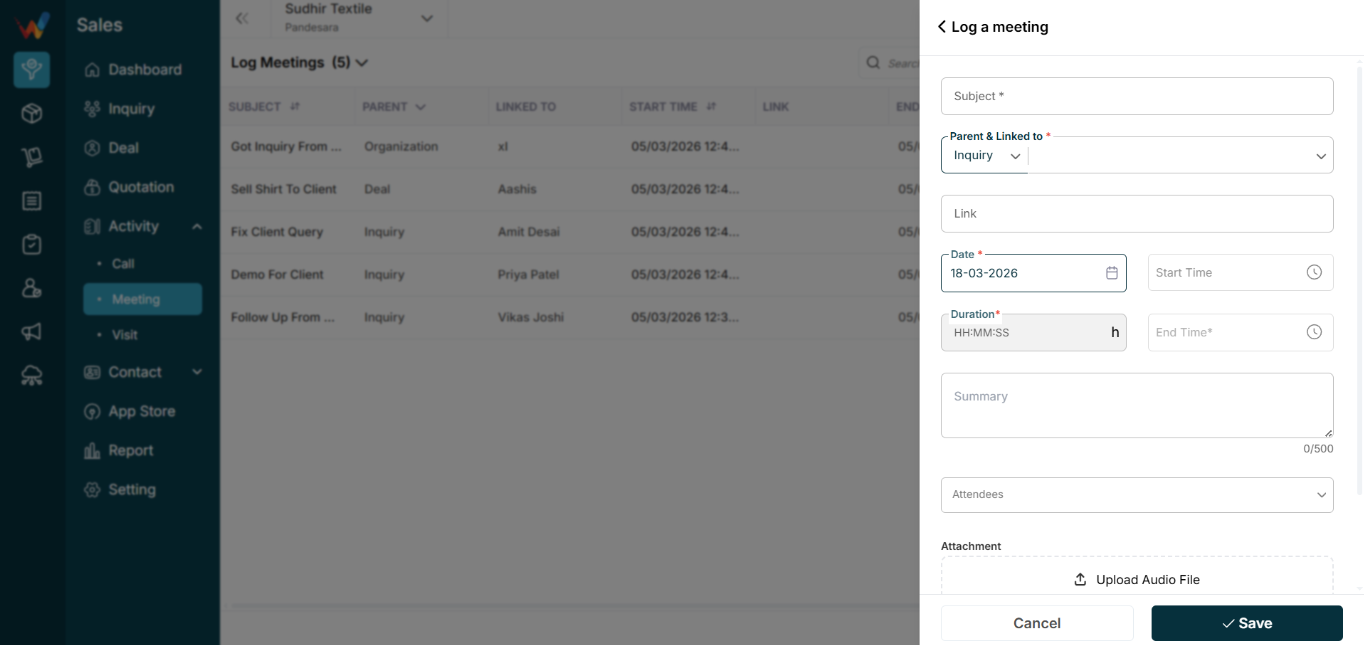
Subject *
Title of the meeting.
Examples:
- Demo Session
- Client Introduction Meeting
- Final Discussion
Why it matters:
- Identifies the meeting in list view
- Appears in Lead or Deal activity timeline
- Used in reports
Mandatory field.
Parent and Linked To *
Dropdown (Lead / Deal, etc.)
Defines:
- Where the meeting belongs
- Which record timeline it appears under
- Reporting and analytics impact
Behavior:
- Parent = Lead → appears in that Lead’s activity tab
- Parent = Deal → appears in that Deal’s activity tab
Link (Optional)
Used to store:
- Zoom link
- Google Meet link
- Teams link
- Any meeting URL
If blank:
Treated as offline or physical meeting (or link not provided).
Date *
Date the meeting happened.
Used in:
- Reports
- Timeline history
- Performance tracking
Start Time (Recommended)
Meeting start time.
Useful for productivity and time tracking reports.
End Time *
Meeting end time.
Helps verify time spent and track efficiency.
Duration *
Format: HH:MM:SS
If duration is entered, the system may calculate End Time.
If End Time is entered, the system may calculate duration.
Mandatory field.
Summary (0/500)
Short notes on what happened.
Example:
“Client interested in annual subscription. Needs internal approval.”
Appears in:
- Meeting list summary column
- Activity timeline
- Manager view
Attendees
Select internal users who attended.
Used for:
- Collaboration tracking
- Accountability
- Reporting (meetings attended per user)
Attachment (Upload File)
You can upload:
- Meeting recording
- MOM file
- Supporting documents
Stored against the meeting record.
Follow Up Button (Inside Log Meeting)
Allows immediate scheduling of the next activity:
- Meeting
- Call
- Visit
Helps prevent lead leakage.
2.2 Follow Up a Meeting (Future Scheduled Entry)
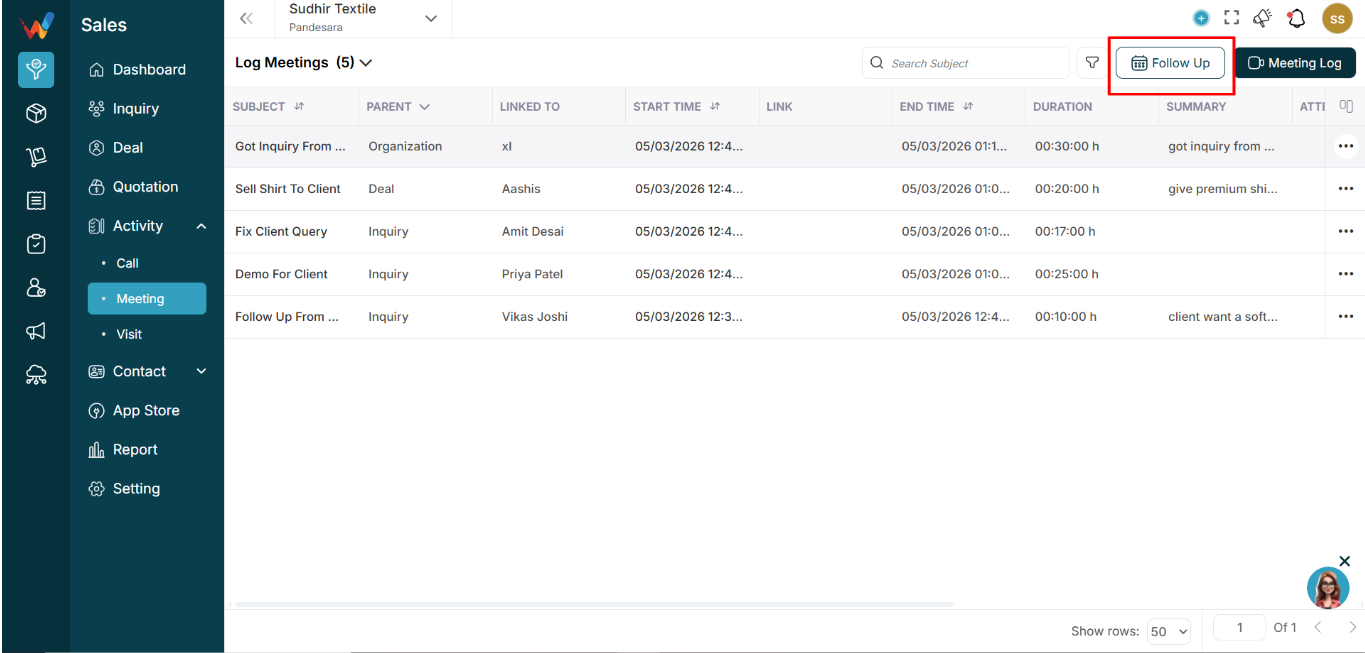
Used to schedule a future meeting. It does not log a past meeting.
Navigation Path:
Sales Module → Activity → Meeting → Click on Follow Up
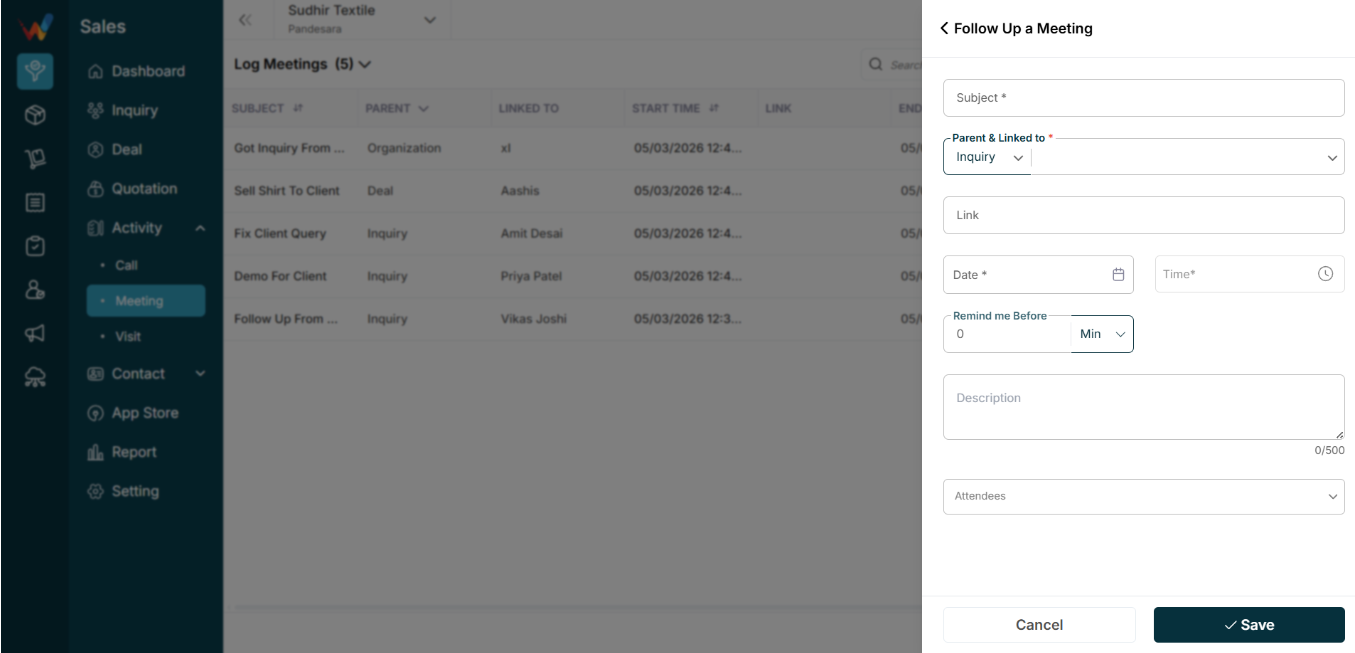
Subject *
Title of the upcoming meeting.
Example:
“Final Pricing Discussion”
Parent and Linked To *
Same logic as Log Meeting.
Defines:
- Which lead or deal the follow-up belongs to
- Where it will appear
Link (Optional)
Add Zoom or Meet link if applicable.
If blank, it is assumed to be offline.
Date *
Future meeting date.
Mandatory.
Time *
Exact meeting time.
Used for reminders.
Mandatory.
Remind Me Before
Examples:
- 0 minutes
- 15 minutes
- 30 minutes
- 1 hour
System may trigger:
- In-app notification
- Mobile push notification (if integrated)
Description (0/500)
Details of what needs to be discussed.
Helps the user prepare before the meeting.
Attendees
Assign internal participants.
Ensures:
- Participants are notified
- Responsibility is clear