
Organization — Detail Screen (Right Panel)
1.1 What Happens When an Organization Is Selected?
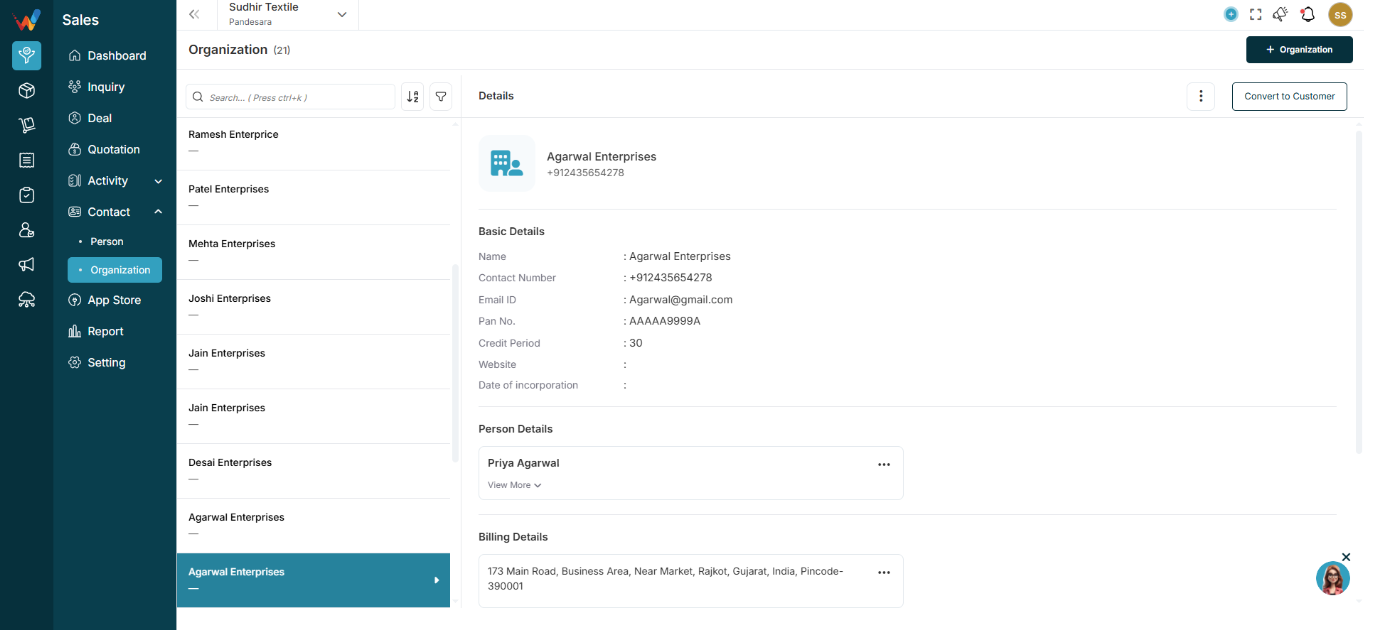
When a user selects an organization from the list, the right panel displays its full details.
Header Section (Organization Detail)
Displays:
- Organization name
- Primary contact number
- Icon
- Convert to Customer button
- Three dot menu (⋮)
Convert to Customer
Navigation Path:
Sales Module → Contact→ Organisation → Click on Convert to Customer
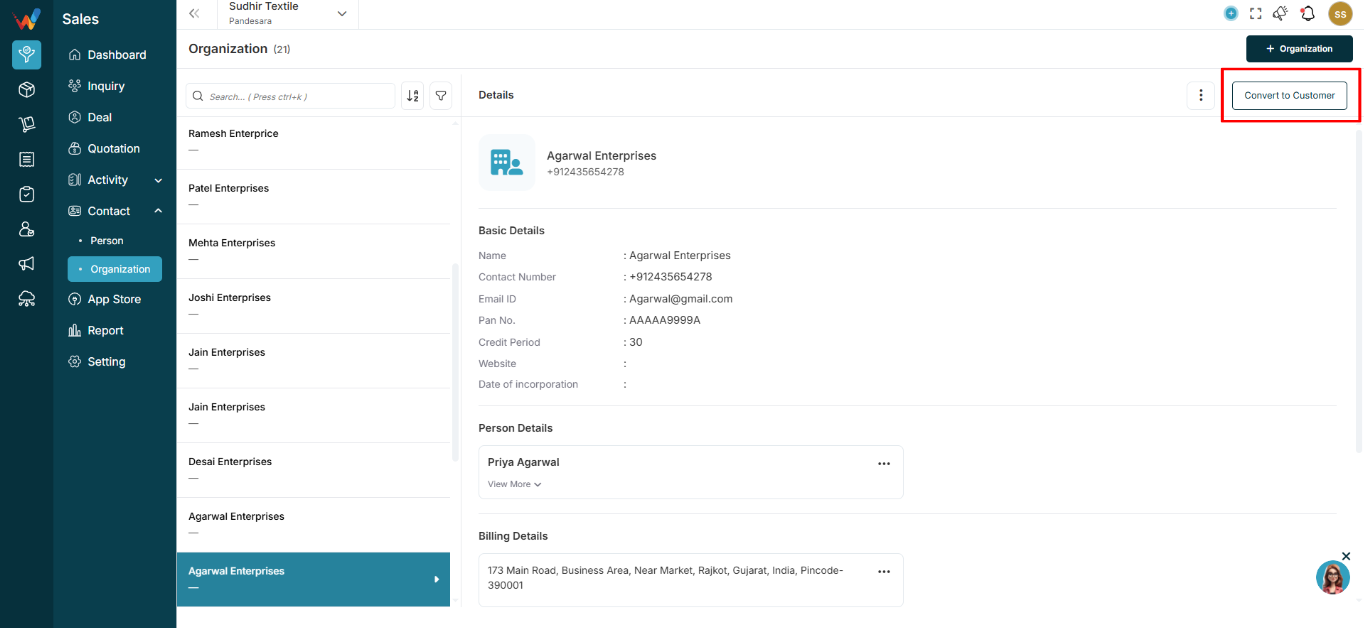
What It Does
Converts the organization into:
- An active customer
- A billing-enabled entity
Why it matters:
Enables billing workflows and customer-level tracking.
Three Dot Menu (⋮ Top Right)

4.1 Common Options
Options can include:
- Person details
- Organization details
- Billing details
- Shipping details
- Attachment
- Delete
Purpose:
- Add more structured information (addresses, linked people, files)
- Delete the organization (permission-controlled)
Basic Details Section (Company Master Fields)
Displays company-level master fields such as:
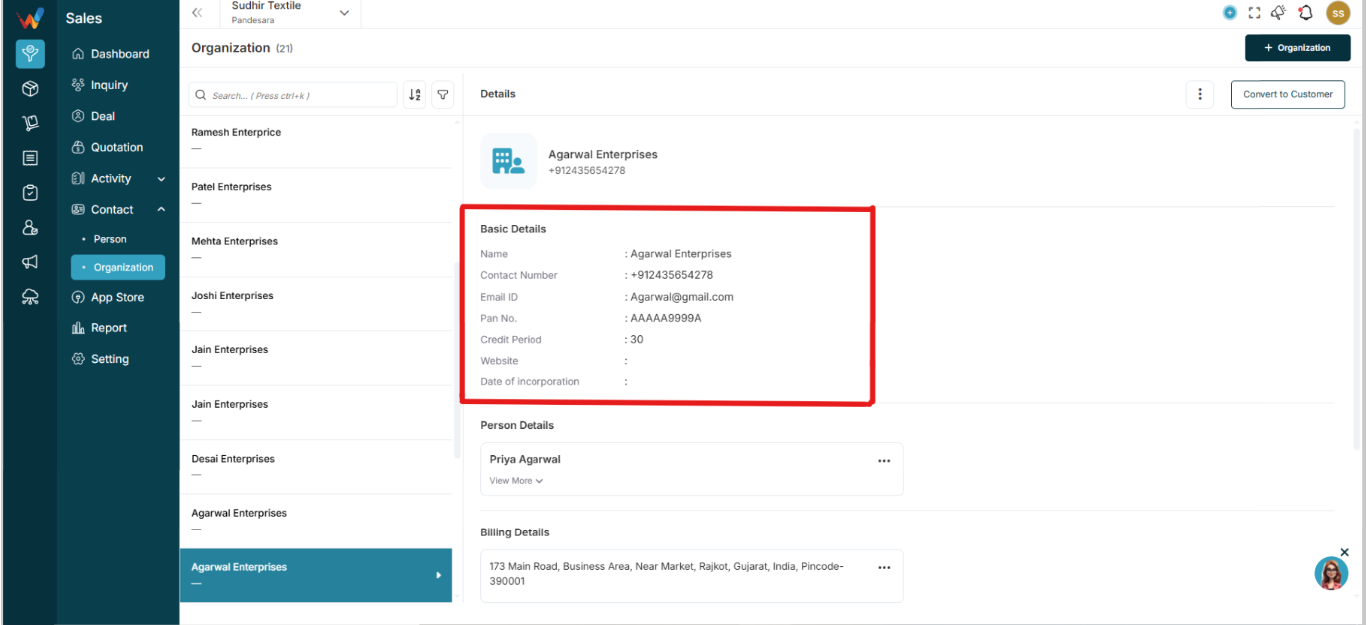
- Name
- Contact number
- Email ID
- PAN number
- Credit period
- Website
- Date of incorporation
Person Details (Under Organization)
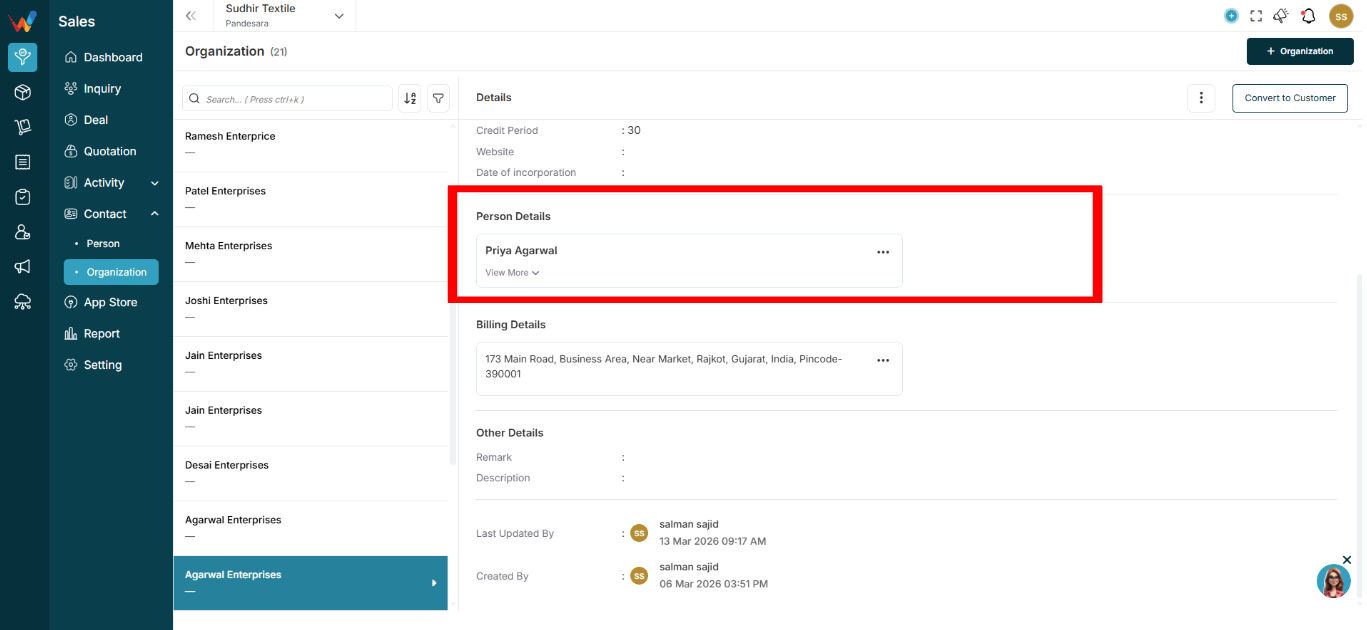
6.1 What This Section Shows
This section lists individuals linked to the organization.
Expandable card can include this details:
- Contact number
- PAN
- Designation
Actions:
- Edit
- Delete
Purpose:
Supports multiple decision makers under one organization.
This is especially important in a B2B textile workflow.
Billing Details
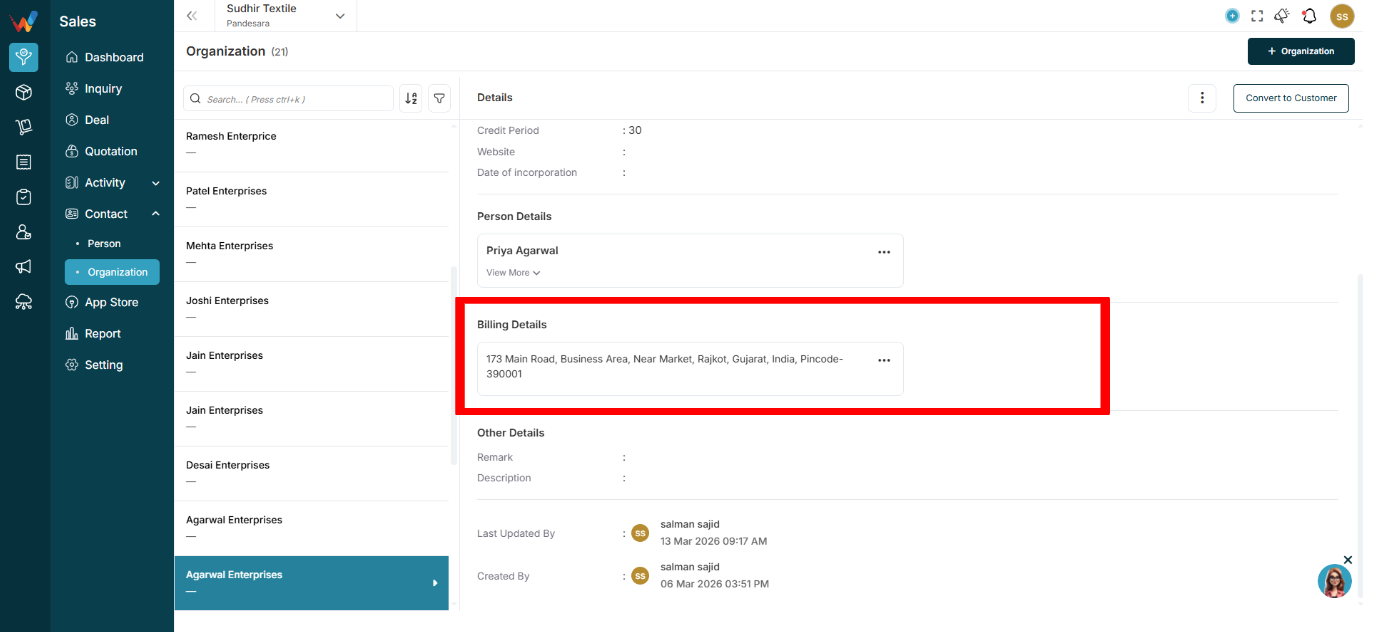
Displays:
- Full address
- GST type
- GSTIN (if applicable)
Supports:
- Multiple billing addresses
Used in:
- Quotation
- Invoice
- Order
Shipping Details
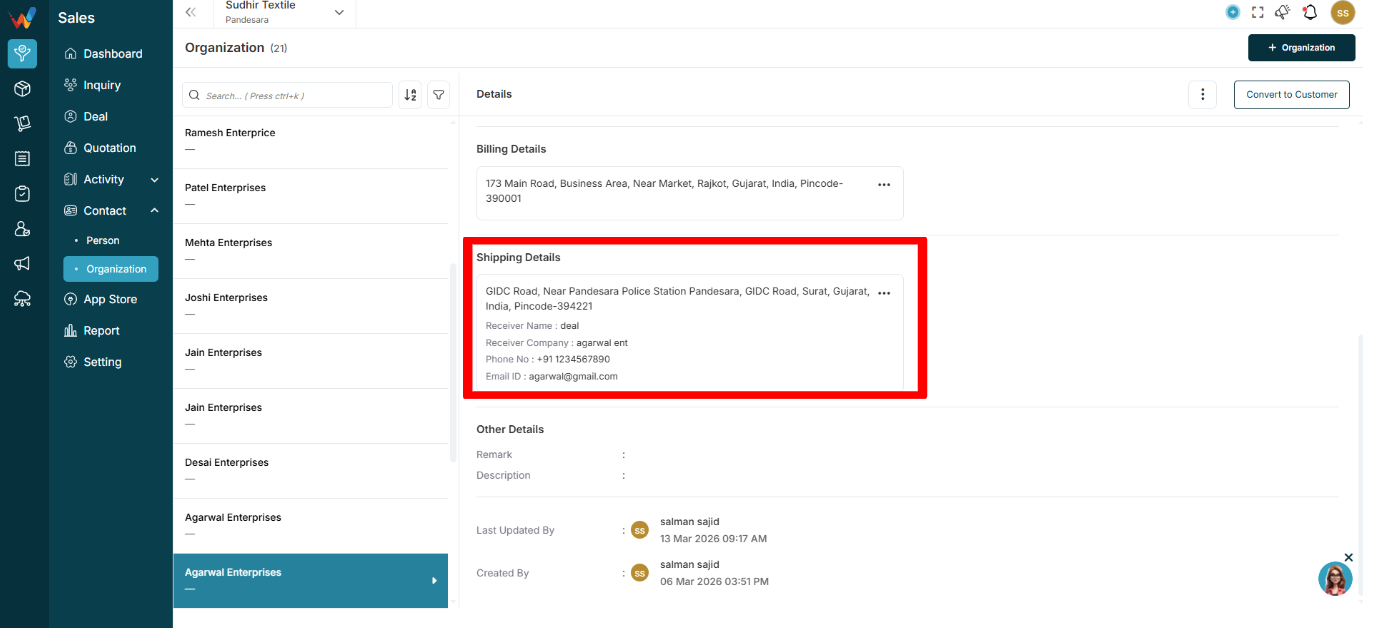
Displays:
- Full shipping address
- Receiver name
- Receiver company
- Receiver phone
- Receiver email ID
Important for:
- Dispatch
- Warehouse coordination
- Logistics clarity
Especially useful for online delivery execution.
Other Details
Contains:
- Remark
- Description
Used for internal context.
Example:
“Deals in digital prints. Prefer cash discount.”