
How to Create / Invite New User
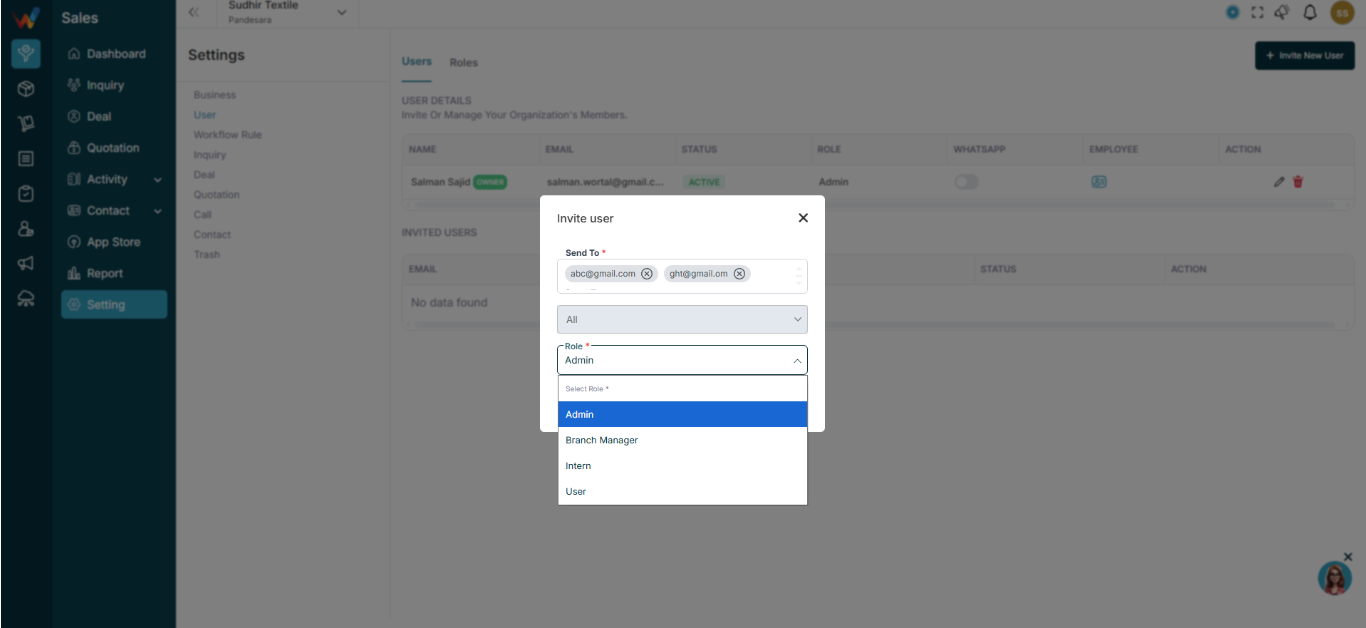
Navigation Path:
Sales Module → Settings → User → Users
The system includes a user invitation flow that allows a business owner or admin to add users to their business by sending an invitation to their email address along with an assigned role. After the invitation is sent, the system checks whether the email is already registered on the platform. If the user is already registered, they can log in and directly access the business with permissions based on their assigned role. If the user is not registered, they must first create an account using the invitation link sent to their email. Once the registration is completed, the system links the account to the invitation and grants the user access to the business according to the assigned role.
2.1.1 Step 1: Go to
Settings → Users
You will see:
- Users tab
- Roles tab
- Invite New User button
Click + Invite New User.
2.1.2 Step 2: Invite User
A popup will open.
2.1.3 Fill Required Details
Field — Description
Send To — Enter user’s email
Select Branch — Choose one or multiple branches
Select Role — Assign role
Click:
- Send Invite
or - Save as Draft
What Happens After Sending an Invitation?
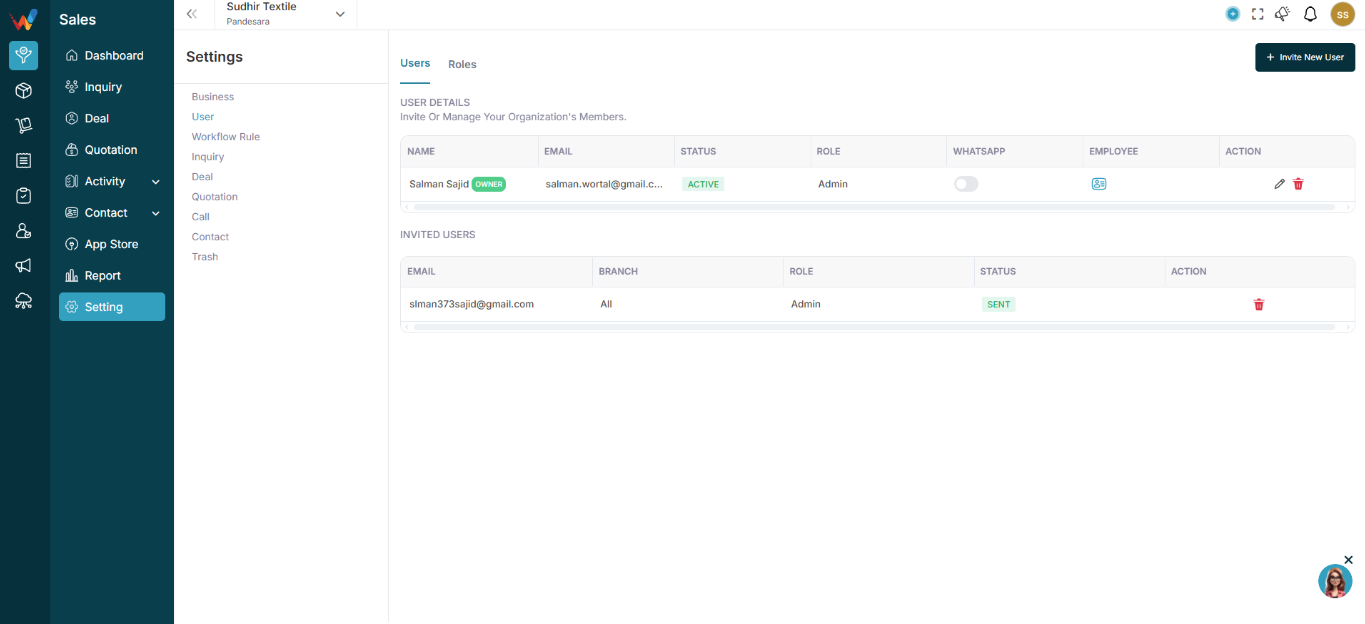
- User receives email invitation
- Status shows as Pending (in Invited Users section)
- Once accepted → user becomes Active