
Navigation Path:
Billing Module → Invoice

1.1 Page Header Title
Invoice (4)
Shows the total number of invoices currently visible in the list (after any search or filter).
1.2 Top Left Section (Search and Filter)
1.2.1 Search Bar (Press Ctrl + K)
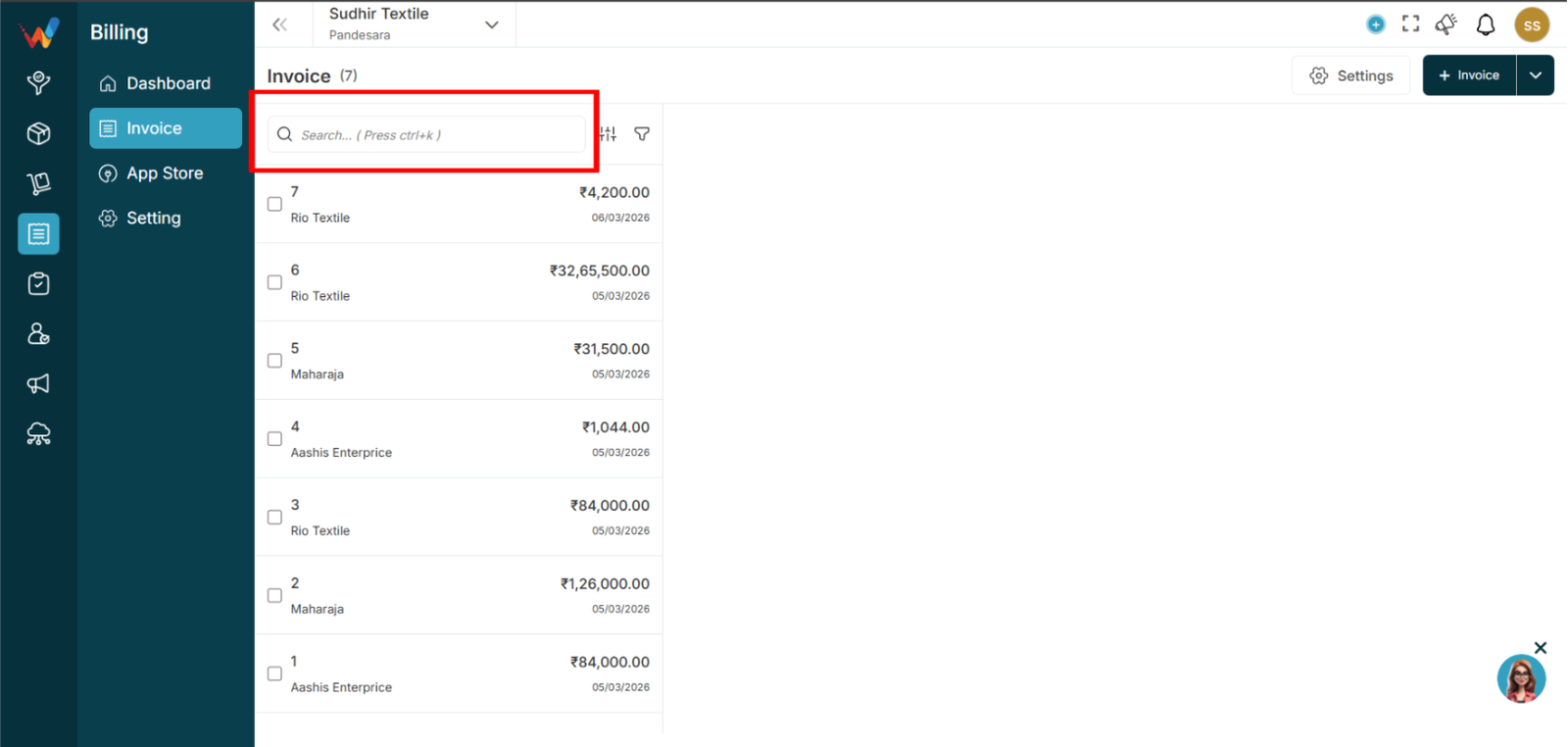
Purpose
Used to quickly find invoices from the list.
It searches:
- Invoice number
- Customer or party name
1.2.2 Filter Icon (Funnel)
Purpose
Used to open the Invoice Filter Panel.
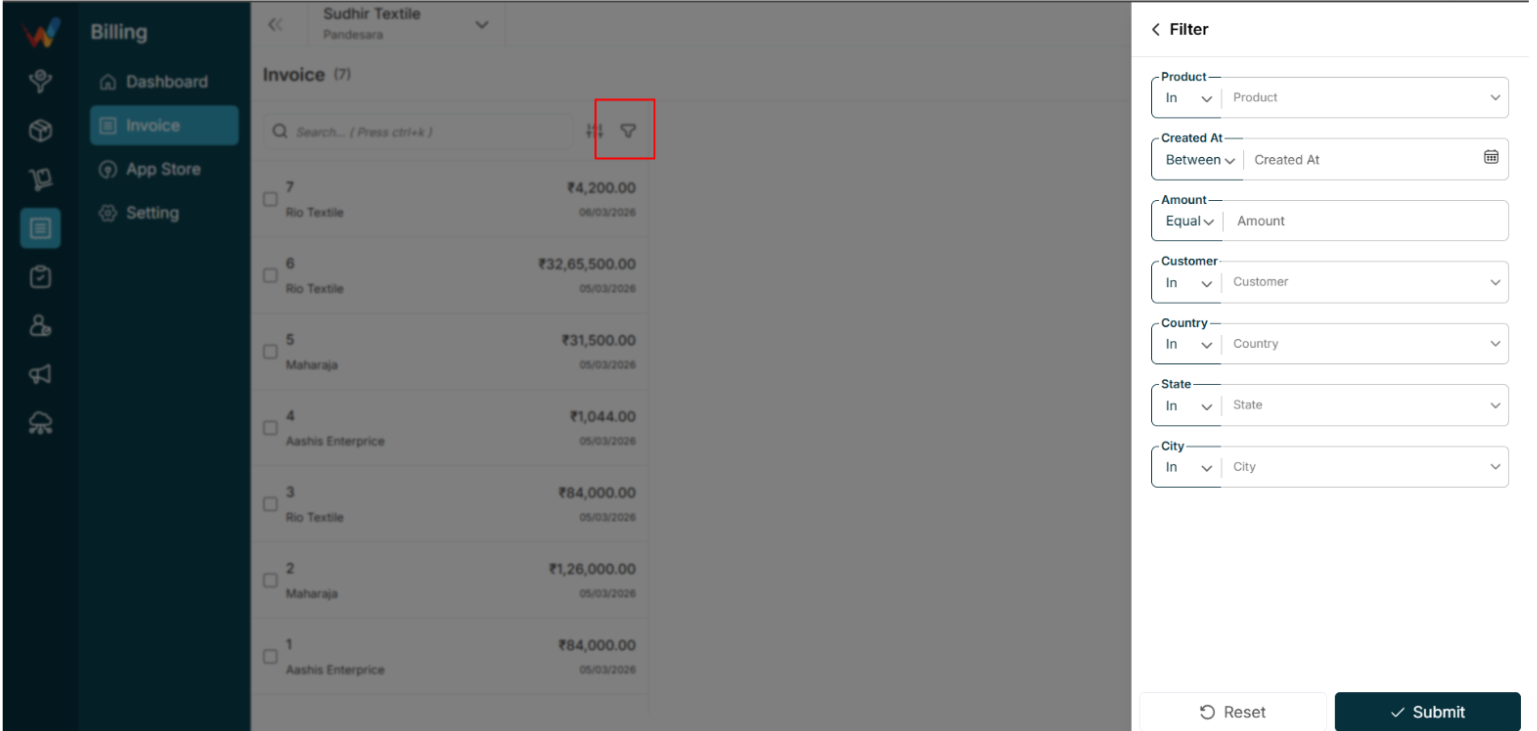
Filters visible in the filter screen:
- Party Name
- Created Date
- Select Item
- Amount
- Country
- State
- City
1.2.3 Sort Icon
Purpose
Used for list-level controls (sorting, arrangement, and custom view controls depending on system setup).
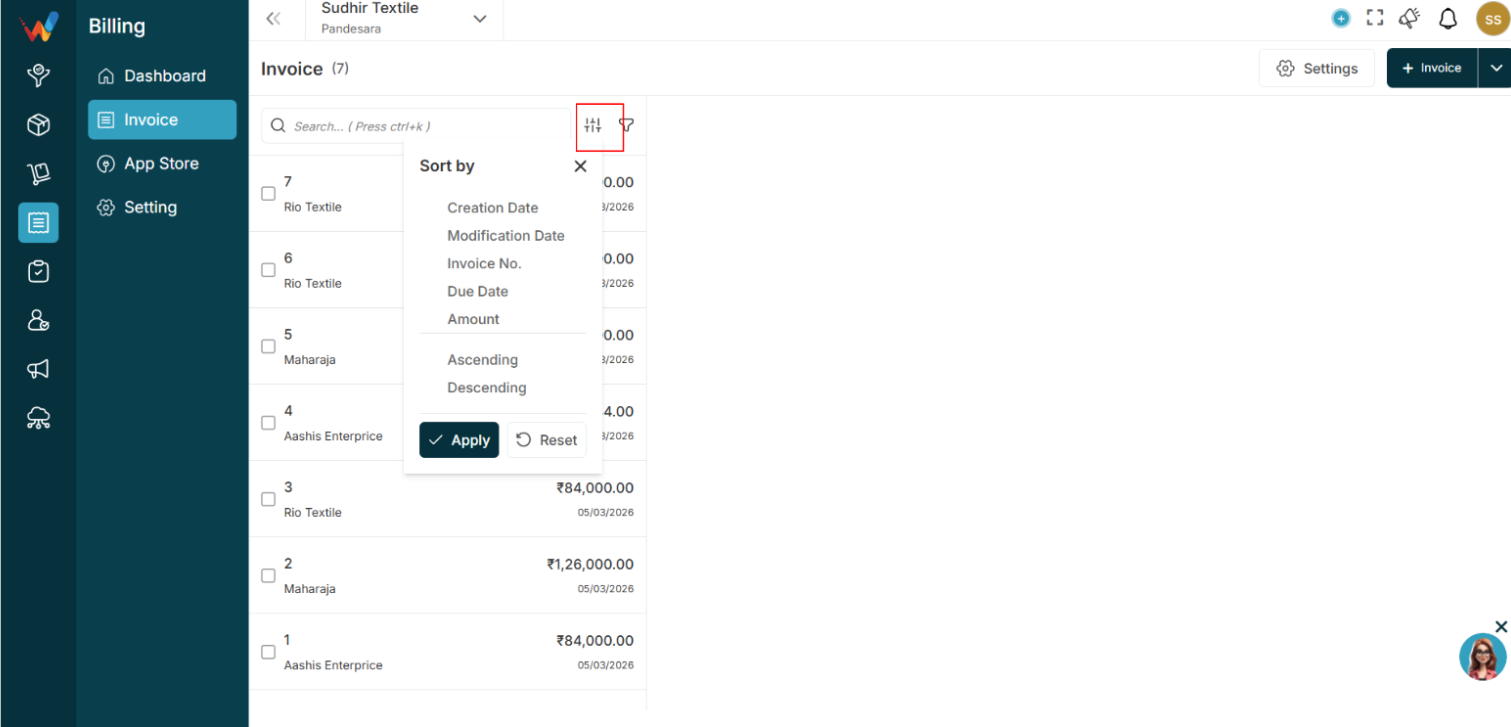
Sort by:
- Creation Date
- Modification Date
- Invoice No.
- Due Date
- Amount
Direction:
- Ascending
- Descending
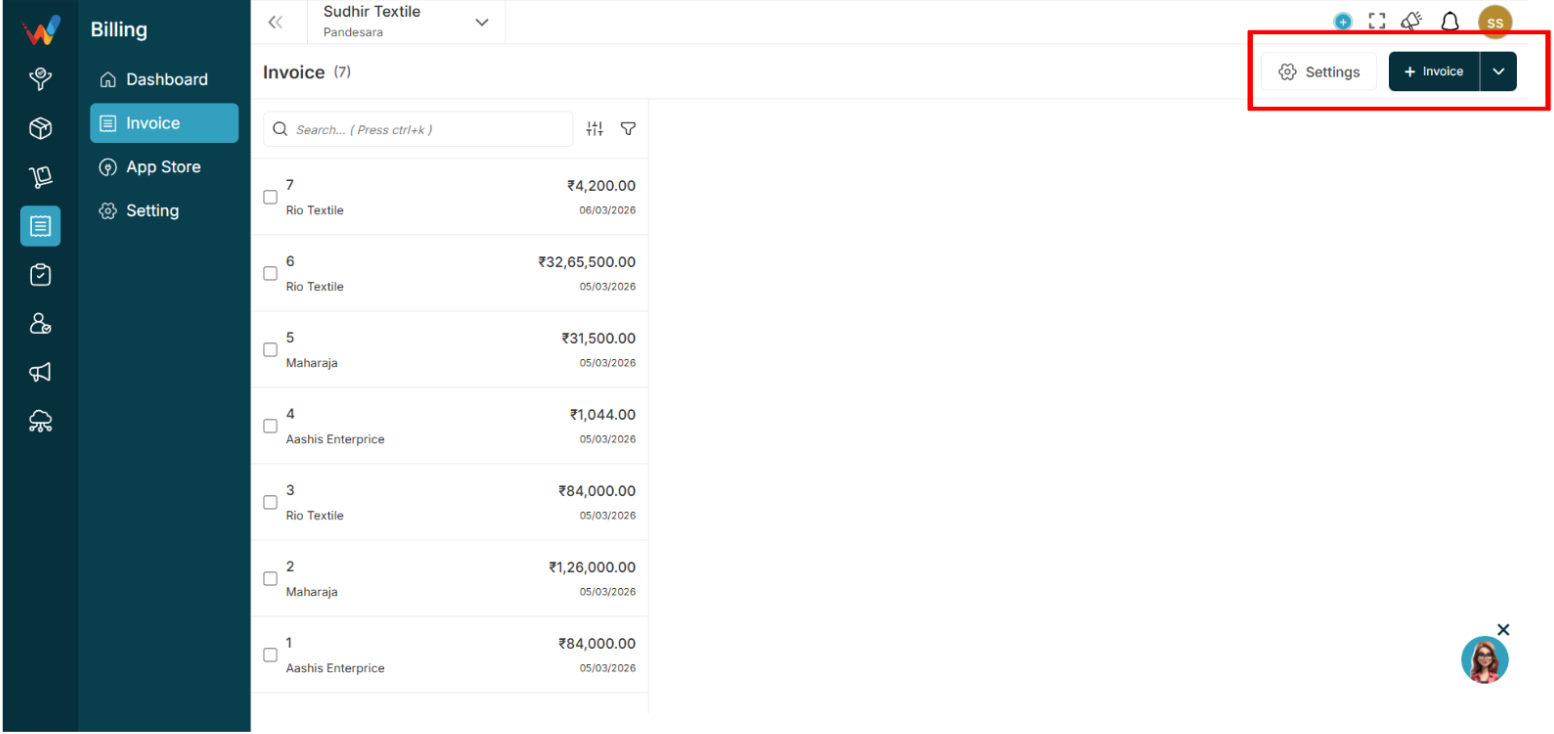
1.3 Top Right Section (Actions)
1.3.1 Settings Button
Purpose
Open invoice settings.
Used for:
- Field Settings
- Voucher Series
- Configuration (E-Invoice and E-Way Bill)
- Transporter Details
- Sales Person
1.3.2 Invoice Button
Purpose
Used to create a new invoice.
Navigation Path:
Billing Module → Invoice → Click on + Invoice
1.3.3 Dropdown Beside Invoice Button
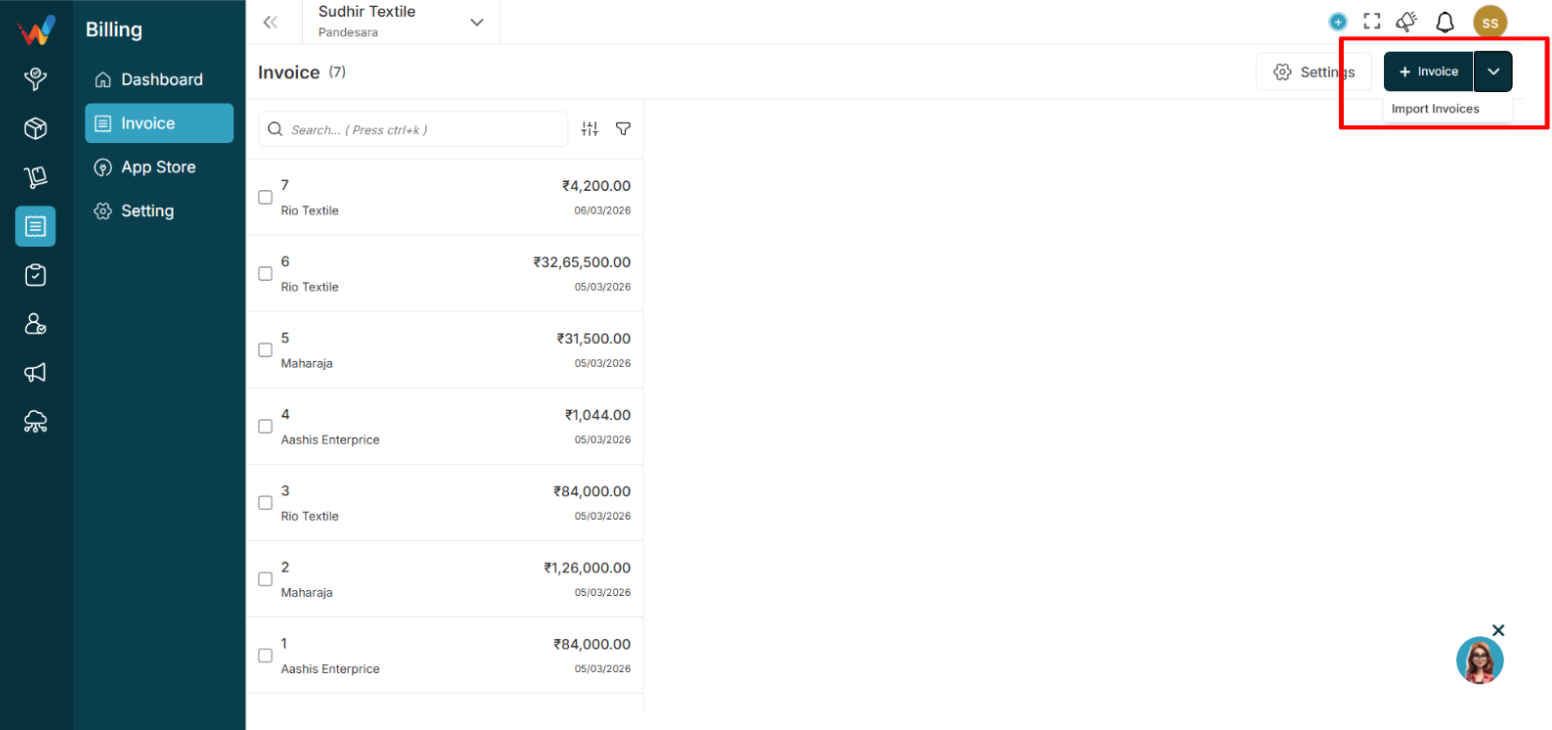
Purpose
Provides a button to import invoices.
1.4 Invoice List Area (Left Panel)
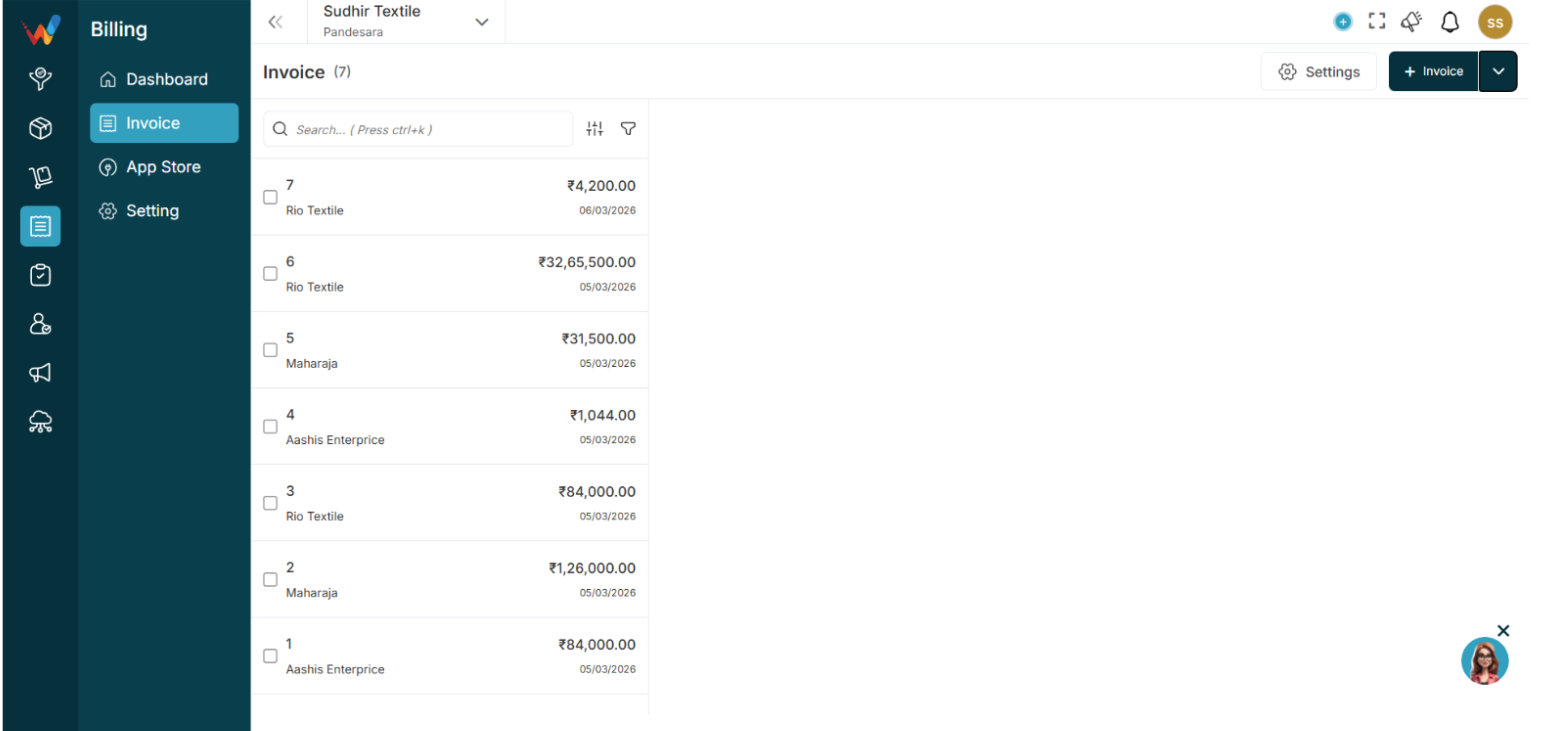
Each row in the list displays:
- Invoice Number
- Party or Client Name
- Amount
- Date
1.4.1 Checkbox per Invoice
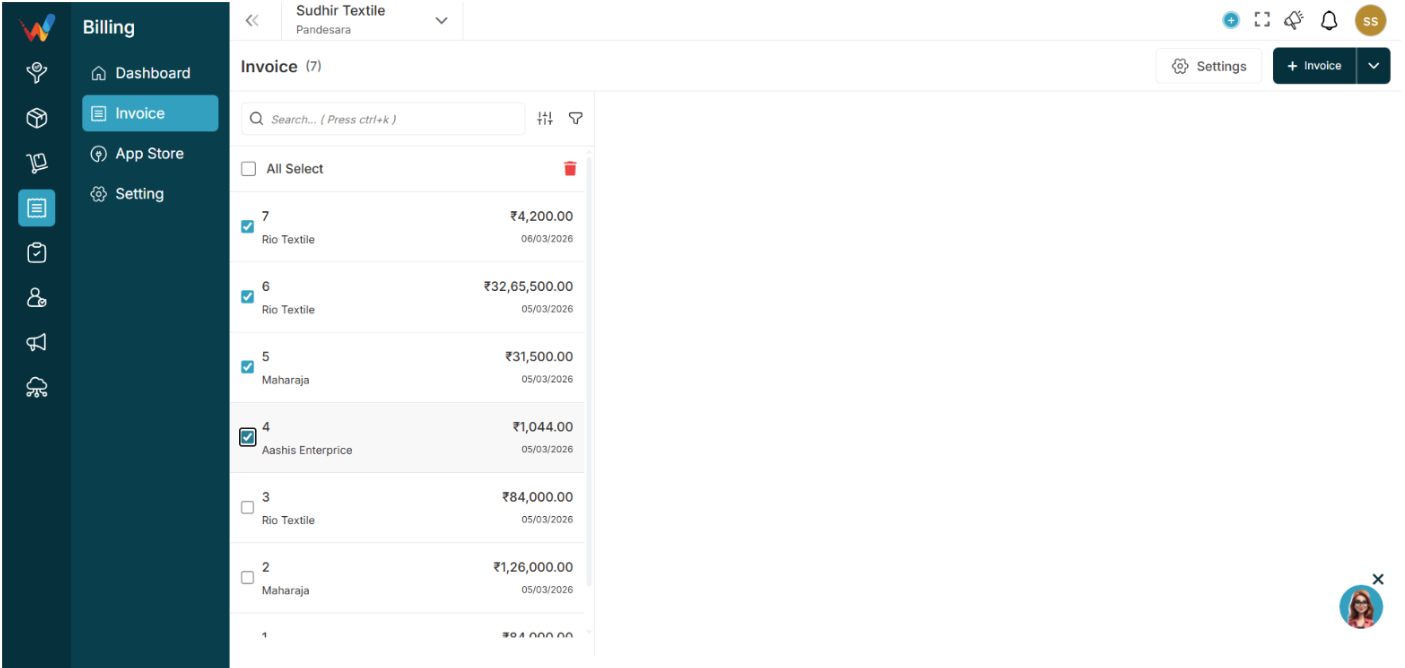
Purpose
Used to select invoice(s) for bulk delete.
1.4.2 Clicking an Invoice Row
Purpose
Opens invoice preview on the right side.
Behavior:
- Highlights the selected invoice in the list
- Loads invoice details in the right-side preview pane
- View-only preview by default (does not edit the invoice)
Invoice Preview
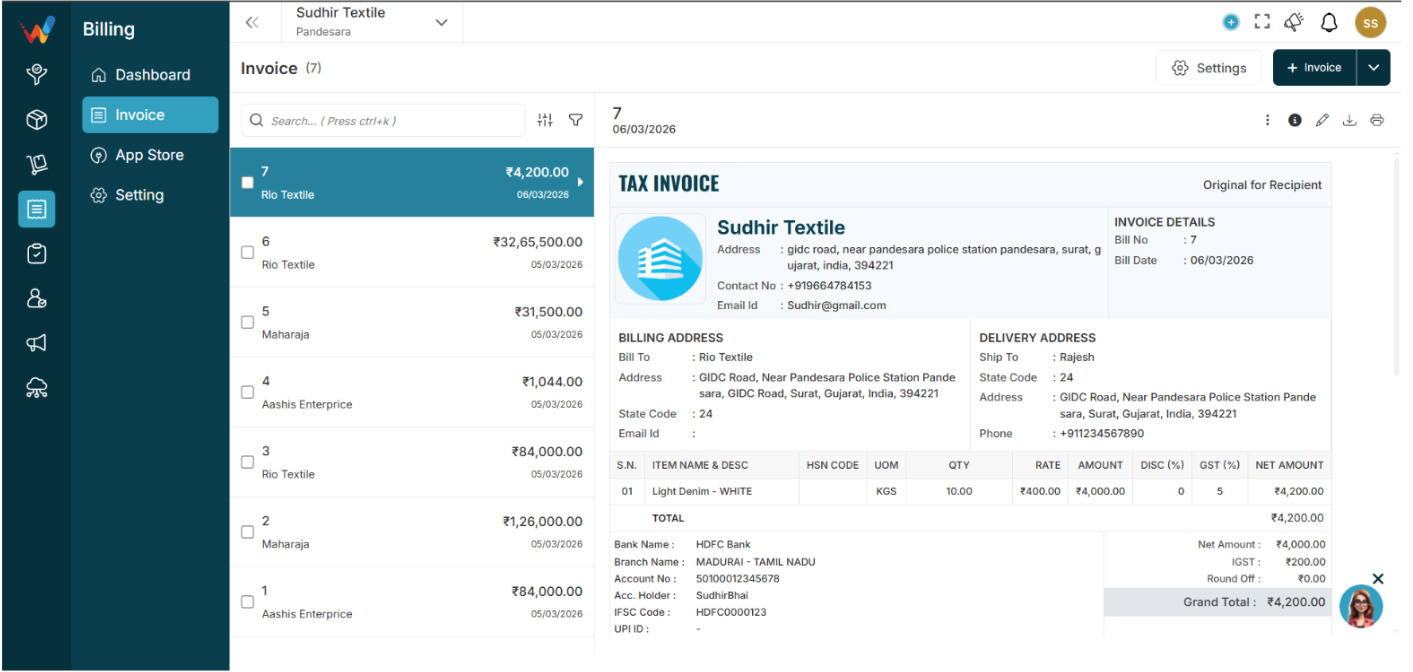
When an invoice is selected, the right side shows the full Tax Invoice preview, including:
- Company details
- Invoice details (number, date)
- Party billing details
- Item table (quantity, rate, GST, totals)
- Grand total
- Terms and conditions
- Additional notes
- Signature areas
2.1 Invoice Action Menu (Three Dots in Preview)
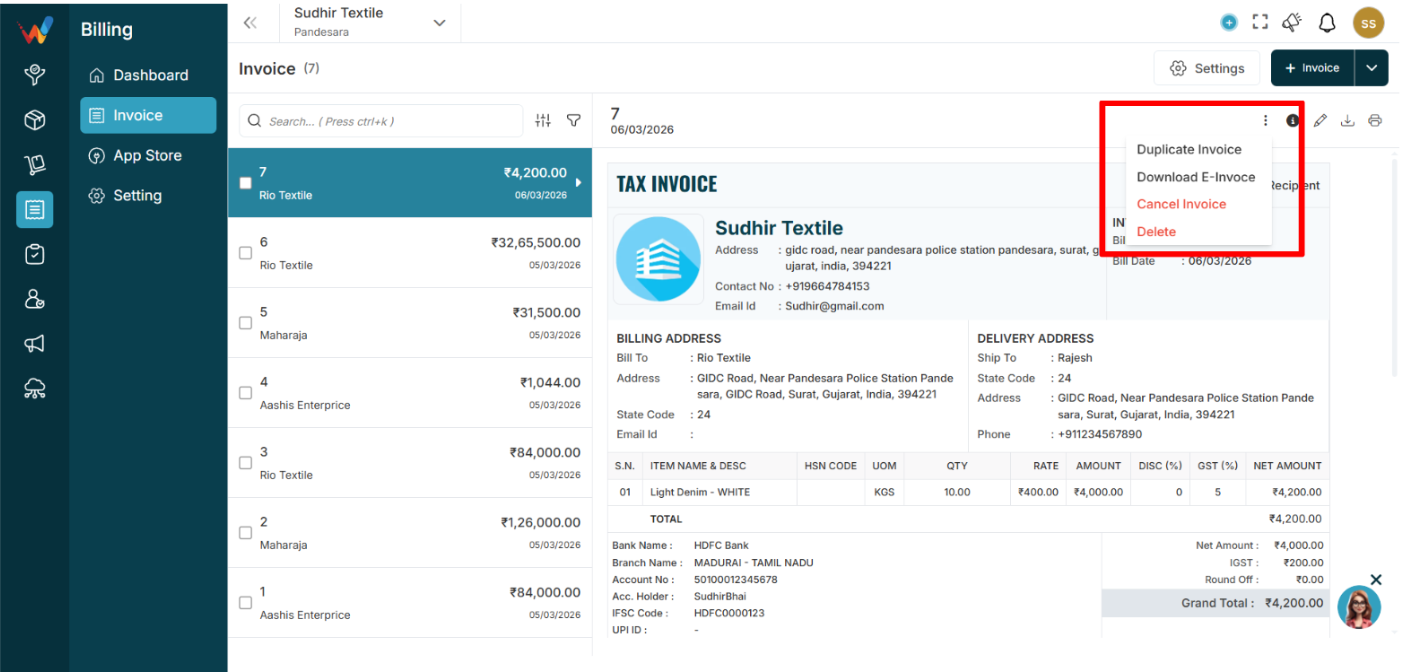
Purpose
Provides invoice-level actions.
Actions:
- Add e-Way Bill
- Add e-Invoice
- Duplicate Invoice
- Download E-Invoice
- Cancel Invoice
- Delete
Behavior:
Add e-Way Bill
Add e-Invoice
Duplicate creates a new invoice copy
Download E-Invoice downloads the e-invoice document
Cancel marks invoice cancelled (does not remove record like delete)
Delete removes invoice and typically sends it to Trash or audit trail (based on system configuration)
2.2 Edit
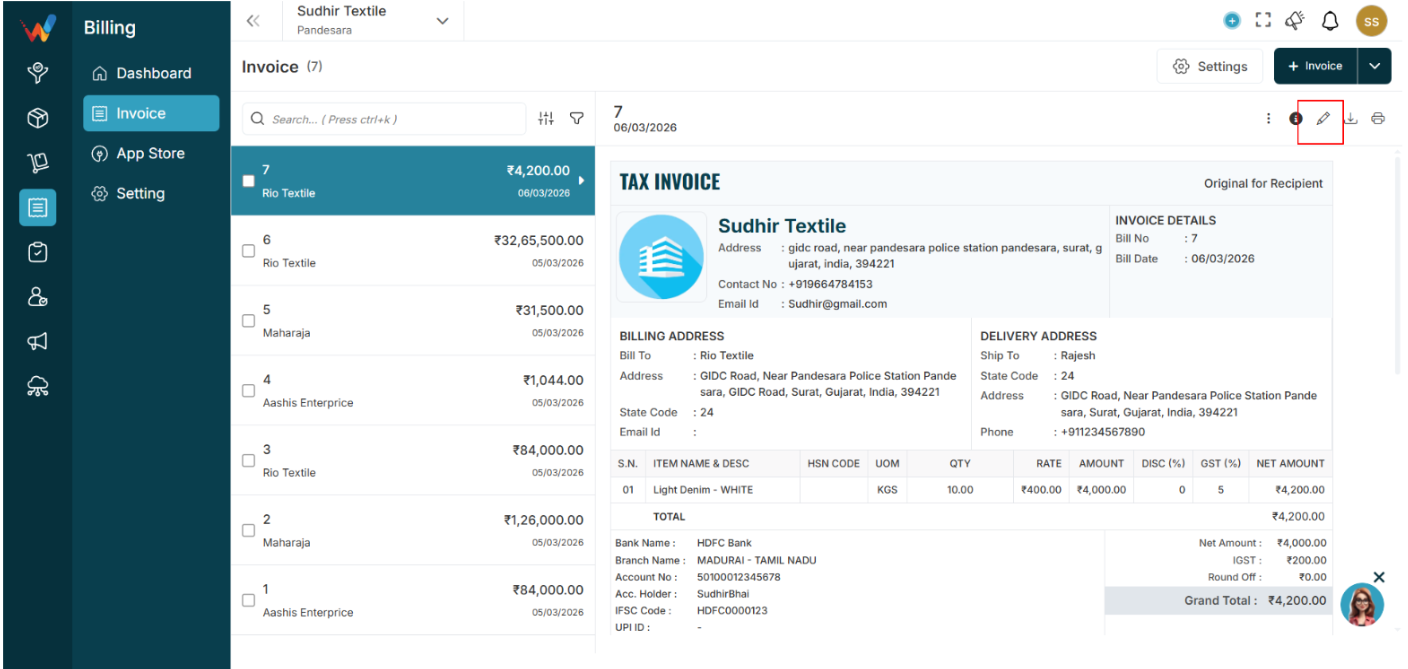
Purpose
To update or change any detail in an already created invoice.
2.3 Download
Purpose
To download the finalized invoice in PDF format.
2.4 Print
Purpose
To print an invoice from the printer connected with the system.