Lead vs Deal & Controls
Difference Between Lead & Deal
1.1 Comparison
Lead — Deal
Initial inquiry — Serious opportunity
Unqualified — Qualified
Early stage — Revenue stage
Can be converted — Represents expected revenue
Flow:
Lead → Convert → Deal → Order → Invoice
Common Mistakes
- Too many deal stages
- No clear stage definition
- Not using recurring
- No colour structure
Final Checklist
- Custom fields created
- Pipeline stages finalized
- Stage colours set
- Recurring enabled (if needed)
- Team trained on stage usage
What Deal Settings Directly Control
Deal Settings directly control:
- Revenue visibility
- Sales forecasting
- Conversion ratio
- Branch-wise performance
Deal Impact & Best Practices
How Deal Settings Affect Business
1.1 Business Impact
Deal Settings impact:
- Sales tracking
- Pipeline clarity
- Forecast accuracy
- Conversion reporting
Without proper stages:
- Sales team confused
- Owner cannot measure performance
- No visibility of stuck deals
Best Practice for Textile Businesses
- Keep 6–10 deal stages only
- Define clear meaning for each stage
- Restrict stage editing to admin
- Review lost deals monthly
- Use recurring for regular buyers
Complete Guide
Deal Settings – Navigation
Navigation Path:
Sales Module → Settings → Deal
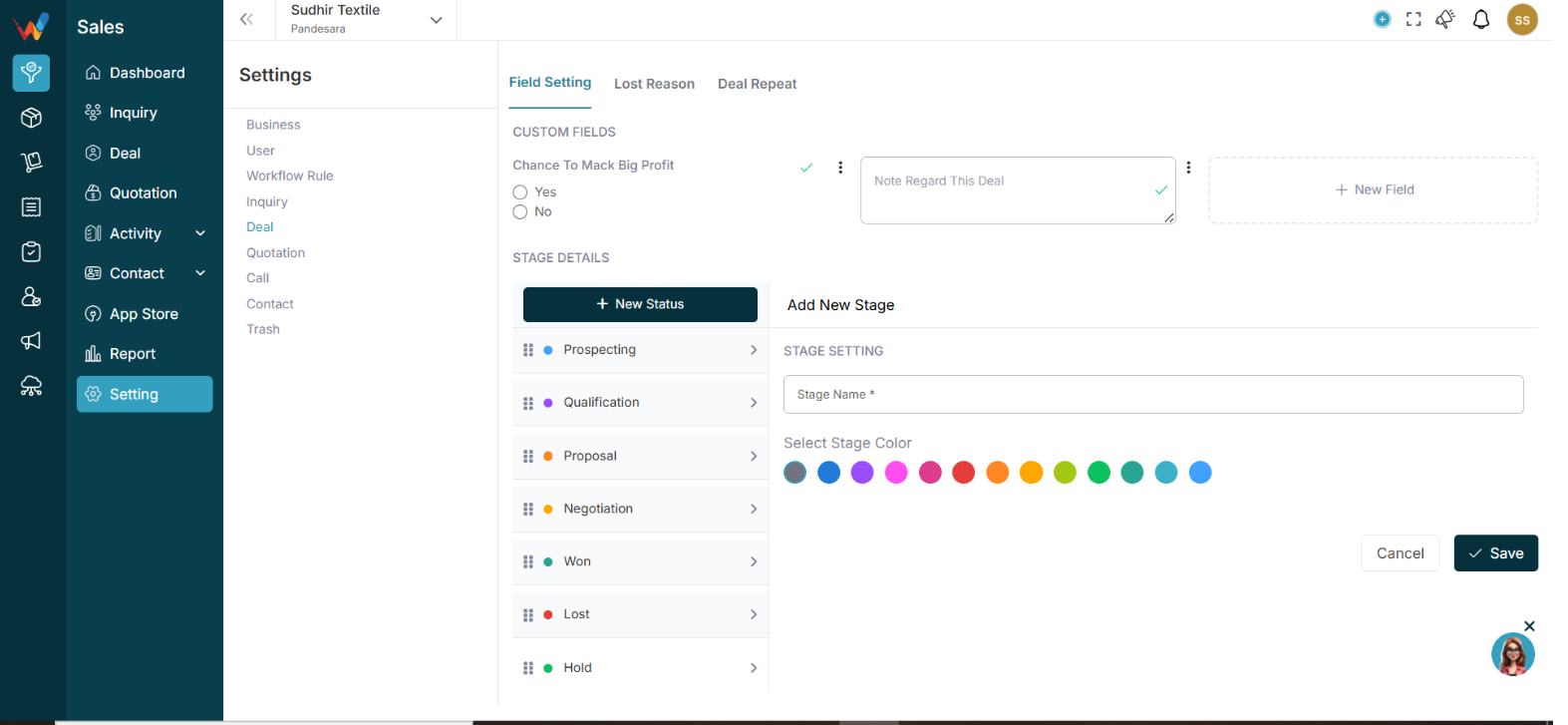
You will see:
- Custom Fields
- Stage Details
Custom Fields (Deal Level)
2.1 Section 1: Custom Fields (Deal Level)
This allows you to collect additional deal information beyond standard fields.
Click:
New Field
2.2 Create Custom Deal Field
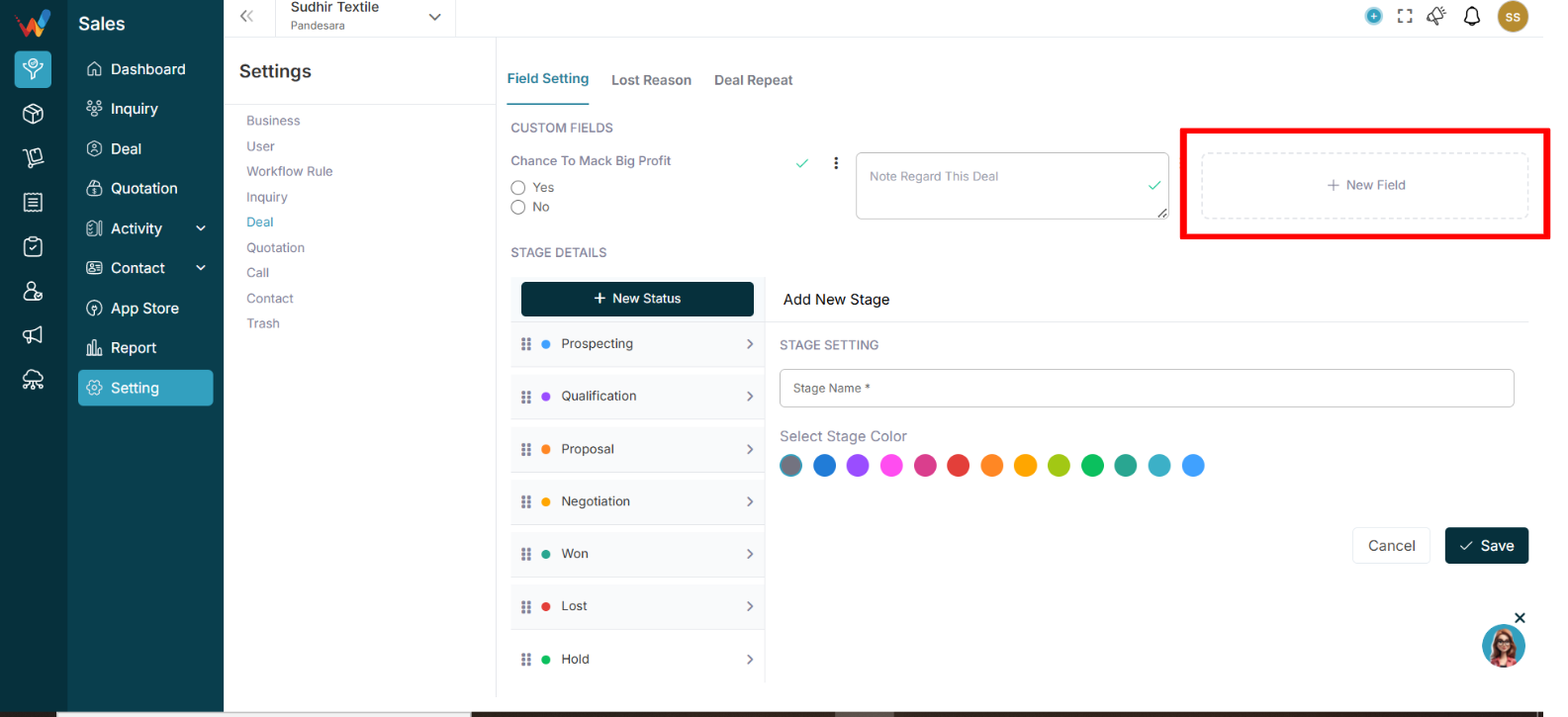
2.2.1 Fill Details
Field — Description
Label — Name of field
Type of Field — Select type
Mandatory — Optional
2.3 Available Field Types
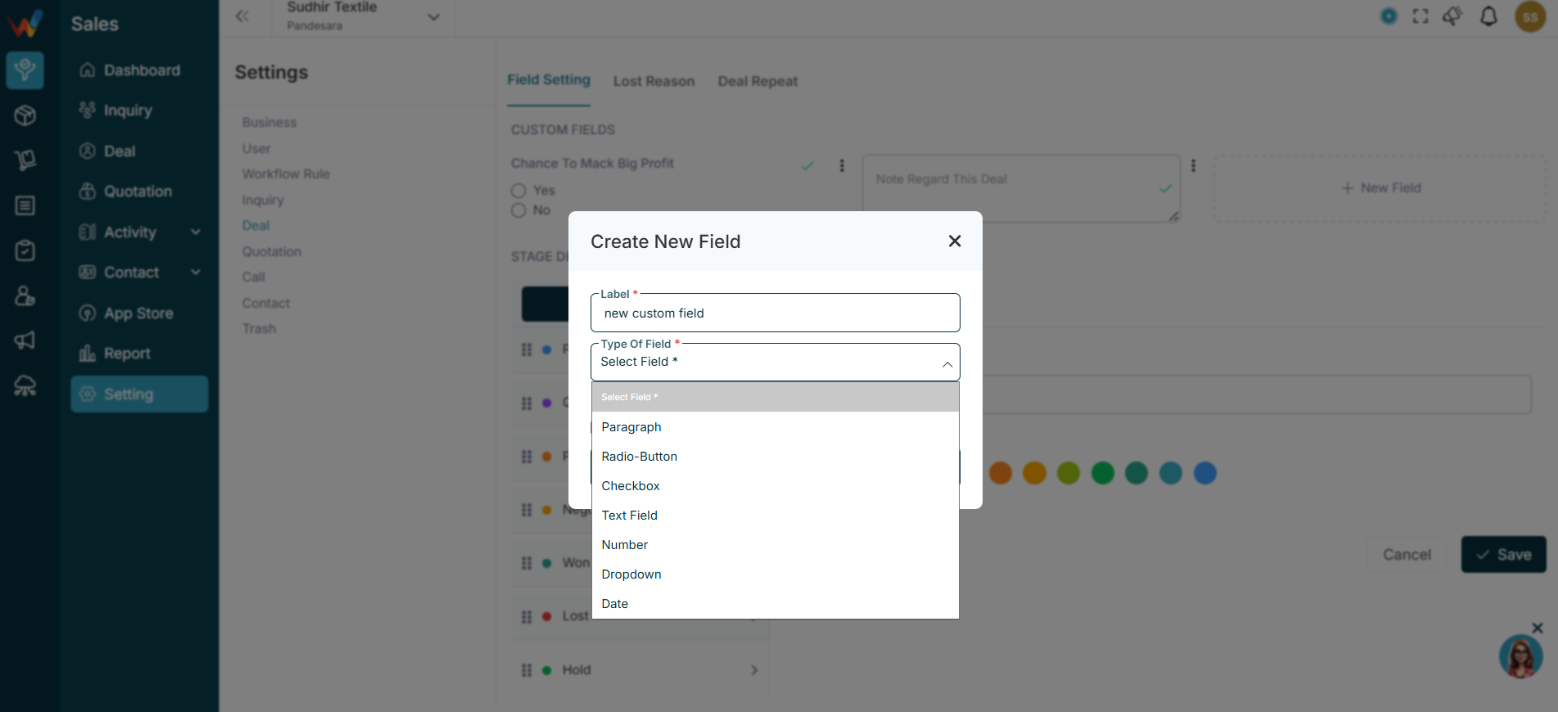
- Paragraph
- Radio Button
- Checkbox
- Text Field
- Number
- Dropdown
- Date
2.4 Textile Deal Custom Field Examples
Field Name — Type
Fabric Quality — Dropdown
GSM — Number
Order Quantity — Number
Delivery Date — Date
Payment Terms — Dropdown
Sample Approved — Checkbox
2.5 Field Options (3 Dot Menu)
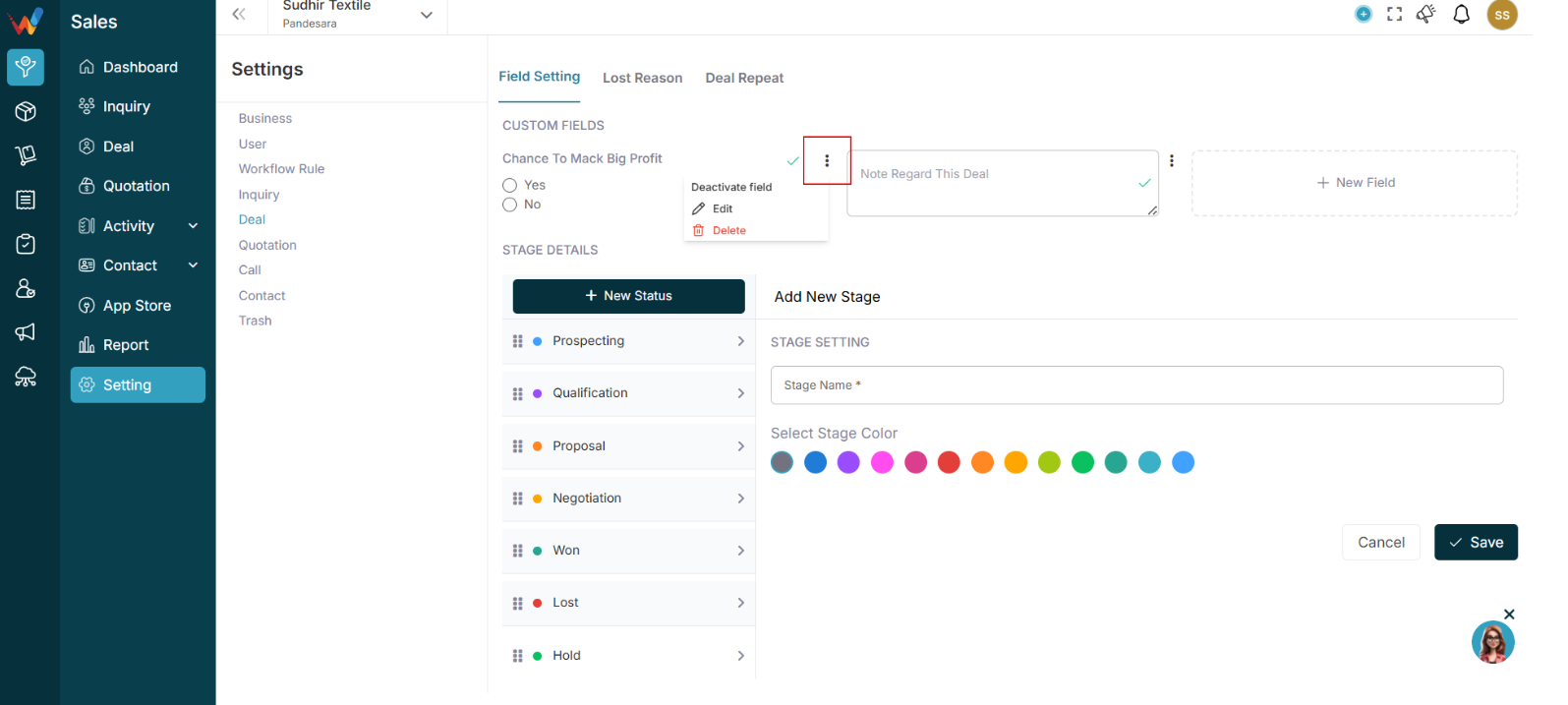
You can:
- Activate Field
- Edit
- Delete
Inactive fields won’t appear in Deal form.
Stage Details (Deal Pipeline)
3.1 Section 2: Stage Details (Deal Pipeline)

This defines your Deal Flow / Sales Pipeline.
You can:
- Create new stage
- Edit stage
- Change color
- Reorder stage
Click:
New Status (Stage)
3.2 Add New Stage
Enter:
- Stage Name
- Select Stage Colour
Click Save.
3.3 Example Textile Deal Pipeline
Your current setup shows stages like:
- Prospecting
- Qualification
- Demo Scheduled
- Demo Done
- Proposal
- Final Follow up
- Call Not Received
- Lost
3.4 Suggested Textile Sales Pipeline
For textile trading:
- New Inquiry
- Requirement Discussion
- Sample Sent
- Price Negotiation
- Proposal Shared
- Order Confirmation
- Payment Pending
- Closed Won
- Closed Lost
3.5 Why Stage Colors Matter
Stage colors help:
- Visual clarity in Kanban
- Identify hot deals
- Track stuck deals
- Monitor lost deals quickly
Example:
- Green → Won
- Red → Lost
- Orange → Negotiation
- Blue → Initial discussion
Deal Recurring
4.1 Section 3: Deal Recurring
Deal Recurring is useful for:
- Monthly repeat orders
- Regular supply contracts
- Seasonal textile buyers
- Subscription-based clients
4.2 Example Use Case
Buyer orders:
- Every 30 days
or
- Every 90 days
System automatically creates:
- New deal
- Follow-up reminder
This ensures:
- No repeat order missed
- Consistent revenue tracking
Introduction
1. Deal Settings
Navigation Path:
Sales Module → Settings → Deal
The Deal Settings section in WORTAL CRM is designed to configure how deals are structured, tracked, and managed throughout the sales lifecycle. It provides control over key elements such as custom fields, pipeline stages, and stage colours, ensuring that the deal management process is aligned with business requirements.
Through custom field configuration, businesses can capture specific deal-related information based on their workflow. The deal pipeline stages define the journey of a deal—from initial prospecting to final closure—helping teams clearly understand the current status of each opportunity. Additionally, stage colours improve visual clarity, making it easier to identify deal progress at a glance.
Deals typically represent confirmed opportunities, ongoing negotiations, or orders under discussion, making this module essential for tracking revenue potential and sales performance. By properly configuring Deal Settings, organizations can standardize their sales process, improve visibility, and ensure better decision-making across the team.