Business Logic And Business Example
Workflow and System Logic (Overall Configuration Flow)
Admin configures:
- Field Settings
- Voucher Series
- Enable E-Invoice and E-Way Bill
- Add credentials
- Add transporters
- Add sales persons
After configuration:
- Invoice Creation
- IRN Generation
- E-Way Bill Generation
- Transport compliance
- Reporting
Real Business Example
A textile business needs:
- Financial year-based invoice numbering
- E-Invoice generation above threshold
- E-Way Bill for inter-state dispatch
- Assigned sales person for each invoice
Admin sets:
- Voucher Series: FY2025-26
- Enables E-Invoice and E-Way Bill
- Adds GSP credentials
- Adds transporter master
- Maps sales team
The system becomes GST-compliant and audit-ready.
Best Practices
- Always verify GSTIN before saving credentials
- Use financial year-based voucher series
- Enable services only after credential verification
- Maintain updated transporter master
- Restrict access to configuration settings
Common Mistakes
- Entering incorrect GSP credentials
- Forgetting to set a default voucher series
- Generating E-Invoice without enabling configuration
- Not updating transporter ID
- Deleting a series after invoices are created
INVOICE TRASH MANAGEMENT
(Settings: Invoice → Trash)
Header Notice
“Your Record Will Be Permanently Deleted in 60 Days.”
This informs users that deleted invoices have a retention window.
Data Table Structure
The Trash table includes the following columns:
- Invoice No.
- Client Name
- Parent
- Deleted By
- Deleted At
- Action
Each deleted invoice record appears here until restored or auto-deleted.
Search and Filter
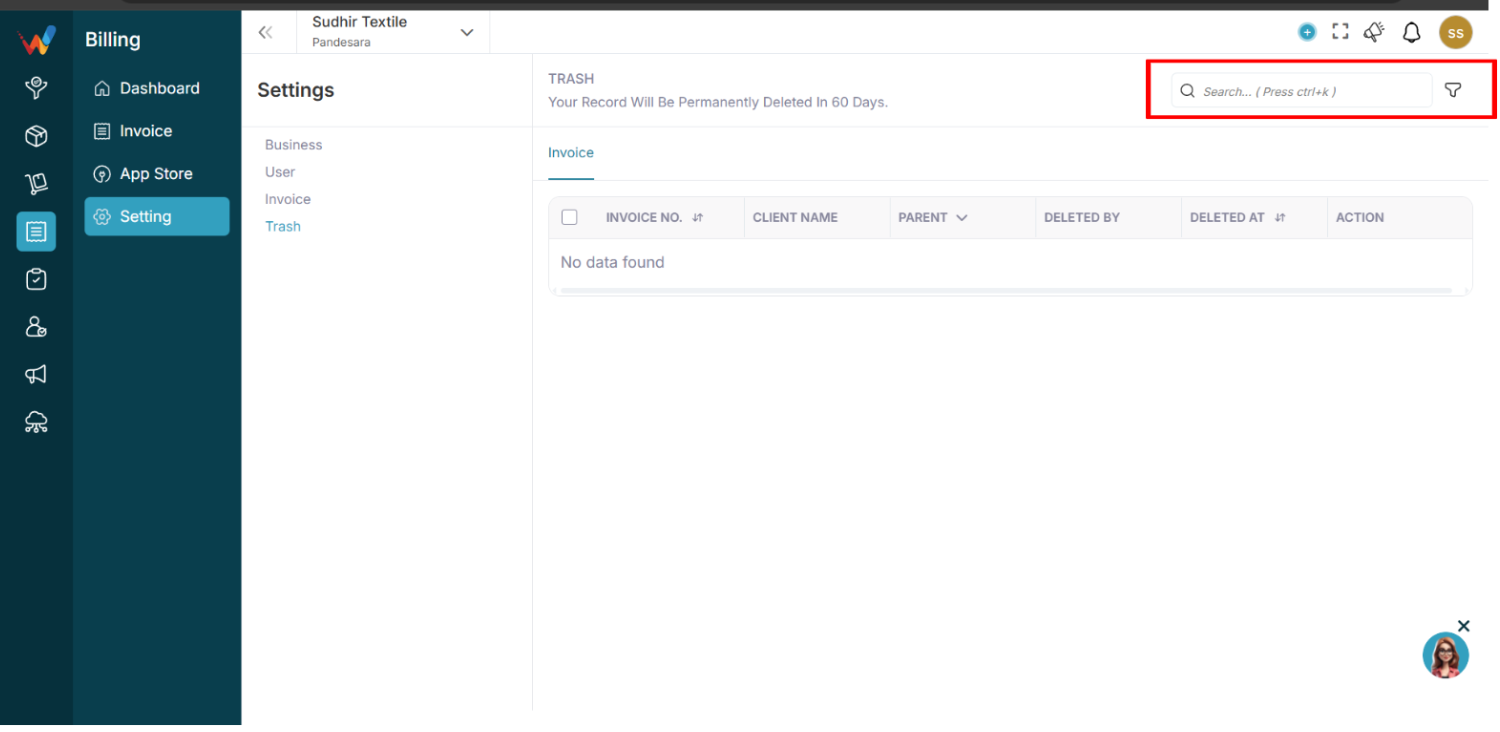
Navigation Path:
Billing Module → Setting → Trash
8.1 Search Bar
Shortcut: Ctrl + K
Search deleted invoices by:
- Invoice number
- Client name
8.2 Filter Panel
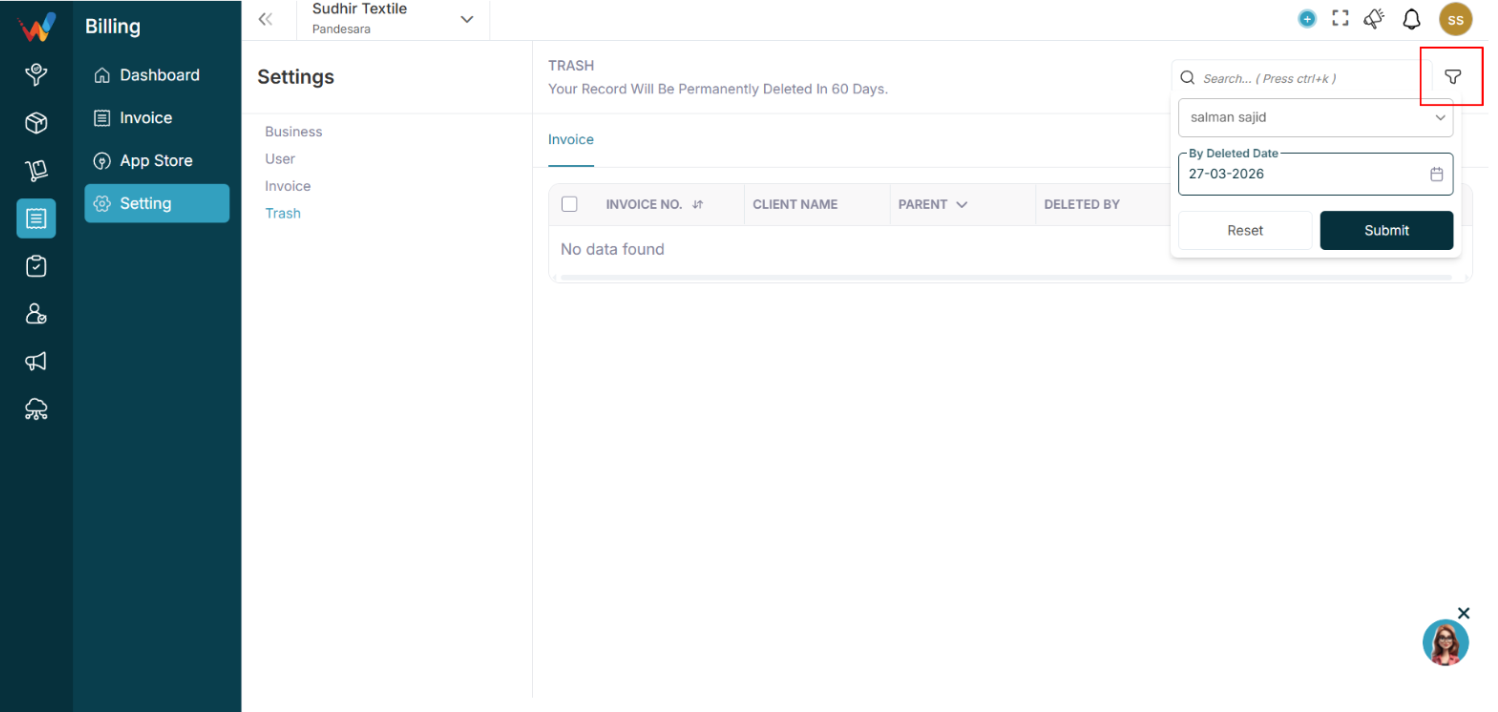
Available filters:
Filter Flow:
- Click Filter icon
- Select Deleted By (user)
- Select Deleted Date
- Click Submit
Reset clears all applied filters.
Workflow and System Logic
9.1 Invoice Deletion Flow
- User deletes invoice
- System moves invoice to Trash
- Invoice is marked as soft-deleted
- Retention timer starts (60 days)
9.2 During Trash Period
The invoice:
- Cannot be used for reporting
- Cannot generate E-Invoice or E-Way Bill
- Is not visible in the active invoice list
- Retains metadata (who deleted, when deleted)
9.3 After 60 Days
System automatically:
- Permanently deletes invoice
- Removes record from database
- Cannot be recovered
Restore Logic
If Restore option is available:
- User clicks Restore
- Invoice moves back to Invoice List
- Retention timer stops
- Invoice becomes active again
If no restore option exists, deletion is final after 60 days.
Real Business Example (Trash)
Scenario:
An accountant accidentally deletes invoice FY/25/26-101.
Instead of being permanently removed, the invoice:
- Moves to Trash
- Shows Deleted By: Accountant
- Shows Deleted Date: 15 Feb 2026
Within 60 days, Admin can:
- Review deletion
- Restore if needed
After 60 days, the invoice is permanently erased.
Best Practices (Trash)
- Restrict delete permissions to authorized users
- Regularly review Trash for accidental deletions
- Restore important invoices before the 60-day limit
- Maintain internal approval before deleting invoices
Common Mistakes (Trash)
- Assuming invoice is permanently deleted immediately
- Forgetting 60-day auto-deletion rule
- Not checking Trash after accidental deletion
- Deleting invoices before confirming E-Invoice cancellation
Compliance Consideration
For GST-compliant businesses:
- Do not delete invoices after IRN generation without cancellation
- Ensure E-Invoice or E-Way Bill is properly cancelled before deletion
- Keep audit trace for statutory review
Transportation And Sales Person
1.1 Purpose
Maintain a master list of transporters for E-Way Bill usage.
1.2 Add Transporter
Steps:
Fields:
- Transporter Name
- Transporter ID
- Contact Number
- Email
System Logic:
- Transporter appears in the E-Way Bill dropdown.
- Reduces manual entry errors.
Sales Person
2.1 Purpose
Assign sales persons to invoices for tracking and reporting.
2.2 Add Sales Person
Fields:
- Sales Person Name
- User Mapping
- Email
- Contact Number
System Logic:
- Sales person is selectable during invoice creation.
- Helps performance reporting.
- Useful for commission tracking.
Voucher Series And Configuration
1.1 Purpose
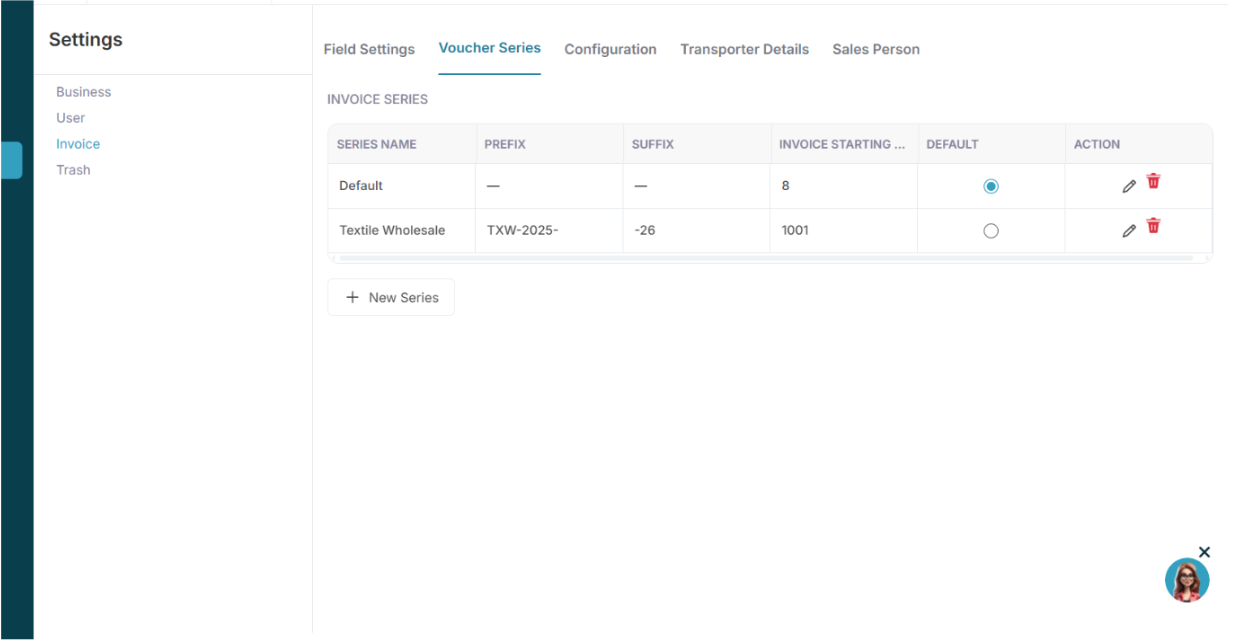
Voucher Series controls invoice numbering logic.
Each series can define:
- Series Name
- Prefix
- Suffix
- Starting Number
- Default status
1.2 Add New Series
Steps:
Fields:
- Series Name
- Invoice No. (starting number)
- Prefix
- Suffix
- Set as Default
Example:
Series Name: FY2025-26
Prefix: FY-
Suffix: -2025-26
Starting No.: 1
System Logic:
Invoice number format becomes:
FY-1-2025-26
FY-2-2025-26
Auto-increment occurs on each new invoice.
Only one series can be default at a time.
Configuration (E-Invoice and E-Way Bill Services)
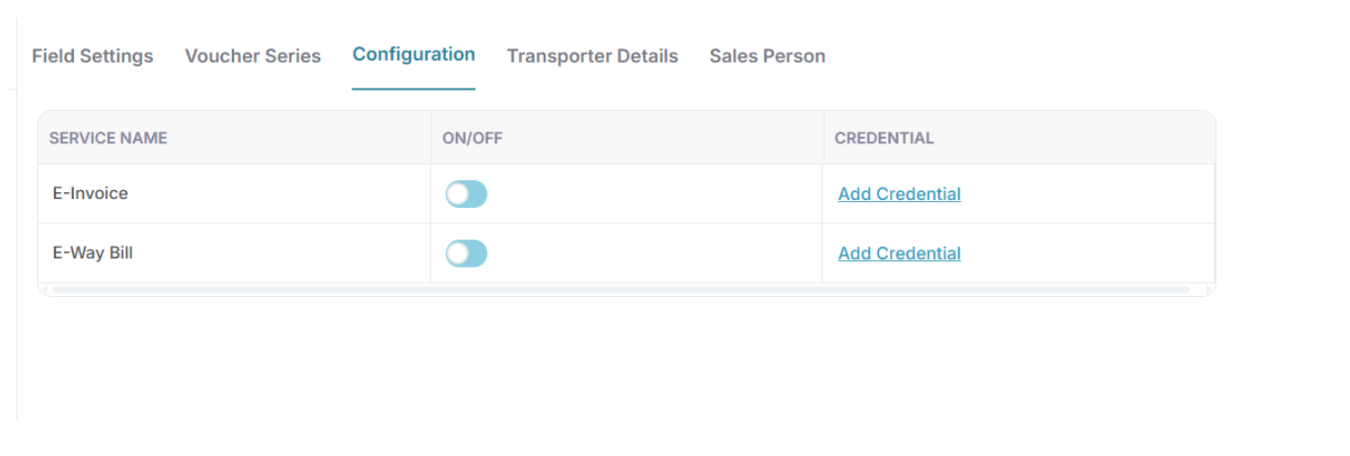
References:
Create API Credentials
Attachment link provided in your content (Slack file)
2.1 Purpose
This tab enables or disables government integrations.
Services available:
Each service has:
- ON or OFF toggle
- Credential configuration
2.2 Enabling E-Invoice or E-Way Bill
Steps:
- Toggle the service ON
- Click View Credential
- Enter required details
- Click Save
Credential Configuration
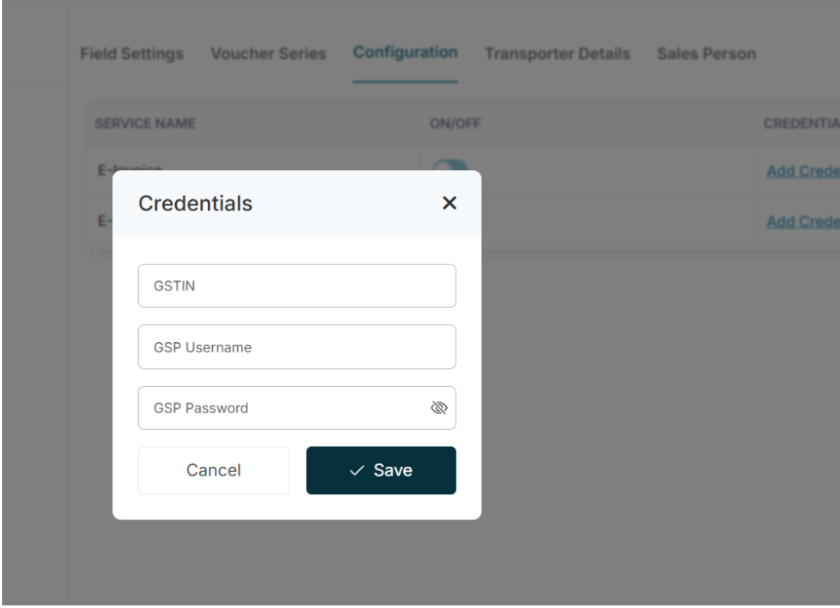
3.1 Required Fields
- GSTIN
- GSP Username
- GSP Password
These credentials are obtained from the GST E-Way Bill portal.
3.2 How to Create a GSP Account (Process Summary)
Log in to:
https://www.ewaybillgst.gov.in
Go to Registration → For GSP
- Click Add/New
- Select GST Provider: Quicko Infosoft Pvt. Ltd.
- Create Username and Password
Use these credentials inside the Wortal Billing Configuration.
3.3 System Logic
When an E-Invoice or E-Way Bill is generated:
- System validates credentials
- API call is made to the GSP provider
- Government portal validates request
- IRN or E-Way Bill number is returned
- Result is linked to the invoice
If credentials are invalid, the system returns an authentication error.
Field Settings
1.1 Purpose
Field Settings controls:
- Invoice header fields
- Custom input fields
- Item table columns
- Item adjustments
It allows system-level customization of the invoice format.
1.2 Invoice Details Section
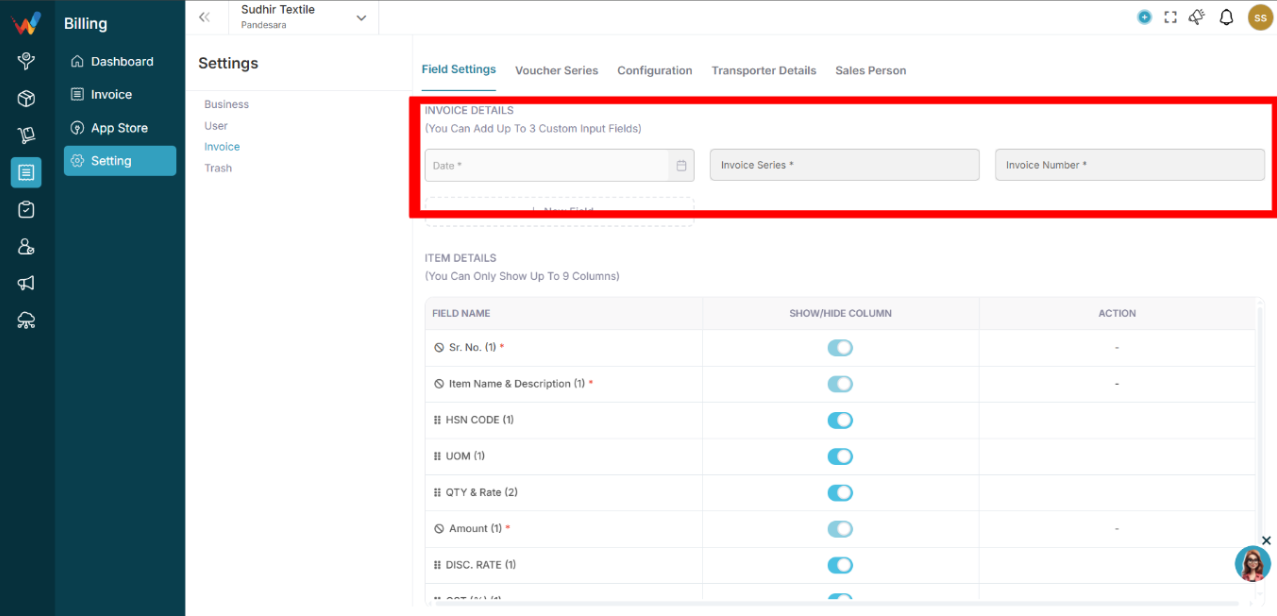
Fields available:
- Date
- Invoice Series
- Invoice Number
You can also:
- Add up to 3 custom input fields
- Define label
- Define field type (Text, Number, Dropdown, Date)
- Mark field as mandatory
Custom Field Creation Flow
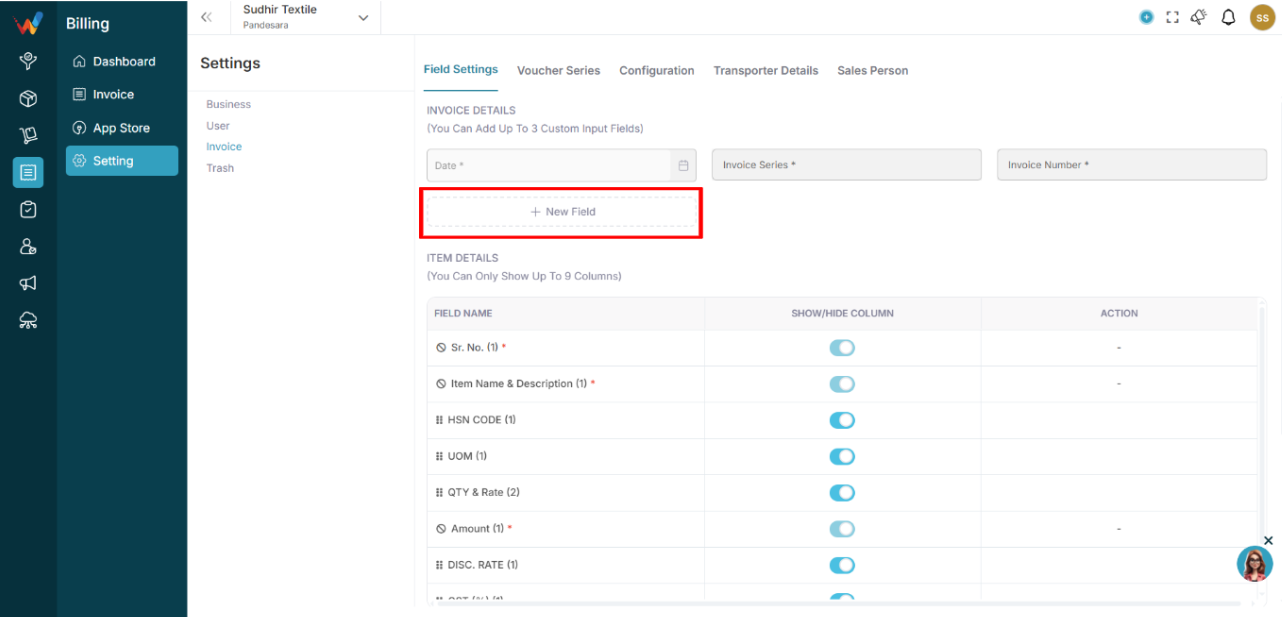
- Click New Field
- Enter Label
- Select Field Type
- Mark as Mandatory (optional)
- Click Create
System Logic
- Custom fields appear on the Create Invoice screen.
- Mandatory fields must be filled before submission if you want to make that field mandatory.
1.3 Item Details Section
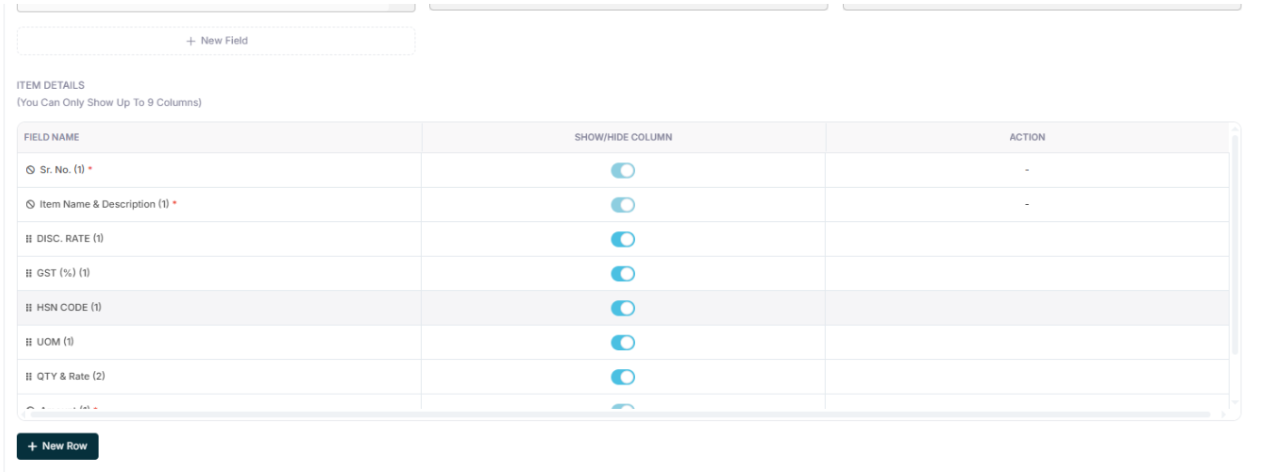
You can control visible columns in the item table.
Available fields:
- Sr. No.
- Item Name and Description
- HSN Code
- UOM
- Qty and Rate
- Amount
- Discount Rate
- GST Percent
- Net Amount
Rules:
- Maximum 9 columns allowed.
- Toggle ON or OFF to show or hide columns.
- The system recalculates automatically based on visible tax structure.
1.4 Item Adjustment Section
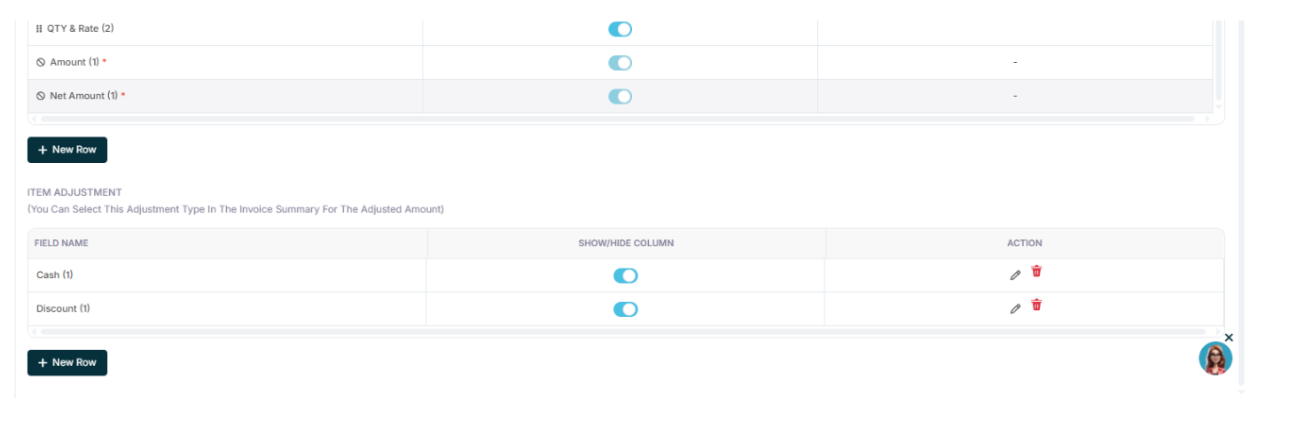
Allows configuration of adjustment types such as:
- Cash
- Discount
- Additional Charges
Each adjustment can be:
- Shown or hidden
- Edited
- Deleted
Adjustments appear in the invoice summary calculation area.
Configuration Tabs Overview
Navigation Path:
Billing Module → Setting → Invoice
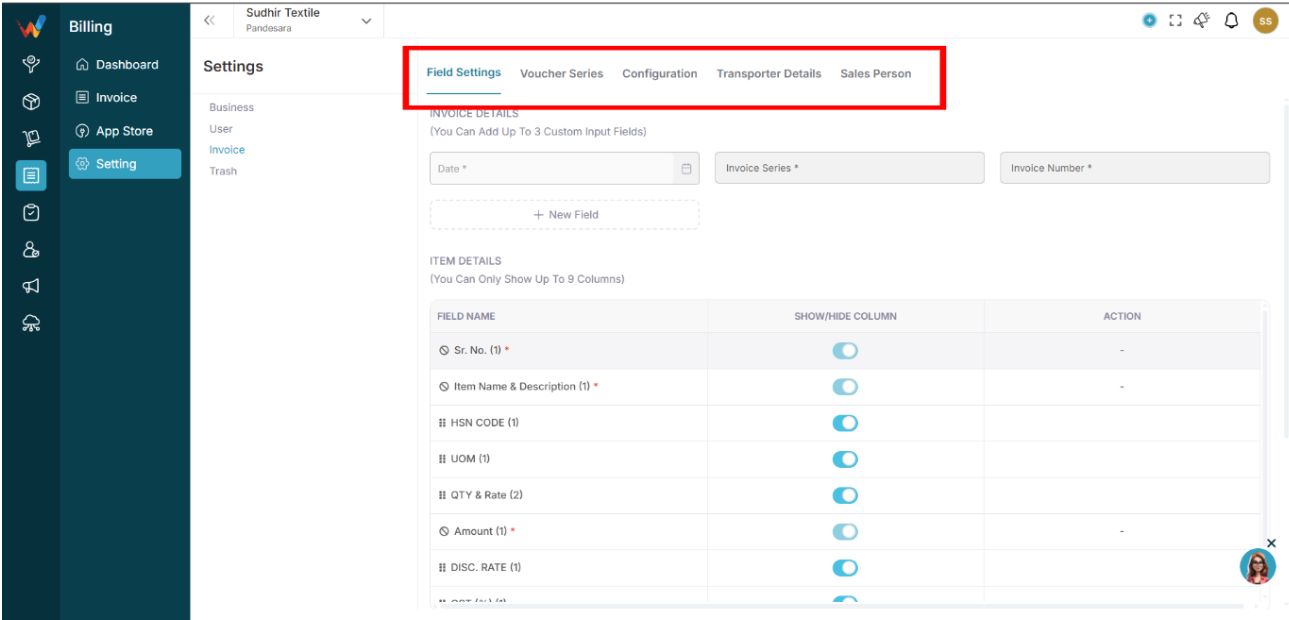
The Invoice Settings module contains the following tabs:
- Field Settings
- Voucher Series
- Configuration
- Transporter Details
- Sales Person