The Add Inward Stocks screen is used to record items coming into stock. It allows you to enter invoice details and item information for inward entries.
By Clicking the “+ Inward” Button, the Following Functions Apply:
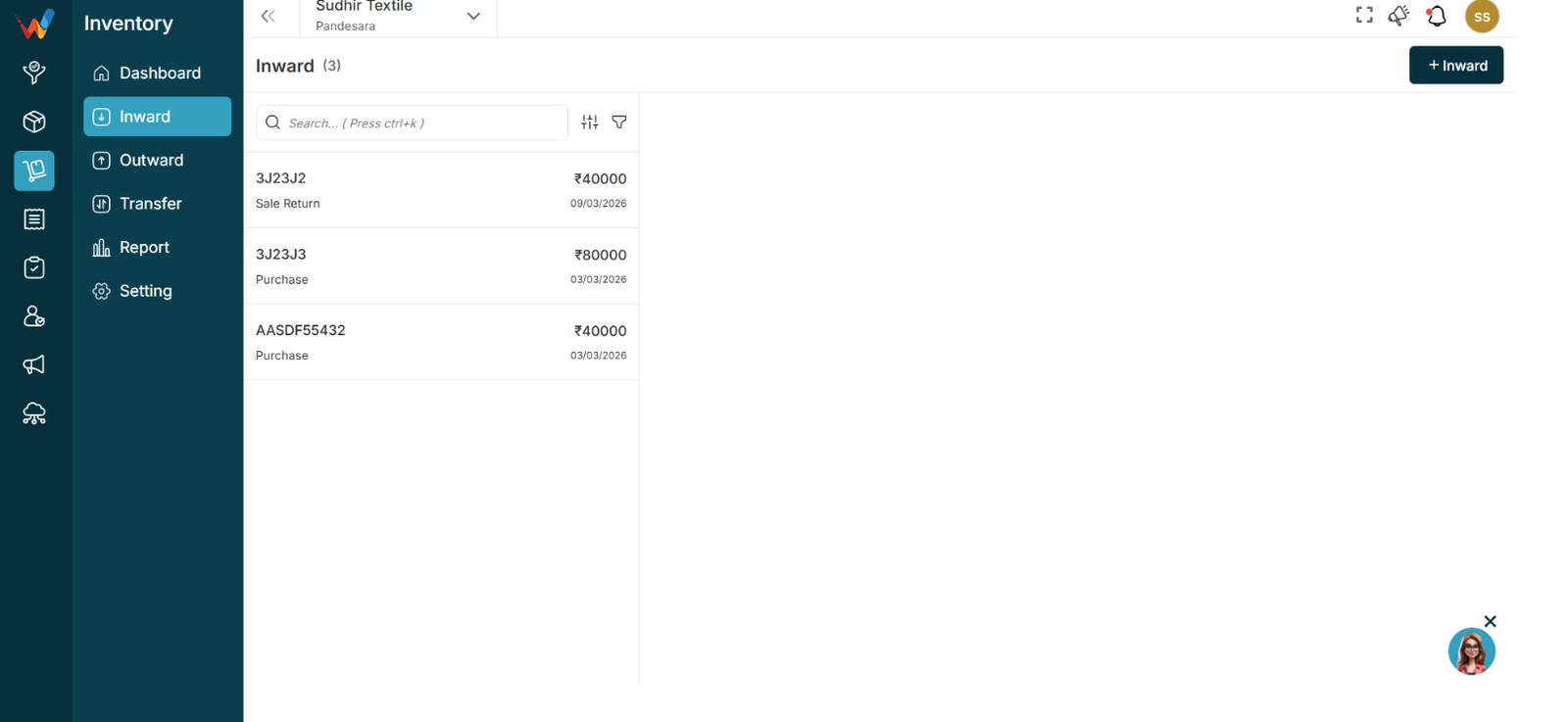
Navigation Path:
Inventory Module → Inward → Click on + Inward
1.1 Add Inward Stocks (Form Actions)
Invoice Details
Enter the required invoice information. This section captures the transaction’s invoice data.
Item Details
Add the items being received along with their quantity and rate. To include multiple items within the same invoice, click + New Row.
Remark
Use this field to add notes or additional details related to the transaction.
Submit
Click Submit to save the inward stock entry.
Cancel
Click Cancel to exit the screen without saving.
Back
Click Back to return to the previous screen.
Inward – List View
Navigation Path:
Billing Module → Inward
1.1 Purpose of Inward List View
Displays all inward transactions. Each entry includes:
- Invoice Number
- Transaction Type
- Amount
- Date
Purpose:
Provides a complete record of stock entries.
1.2 Search Bar
Used to quickly find inward transactions.

Shortcut: Ctrl + K
How to Use
- Enter the invoice number or reference.
1.3 Sort Function
Used to arrange inward records.

Available Options
- Invoice Date
- Transfer Date
- Updated Date
- Invoice Number
- Invoice Type
- Amount
Sort Order
Purpose:
Helps organize and analyze records efficiently.
1.4 Filter Panel
It helps you find exactly what you’re looking for by filtering out unnecessary results.

Available Filters
- Item Name
- Amount
- Transfer Type
- Invoice Date
- Transfer Date
How to Use
- Open the Filter panel.
- Enter filter details.
- Click Submit.
- Click Reset to clear filters.
Inward Details View
This screen displays complete information for the selected inward transaction. It helps you review stock entries and verify transaction details.
When you click on an invoice, all related details will be displayed.

2.1 Inward Details
This section shows the basic transaction information.
Fields Available
- Invoice No: Unique invoice reference
- Group Type: Type of transaction (for example, Purchase)
- Date of Inward: Date when stock was added
- Date of Invoice: Invoice creation date
Purpose:
Helps identify and validate the transaction.
2.2 Item Details
This section shows all items included in the inward entry.
Columns Available
- Sr. No.: Item sequence number
- Item Name: Name of the product
- Warehouse Name: Warehouse where stock was added
- UOM: Unit of measurement
- Qty: Quantity received
- Rate: Item price per unit
- Amount: Total value of the item
Purpose:
Provides stock and financial breakdown.
2.3 Remarks

This section displays additional notes related to the transaction.
Purpose:
Used to store comments or special details.
2.4 Edit Button
Used to update the inward transaction.
Navigation Path:
Inventory Module → Inward → Click on + Edit

Common Use Cases
- Correct quantity
- Update rate
- Modify invoice details
2.5 Delete Option

Used to remove the inward transaction.
Important:
Deleting this entry will update stock levels.
Recommended Practice:
Allow deletion only to authorized users.
The Inward module is used to record stock additions.
1.1 Common Use Cases
- Purchases
- Stock adjustments
- Returned items