Order Lifecycle And Status Logic
Order Status Logic
1.1 Fulfillment Status
- Unfulfilled: No action taken on the order
- Partially Fulfilled: Some items have been confirmed (available in stock)
- Fulfilled: Order fully confirmed
1.2 Payment Status
- Unpaid
- Partially Paid
- Paid
1.3 Order Lifecycle
Created
→ Production
→ Fulfillment
→ Shipment
→ Payment
→ Completed
Complete Order Lifecycle Flow
Order Created
→ Production
→ Fulfillment
→ Shipment
→ Payment
→ Return or Cancel
→ Completed
System Controls
- Fulfillment is restricted if there is no stock – (Note : user are able to complete Fulfillment with minute stock also )
- Return is restricted if the order is not fulfilled
- Payment cannot exceed the order amount
- Exchange auto-adjusts payable
System Logic
- Inventory reduces on fulfillment
- Payment updates outstanding balance
- Return adjusts stock (if enabled)
- Cancel stops lifecycle
- Completed marks final state
Common Mistakes
- Marking an order completed before payment
- Forgetting to fulfill items
- Not updating tracking ID
- Not recording return properly
- Deleting orders instead of cancelling
Order Return And Order Cancel
Return Management (Detailed Documentation)
1.1 Create Return Screen
1.1.1 Return Type
Options:
- RTO (Return to Origin)
- Return
Meaning:
RTO: Shipment is undelivered and returned by courier
Return: Customer sends the product back
1.2 Return Item Details
- Select items from fulfilled items
- Choose quantity to return
- Multiple items supported
System Logic:
Return quantity cannot exceed fulfilled quantity.
1.3 Exchange Item Details
After selecting return items, users can:
- Add exchange items
- Select new product
- Add quantity
Use case:
The customer returns a defective item and receives a new product.
1.4 Amount Summary
Auto-calculates:
- Return Gross Total
- Return Shipping Charge
- Round Off
- Return Amount
- Outstanding Amount
- Receivable Amount
System Logic:
If refund: reduces receivable
If exchange: adjusts balance difference
1.5 Return Details (Right Panel)
- Return ID (auto-generated)
- Return Date
- Tracking Number
- Shipping Carrier
- Attachment
- Notes
Click Submit to create the return.
Order Cancel Screen
2.1 Location
Order Detail → Cancel
2.2 Fields
- Date of Cancel
- Reason of Cancel
2.3 System Logic
- Order status changes to Cancelled
- Cannot fulfill a cancelled order
- Inventory is restored (if reserved) – (Note : Inventory is not reduced when an order is created.(because of this reason we not restored Inventory))
- Payment refund must be handled separately
Create Order And Detail View
Create Orde
1.1 How to Open Create Order
Click + Order.
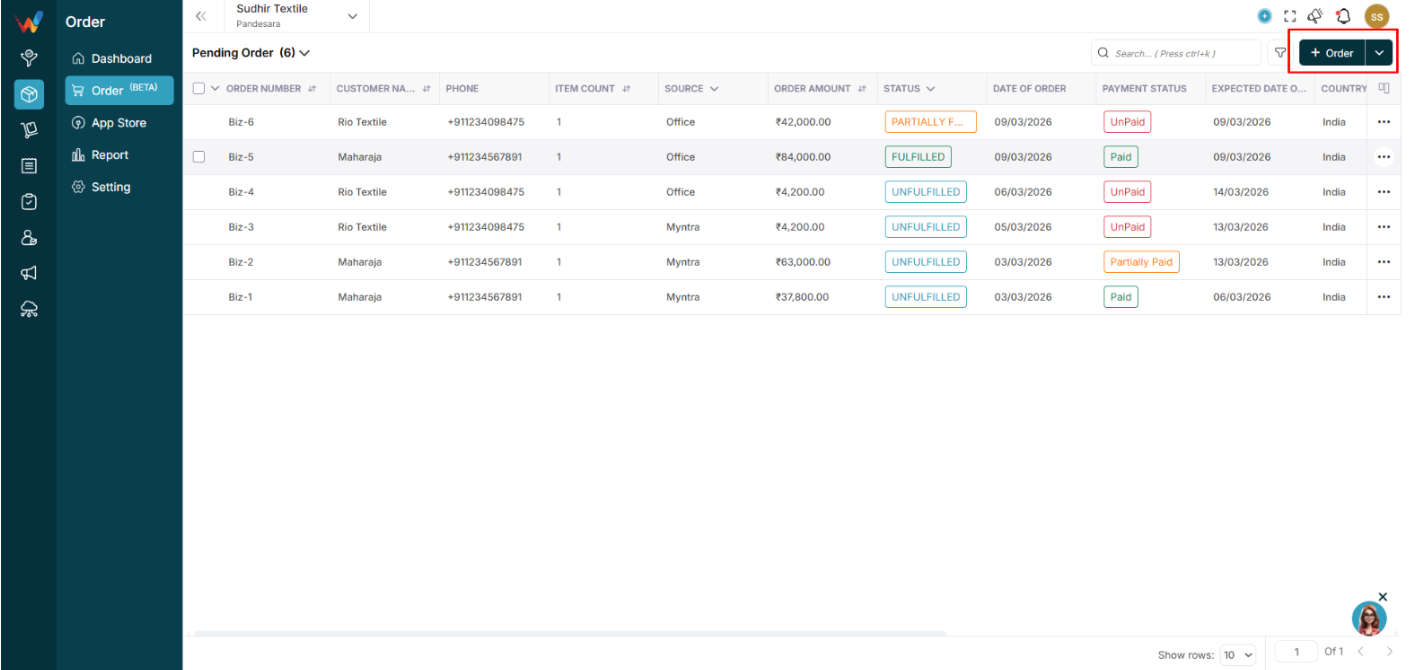
1.2 Screen Layout
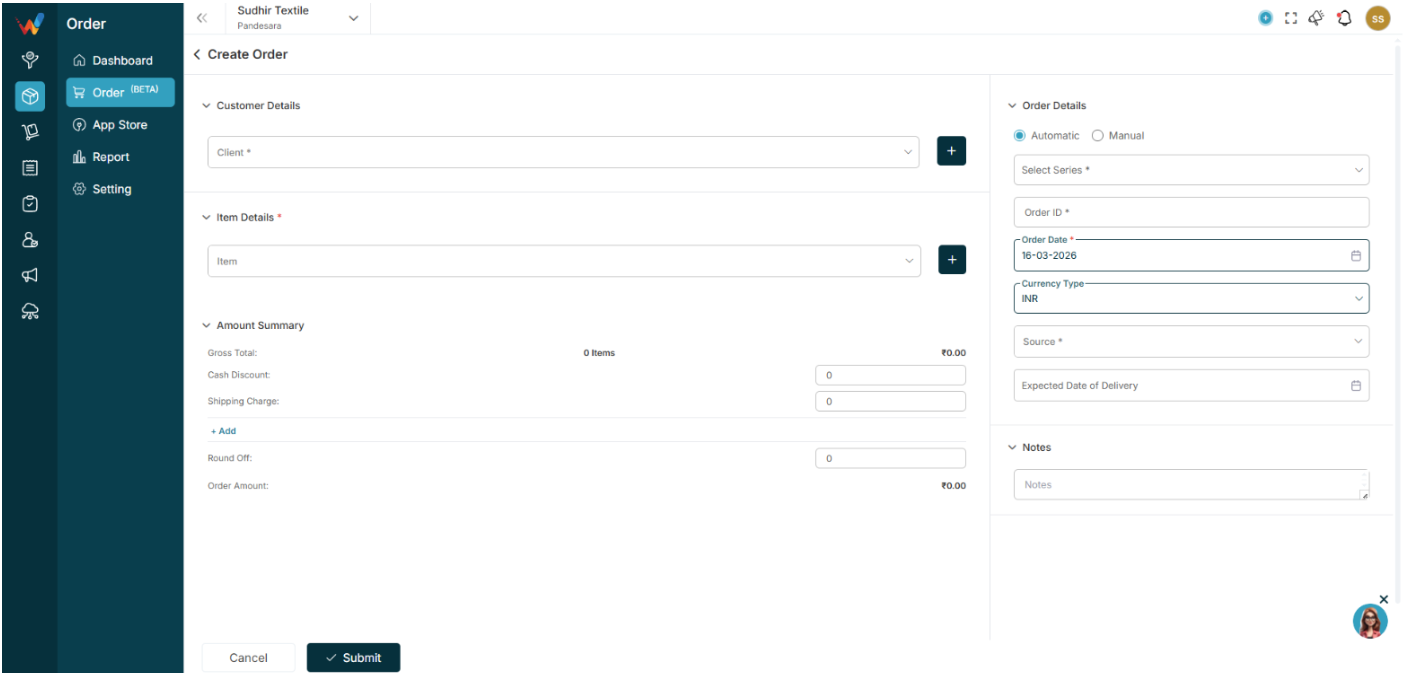
The Create Order screen has two sections:
- Left side: Customer and Item
- Right side: Order Details
1.3 Customer Details
- Client (mandatory)
- Quick Add (plus) option
1.4 Item Details
- Add Item
- Multiple items supported
- Quantity and Rate defined
1.5 Amount Summary
Auto-calculates:
- Gross Total
- Discount
- Shipping Charge
- GST (IGST, CGST, SGST)
- Round Off
- Order Amount
1.6 Order Details
Order ID options:
- Automatic: System generates Order ID
- Manual: User enters Order ID
Fields:
- Series
- Order ID
- Order Date
- Currency
- Source (Office, Shopify, etc.)
- Expected Date of Delivery
- Notes
Click Submit to create the order.
Order Detail View
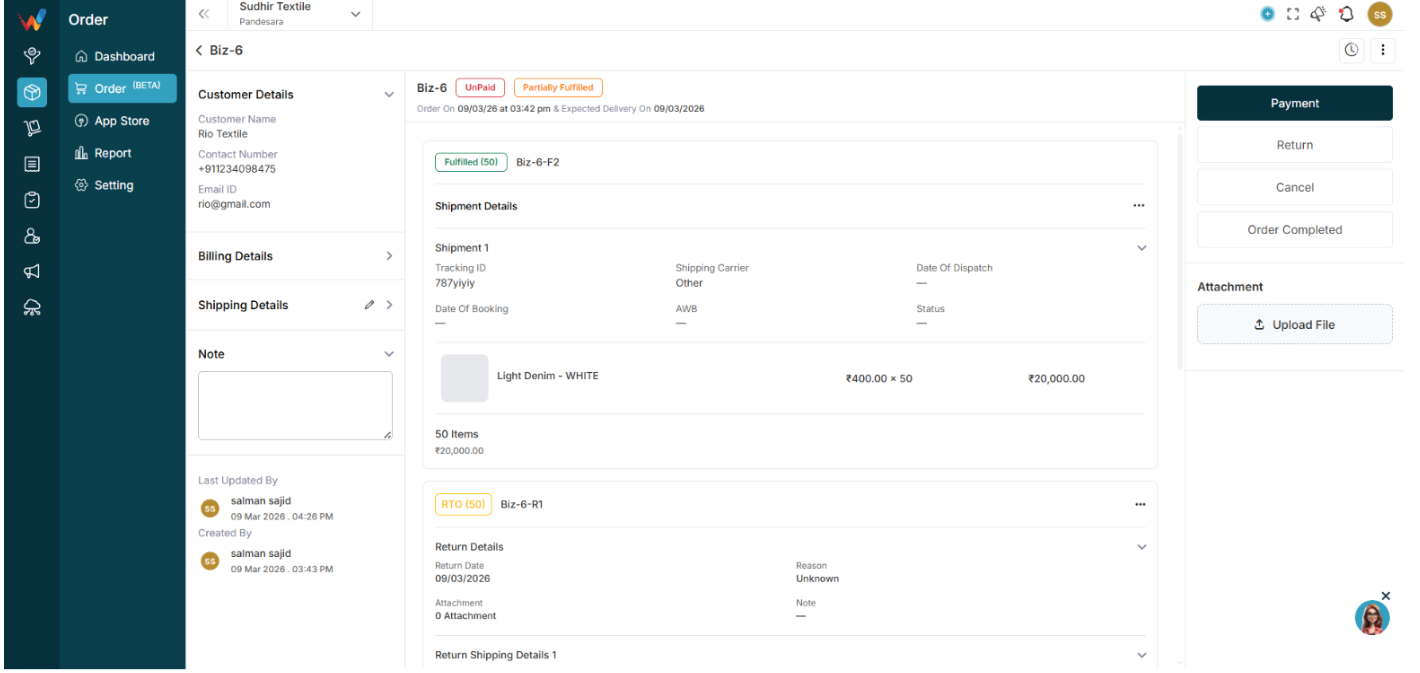
When clicking an order, the top section shows:
- Order ID
- Payment Status
- Fulfillment Status
- Order Date
- Expected Delivery Date
2.1 Left Panel
- Customer Details
- Billing Details
- Shipping Details
- Notes
- Created By
- Last Updated By
2.2 Shipment Section
Shows:
- Shipment number
- Tracking ID
- Shipping Carrier
- AWB
- Dispatch Date
- Shipment Status
Items are listed with:
2.3 Amount Summary
Displays:
- Gross Total
- Discounts
- Shipping
- Tax breakup
- Order Amount
- Paid
- Return
- Outstanding Amount
Order Actions
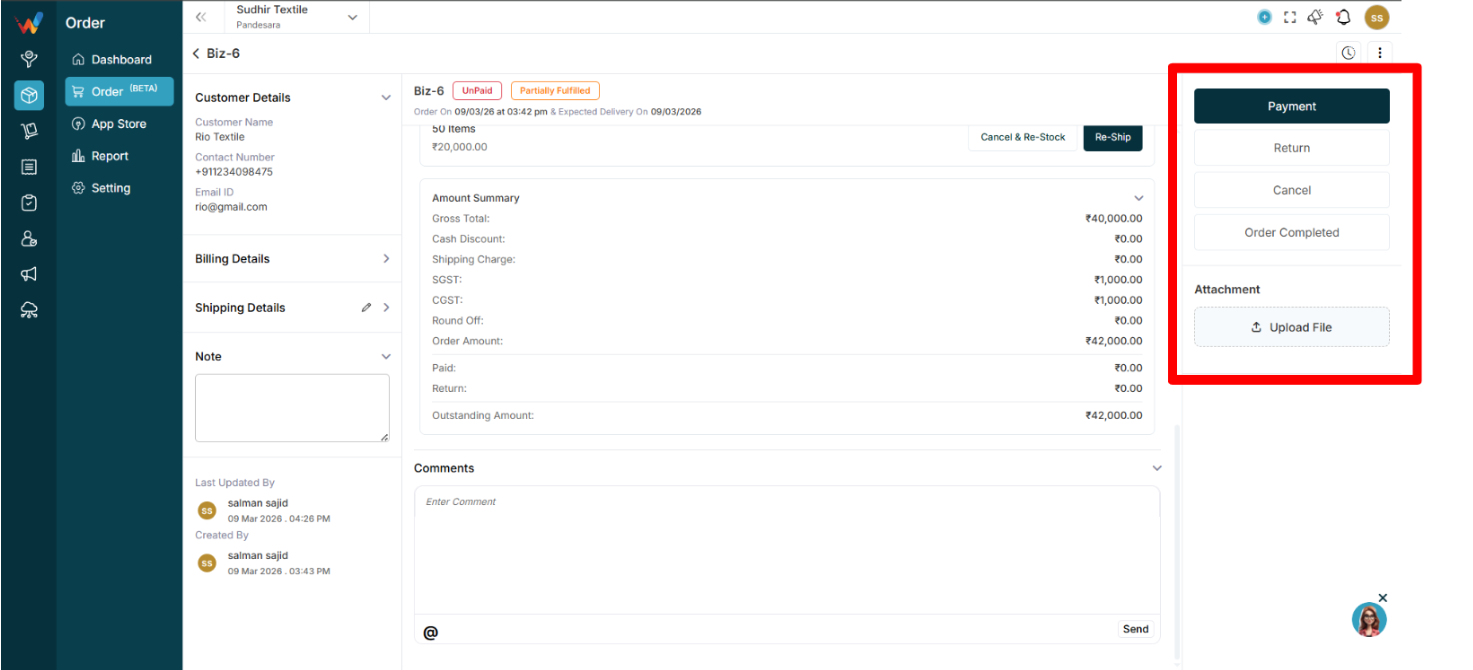
Right side panel actions include:
- Payment
- Return
- Cancel
- Order Completed
3.1 Payment
Open the Payment modal.
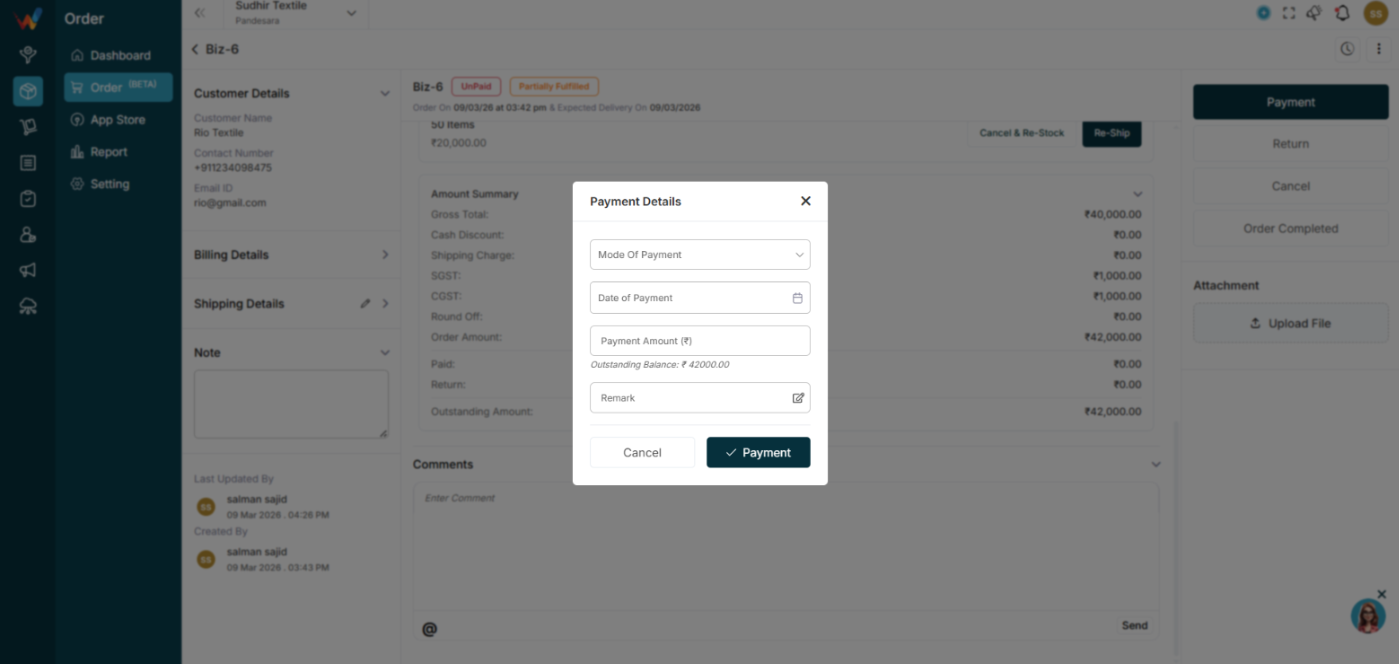
Fields:
- Mode of Payment
- Date
- Payment Amount
- Remark
System updates:
- Paid amount
- Outstanding balance
- Payment status
3.2 Fulfill Item
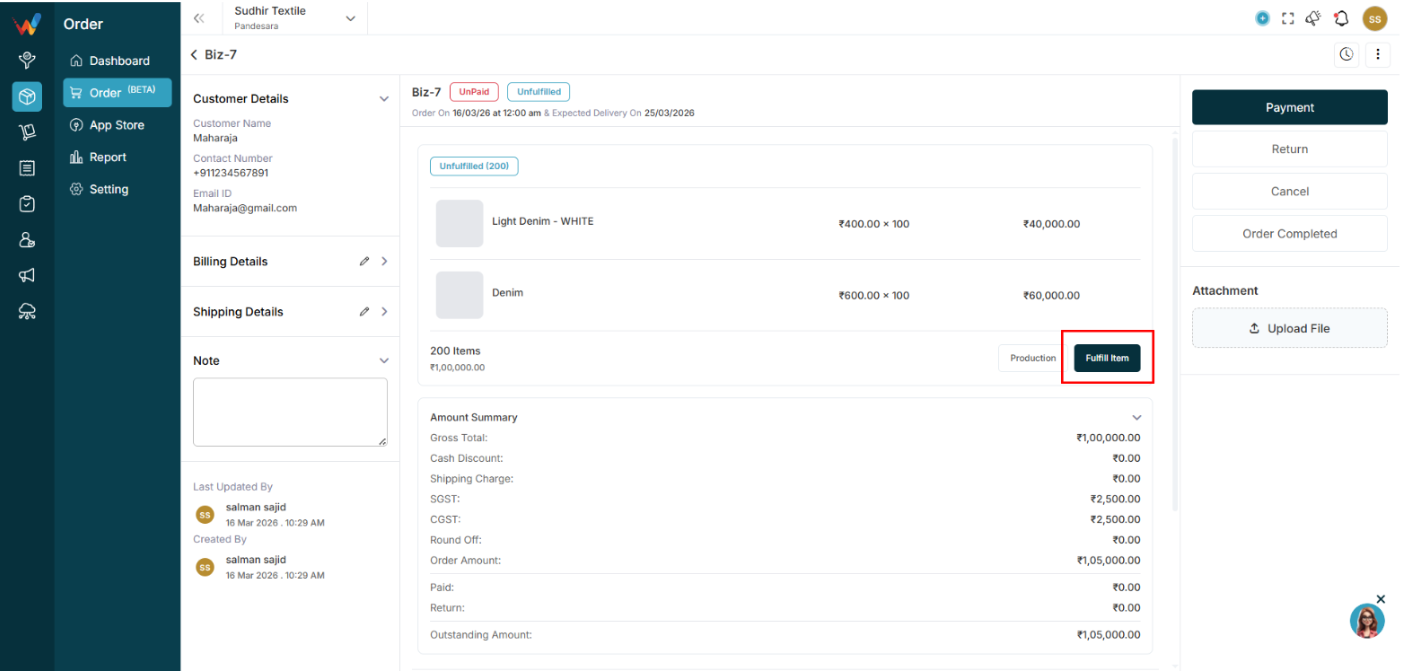
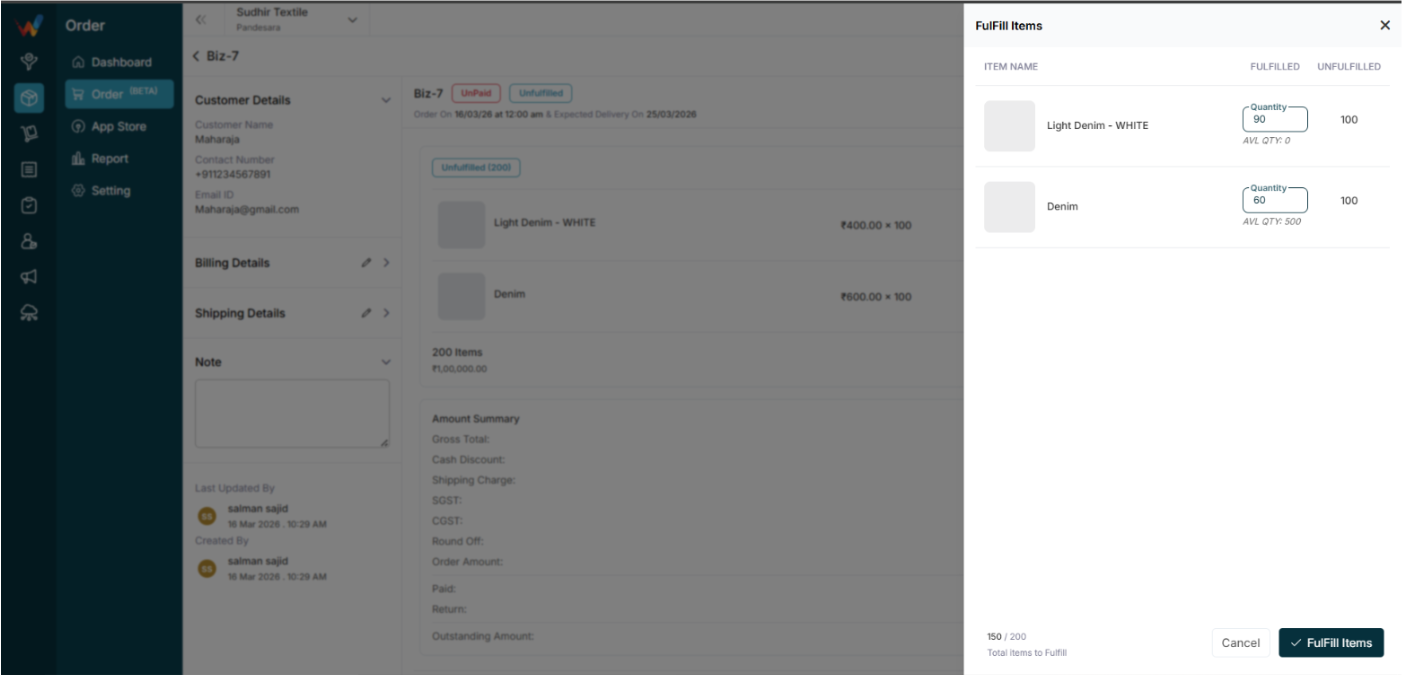
Users can:
- Fulfill partial quantity
- Track unfulfilled items
Status updates:
- Unfulfilled
- Partially Fulfilled
- Fulfilled
3.3 Production

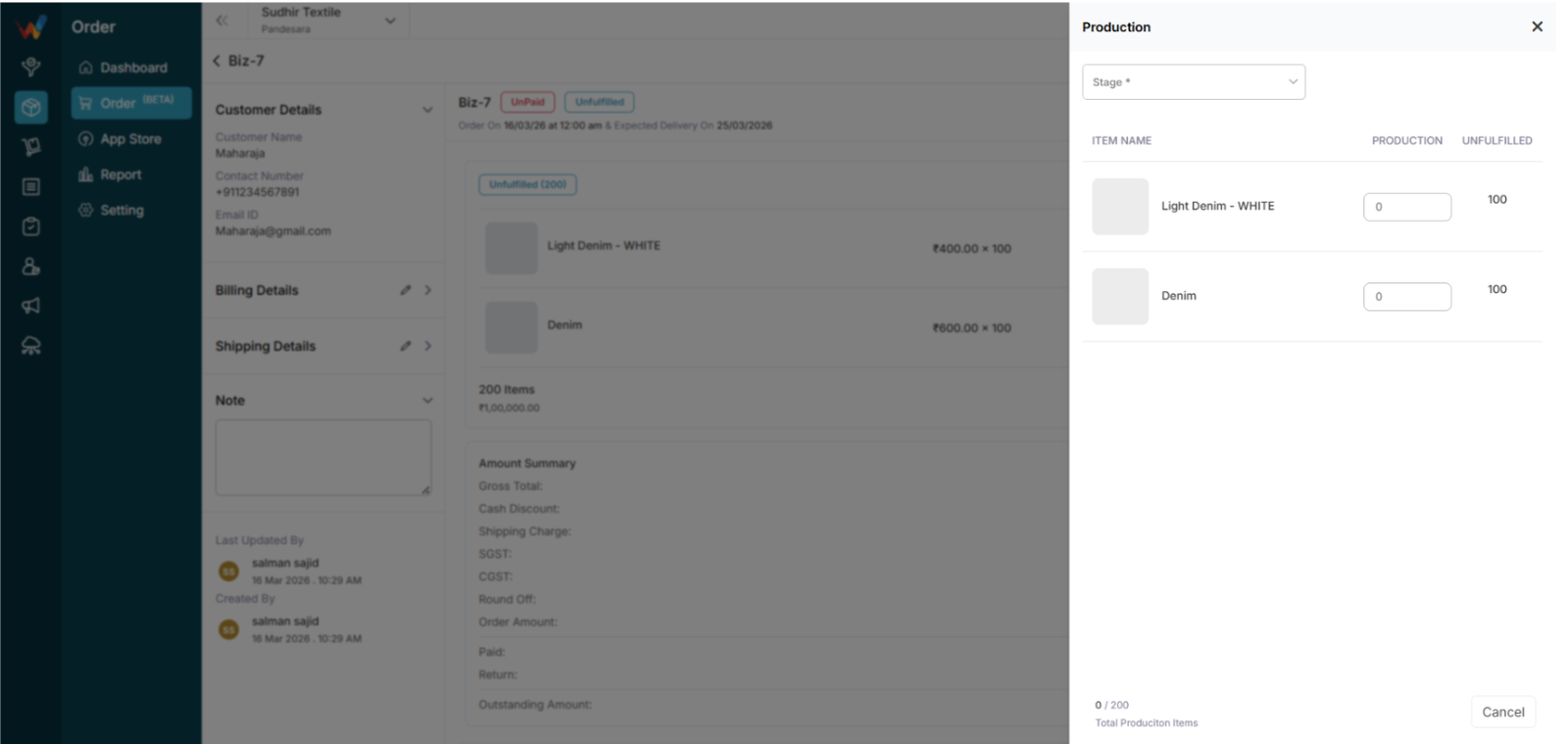
If production is enabled:
- Select stage
- Enter production quantity
- Track production versus pending
3.4 Return
Click Return to open the Create Return screen.
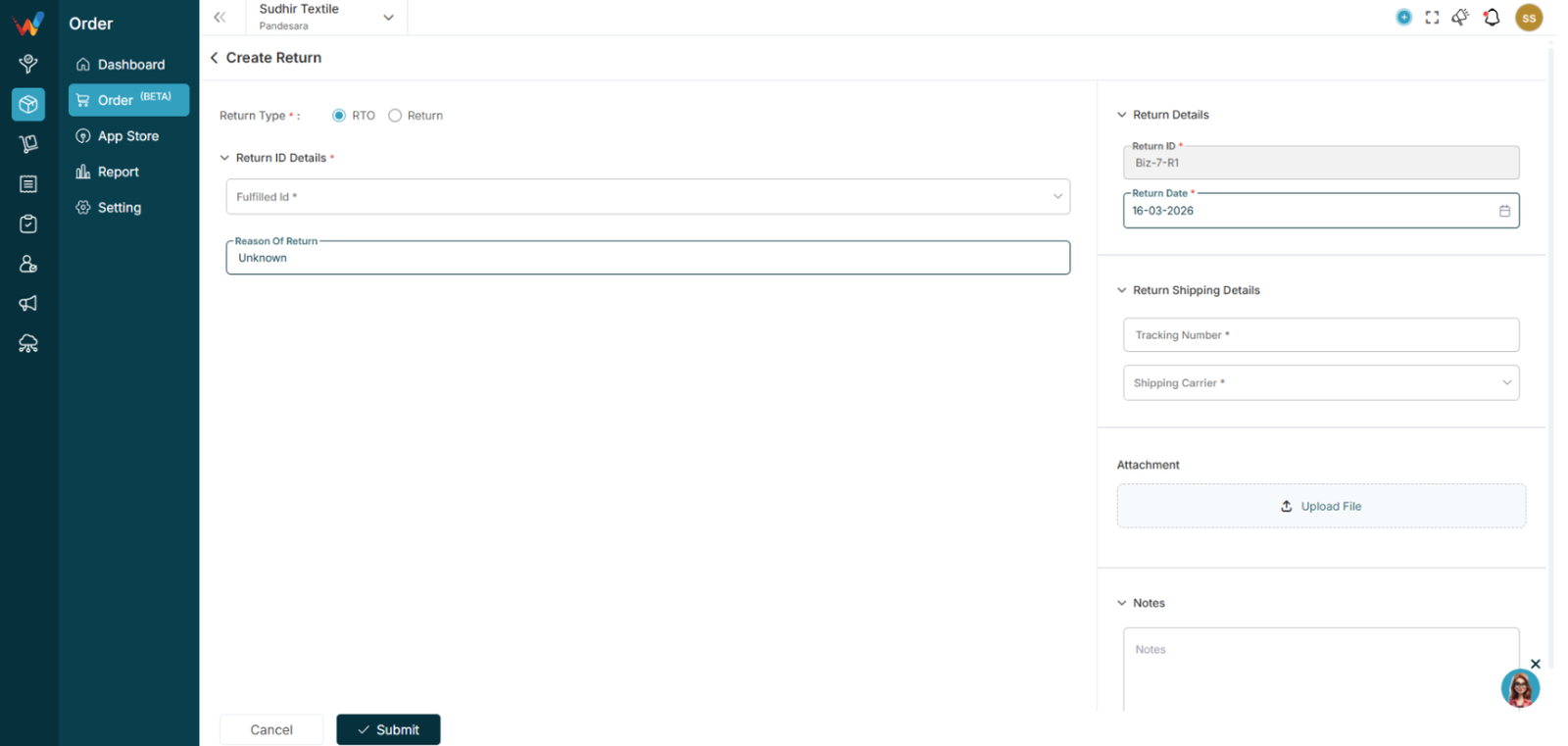
Return options:
Fields:
- Fulfilled ID
- Reason of Return
- Return ID
- Return Date
- Tracking Number
- Shipping Carrier
- Notes
- Attachment
3.5 Cancel
Cancels the order before fulfillment.
List View
Navigation Path:
Order Module → Order
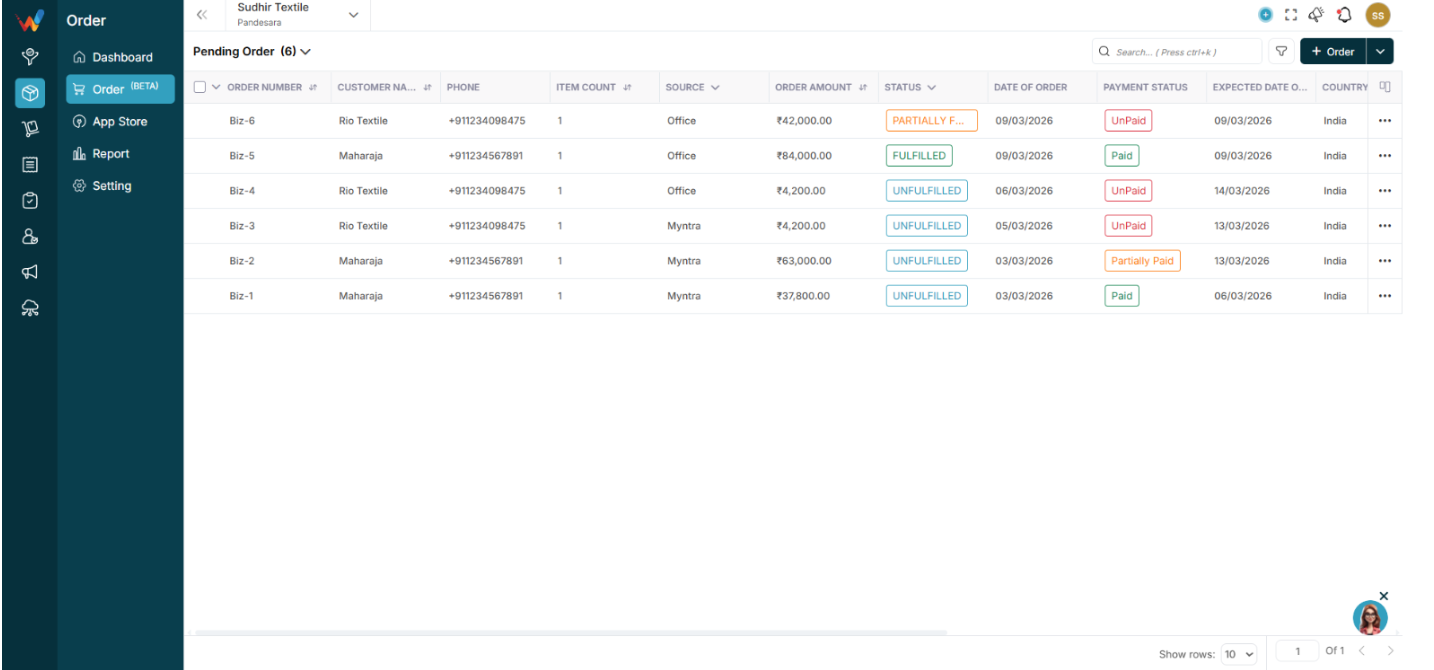
1.1 Top Left Dropdown (Order Views)

- Pending Order
- Completed Order
- Cancelled Order
- All Orders
This allows quick filtering by lifecycle stage.
1.2 Table Columns
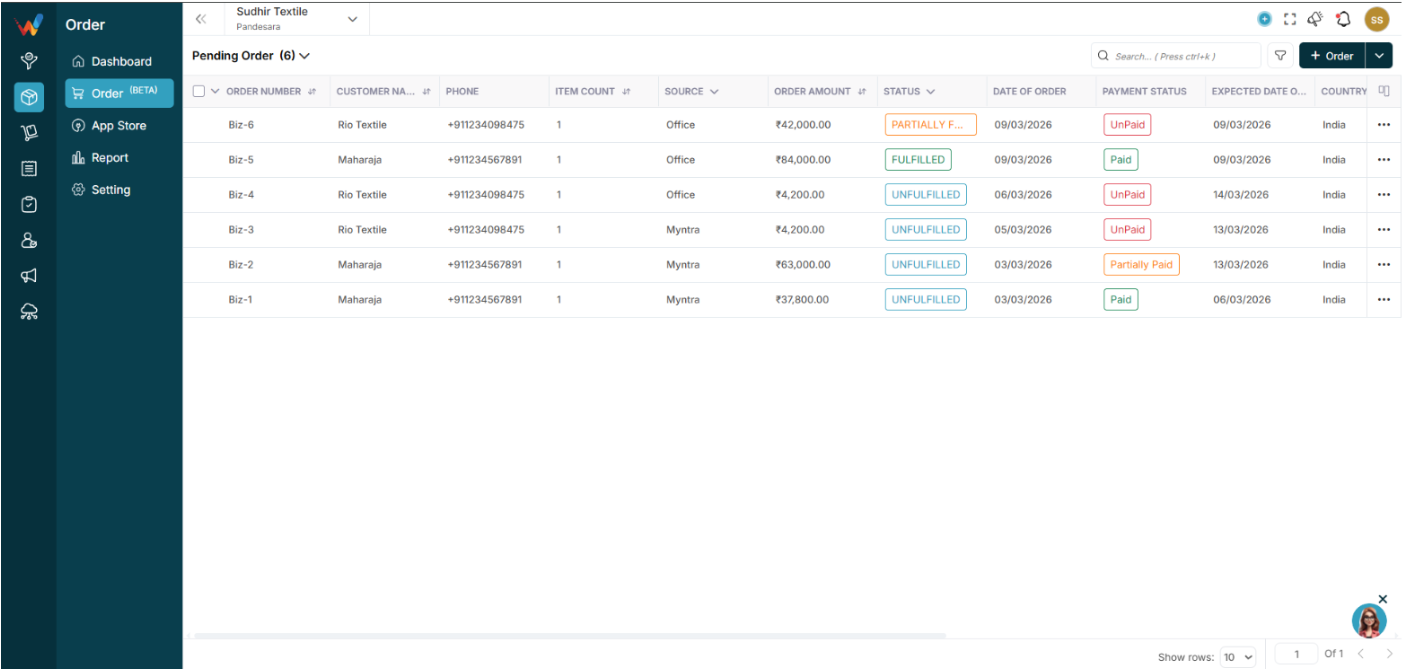
Default visible columns:
- Order Number
- Customer Name
- Phone
- Item Count
- Source
- Order Amount
- Status (Unfulfilled, Fulfilled, Partially Fulfilled)
- Date of Order
- Payment Status (Paid, Unpaid, Partial)
Columns can be customized.
1.3 Search
Shortcut: Ctrl + K
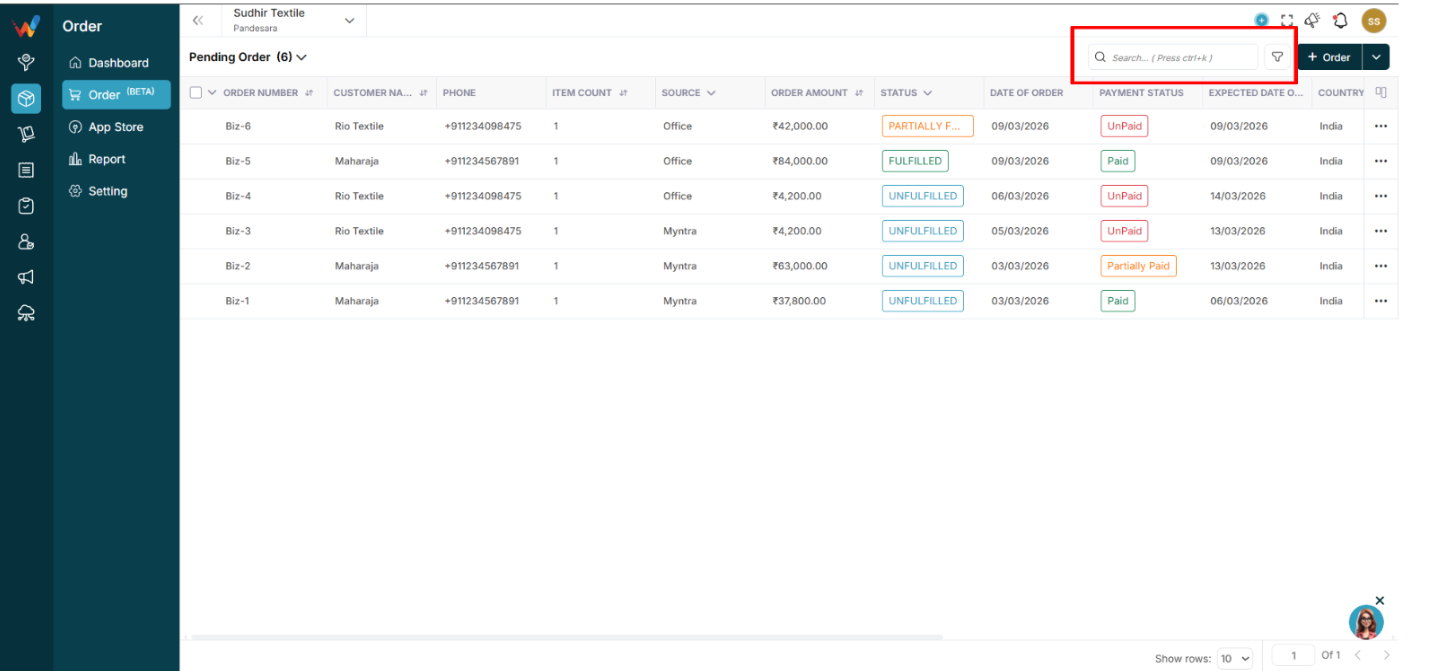
The search bar supports:
- Order ID
- Customer Name
- Phone
1.4 Filter Panel
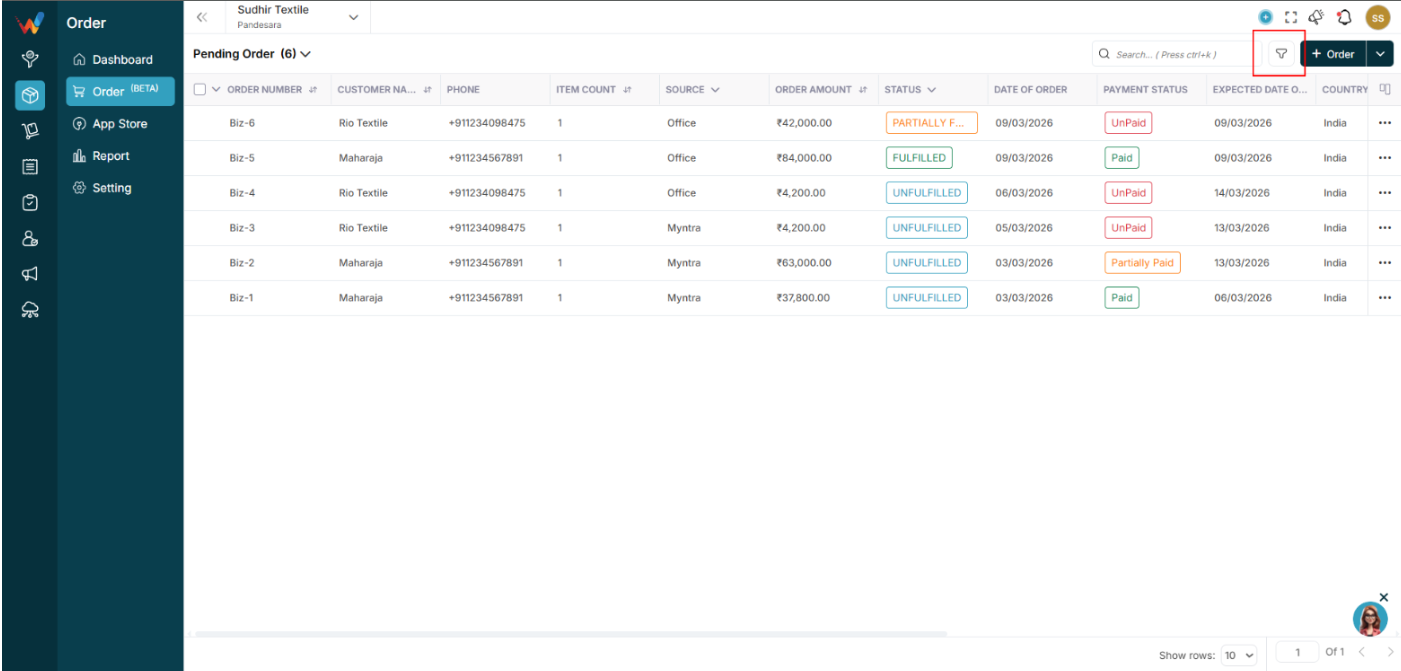
Available filters:
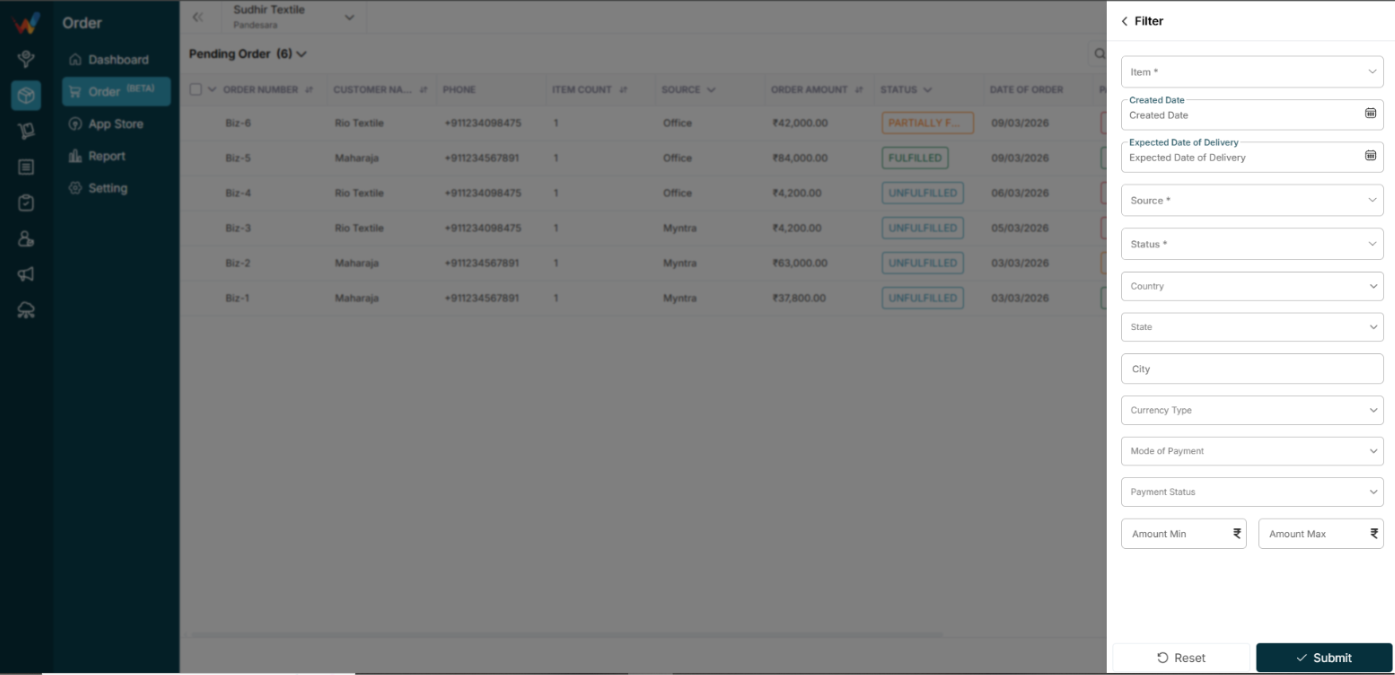
- Item
- Created Date
- Expected Delivery Date
- Source
- Status
- Country
- State
- City
- Currency Type
- Mode of Payment
- Payment Status
Buttons:
- Reset: Clears filters
- Submit: Applies filters
1.5 Customize Columns
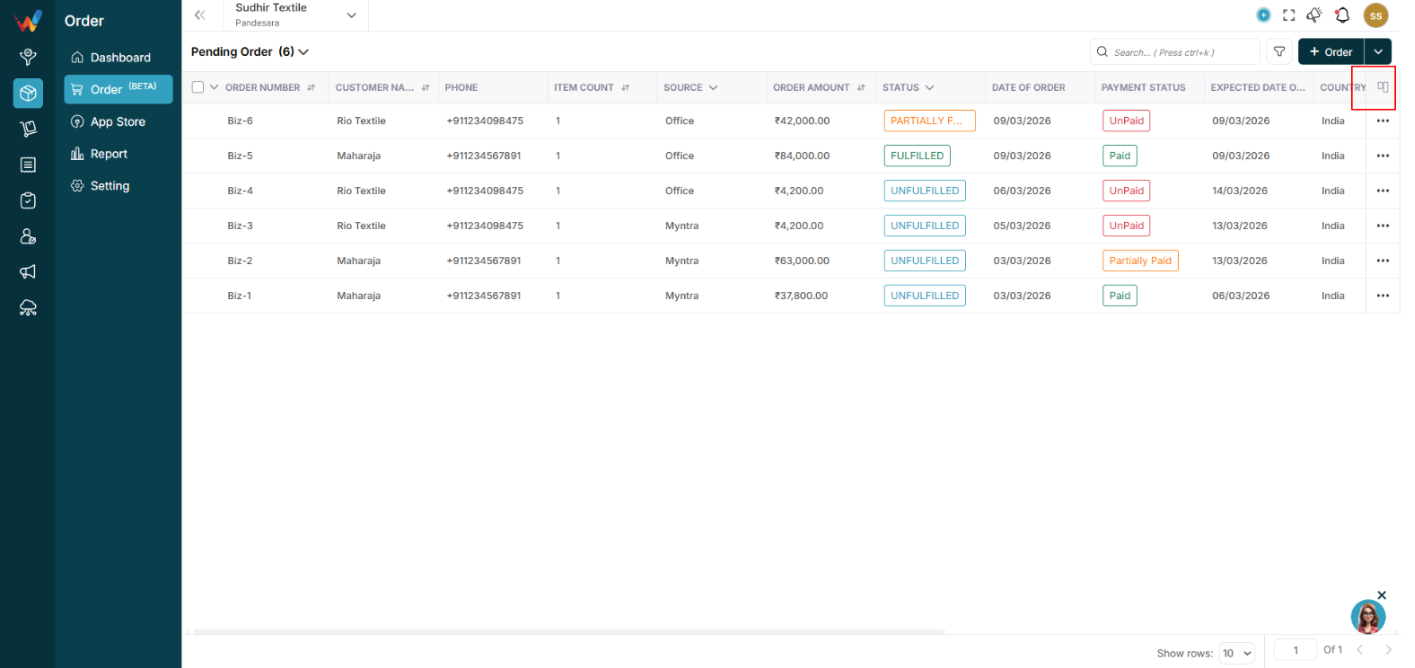
Users can:
- Show or hide fields
- Reset to default
- Reorder columns
This improves reporting flexibility.
1.6 Bulk Selection and Export
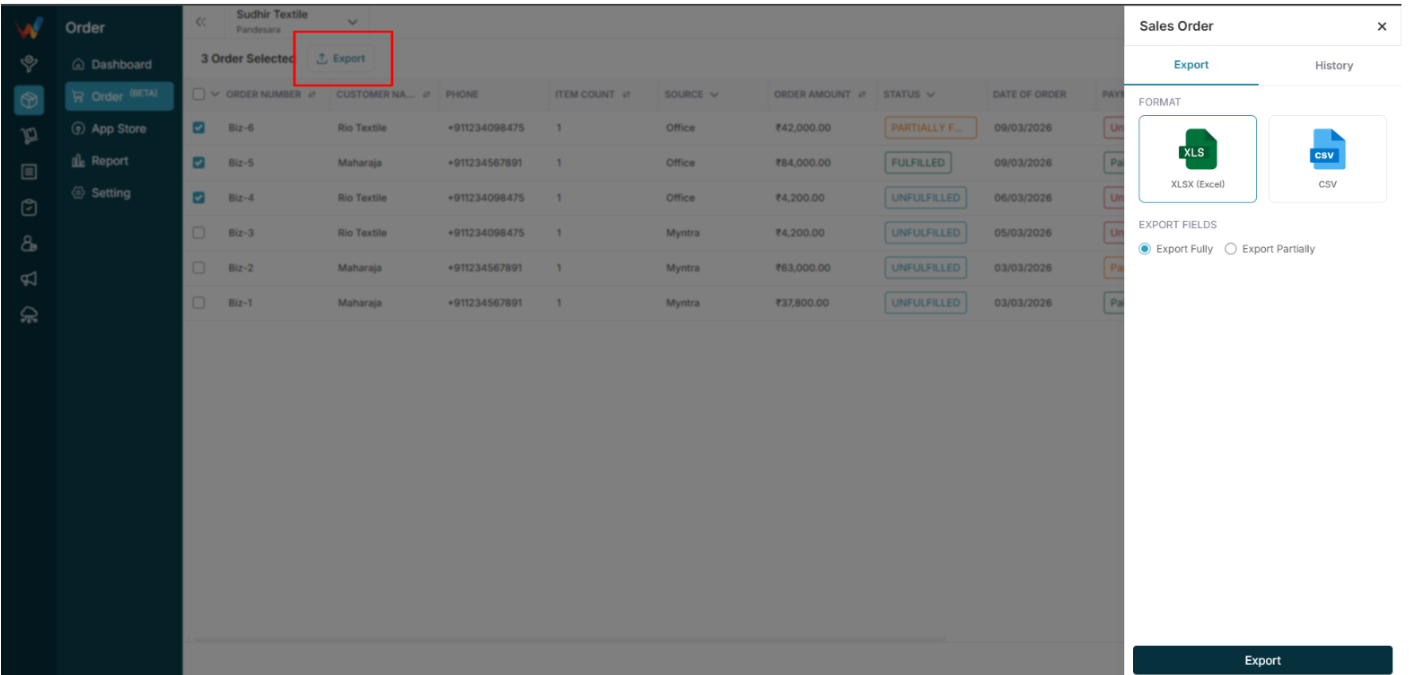
Users can select multiple orders to export reports.
Export formats:
Options:
- Export Fully
- Export Partially
Introduction
Introduction to the Order Module
Navigation Path:
Order Module → Order
The Order Management module allows businesses to:
- Create and manage sales orders
- Track fulfillment status
- Manage payments
- Handle returns (RTO and Return)
- Monitor shipping and production
- Export order reports
- Track the order lifecycle end-to-end
This module bridges:
Sales → Inventory → Dispatch → Payment → Return.