Quotation Impact & Best Practices
Why Quotation Settings Matter
Improper setup causes:
- Confusing quotations
- Legal issues
- Wrong GST calculation
- Branding inconsistency
Proper setup gives:
- Professional document
- Clear pricing
- Faster conversion
- Better client trust
Common Mistakes
- Not setting default series
- Too many item columns
- No Terms and Conditions added
- No signature uploaded
- Wrong GST column visibility
Final Setup Checklist
- Header fields reviewed
- Item columns finalized
- Status flow defined
- Series configured
- Terms added
- Signature uploaded
- PDF preview tested
What Quotation Settings Directly Impact
Quotation Settings directly impact:
- Revenue conversion
- Client communication
- Brand image
- Reporting clarity
Complete Guide
Quotation Settings – Navigation
Navigation Path:
Sales Module → Settings → Quotation
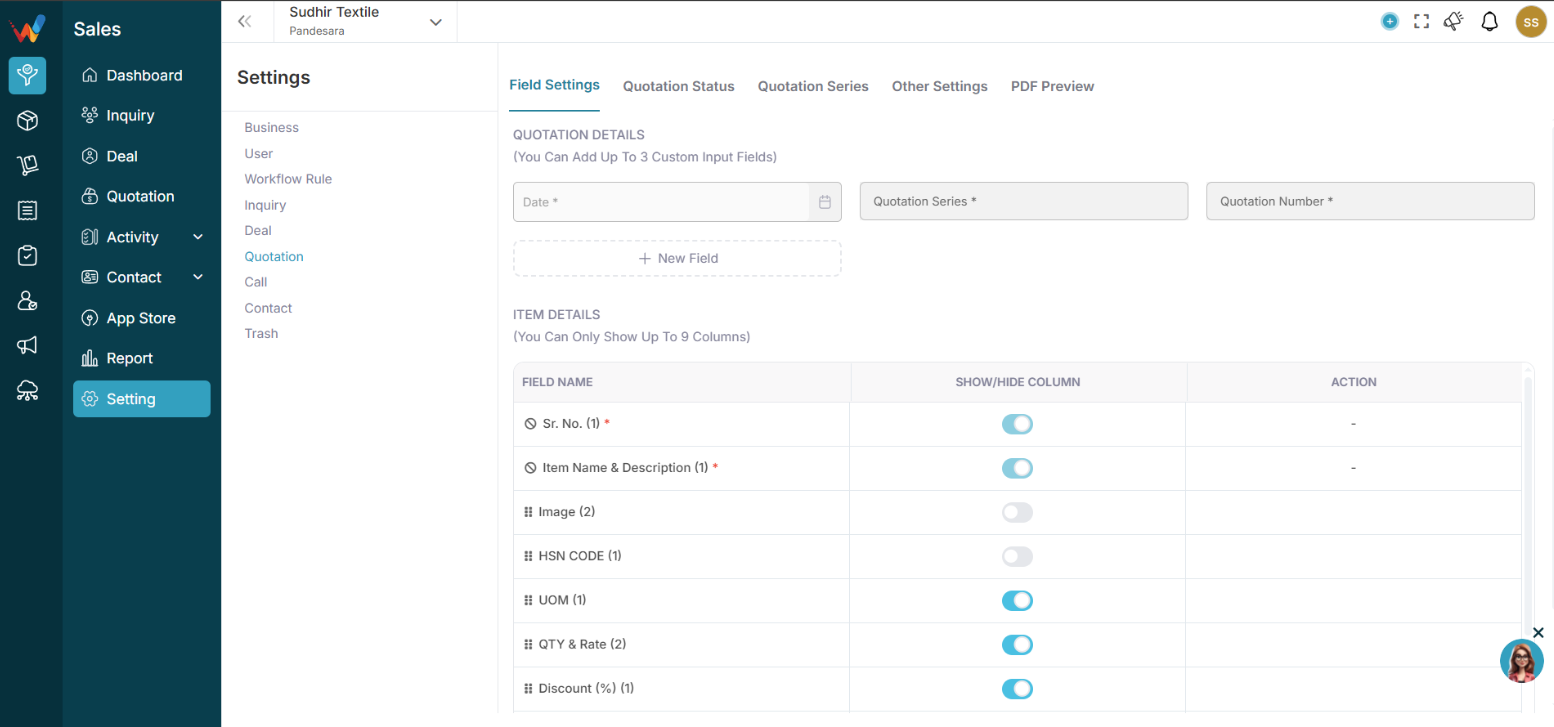
You will see these tabs:
- Field Settings
- Quotation Status
- Quotation Series
- Other Settings
- PDF Preview
Field Settings
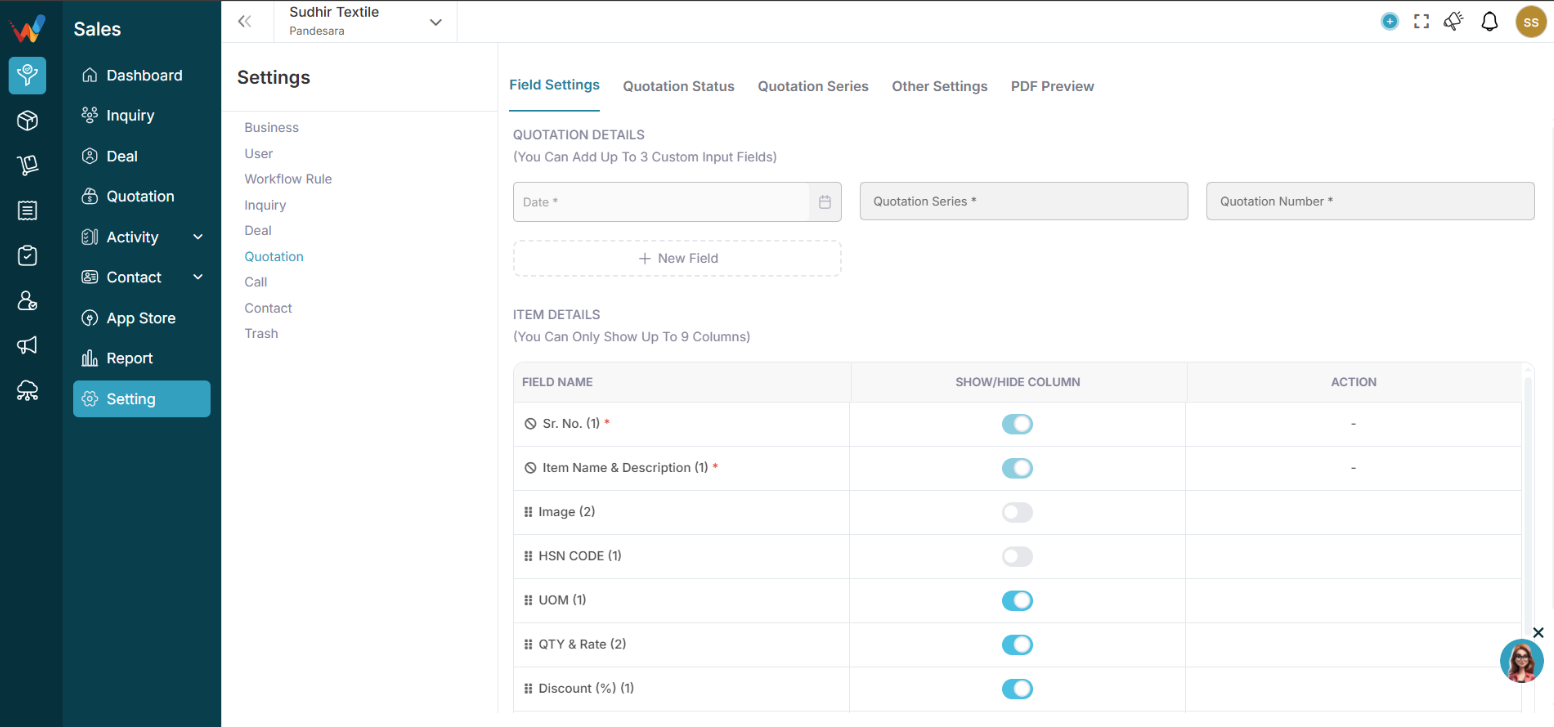
2.1 Section 1: Field Settings
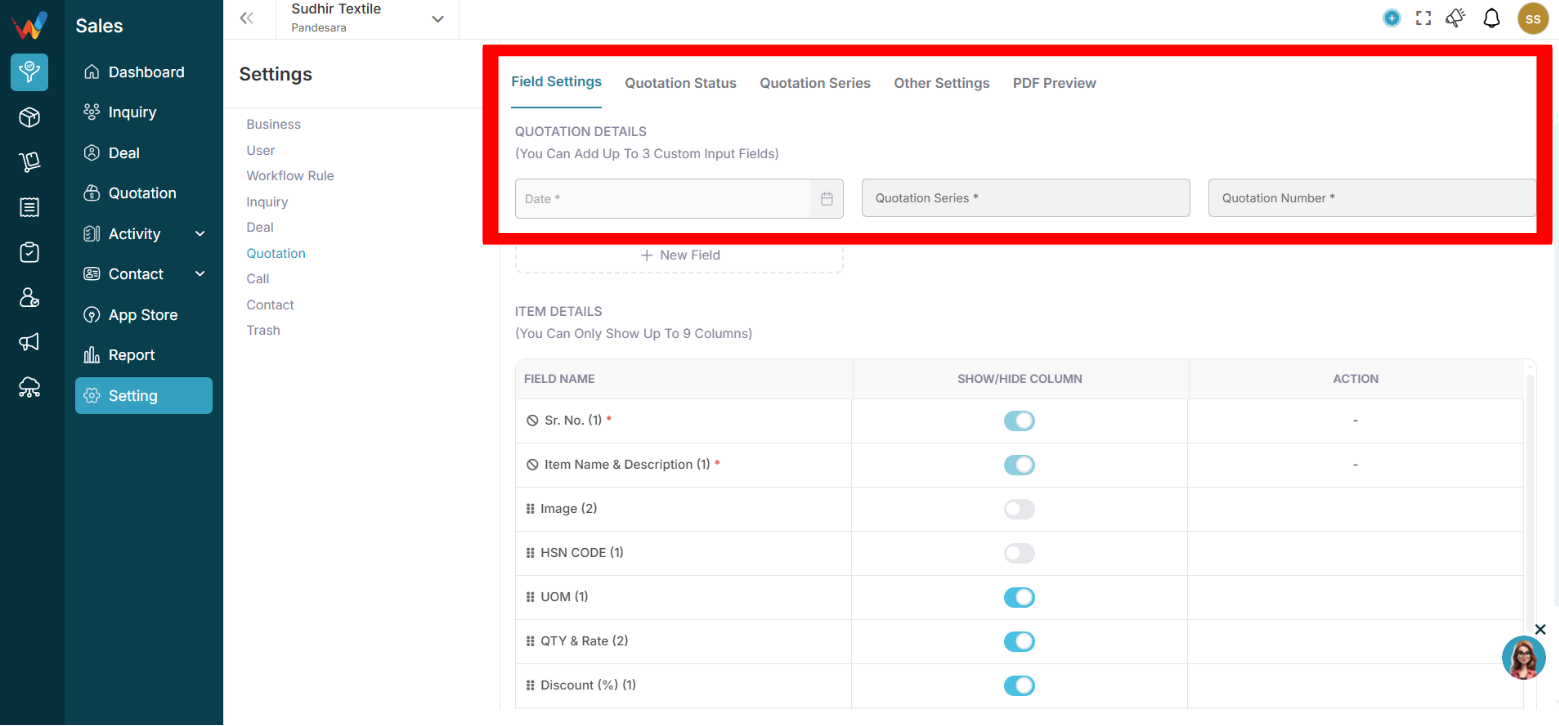
This controls:
- Quotation Header Fields
- Custom Input Fields (Max 3)
2.2 Quotation Header Fields
2.2.1 Standard Fields
Standard fields include:
- Date
- Quotation Series
- Quotation Number
- Contact Detail
- Name
- Contact Person
2.2.2 Field Actions (3 Dot Menu)
 You can:
- Activate
- Edit
- Delete (if custom)
Click the 3 dots on a field to manage.
2.3 Add Custom Field (Max 3)
Click:
New Field
Examples for Textile:
- Agent Name
- Contact Number
2.4 Item Details Section
You can enable or disable columns (Max 9 visible).
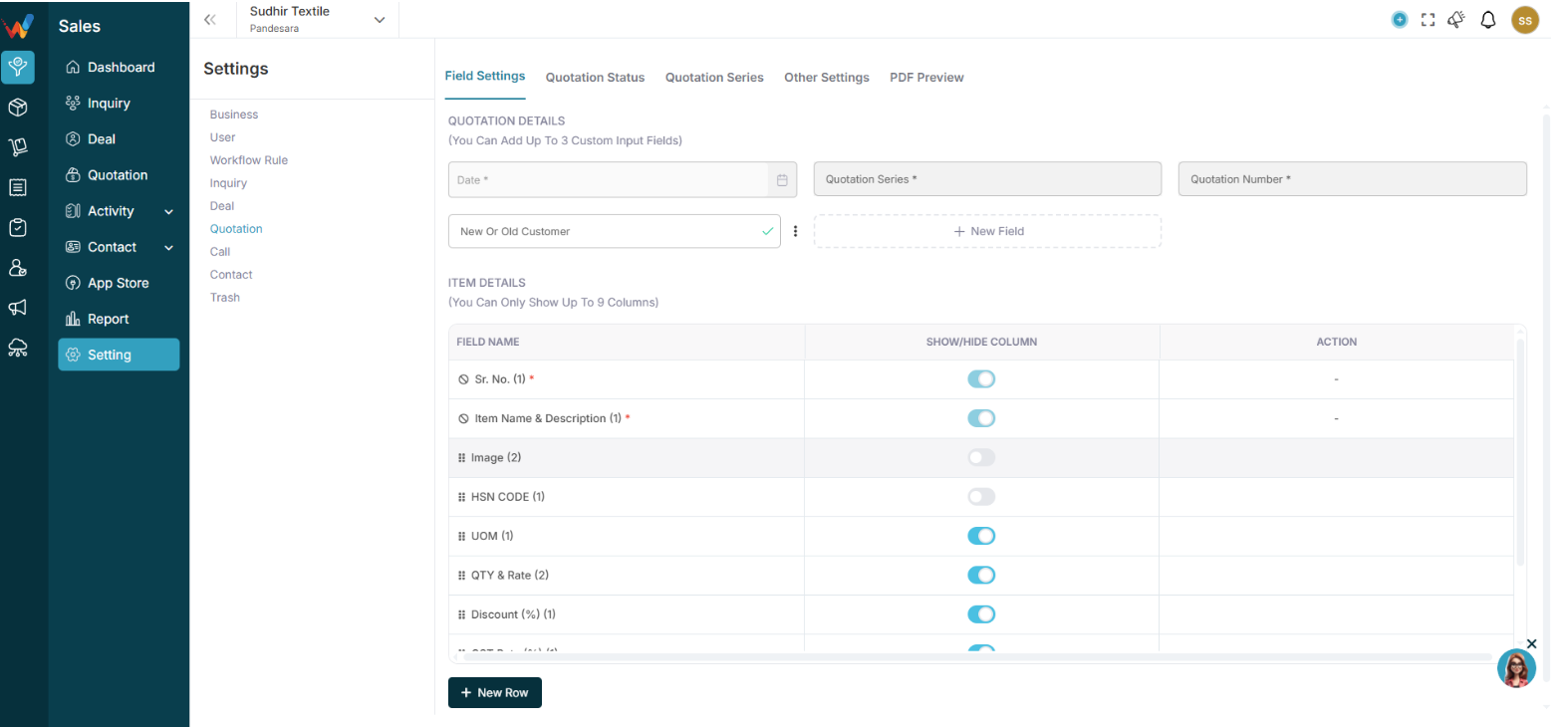
Available columns:
- Sr. No.
- Item Name and Description
- HSN Code
- Image
- Quantity
- Rate
- UOM
- Discount (%)
- GST Rate (%)
- Amount
- Total Amount
Use toggle to:
✔ Show
❌ Hide
2.5 Recommended Textile Item Setup
Recommended (show):
- Item Name and Description
- Quantity
- Rate
- GST Rate
- Amount
- Total
Optional:
- HSN Code (if GST billing required)
- Image (for catalogue-based quoting)
Quotation Status
3.1 Section 2: Quotation Status
Controls quotation lifecycle.
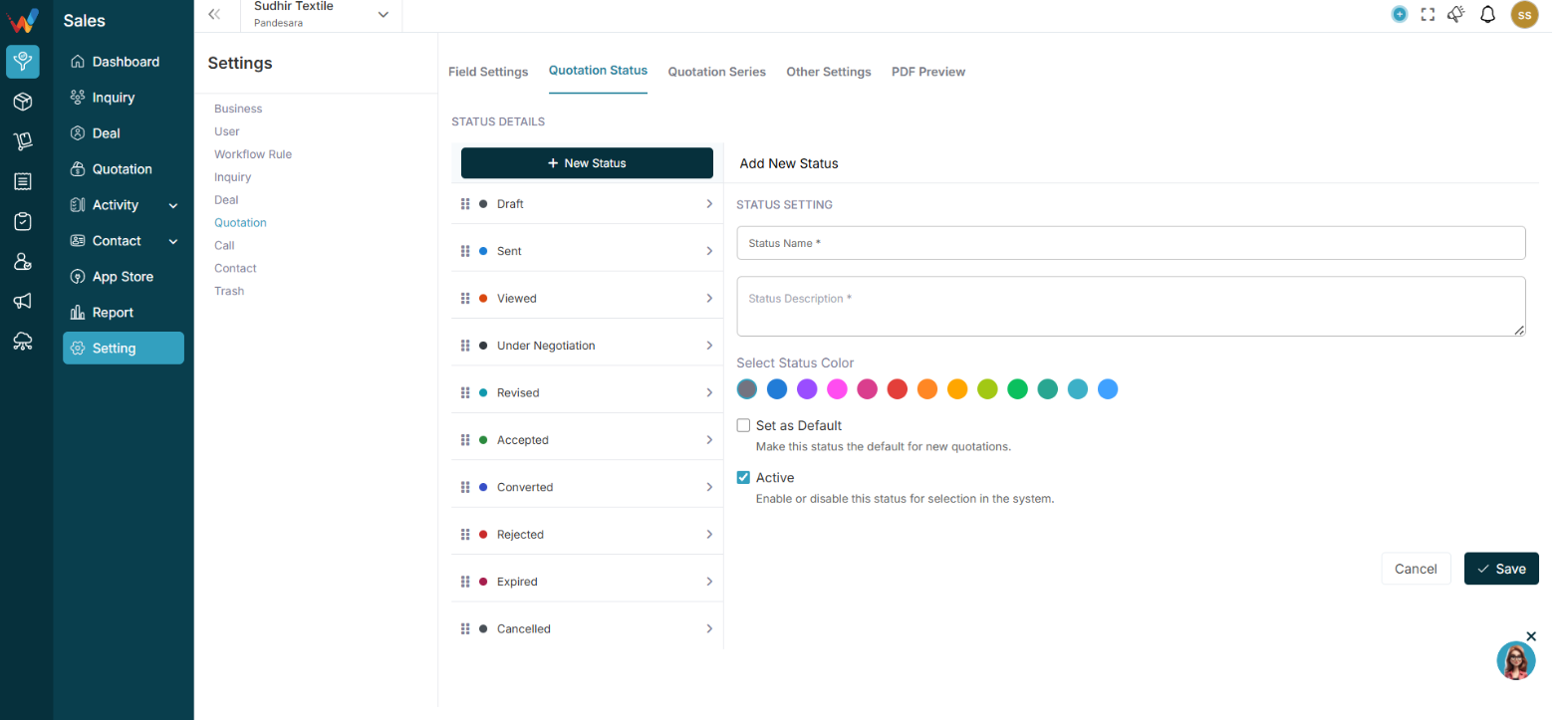
Default statuses include:
- Draft
- Sent
- Viewed
- Under Negotiation
- Revised
- Accepted
- Converted
- Rejected
- Expired
- Cancelled
3.2 Add New Status

Enter:
- Status Name
- Status Description
- Select Colour
- Set as Default (optional)
- Active toggle
3.3 Textile Quotation Flow Example
Draft → Sent → Viewed → Negotiation → Revised → Accepted → Converted
Quotation Series
4.1 Section 3: Quotation Series

Controls numbering format.
You can define:
- Series Name
- Prefix
- Suffix
- Starting Number
- Default Series
4.2 Example Textile Series Setup
Series Name: FY 2025-26
Prefix: QT-
Suffix: 25-26
Starting No: 001-
Final quotation number format:
QT-001-25-26
4.3 Best Practice
- Separate series per financial year
- Set a default series
- Avoid manual numbering
Other Settings
5.1 Section 4: Other Settings
Includes:
5.1.1 Terms and Conditions
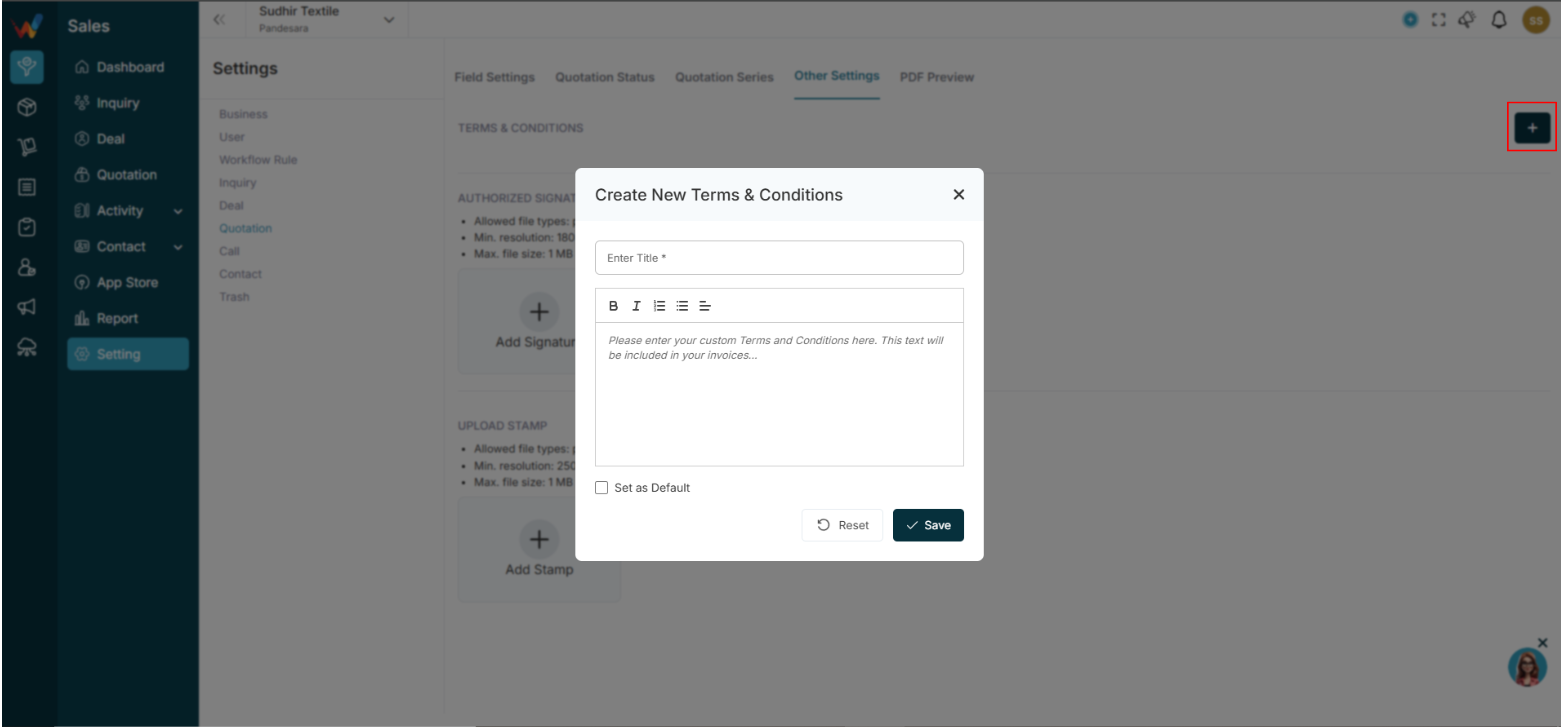
Add:
- Payment terms
- Delivery conditions
- Return policy
- Validity period
These appear in the PDF.
5.1.2 Authorized Signature
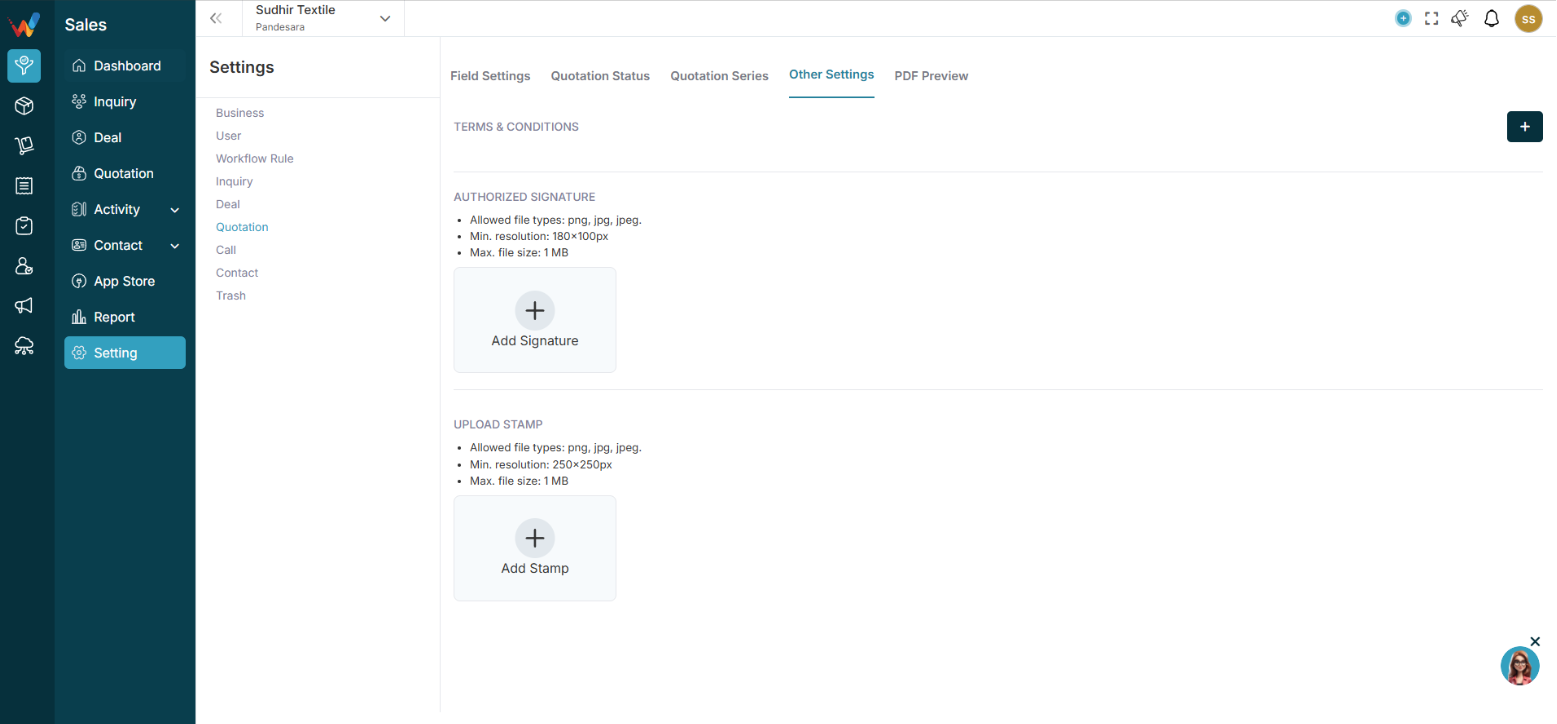
Upload:
Max size 1MB
Minimum resolution required
Appears in the quotation PDF.
5.1.3 Upload Stamp
Upload company stamp for:
- Professional appearance
- Legal clarity
PDF Preview Settings
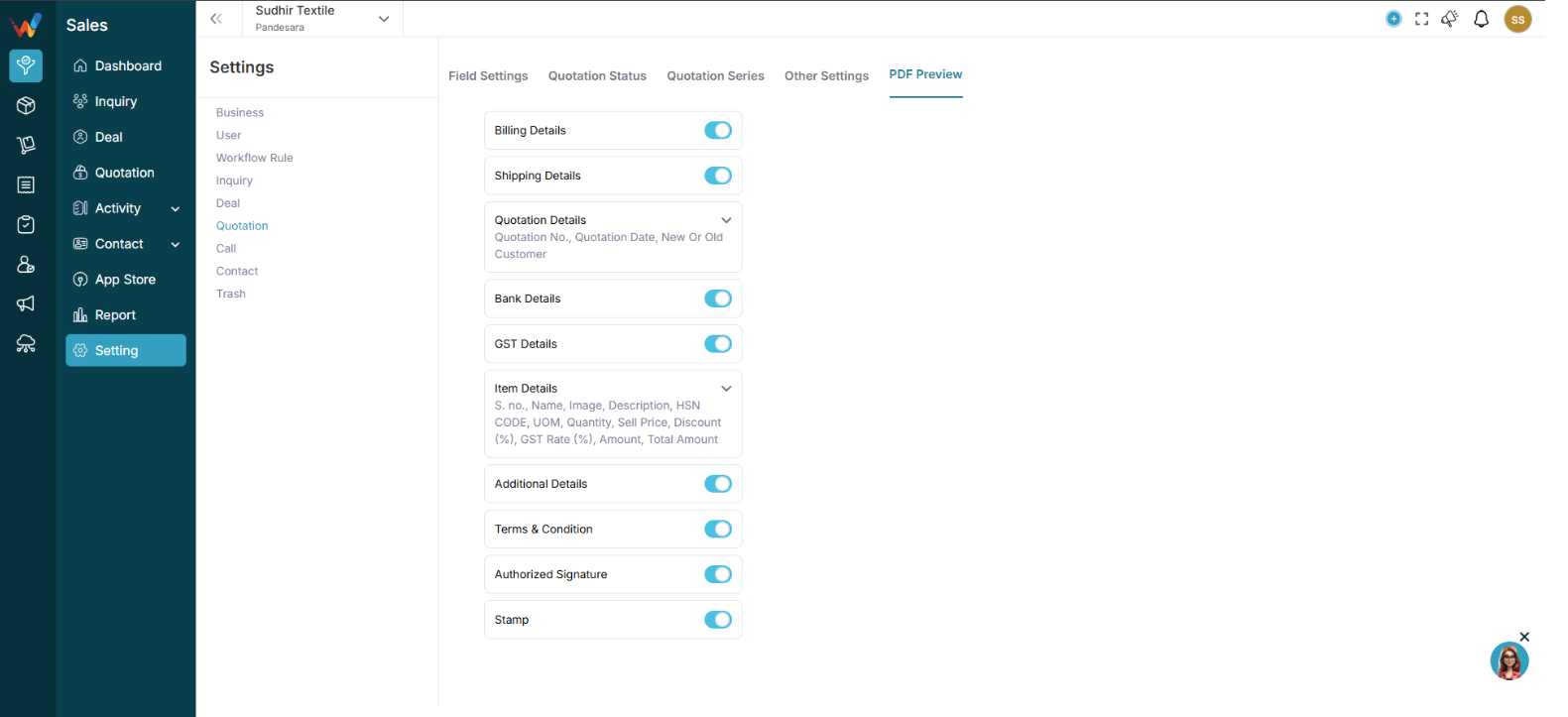
6.1 Section 5: PDF Preview Settings
Controls what appears in the final quotation PDF.
Toggle sections:
- Billing Details
- Shipping Details
- Bank Details
- GST Details
- Item Details
6.2 Item Details Toggle
You can control:
- Show or hide HSN
- Show or hide Image
- Show or hide Discount
- Show or hide GST enable
- Lock required fields
6.3 Textile PDF Recommendation
Show:
- Item Name
- Quantity
- Rate
- GST
- Total Amount
- Bank Details
- Authorized Signature
Optional:
- Hide HSN for non-GST customers
- Hide Image if bulk order
Introduction
1. Introduction to Quotation Settings
Navigation Path:
Sales Module → Settings → Quotation
The Quotation Settings section in WORTAL CRM is designed to control how quotations are created, structured, and presented to clients. It allows businesses to customize key elements such as quotation fields, item details, status workflow, and number generation, ensuring that every quotation aligns with internal processes and business requirements.
This module also provides control over Terms and Conditions, signature and stamp inclusion, and the overall PDF layout structure, enabling organizations to maintain consistency in client-facing documents. With options to show or hide specific item fields (such as quantity, rate, discount, GST, and total amount), users can tailor quotations based on business needs.
Quotation Settings directly impact how your brand is represented to customers. A well-configured setup ensures professional presentation, clear pricing structure, and legal clarity in every document shared. It also improves internal efficiency by standardizing quotation formats and workflows.
Overall, this section plays a crucial role in enhancing sales professionalism, strengthening branding, and ensuring accurate and structured communication with clients.