System Behavior
- Changing GST rate automatically updates totals.
- Deleting an item recalculates totals.
- Discount can affect final GST (based on calculation rules).
- Series selection determines numbering sequence.
- Currency affects formatting and calculations across the quotation.
Workflow Example (Quotation List → Conversion)
Create quotation or generate from Deal
- Quotation appears in list
- User opens it
- Edits if needed
- Sends to customer
- Customer approves
- Converted to invoice
- Fully tracked
11.1 Header Section
Navigation Path:
Sales Module → Quotation → Click + Quotation

Title
Default: Quotation
Can be changed to:
- Invoice
- Proforma Invoice
- Tax Invoice
Used as the document heading in the PDF.
Currency
Example:
INR
Controls:
- Currency symbol
- Amount formatting
Quotation Status
Default:
Draft
Options may include:
- Draft
- Sent
- Approved
- Rejected
Controls:
- Workflow stage
- Conversion eligibility
11.2 Quotation Details Section
Quotation Date
Date of issue
Used for:
Quotation Series
Example:
Quotation (FY4132025-26)
Purpose:
- Defines numbering pattern
System auto-generates quotation number based on selected series.
Quotation No
Auto-generated using the selected series and sequence.
11.3 Client Details Section
Person / Organization Name
Select an existing contact.
On selection, the system can auto-fill:
- Billing address
- Shipping address
- GST (if stored)
- Email
- Phone
If not found:
User must create the contact first.
Bill To Address
Pulled from saved billing address
Editable if needed
Used in PDF output
Ship To Address (Optional)
Pulled from saved shipping address
Editable if needed
Used when shipping differs from billing
Used in PDF output
11.4 Item Details Section (Core Calculation Area)
Item Table (Customisable Columns)
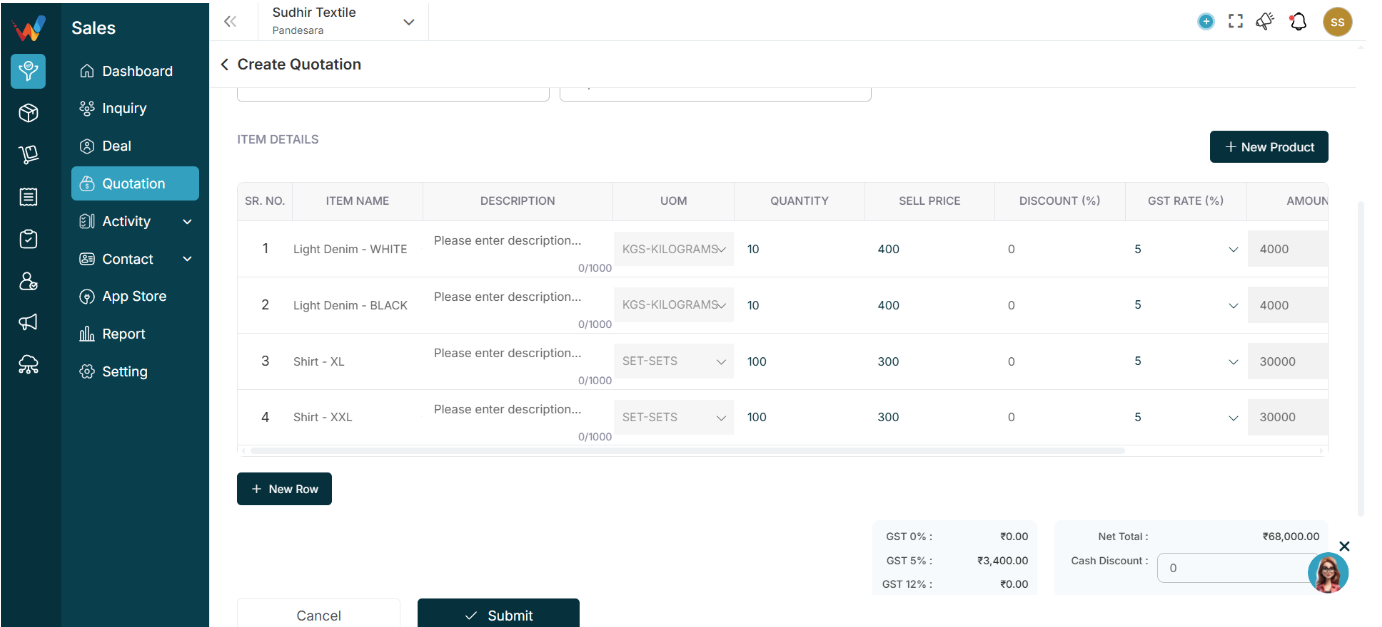
Typical columns:
- SR No
- Item Name
- Description
- Quantity
- Sell Price
- GST Rate (%)
- Amount
- Total Amount
These columns can be configured based on business needs.
Item Name
Dropdown from product master
If not available:
Click + New Product
Selecting a product may auto-fill:
- Description
- Default price
- Default GST rate
Description
Optional product details
Visible in PDF
Character limit: 1000
Quantity
Number of units
Must be numeric
Sell Price
Price per unit before tax
GST Rate (%)
Examples:
Behavior:
GST is calculated automatically.
Amount
Calculated as:
Quantity × Sell Price
(before GST)
Auto-calculated field.
Total Amount
Calculated as:
Amount + GST
Auto-calculated field.
+ New Row
Adds another product line.
+ New Product (Top Right)
Opens product creation popup.
After save, the new product becomes selectable immediately.
11.5 Tax and Total Summary Panel (Right Side)
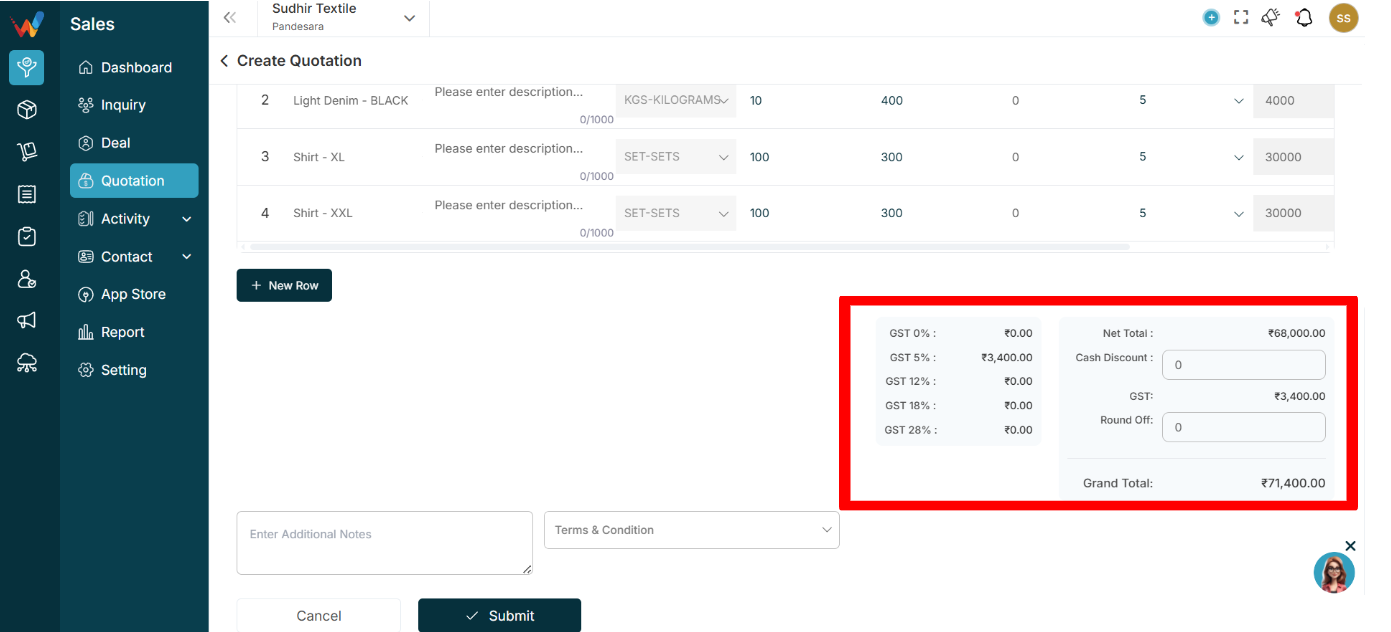
GST Breakdown
Shows tax grouped by rate:
- GST 0%
- GST 5%
- GST 12%
- GST 18%
- GST 28%
Helps with:
- Tax clarity
- GST reporting
Net Total
Total before discount and rounding.
Cash Discount
Manual discount option
Reduces total and can trigger recalculation (based on your tax settings)
GST (Overall)
Total tax amount.
Round Off
Manual rounding adjustment.
Grand Total
Final payable amount
Used in:
- PDF
- Reports
- Invoice conversion
11.6 Additional Notes
Free text field
Visible in PDF
Used for:
- Payment terms
- Delivery timeline
- Special instructions
11.7 Terms and Condition Dropdown
Navigation Path:
Sales Module → Setting → Quotation → Other Setting and Click (+)
Pulls predefined T&C templates from Settings.
User can choose from available templates.
Appears at the bottom of the quotation PDF.
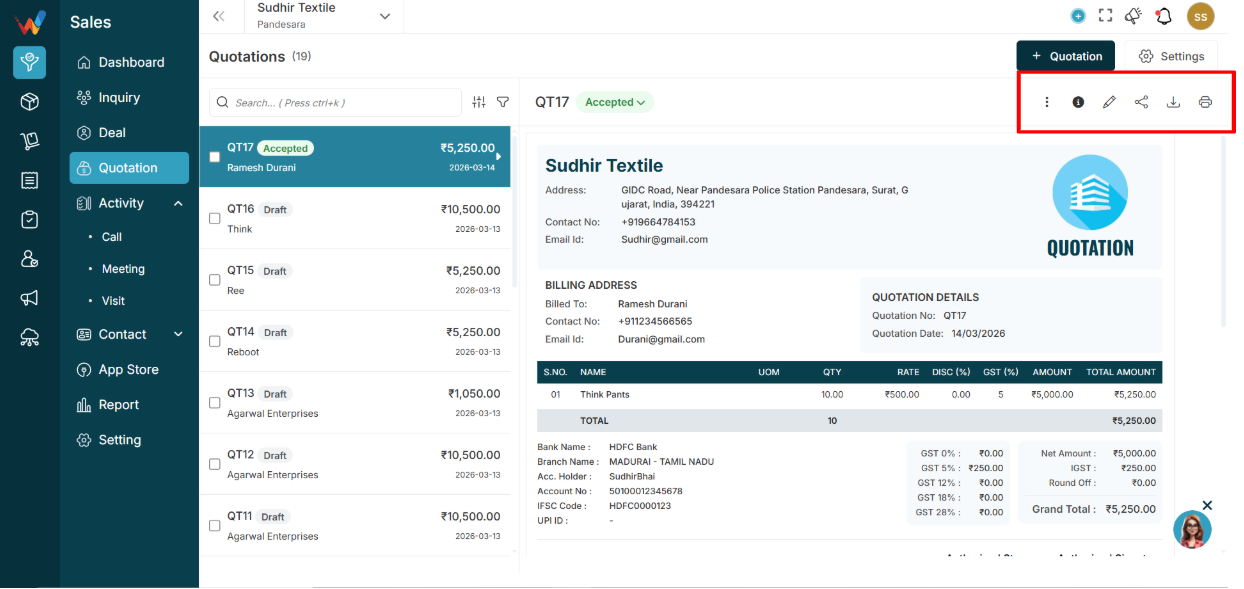
1.1 Edit (✏)
Opens the quotation in edit mode.
1.2 Share (📤)
Allows sending quotation via:
1.3 Download (⬇)
Download a PDF copy.
1.4 Print (🖨)
Opens print-ready format.
1.5 More Options (⋮)
May include:
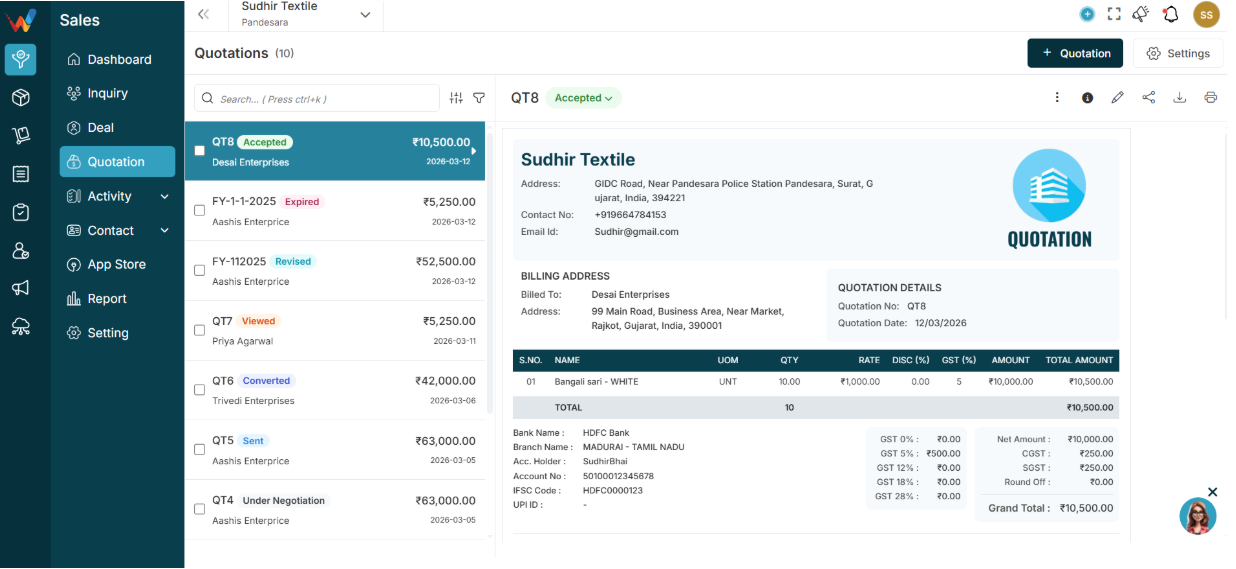
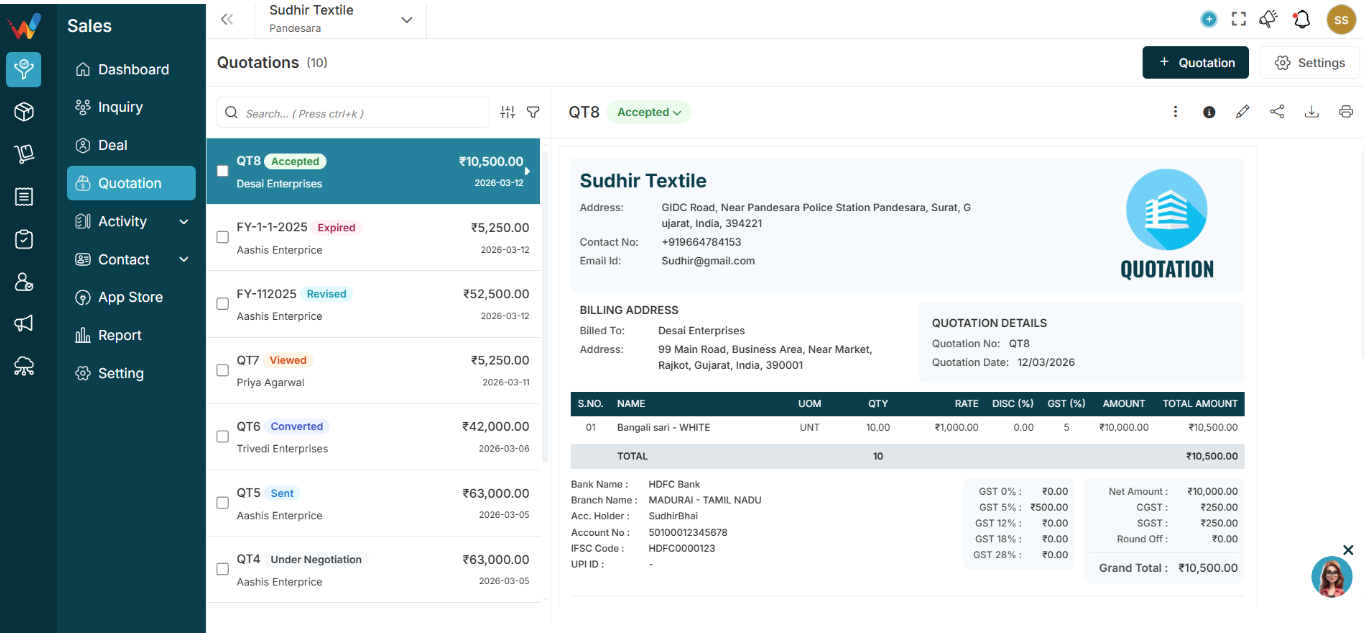
8.1 Company Details
Pulled from Business Settings, such as:
- Company name
- Address
- Contact number
- Email
- Website
- GSTIN
8.2 Billing Address
Pulled from Deal / Person contact details, such as:
- Customer name
- Contact
- Email
8.3 Quotation Details
- Quotation number
- Quotation date
8.4 Product Table
Typical columns:
- S No
- Name
- Qty
- Rate
- GST %
- Amount
Total amount
Behavior:
- Automatically calculated totals
8.5 Total Section
Shows:
- Net amount
- Round off
- Grand total
8.6 Bank Details
Pulled from Settings, such as:
- Bank name
- Branch
- Account number
- IFSC
- UPI ID
- QR code
8.7 Terms and Conditions
Pulled from Settings.
Each row represents one quotation.
1.1 Checkbox
Used for bulk actions such as Bulk Delete.
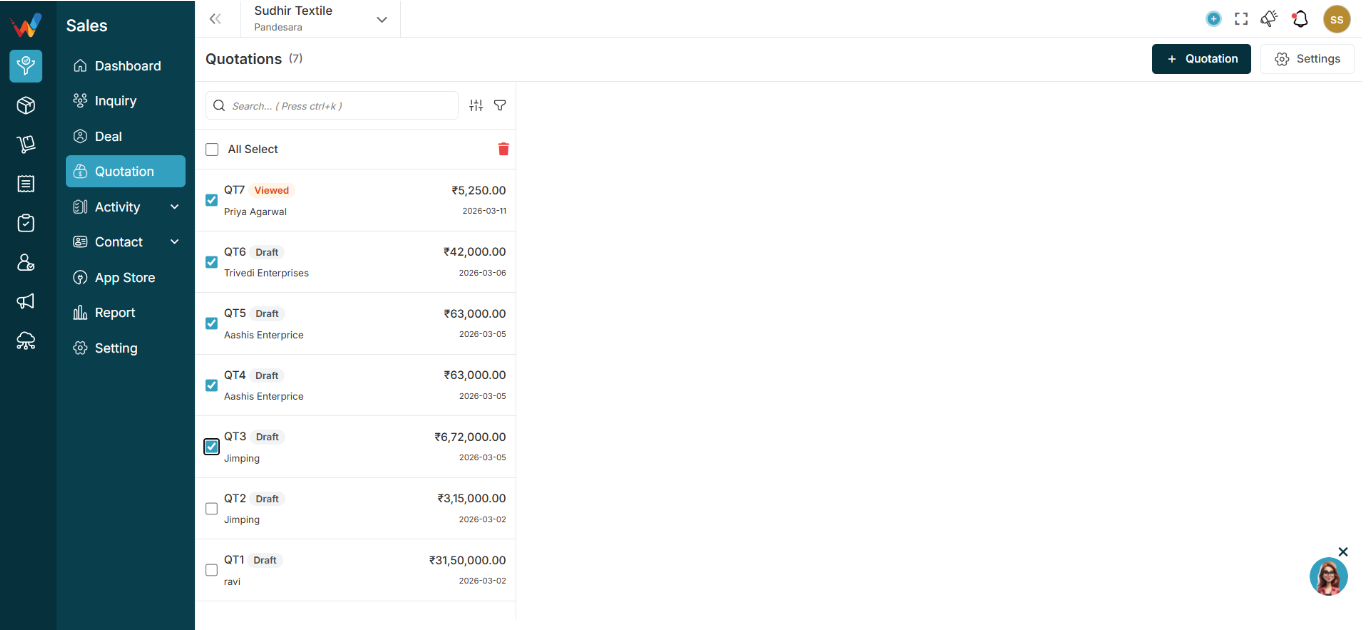
1.2 Quotation Number
Example:
FY-412-2025-26
Notes:
- Series is configurable based on business preference.
- Quotation number is the unique identifier.
1.3 Status Badge
Example:
Draft

Possible statuses:
- Draft
- Sent
- Approved
- Rejected
- Converted
Status affects what actions are allowed.
1.4 Party Name
Customer linked to the quotation.
1.5 Amount
Total quotation amount.
May include GST depending on calculation settings.
1.6 Date
Creation date or quotation date (based on configuration).
1.7. Clicking a Quotation (Preview Behavior)
1.8 What Happens When You Click a Quotation?
A right-side preview panel opens.
1.1 Search (Ctrl + K)
Search Bar
Used to quickly find quotations by:
- Quotation number (example: FY-412-2025-26)
- Party name
Behavior:
- Real-time filtering
- Does not change data, only the displayed list

1.2 Sort Option
Sort Icon

Clicking the Sort icon opens sort options.
Sort By:
- Creation date
- Modification date
- Quotation number
- Due date
- Amount
- Party name
Order:
What Happens When Sort Is Applied?
The system:
- Reorders the quotation list
- Does not modify any quotation data
- Only changes the display order
1.3 Filter Option
Filter Icon
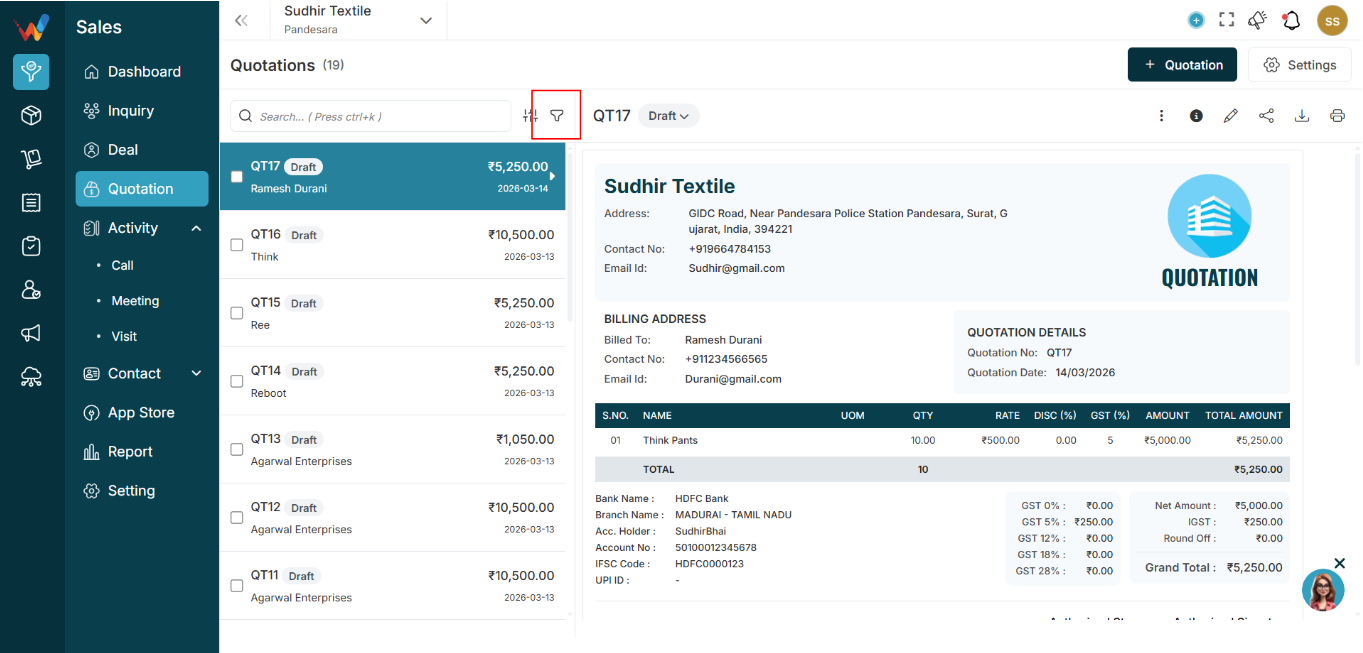
Clicking the Filter icon opens a right sidebar.
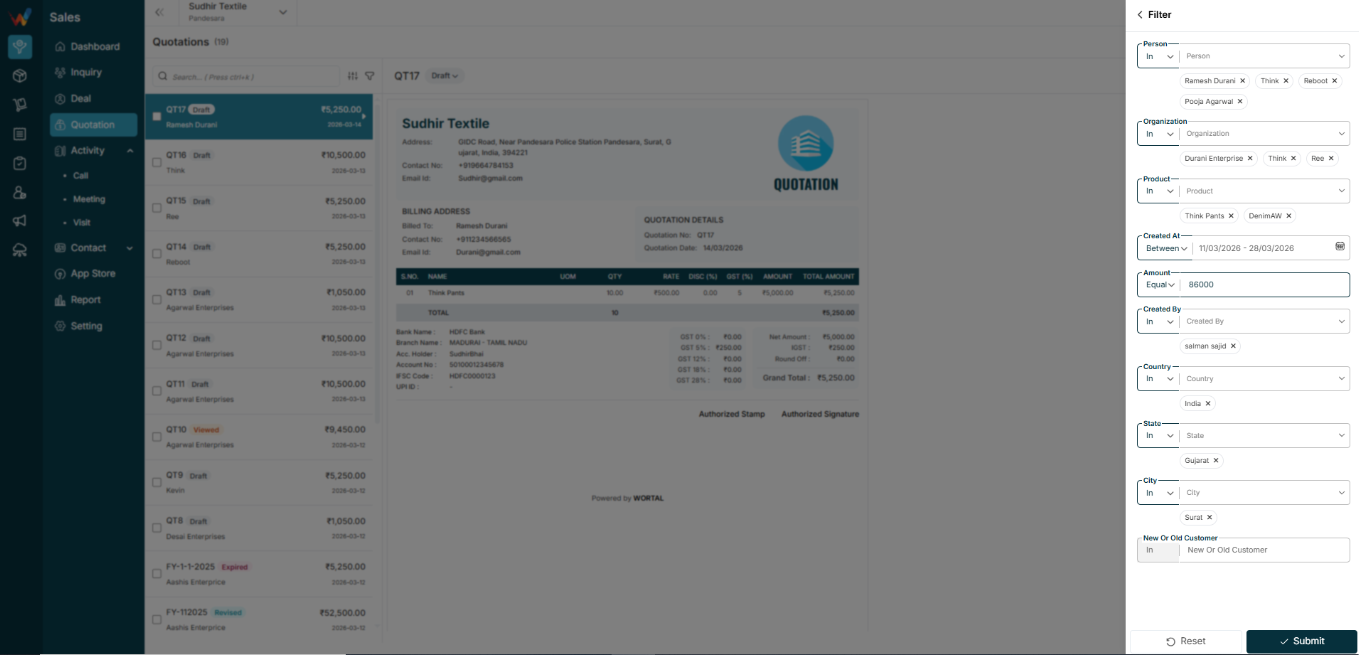
Filter options can include:
- Person name
- Organization name
- Created date
- Item
- Amount
- Created by
- Country
- State
- City
1.4 When User Clicks Submit
The system:
- Applies filters
- Shows only matching quotations
- Updates the quotation count accordingly
Reset:
- Clears all applied filters
Navigation Path:
Sales Module → Quotation
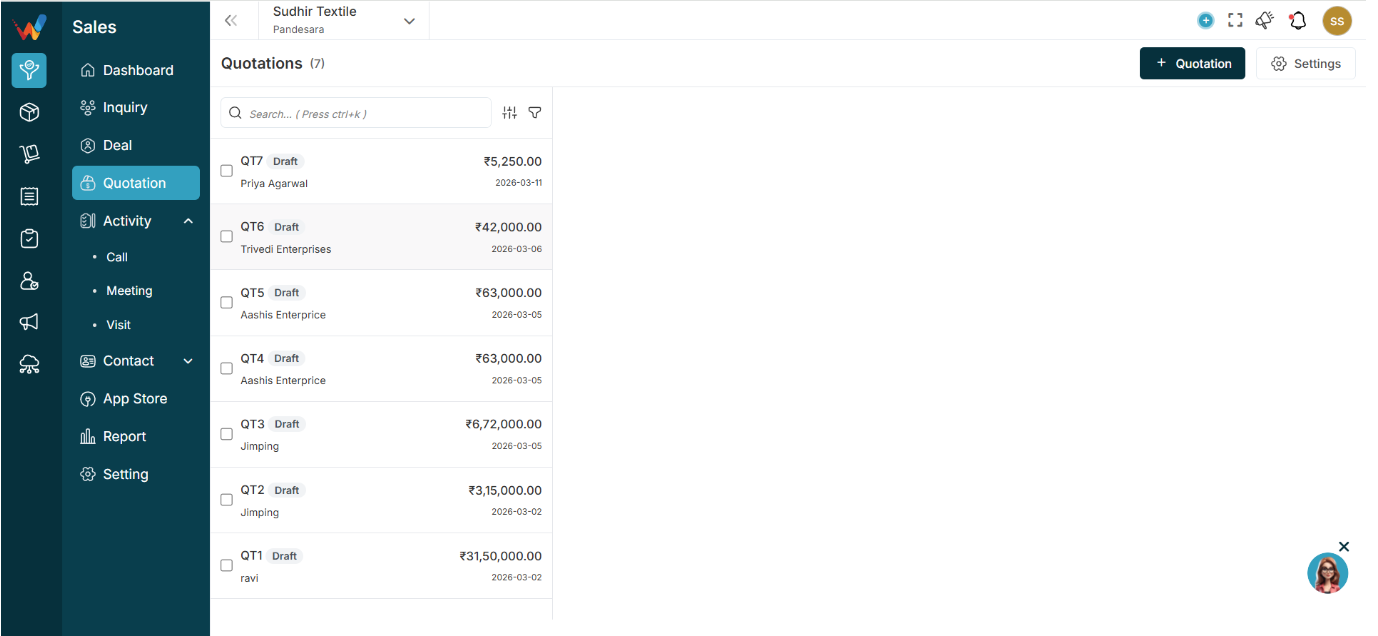
Page Header Section
Title: Quotations (7)
Shows the total number of quotations in the system.
Updates automatically when a new quotation is created.
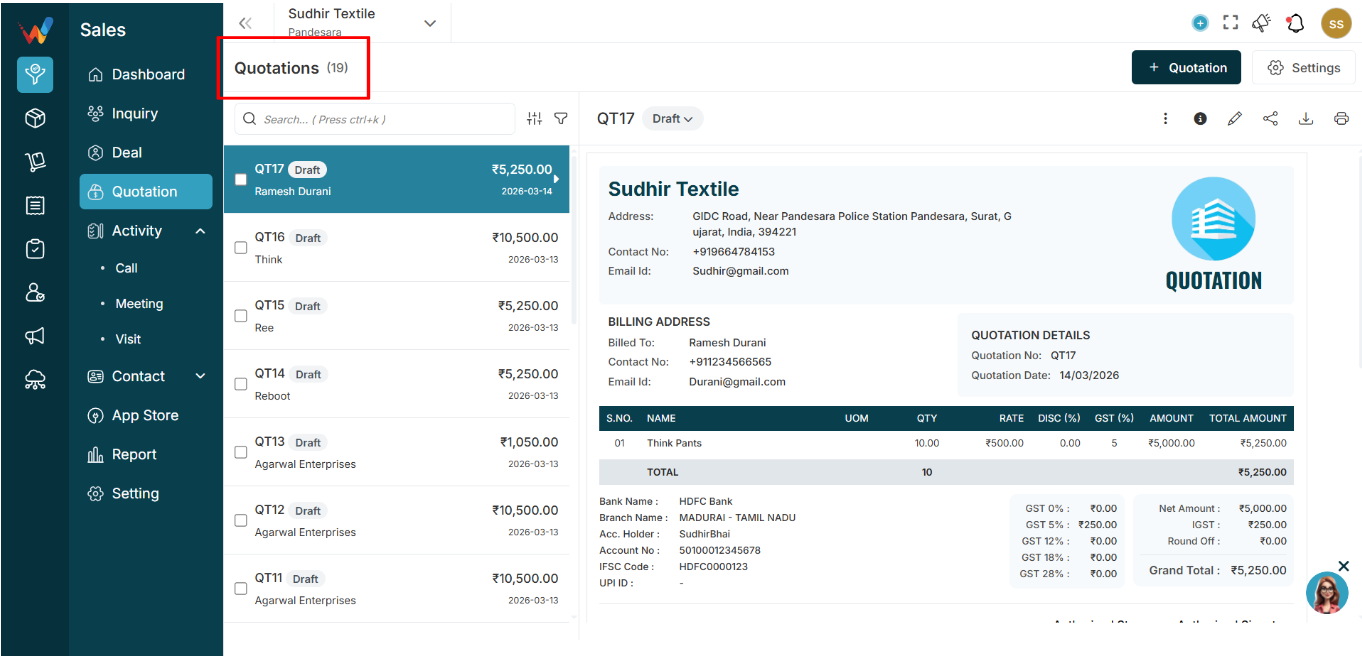
Includes all quotation states:
- Draft
- Final
- Sent
- And More
1.1 What is the Quotation Module?
The Quotation Module is used to create and share formal price quotations with customers based on deal and product details. It helps businesses generate standardized quotations quickly, maintain a complete quotation history, and track quotation movement from creation to approval and conversion.
Quotations are typically created after a lead is qualified and converted into a deal, once:
- Product selection is finalized
- Quantity is confirmed
- Pricing is agreed internally
- Commercial terms are clear enough to share with the customer
1.2 Why the Quotation Module is Important
The Quotation Module ensures:
- Professional quotation documents are generated in a consistent format
- Pricing and product details remain structured and traceable
- Quotations are stored deal-wise for future reference
- Teams avoid manual errors and repeated formatting work
- Owners and managers get visibility into quotation activity and pipeline movement