Roles, Permissions & Security
Sensitive Permissions (Use Carefully)
- Delete → All
- Mass Delete Permission
- Export Permission
- User Permission
- Settings Access
Only Admin should have these.
Common Mistakes Businesses Make
- Giving All access to everyone
- Not using Own permission
- Not restricting Delete
- Giving Export access to sales
Best Practice for Textile Businesses
- Only 1–2 Admin
- Branch Managers per location
- Sales limited to own branch
- Reports access only to senior team
- Mass delete restricted
Why Roles Matter in Textile CRM
4.1 Business Context
Textile businesses deal with:
- High-value orders
- Design confidentiality
- Price-sensitive discussions
- Multi-branch inventory
Without role control:
- Sales can see other branch buyers
- Inventory can be edited wrongly
- Reports can be manipulated
With proper roles:
- Clear structure
- No chaos
- Data secure
- Owner control intact
Final Checklist
- Role created
- Permissions reviewed
- Assigned to correct users
- Sensitive permissions restricted
Permissions & Role Management
Export & Mass Permissions
1.1 Export & Mass Permissions
1.1.1 Export Permission
Allows:
- Download reports
- Export leads/deals
Give carefully.
1.1.2 Mass Update Permission
Allows:
- Bulk status change
- Bulk assignment
1.1.3 Mass Delete Permission
Allows:
Highly sensitive.
Edit Role
2.1 Edit Role
Go to:
Settings → Roles → Click Edit icon
You can:
- Change permissions
- Add/remove module access
- Save changes
All users under that role will automatically update.
Delete Role
3.1 Delete Role
You can delete role only if:
- No users assigned
OR
- Reassign users first
How to Configure Smart business Role
4.1 Ideal Setup
Admin → Full
Branch Manager → All (Branch limited)
Sales Head → All (Branch limited)
Sales Person → Own
Intern → Read Own only
Why OWN Permission
Why OWN Permission Is Very Powerful
1.1 Why It Matters in Textile Business
In textile business:
- Many salespeople work in the same market.
- Same product line.
- Same price discussions.
If everyone sees everyone’s leads:
- Data misuse risk
- Client poaching risk
- Internal conflict
OWN permission solves this.
Real Business Scenarios
1.1 Sales Person Role
Module — Create — Read — Update — Delete
Leads — Yes — Own — Own — No
Deals — Yes — Own — Own — No
Reports — No — No — No — No
Result:
- salesperson cannot see the other salesperson’s buyers.
- Cannot delete data.
- Cannot see company reports.
- Safe and controlled.
1.2 Branch Manager Role
Module — Create — Read — Update — Delete
Leads — Yes — All — All — No
Deals — Yes — All — All — No
Reports — No — All — No — No
Result:
- Can see all branch data.
- Cannot delete company data.
- Cannot change system settings.
1.3 Admin Role
Everything:
Create → Yes
Read → All
Update → All
Delete → All
Full control.
Permission Levels & Access
Module-Level Permissions
1.1 Module-Level Permissions
Below that you will see:
Module
Access
Create
Read
Update
Delete
Sale’s Modules include:
- Leads
- Deals
- Quotations
- Contacts
- Calls
- Meetings
- Visits
- Integrations
- Reports
- Settings – Users & Roles
Understanding Permission Columns
2.1 Access
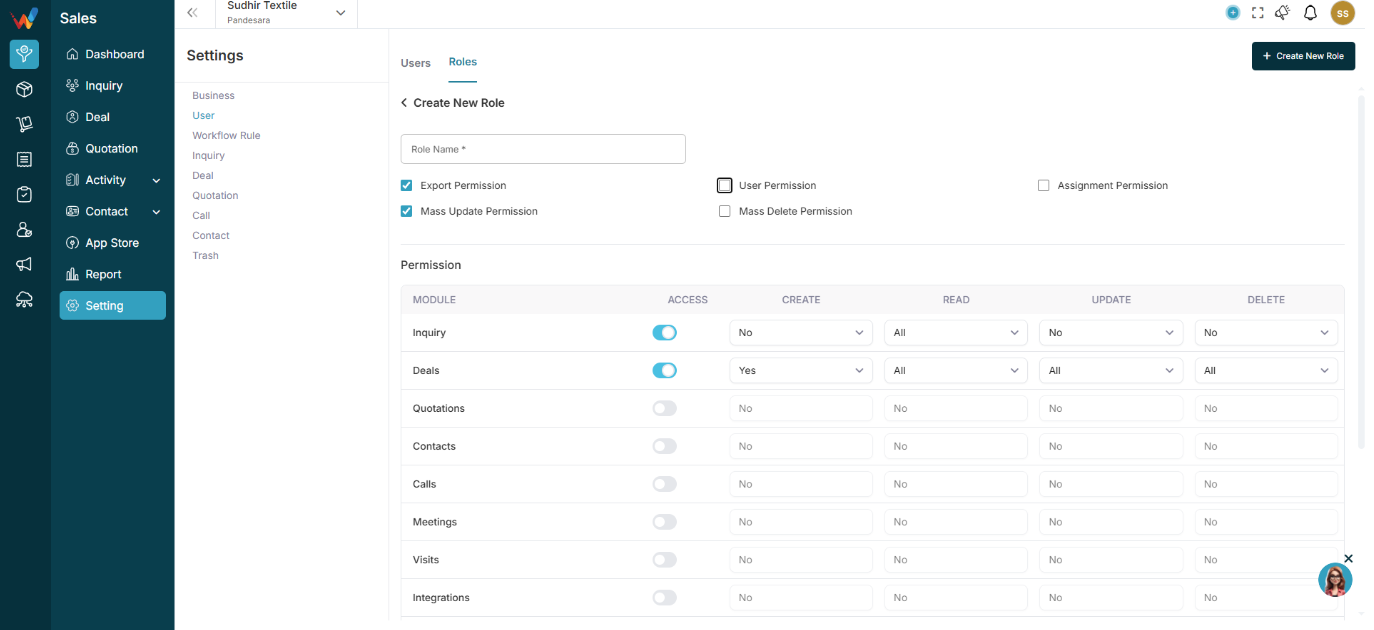
If OFF → Module not visible
If ON → Module visible
2.2 Create
Can create new record
2.3 Read
Can view record
2.4 Update
Can edit record
2.5 Delete
Can delete record
Understanding Permission Levels
3.1 Permission Level Options (Per Module)
In each module, permissions are divided into:
Action — Options Available
Create — Yes / No
Read — All / Own / No
Update — All / Own / No
Delete — All / Own / No
This gives very powerful control.
What “All / Own / No” Means
4.1 ALL
Users can access all records in that module.
He can see:
- All leads
- All deals
- All branches data (if branch access given)
4.2 OWN
User can access only:
- Records created by them
OR
- Records assigned to them
He can see:
- Only his assigned leads
- Only his deals
- Not other sales team data
This is ideal for:
- Field sales team
- Junior executives
- Telecallers
4.3 NO
User cannot:
- View
- Edit
- Access that section or that activity
Module will either:
Role Details
Role Basics
1.1 What Is a Role?
A Role is a predefined set of permissions assigned to users.
Example roles:
- Admin
- Branch Manager
- Sales Head
- User
- Intern
Each role defines access level across modules.
View Existing Roles
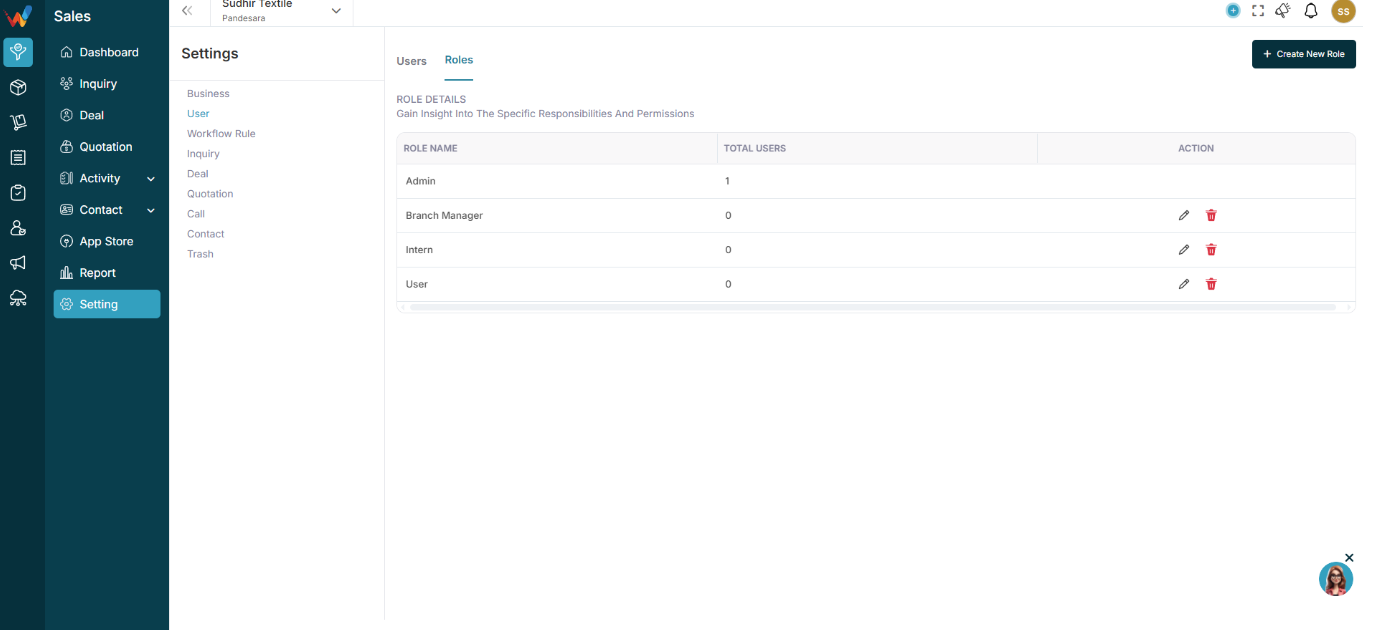
2.1 View Existing Roles
Go to:
Settings → Users → Roles
You will see:
Role Name — Total Users — Action
Example entries:
Admin — 2 — (Edit / Delete)
Branch Manager — 1 — (Edit / Delete)
User — 19 — etc
This shows:
- How many users are assigned to each role
- Option to edit or delete role
Create New Role
3.1 Create New Role
Navigation Path:
Sales Module → Settings → User → Roles → Click on + Create New Role
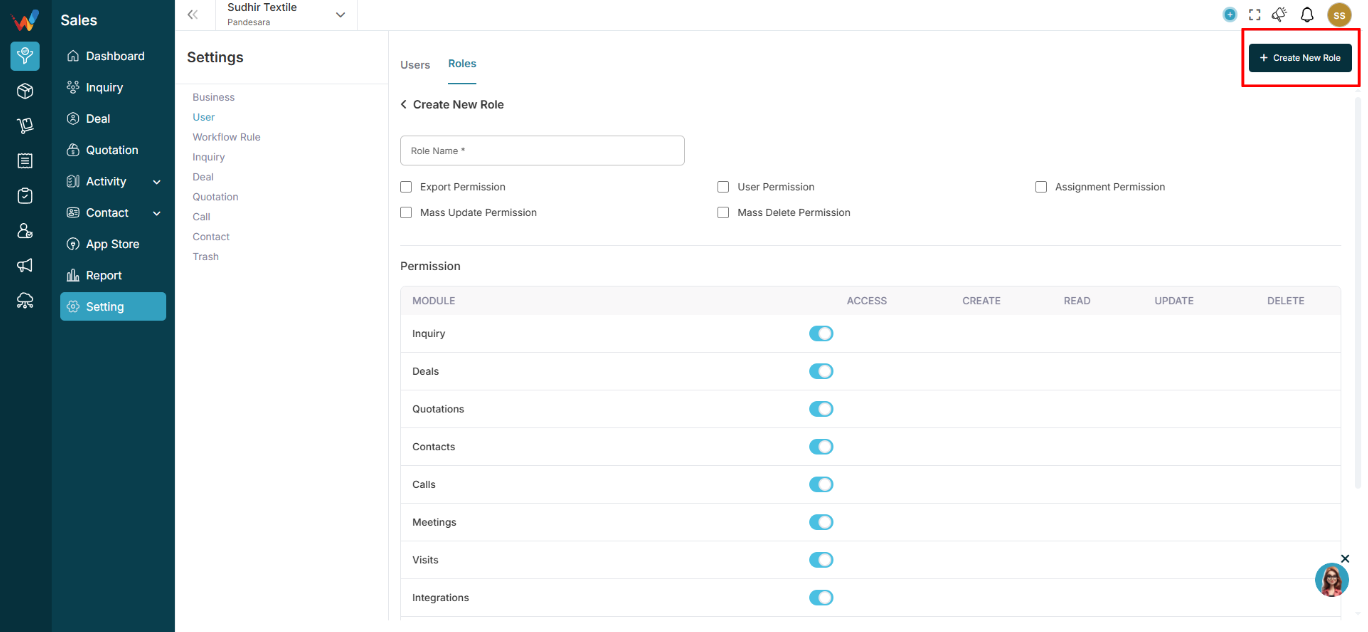
Click:
3.1.1 Step 1: Enter Role Name
Example:
- Junior Sales
- Inventory Executive
- Accounts Assistant
- Factory Operator
3.1.2 Step 2: Global Permissions
You can enable:
- Export Permission
- Mass Update Permission
- User Permission
- Mass Delete Permission
- Assignment Permission
These apply system-wide.
Introduction
Navigation Path:
Sales Module → Settings → User → Roles → Click on + Create New Role
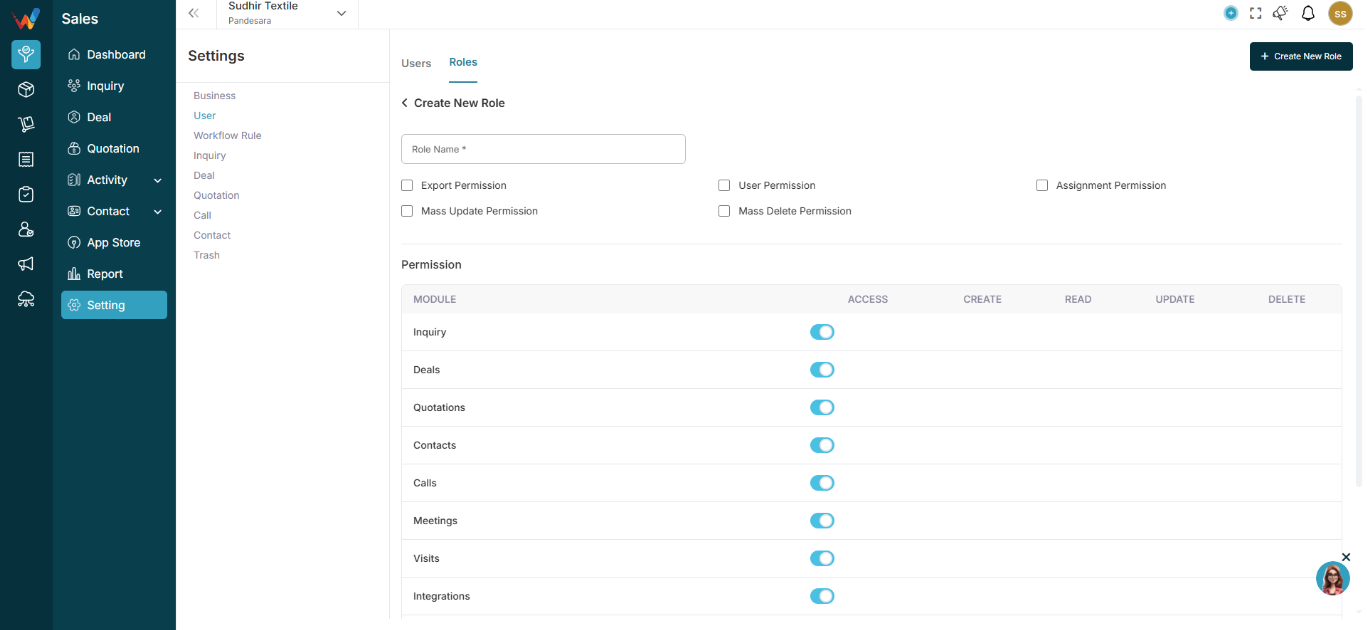
1.1 Roles & Permissions Guide
Roles allow you to control:
- Who can see what
- Who can create data
- Who can edit data
- Who can delete data
- Who can assign tasks
- Who can access reports
This helps prevent:
- Data leakage
- Unauthorized edits
- Operational confusion