Task Settings
Navigation Path:
Task Module → Setting → Click on Task
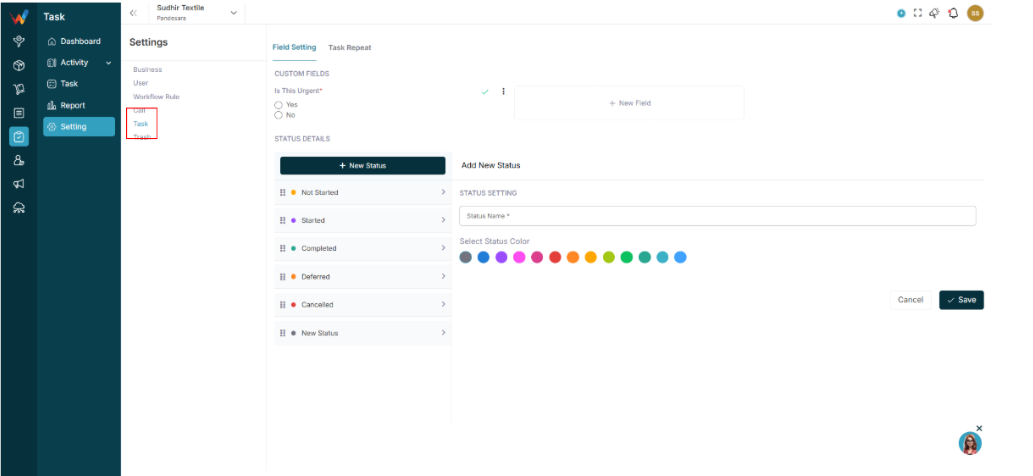
1.1 Custom Fields

Add New Field.
Field types:
- Text
- Number
- Date
- Dropdown
1.2 Status Management
Default statuses:
- Not Started
- Started
- Completed
- Deferred
- Cancelled
Admin can:
- Add new status
- Assign color
- Reorder via drag and drop
1.3 Task Recurring (Settings Tab)
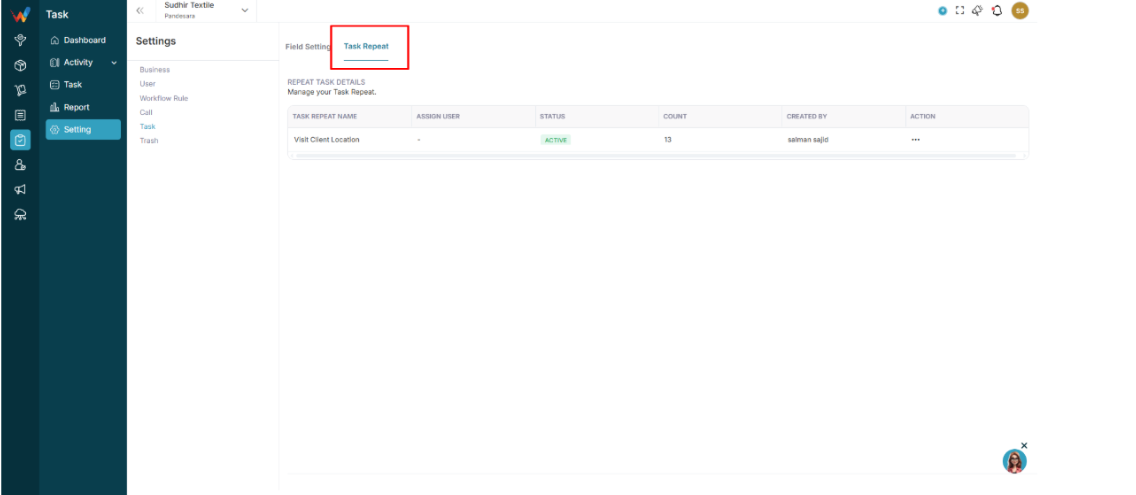
Manage recurring tasks.
Columns:
- Recurring Task
- Assign User
- Status
- Count
- Created By
Trash: Task
2.1 Location
Navigation Path:
Task Module → Setting → Click on Trash
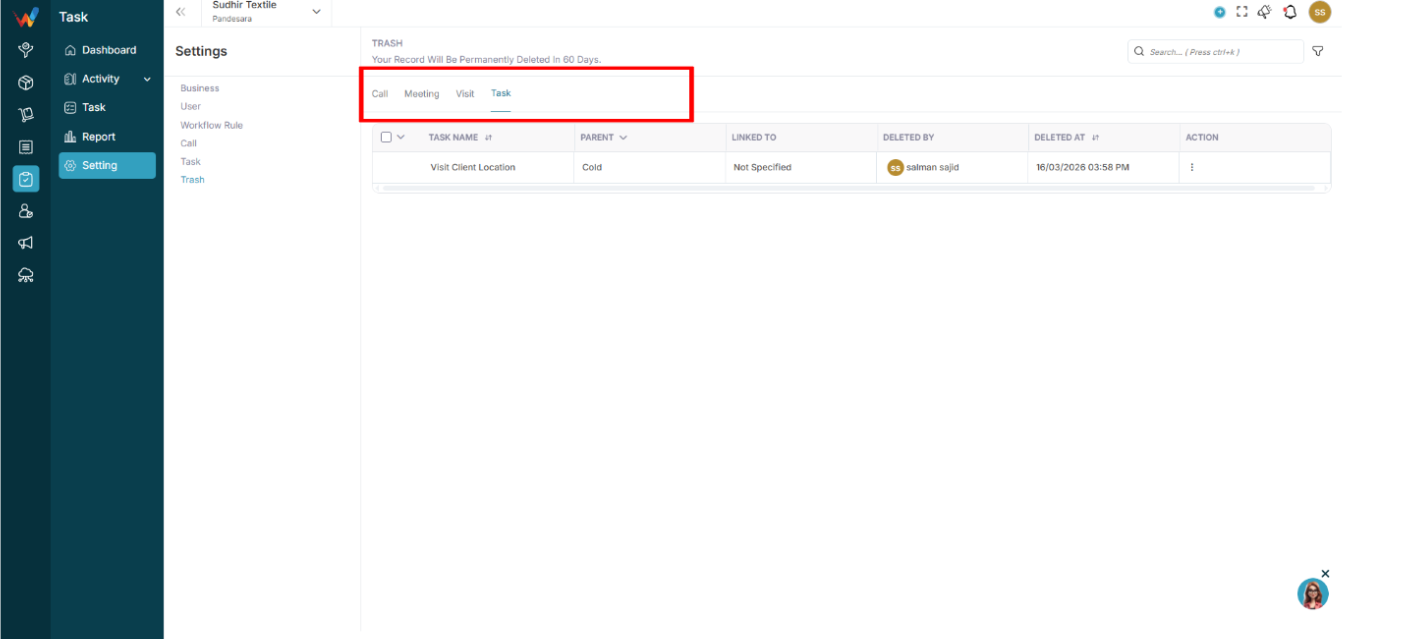
2.2 Tabs
2.3 Filters
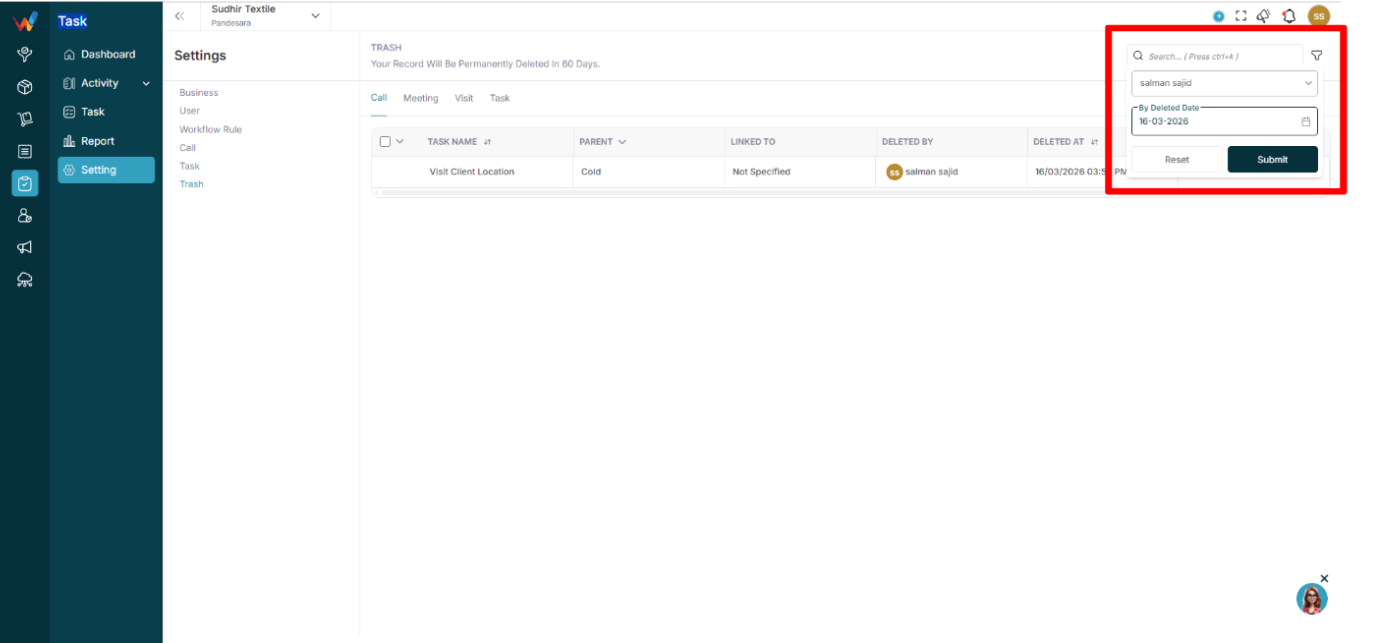
- Branch filter
- Deleted By filter
- Deleted Date filter
System rule:
Tasks are permanently deleted after 60 days.
Create Task Screen

1.1 Fields
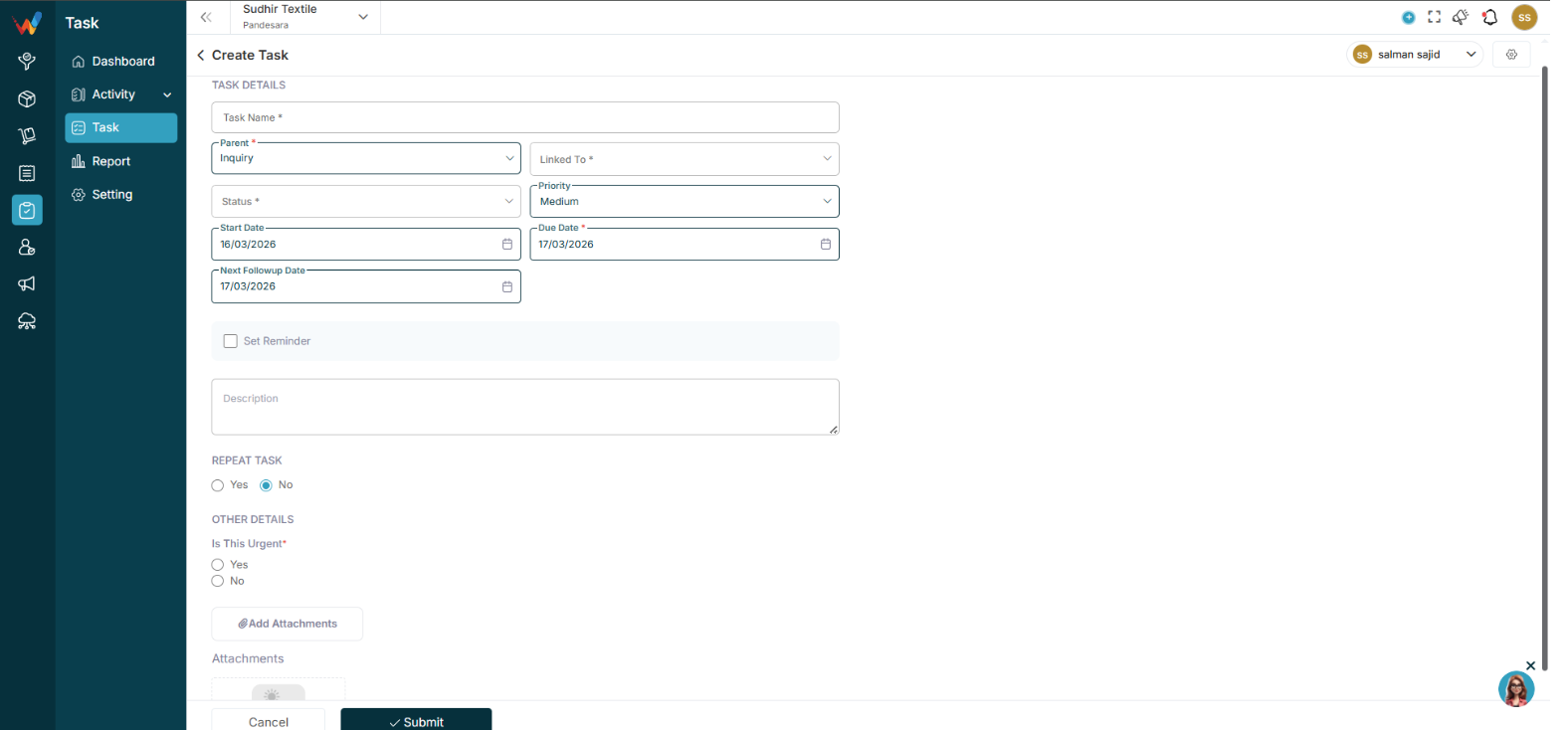
- Task Name (mandatory)
- Parent (mandatory) (Lead, Deal, Contact, etc.)
- Linked To (mandatory)
- Status (mandatory)
- Priority
- Start Date
- Due Date (mandatory)
- Next Follow-up Date
- Set Reminder (checkbox)
- Description
- Recurring Task (Yes or No)
- Add Attachments
1.2 Recurring Task Logic
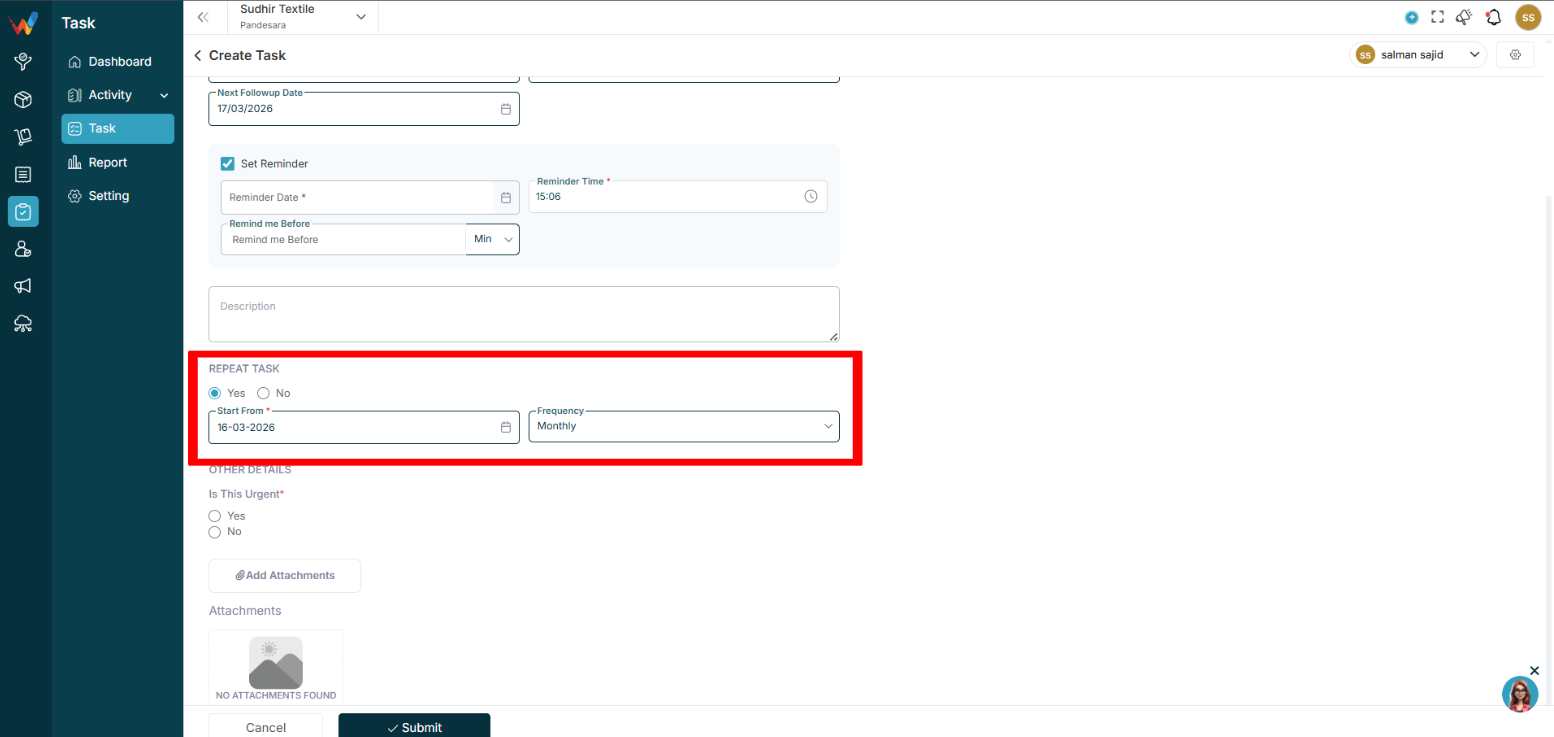
If Yes is selected:
The task automatically regenerates after completion.
This is based on recurrence rules configured in Settings.
Task Detailed View
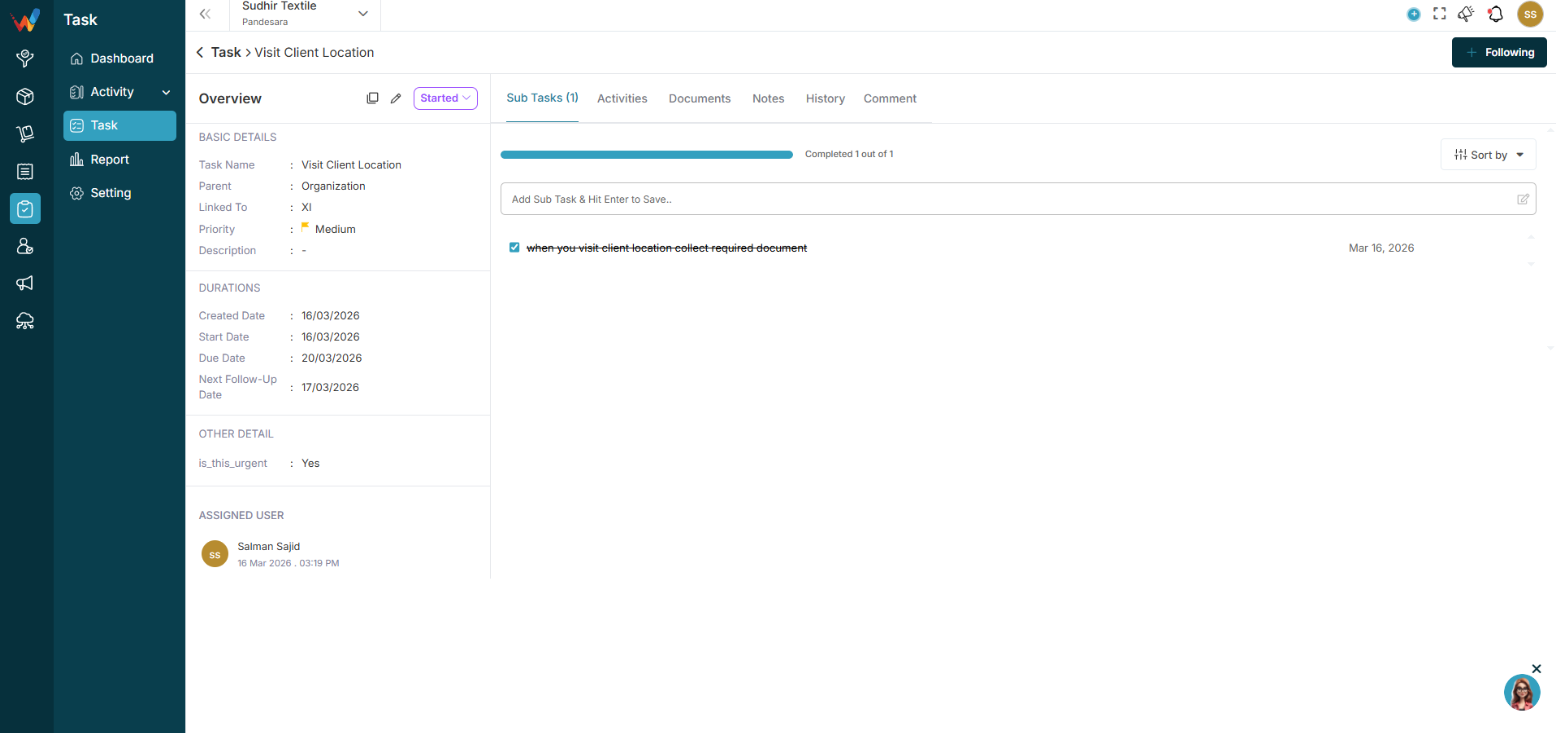
2.1 Overview Tab
The detailed view is split into:
- Left panel (information summary)
- Right content area (tabs and activity)
Left Panel: Information Summary
3.1 Basic Details Section
Displays static information:
- Task Name
- Parent (Lead, Deal, etc.)
- Linked To (specific record name)
- Priority (with color indicator)
- Description
These are editable only via the Edit option.
3.2 Durations Section
Shows timeline data:
- Created Date
- Start Date
- Due Date
- Next Follow-up Date
Important logic:
Due Date is used for:
- Overdue tracking
- Dashboard reporting
- Reminder alerts
Next Follow-up Date:
- Used in follow-up views
- Drives reminder logic
3.3 Assigned User Section
Shows:
- Assigned user profile
- Date and time of assignment
If reassigned, the history logs it.
3.4 Quick Action Icons (Left of Status)
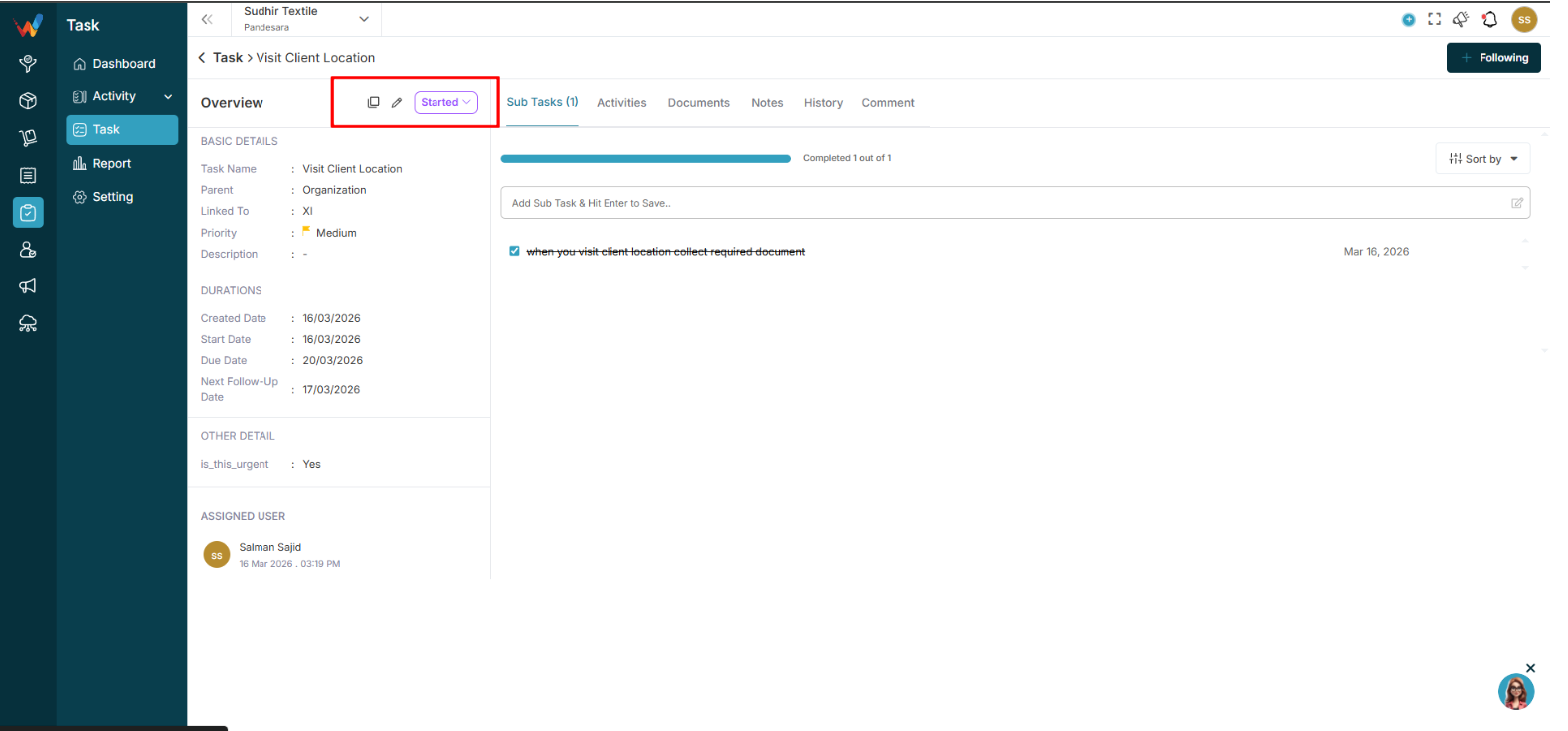
Duplicate
Creates an exact copy of the task.
All fields are copied except:
- Status resets to Not Started
- Subtasks are not copied (if configured that way)
Edit
Opens the Edit Task form.
3.5 Status Dropdown
Current Status example: Not Started
Dropdown options:
- Not Started
- Started
- Completed
- Deferred
- Cancelled
System logic:
Changing to Completed:
- Marks the task finished
- Does not auto-complete pending subtasks
Deferred:
Cancelled:
- Work is stopped permanently
Tabs Section (Main Work Area)

4.1 Tabs Available
- Sub Tasks
- Activities
- Documents
- Notes
- History
- Comment
4.2 Following Button (Top Right)

“Following” is used to:
- Follow task activity
- Get updates and notifications
- Track comment updates
Sub Tasks Tab
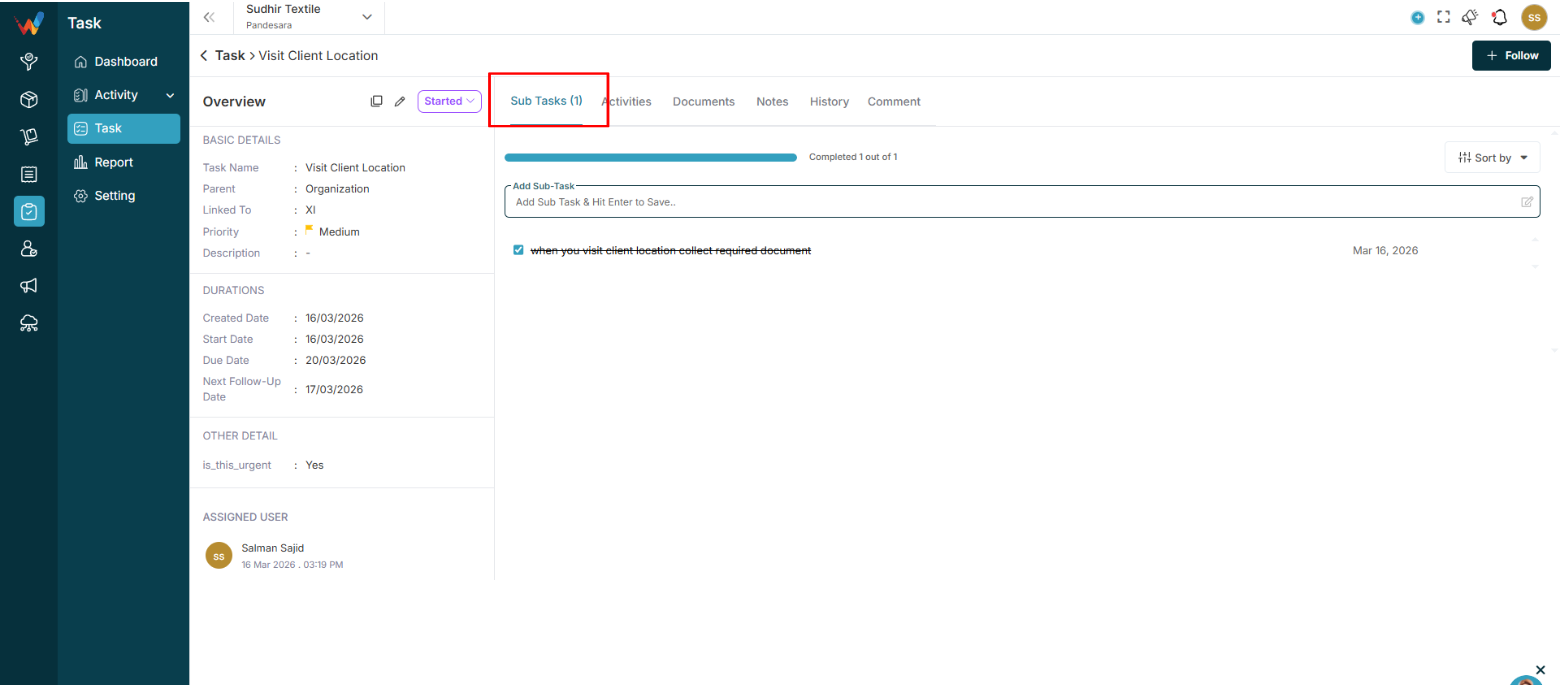
5.1 Progress Bar
Example: “Completed 1 out of 3”
Auto-calculated
Progress Percent = (Completed Subtasks ÷ Total Subtasks) × 100
5.2 Add Sub Task Input
Field example: “Add Sub Task and hit Enter to save.”
Behavior:
- Press Enter to instantly save
- Subtask is created inline
- Default status is unchecked
5.3 Subtask List
Each row shows:
- Checkbox
- Subtask Name
- Due Date
- Edit icon
- Delete icon
Checkbox logic:
- Checked: Mark complete
- Unchecked: Pending
Completion updates:
- Progress bar
- Parent task progress
Edit:
- Allows renaming the subtask inline.
Delete:
- Deletes the subtask permanently.
5.4 Sort By (Top Right)
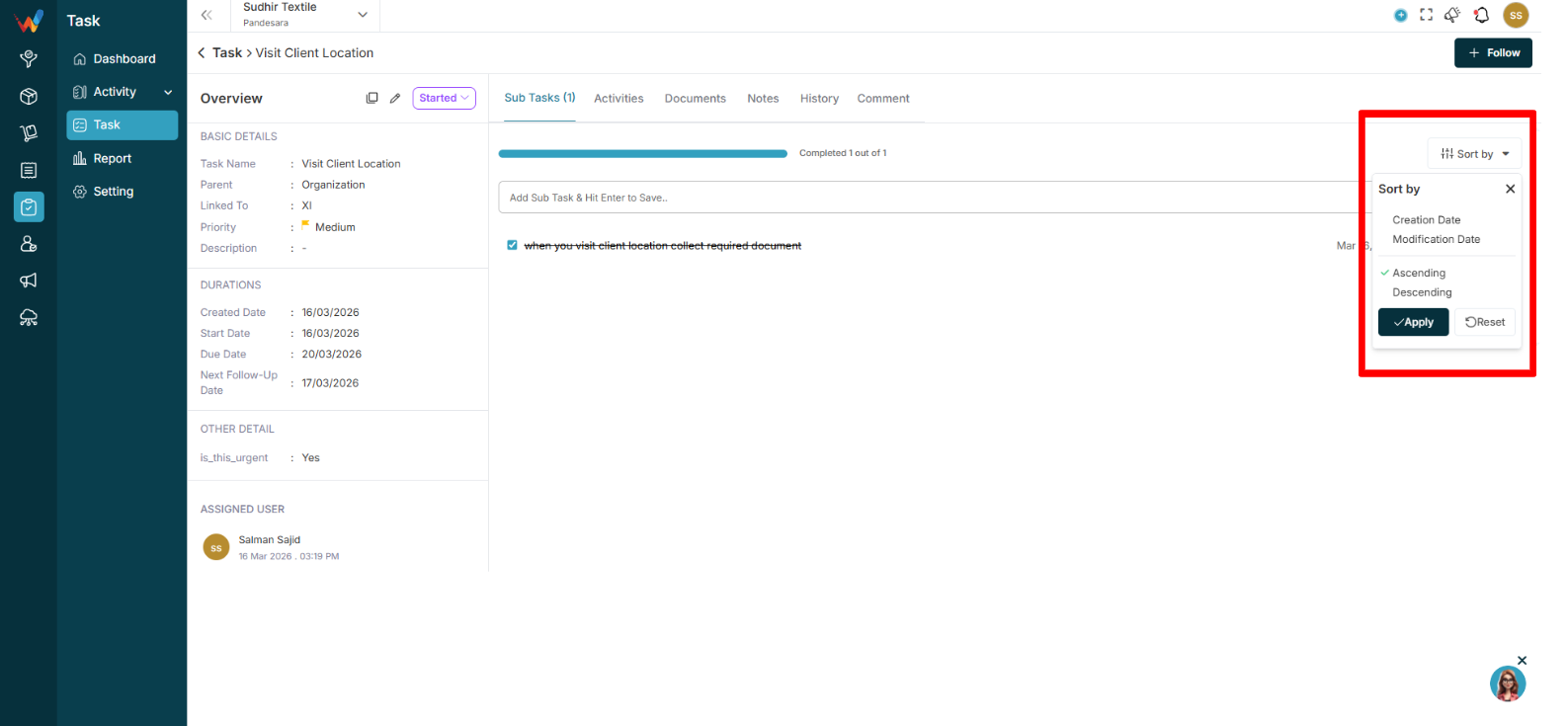
Options:
- Creation Date
- Modification Date
- Ascending
- Descending
Apply and Reset are supported.
Activities Tab (Detailed View)
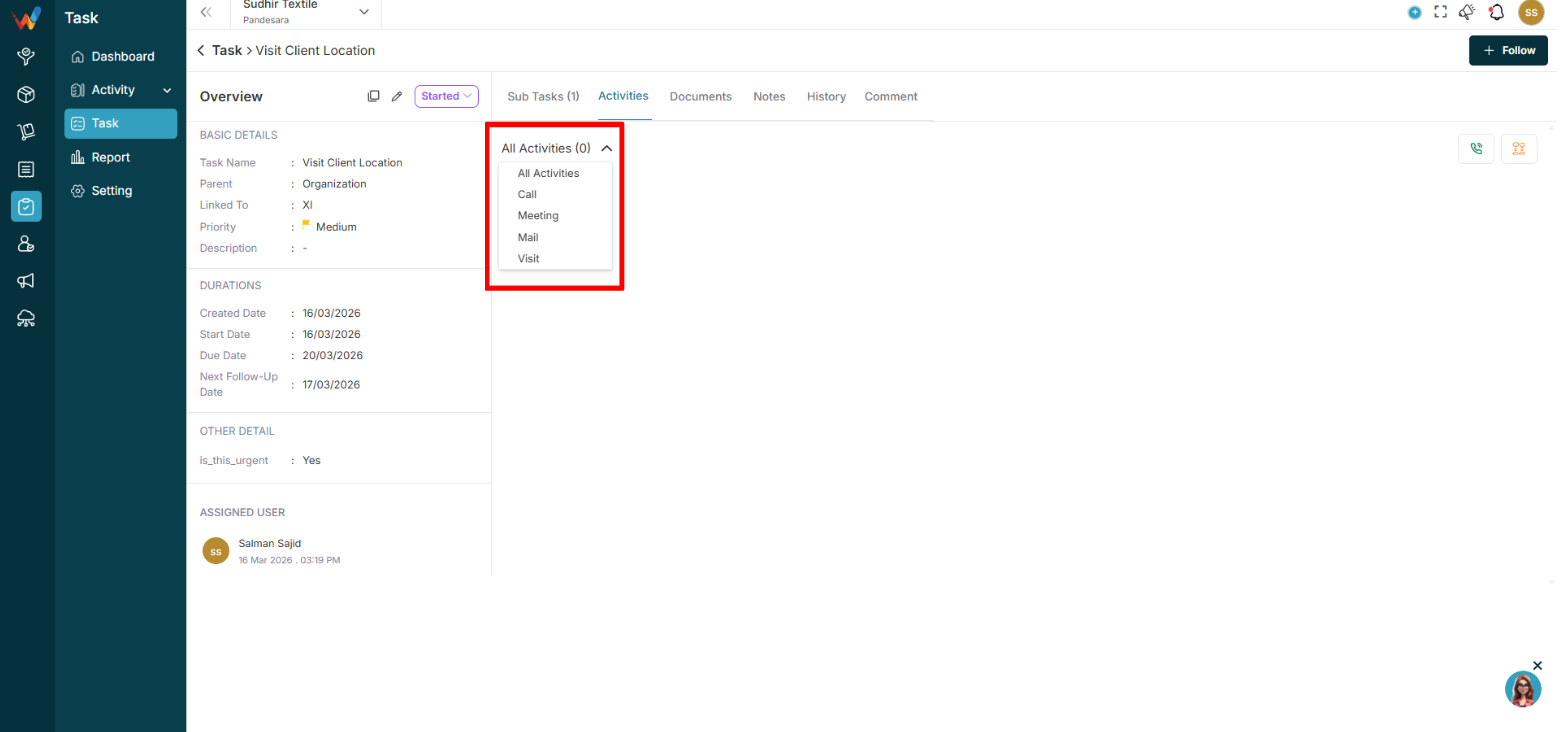
6.1 Includes
- Activity count
- Filters: All, Call, Meeting, Mail, Visit
- Activity cards with:
- Type
- Description
- Created by
- Created date
- Status tag (Log, Held, Call Later, Interested, etc.)
- Three-dot menu (edit and delete based on permissions)
6.2 Log and Follow-up (Key Concept)
Log records a completed interaction.
Follow-up schedules the next interaction.
Common actions:
- Log a Call
- Follow-up Call
- Log a Meeting
- Follow-up Meeting
Documents Tab
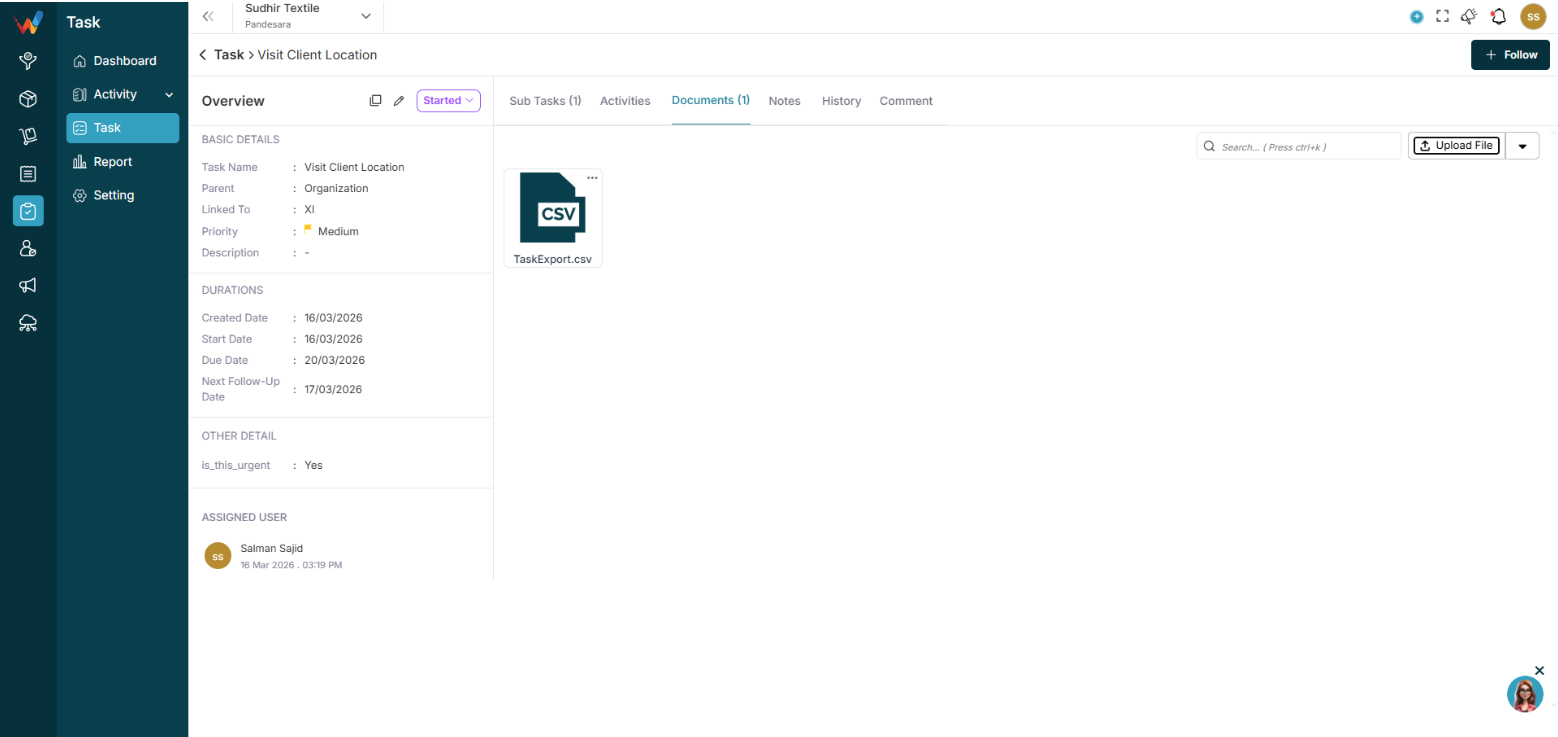
File management inside a task.
Features:
- Search
- Upload File
- Create Folder
- Drag and drop (if supported)
Used for:
- Attach quotations
- Share screenshots
- Upload work proofs
Notes Tab
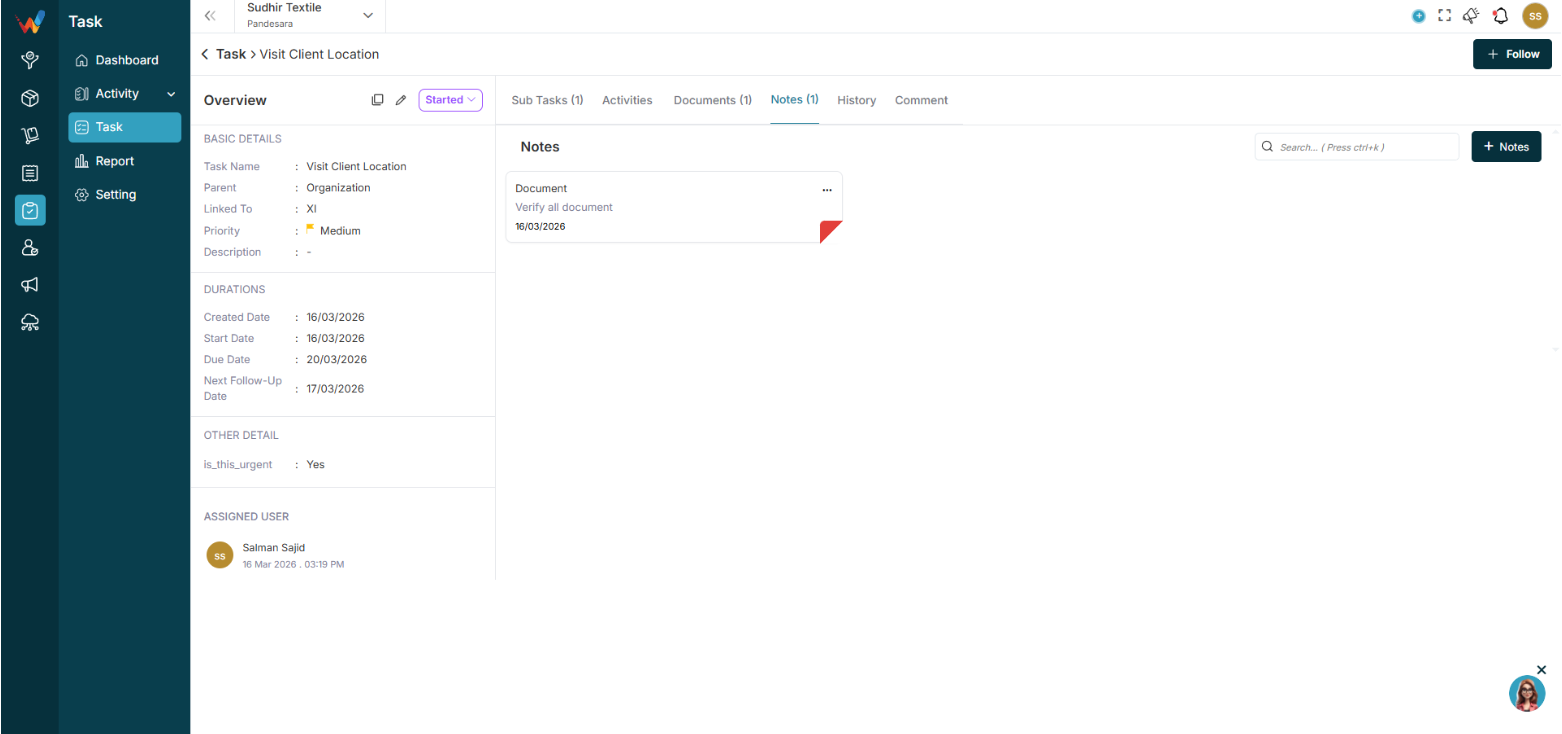
Internal notes for task context.
Used for:
- Internal remarks
- Instructions
- Task clarification
History Tab
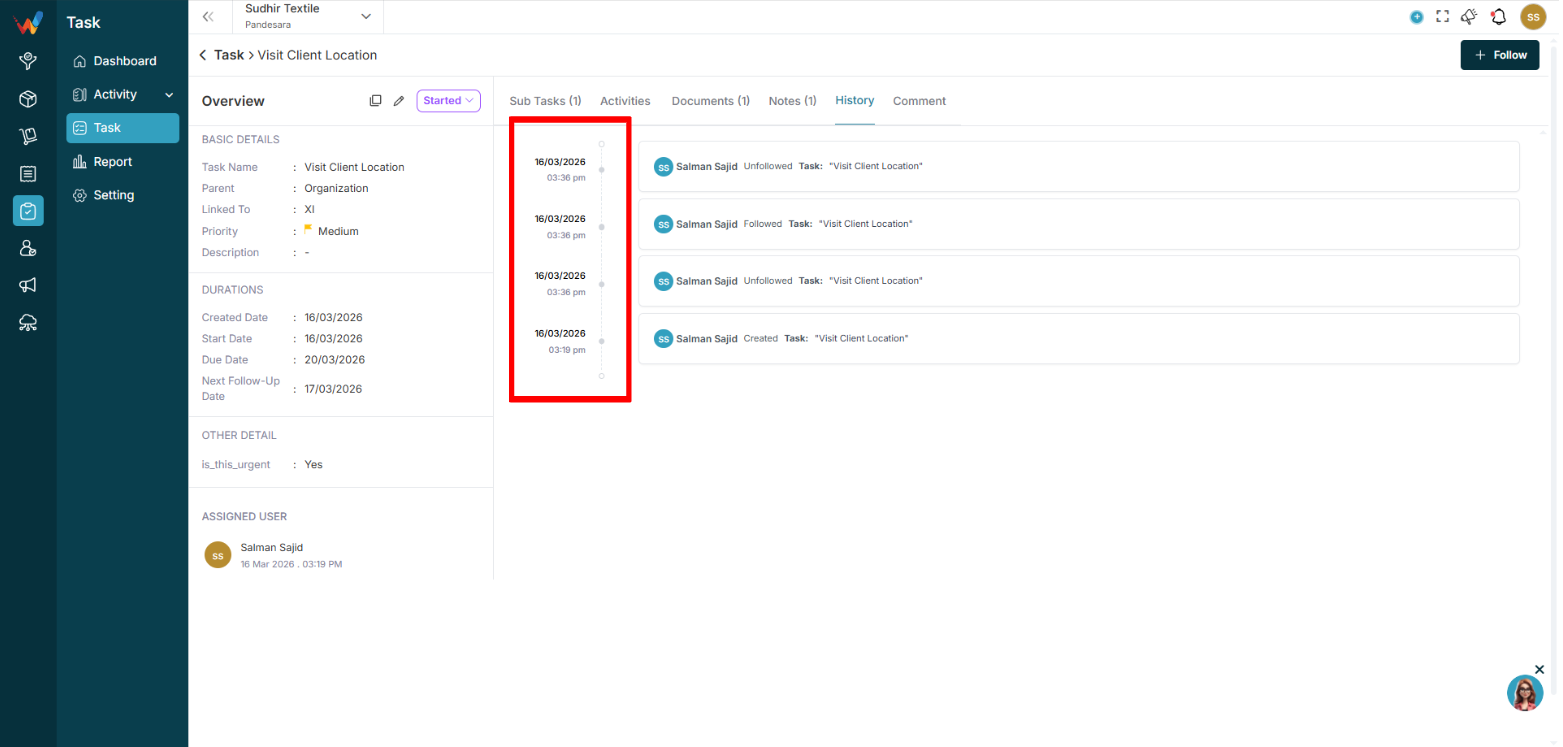
System logs for audit and accountability.
Tracks:
- Status changes
- User reassignment
- Field edits
- Due date changes
Comment Tab
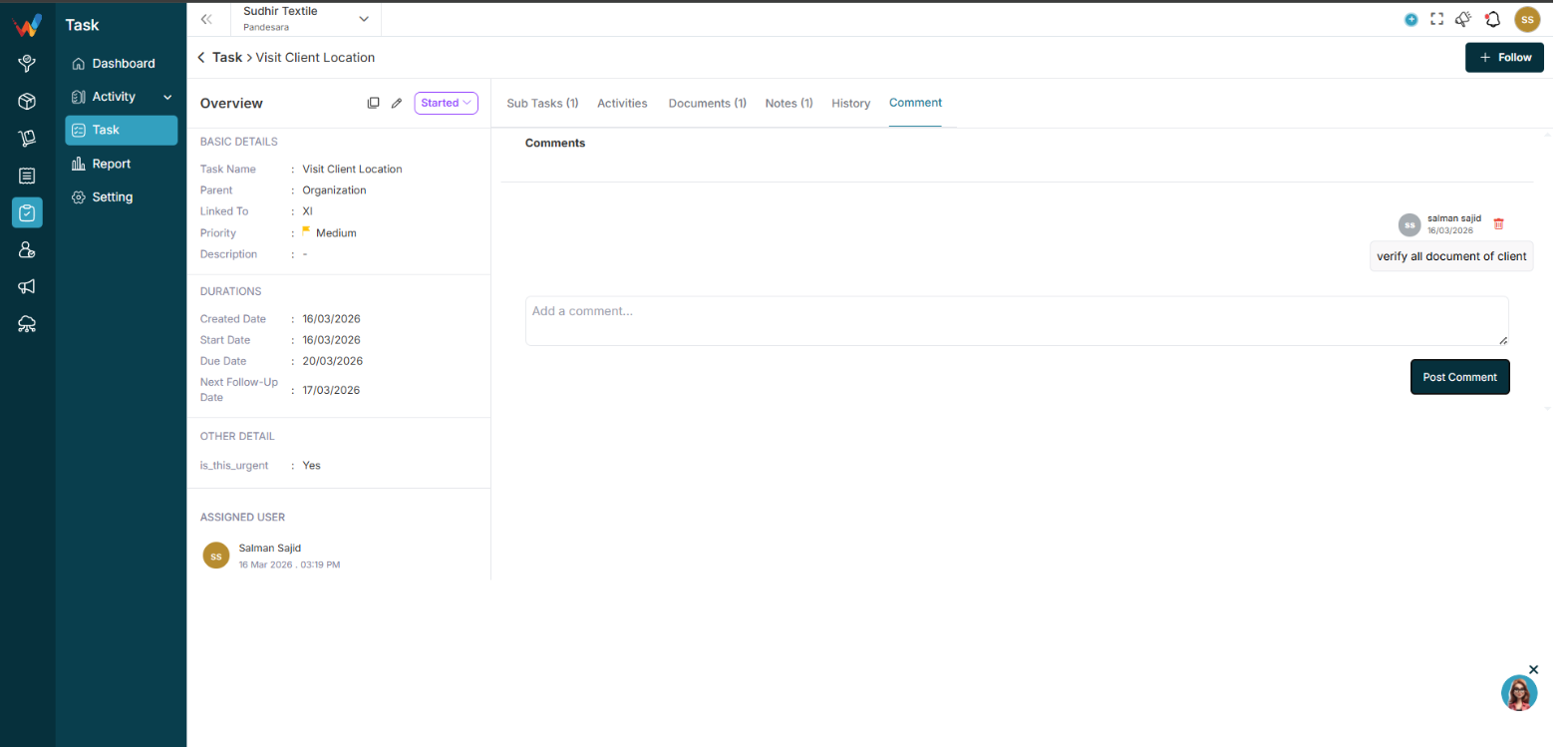
Conversation-style section.
Features:
- Add comment
- Delete comment
- Time-stamped messages
Used for:
- Internal discussion
- Follow-up communication
- Task updates
Filter Panel
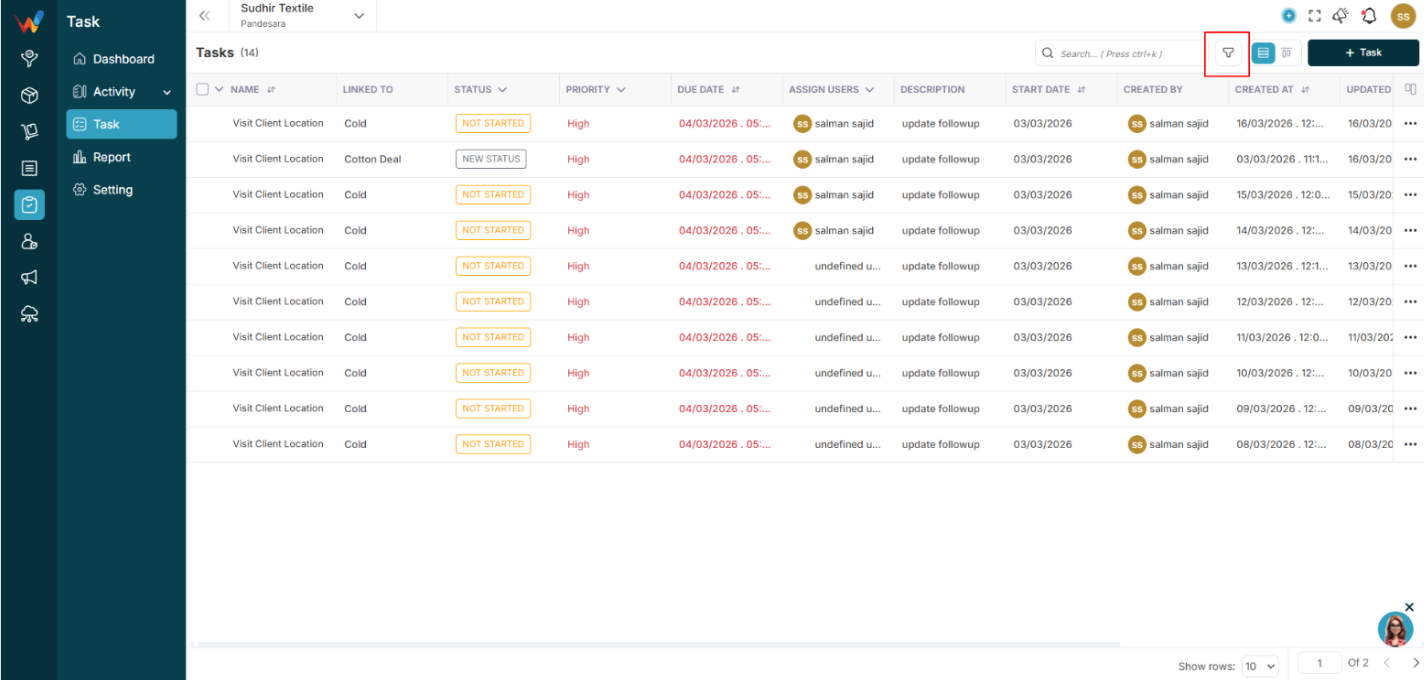
1.1 Filters Available
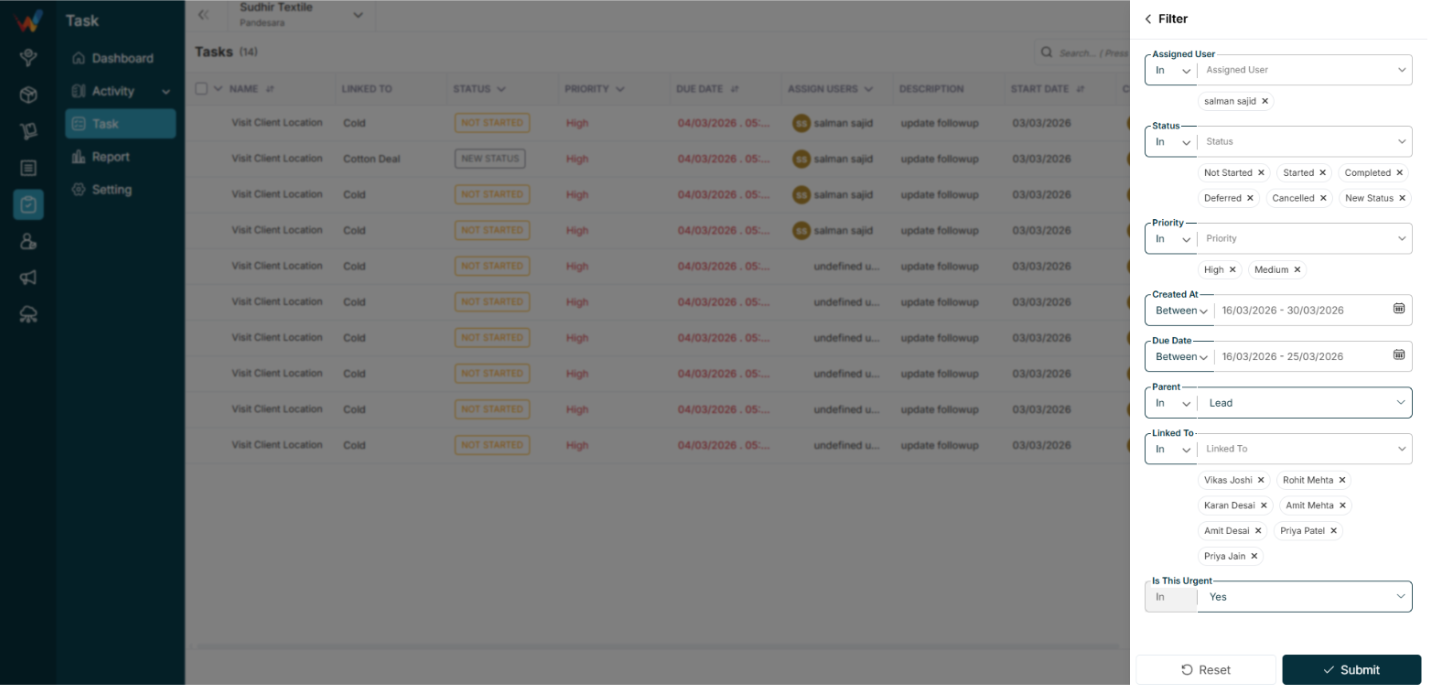
- Assigned User
- Status
- Priority
- Created At (Between)
- Due Date (Between)
- Parent
- Linked To
1.2 Operator Support
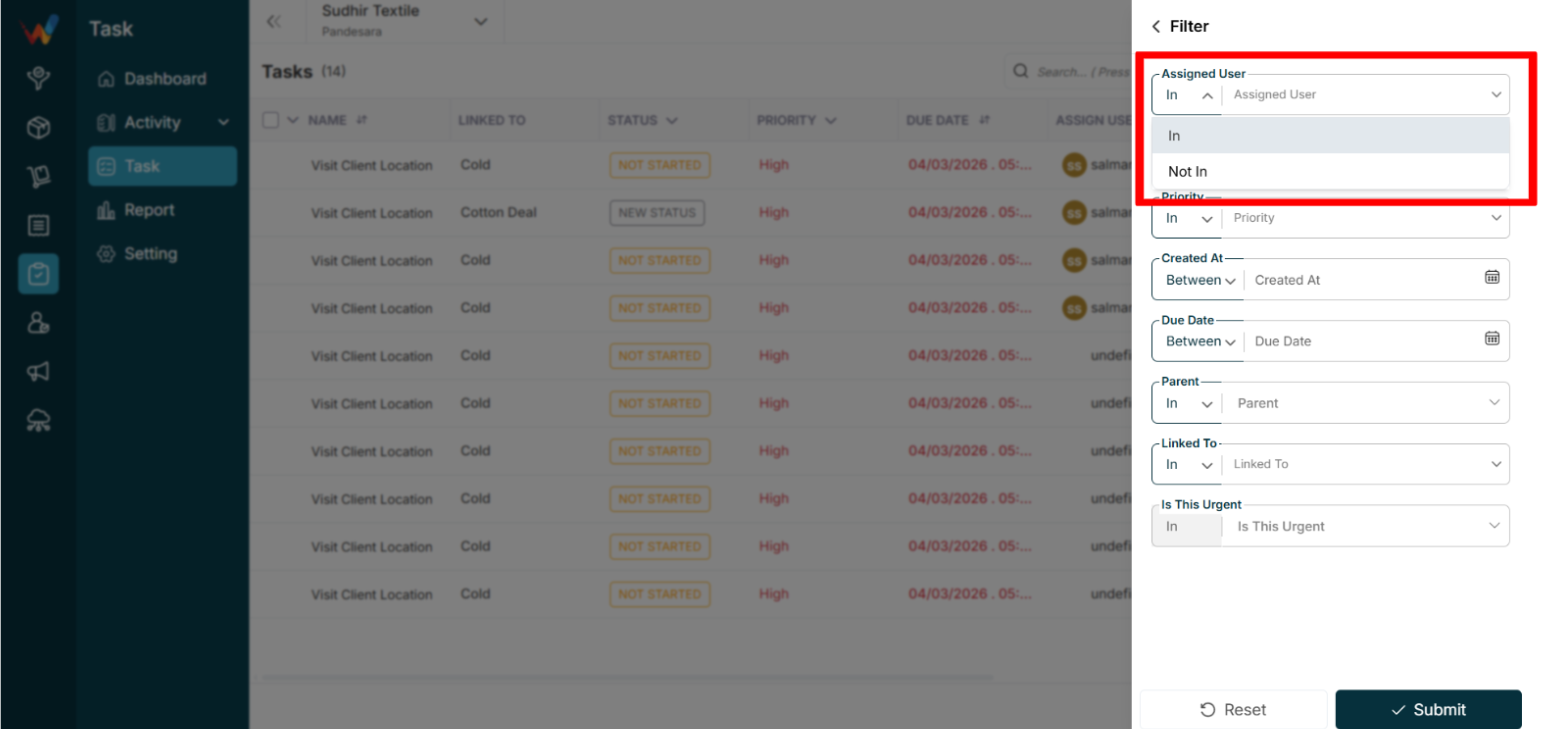
- In – Displays records where the selected field value matches any of the specified values in the list.
- Not In – Displays records where the selected field value does not match any of the specified values in the list.
Kanban View
Columns
- Not Started
- Started
- Completed
- Deferred
- Cancelled

Each column shows a count (example: Started (14), Completed (4)).
Drag and drop is supported for status changes.
Task Action Menu (Three Dots)
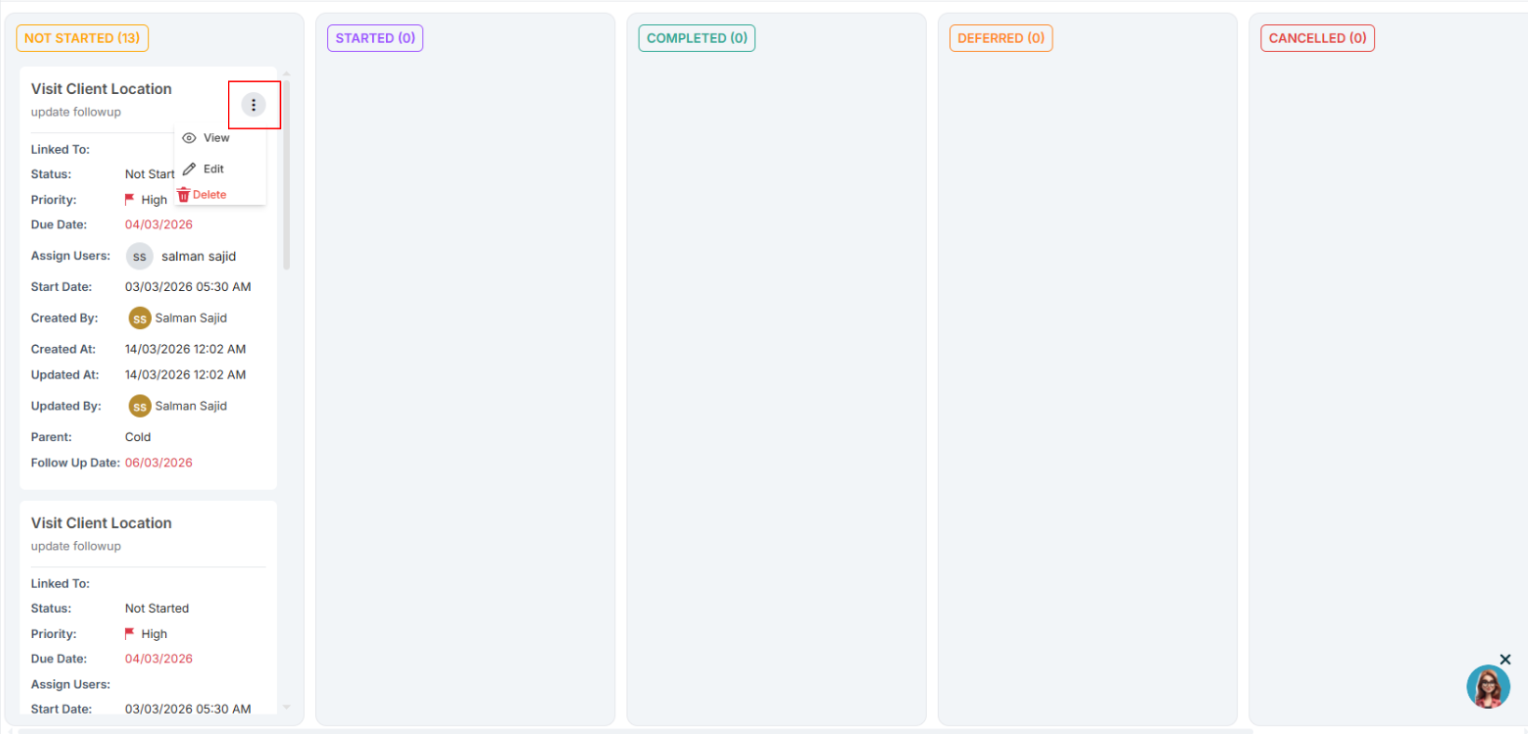
3.1 Options
3.2 Important Note
A task can directly trigger activity creation (Call, Meeting, Visit).
Navigation Path:
Task Module → Task

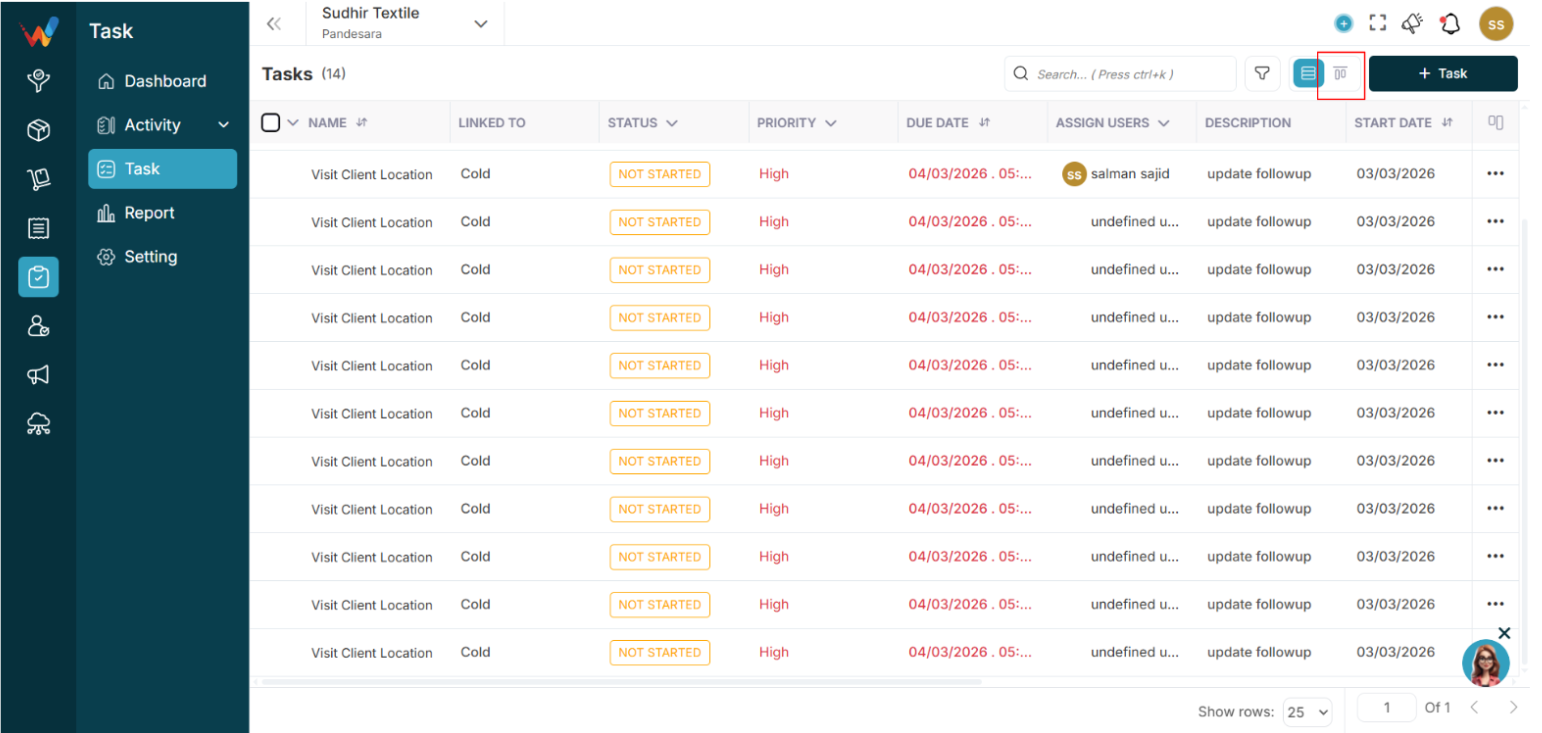
1.1 Top Section
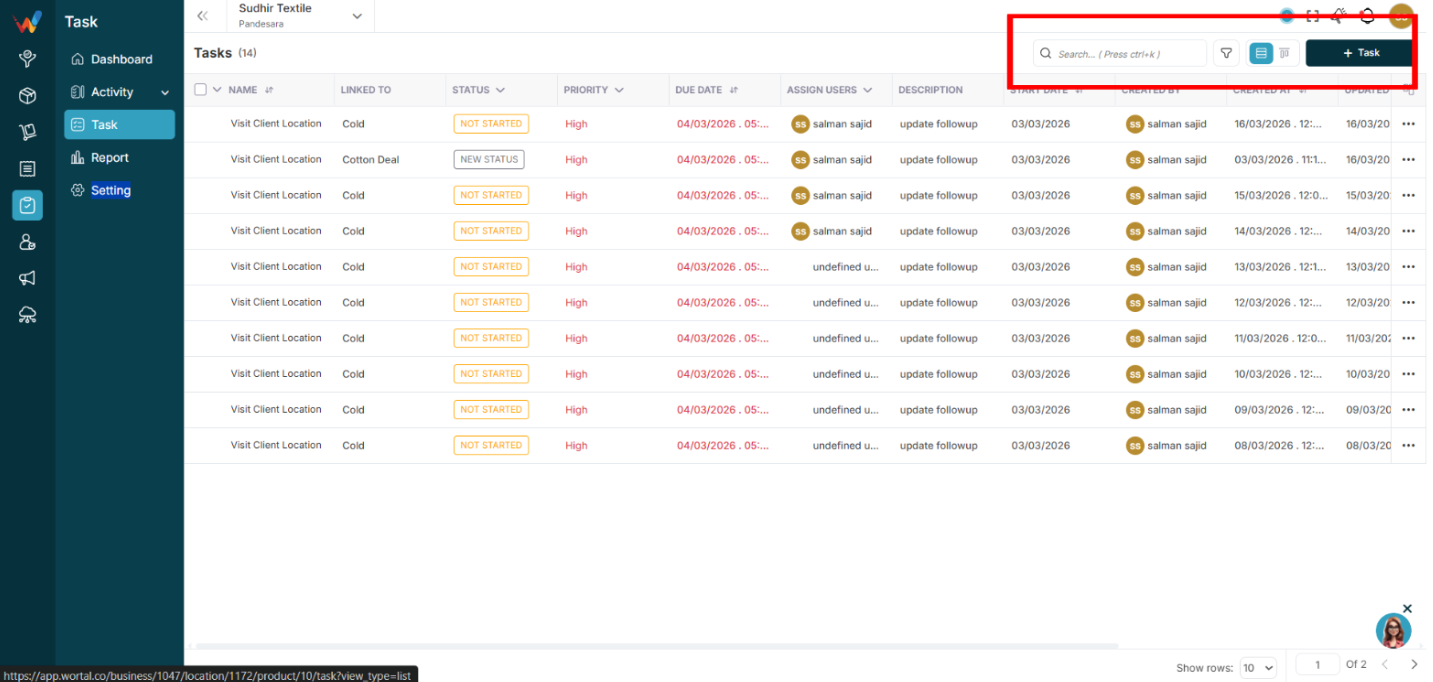
- Search (Ctrl + K supported)
- Filter icon
- View toggle (List and Kanban)
- Task button
1.2 List View Columns
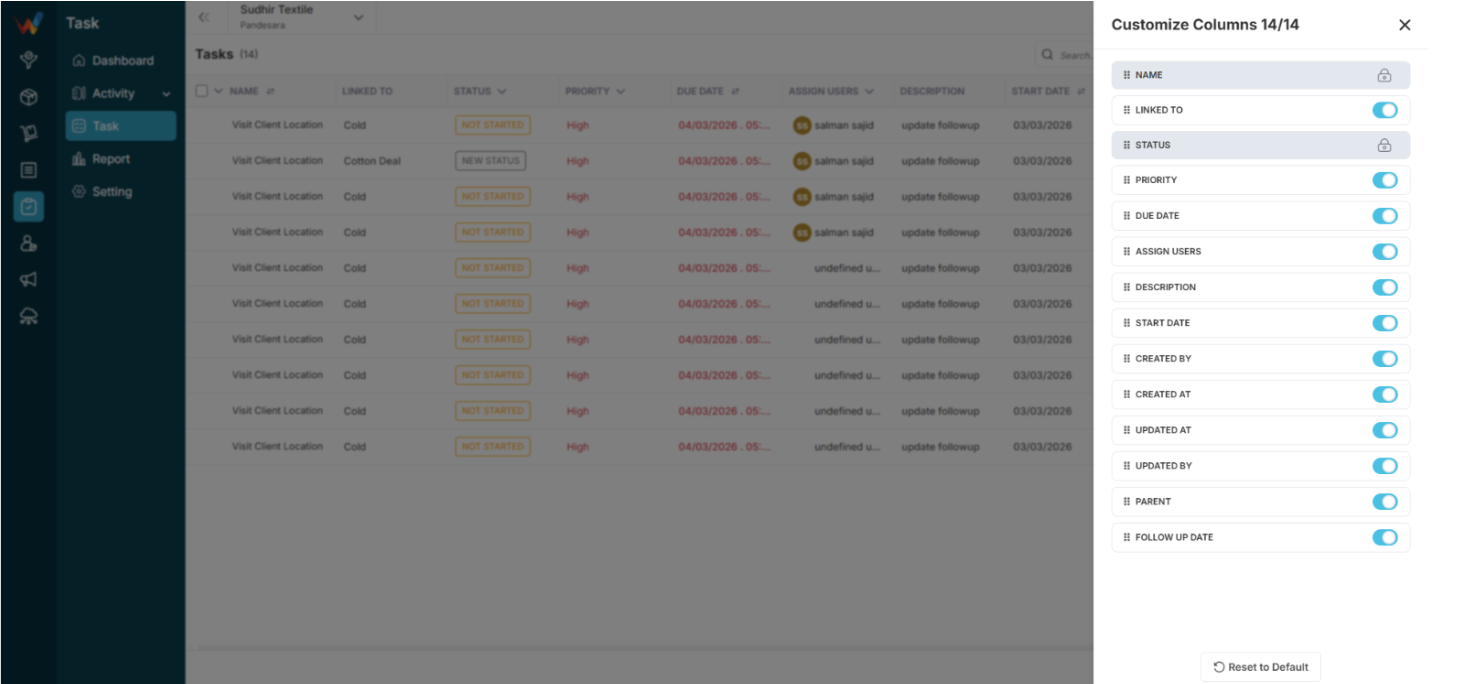
Default Columns
- Name
- Linked To
- Status
- Priority
- Due Date
- Assign Users
- Description
Customizable via:
- Customize Columns in the table header.
Available Extra Columns
- Start Date
- Created By
- Created At
- Updated At
- Updated By
- Parent
- Follow Up Date
Locked Columns
1.3 Bulk Selection
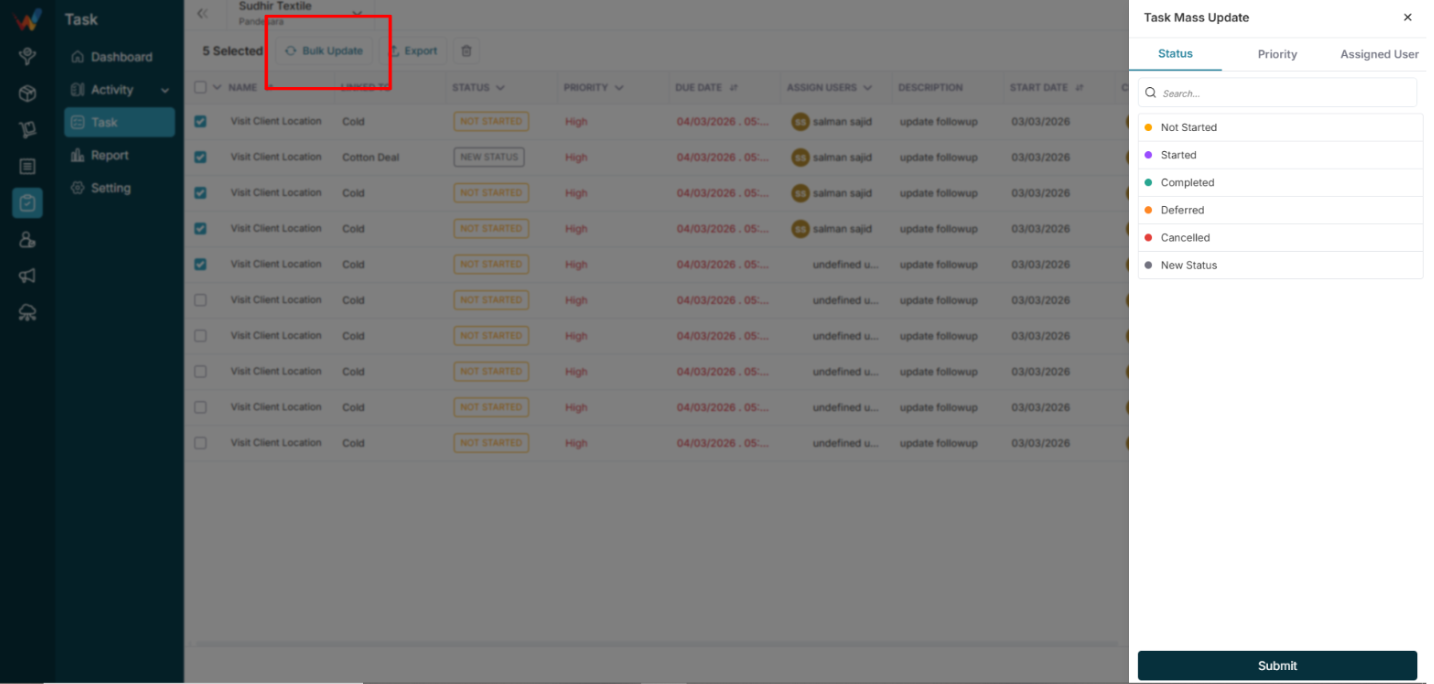
Checkbox selection enables:
- Mass Update
- Delete
- Export
The action bar shows:
“7 Tasks Selected”
Options:
- Update
- Delete
- Export
- Close
Mass Update Screen

2.1 Tabs
- Status
- Priority
- Assigned User
2.2 Status Options
- Not Started
- Started
- Completed
- Deferred
- Cancelled
2.3 Priority Options
2.4 Assigned Users
- Multi-select is supported.
Mass Export
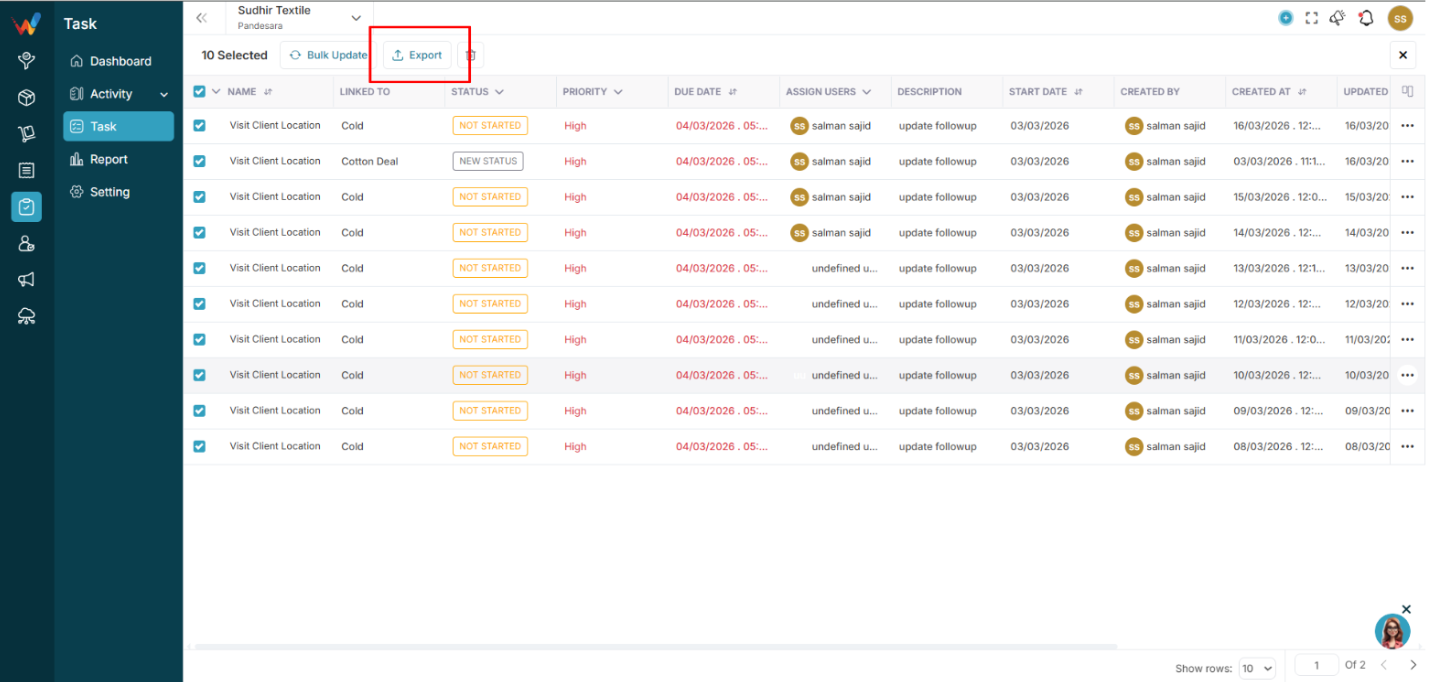
3.1 Formats
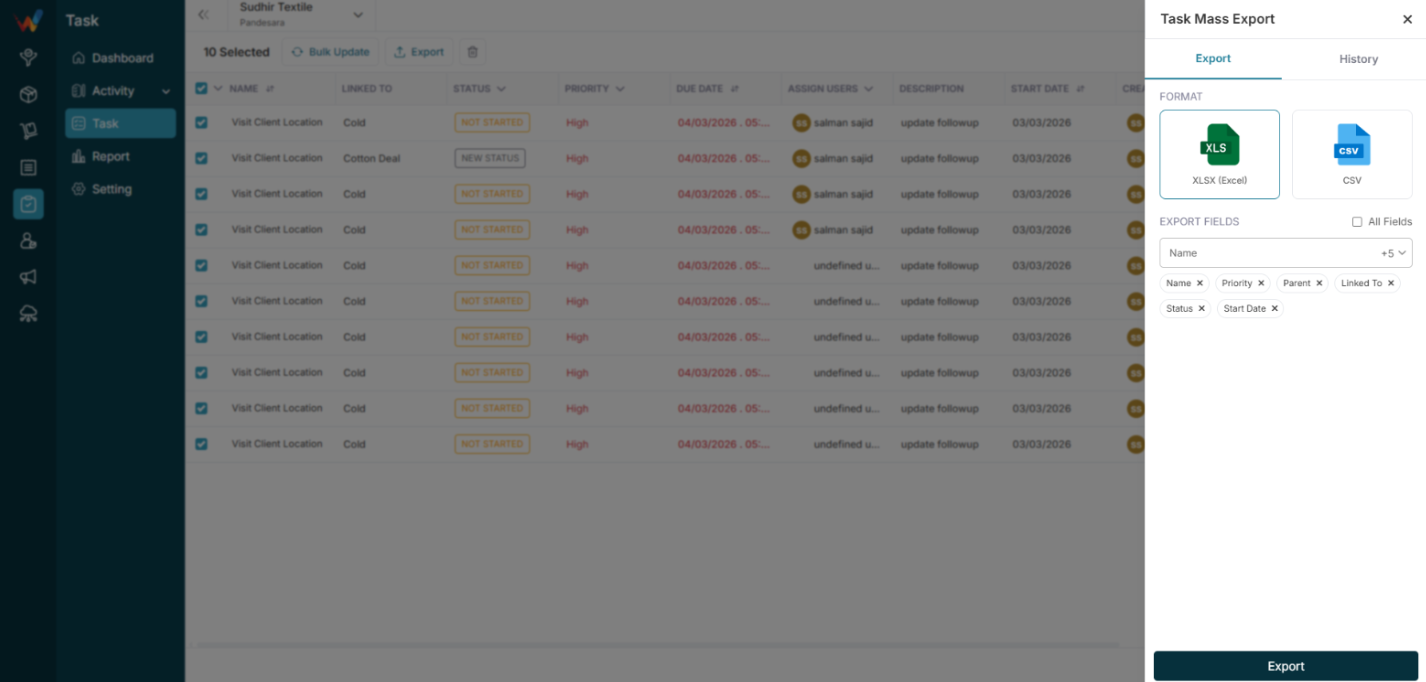
3.2 Selectable Fields
- Name
- Priority
- Parent
- Linked To
- Status
- Start Date
- More fields (as available)

Option:
Task Module Overview
1.1 Purpose
The Task module helps businesses:
- Assign work
- Track progress
- Set deadlines
- Monitor team productivity
- Manage follow-ups
- Create recurring tasks
- Maintain a structured internal workflow
1.2 Module Connections
It connects with:
- Lead
- Deal
- Contact
- Order
- Independent (General Task)