Introduction
The Visit Module in WORTAL CRM is designed to log, manage, and track physical field visits conducted by the sales team with Leads, Deals, or other entities such as Persons and Organizations. It allows users to record check-in and check-out details, capture location information, add attendees, and upload proof of visits (such as images), ensuring accurate documentation of on-field activities.
The module also provides flexibility through manual entry options and supports categorizing visits (e.g., Inquiry, Deal, Cold Visit), enabling better organization and reporting. By maintaining a complete history of field interactions, it ensures transparency, accountability, and improved coordination between field and office teams. This feature is particularly valuable for businesses with active on-ground sales operations, helping them monitor performance and streamline field engagement effectively.
Example Flow
Example Flow (End-to-End)
Salesperson logs a demo meeting
Summary indicates: client wants final discussion
User clicks Follow Up
Follow-up meeting is scheduled for Friday
System reminds participants before the meeting
Outcome:
Structured follow-up and smoother pipeline movement
Customize Columns & Meetings
Customize Columns Panel
1.1 What It Is
Click Customize Columns to open:
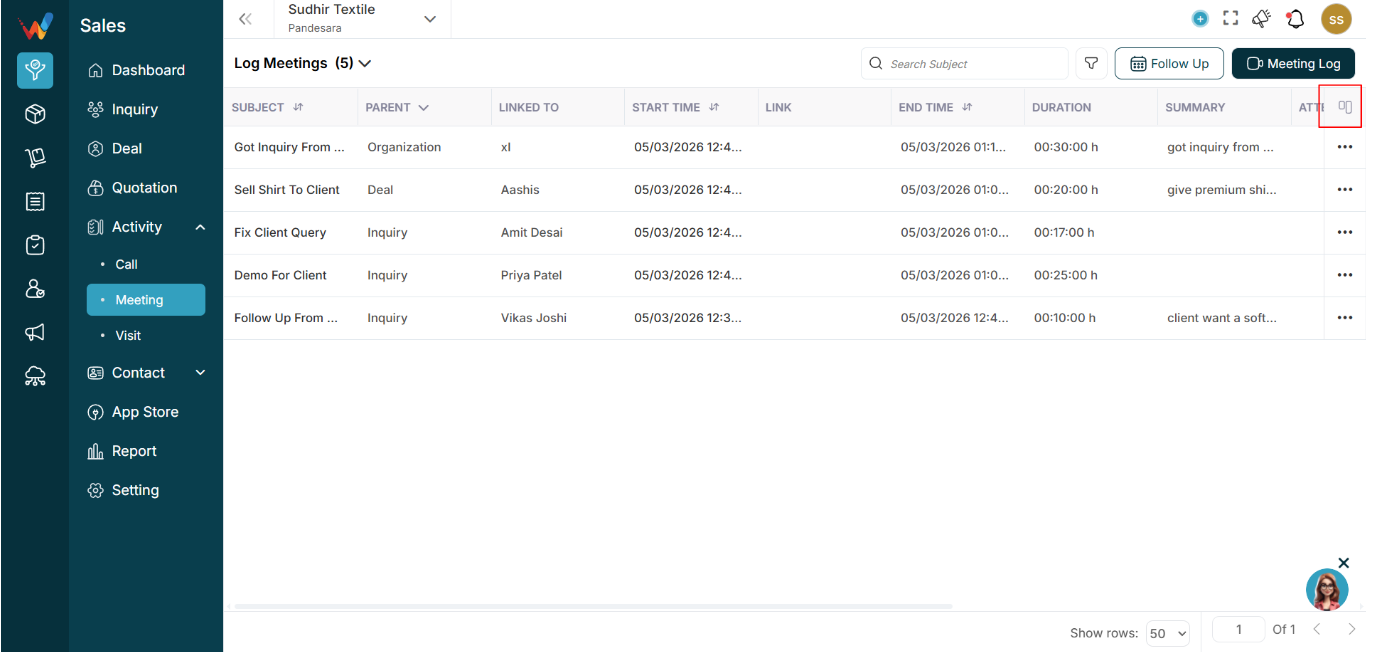

“Customize Columns 13/13”
1.2 What You Can Do
- Turn columns ON or OFF
- Adjust the table view to match what the user needs
Examples:
- Hide Updated At if not needed
- Show Attendees if team tracking is required
1.3 Reset to Default
Restores the system default column layout.
Useful if the layout gets changed unintentionally.
Log Meeting & Follow-up Meeting
2.1 Log a Meeting (Past Meeting Entry)
Use this form when the meeting has already happened and needs to be recorded
Navigation Path:
Sales Module → Activity → Meeting → Click on Meeting Log

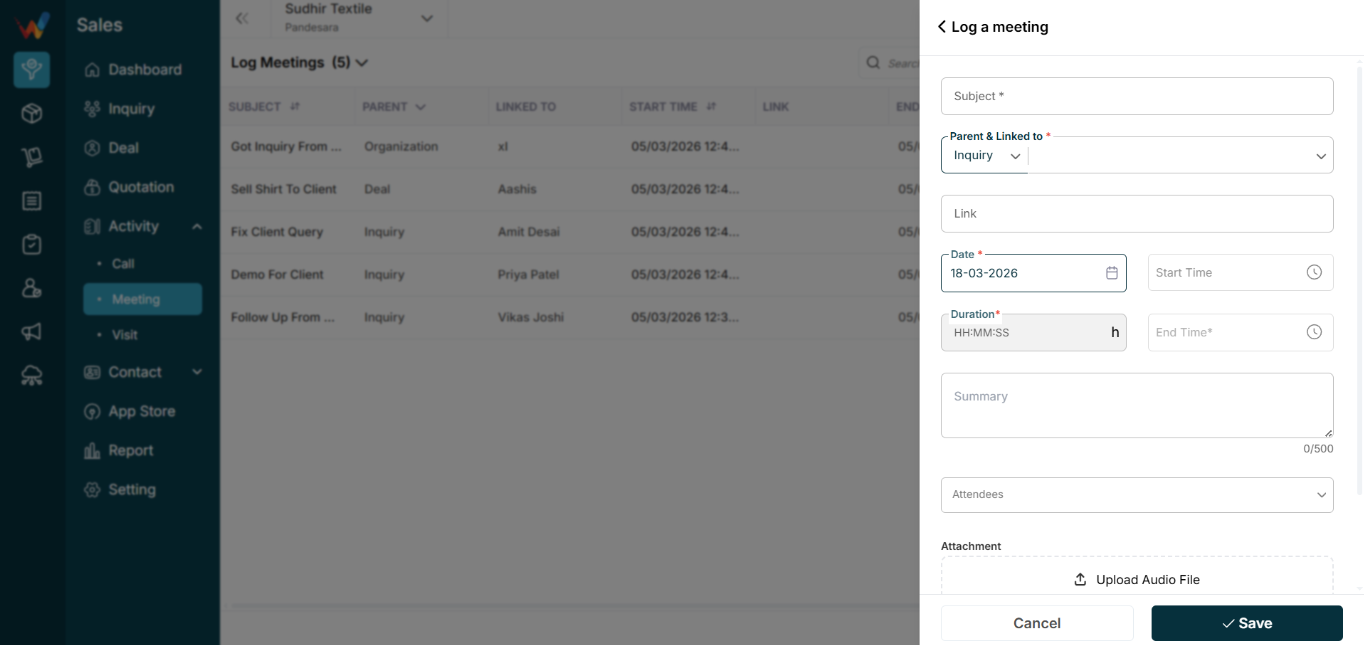
Subject *
Title of the meeting.
Examples:
- Demo Session
- Client Introduction Meeting
- Final Discussion
Why it matters:
- Identifies the meeting in list view
- Appears in Lead or Deal activity timeline
- Used in reports
Mandatory field.
Parent and Linked To *
Dropdown (Lead / Deal, etc.)
Defines:
- Where the meeting belongs
- Which record timeline it appears under
- Reporting and analytics impact
Behavior:
- Parent = Lead → appears in that Lead’s activity tab
- Parent = Deal → appears in that Deal’s activity tab
Link (Optional)
Used to store:
- Zoom link
- Google Meet link
- Teams link
- Any meeting URL
If blank:
Treated as offline or physical meeting (or link not provided).
Date *
Date the meeting happened.
Used in:
- Reports
- Timeline history
- Performance tracking
Start Time (Recommended)
Meeting start time.
Useful for productivity and time tracking reports.
End Time *
Meeting end time.
Helps verify time spent and track efficiency.
Duration *
Format: HH:MM:SS
If duration is entered, the system may calculate End Time.
If End Time is entered, the system may calculate duration.
Mandatory field.
Summary (0/500)
Short notes on what happened.
Example:
“Client interested in annual subscription. Needs internal approval.”
Appears in:
- Meeting list summary column
- Activity timeline
- Manager view
Attendees
Select internal users who attended.
Used for:
- Collaboration tracking
- Accountability
- Reporting (meetings attended per user)
Attachment (Upload File)
You can upload:
- Meeting recording
- MOM file
- Supporting documents
Stored against the meeting record.
Follow Up Button (Inside Log Meeting)
Allows immediate scheduling of the next activity:
Helps prevent lead leakage.
2.2 Follow Up a Meeting (Future Scheduled Entry)
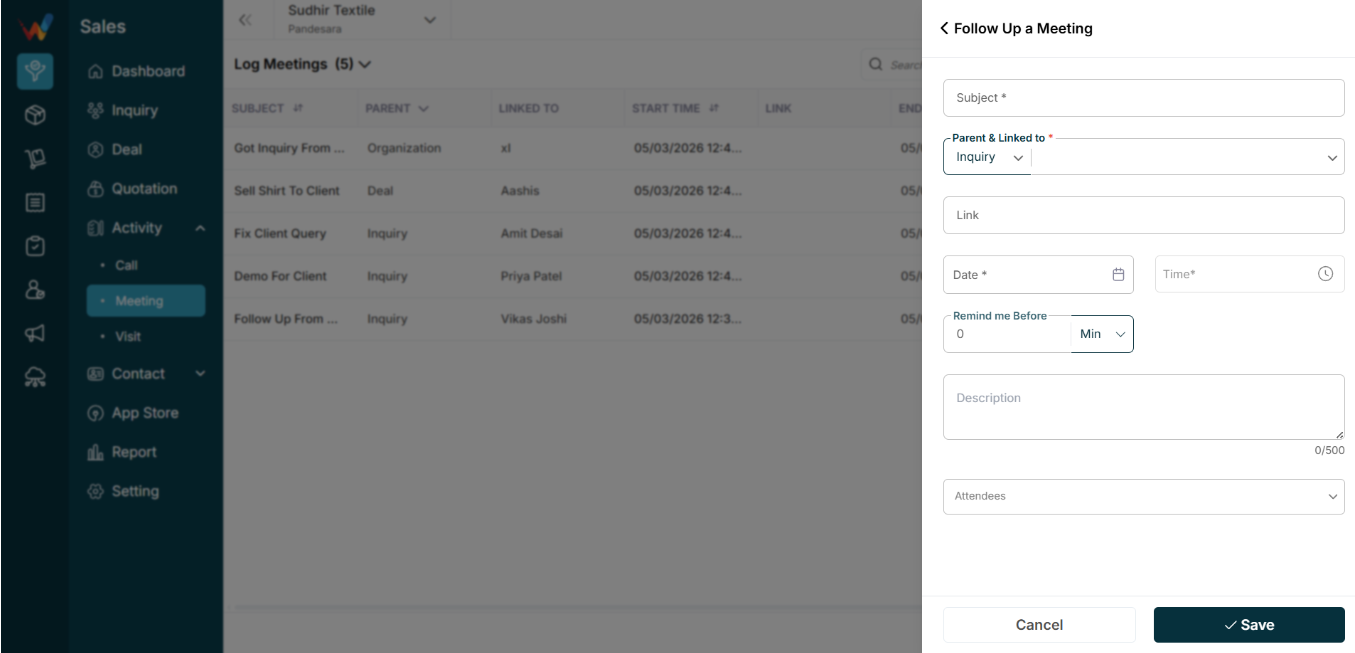
Used to schedule a future meeting. It does not log a past meeting.
Navigation Path:
Sales Module → Activity → Meeting → Click on Follow Up
Subject *
Title of the upcoming meeting.
Example:
“Final Pricing Discussion”
Parent and Linked To *
Same logic as Log Meeting.
Defines:
- Which lead or deal the follow-up belongs to
- Where it will appear
Link (Optional)
Add Zoom or Meet link if applicable.
If blank, it is assumed to be offline.
Date *
Future meeting date.
Mandatory.
Time *
Exact meeting time.
Used for reminders.
Mandatory.
Remind Me Before
Examples:
- 0 minutes
- 15 minutes
- 30 minutes
- 1 hour
System may trigger:
- In-app notification
- Mobile push notification (if integrated)
Description (0/500)
Details of what needs to be discussed.
Helps the user prepare before the meeting.
Attendees
Assign internal participants.
Ensures:
- Participants are notified
- Responsibility is clear
Filters Panel
1.1 How to Open
Navigation Path:
Sales Module → Activity → Meeting → Click on Filter Icon
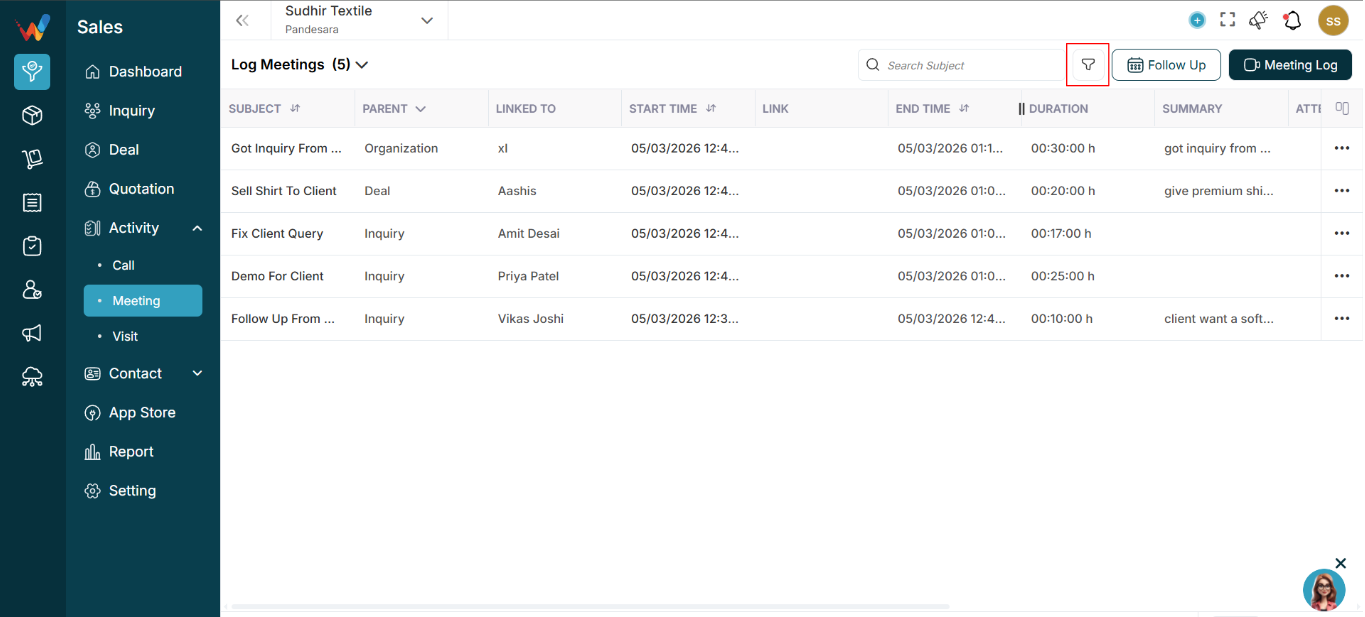
Click the Filter icon in the top bar.

1.2 Filter Dropdown: “Search Field”
This works as a smart filter builder.
Choose a field to filter by, such as:
- Parent (Lead / Deal)
- Duration
- Date
- Attendees
- Other fields (depending on configuration)
Based on the selected field, the system shows the right input type:
- Date picker
- Dropdown
- Numeric range
- User selector
Apply filter to view only matching meetings.
1.3 When Filters Are Most Useful
Helpful when there are many meeting logs and you want to view only:
- Meetings for Deals
- Meetings logged by a particular user
- Meetings in a date range
- Meetings longer than a specific duration
Action Menu
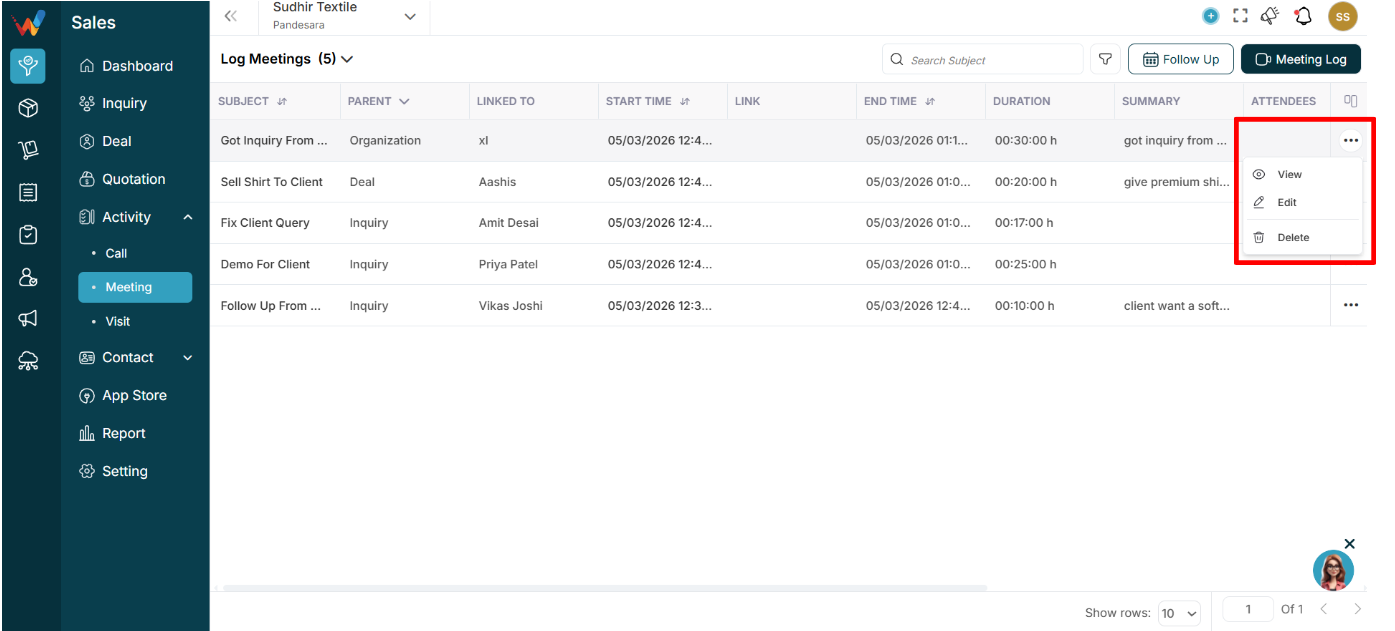
6.1 View
Opens meeting details in view-only mode

Useful for checking:
- Notes
- Date
- Attendees
- Timing
6.2 Edit
Opens the meeting in edit mode.
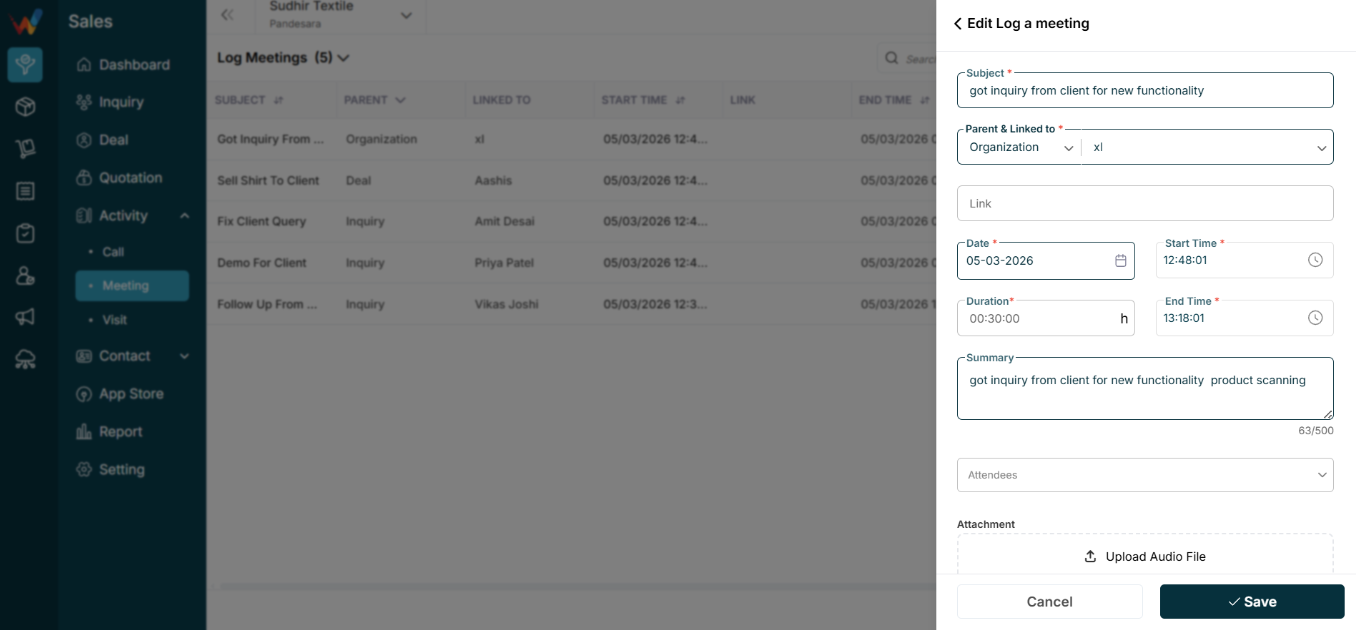
Allows updates to:
- Subject
- Timing
- Link
- Notes
- Attendees
- Other fields (based on setup)
6.3 Delete
Deletes the meeting record.
Typically restricted by role and permission.
Meeting Dropdown And Columns
Meeting Bucket Dropdown
4.1 What This Dropdown Does
This dropdown switches between different meeting buckets without applying filters.
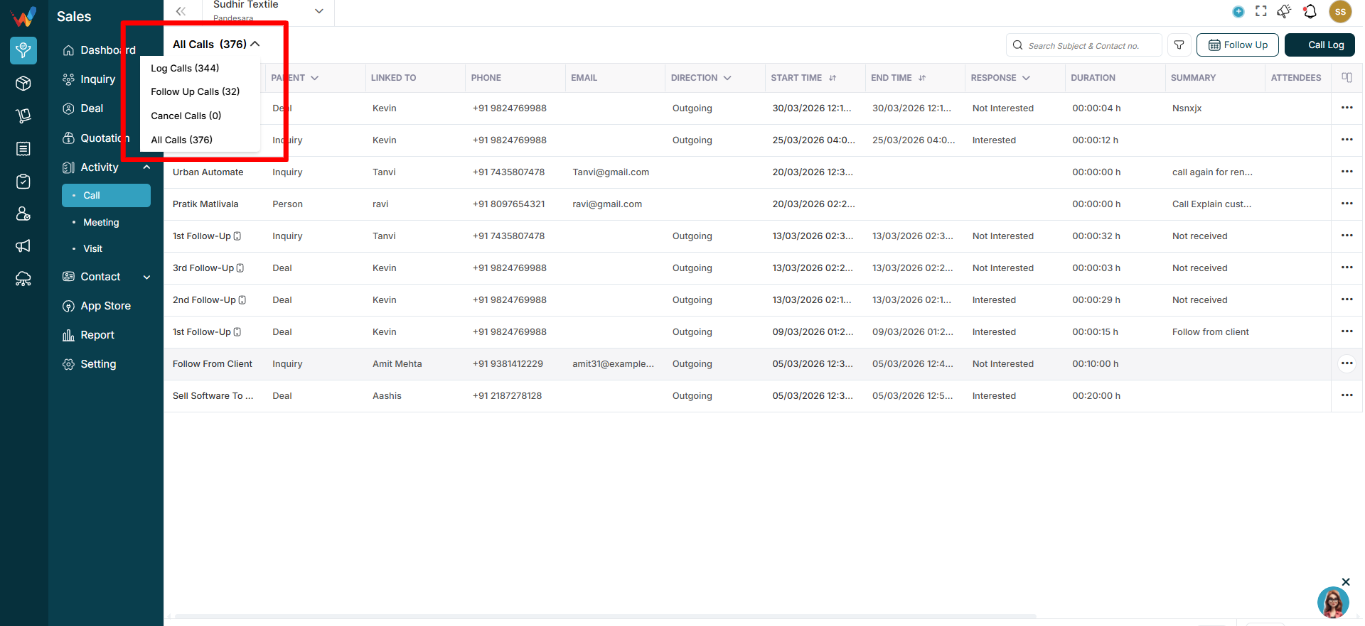
4.2 Available Options
Log Meetings (344)
Shows:
- Only meetings that are already logged (past meetings).
Follow Up Meetings (32)
Shows:
- Meetings that are scheduled for the future as follow-ups.
Cancel Meetings (0)
Shows:
- Meetings that were scheduled earlier but later cancelled.
All Meetings (376)
Shows:
- Logged + follow-up + cancelled meetings together.
Meeting Table Columns
Each row represents one meeting record.
1.1 Subject
Meeting title.
Examples:
- Demo Session
- Demo Done
- Demo Meeting
Helps identify the purpose quickly.
1.2 Parent
Shows which module the meeting belongs to:
- Lead → meeting related to a lead
- Deal → meeting related to a deal or opportunity
1.3 Linked To
The specific person or deal connected to the meeting.
Examples:
- Ahmadzahir Amiri
- Sumit Client
1.4 Start Time
When the meeting started.
1.5 Link
Meeting link (Zoom / Google Meet / Teams, etc.)
If blank:
- Likely an offline or physical meeting
- Or the link was not added
1.6 End Time
When the meeting ended.
1.7 Duration
Auto-calculated (End Time − Start Time)
Helps managers understand time spent.
5.8 Date
Meeting date.
5.9 Summary
Short notes describing what happened.
Example:
“Showed product demo and discussed pricing.”
1.10 Attendees
Internal participants involved in the meeting.
1.11 Created By
The user who originally logged or scheduled the meeting.
1.12 Updated By
The user who last edited the meeting entry.
1.13 Row Action Menu (⋯)
Opens actions such as View, Edit, Delete.
List View
Navigation Path:
Sales Module → Activity → Meeting
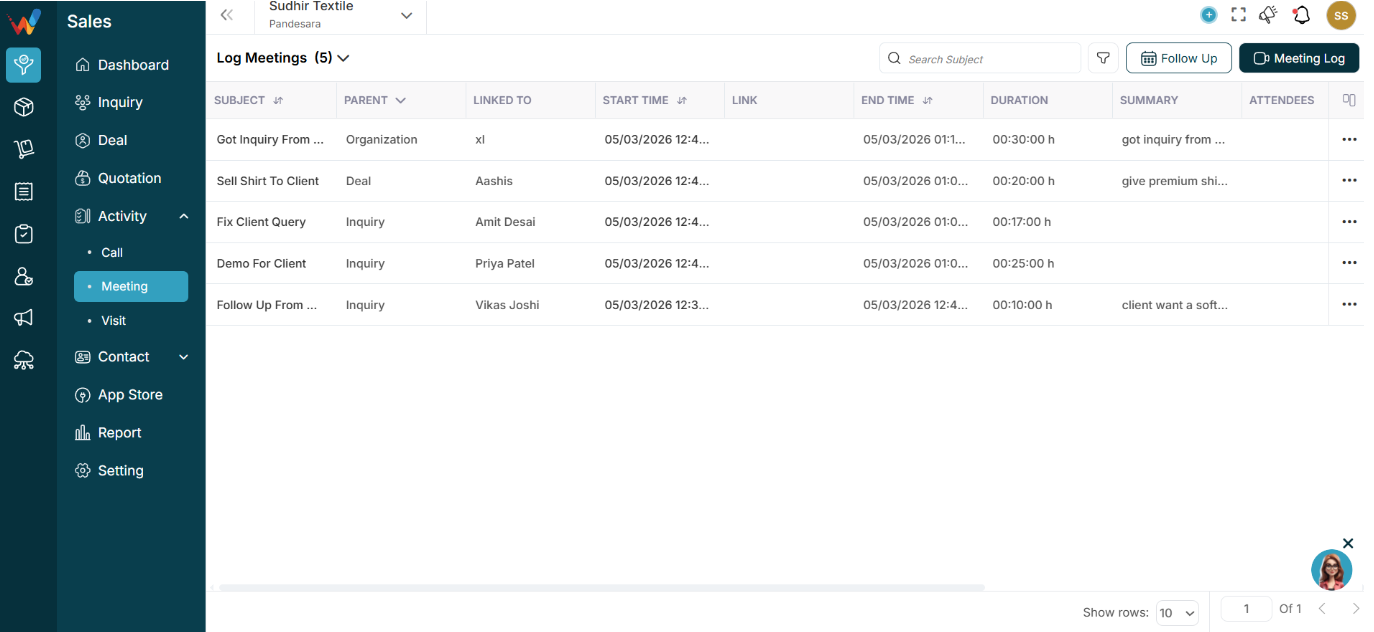
Top Header Bar

3.1 Search Subject
Shortcut Key: Ctrl + K
Type keywords like:
- Demo
- Follow up
- Client name
The list filters by meeting subjects.
3.2 Filter Icon
Navigation Path:
Sales Module → Activity → Meeting → Click on Filter Icon

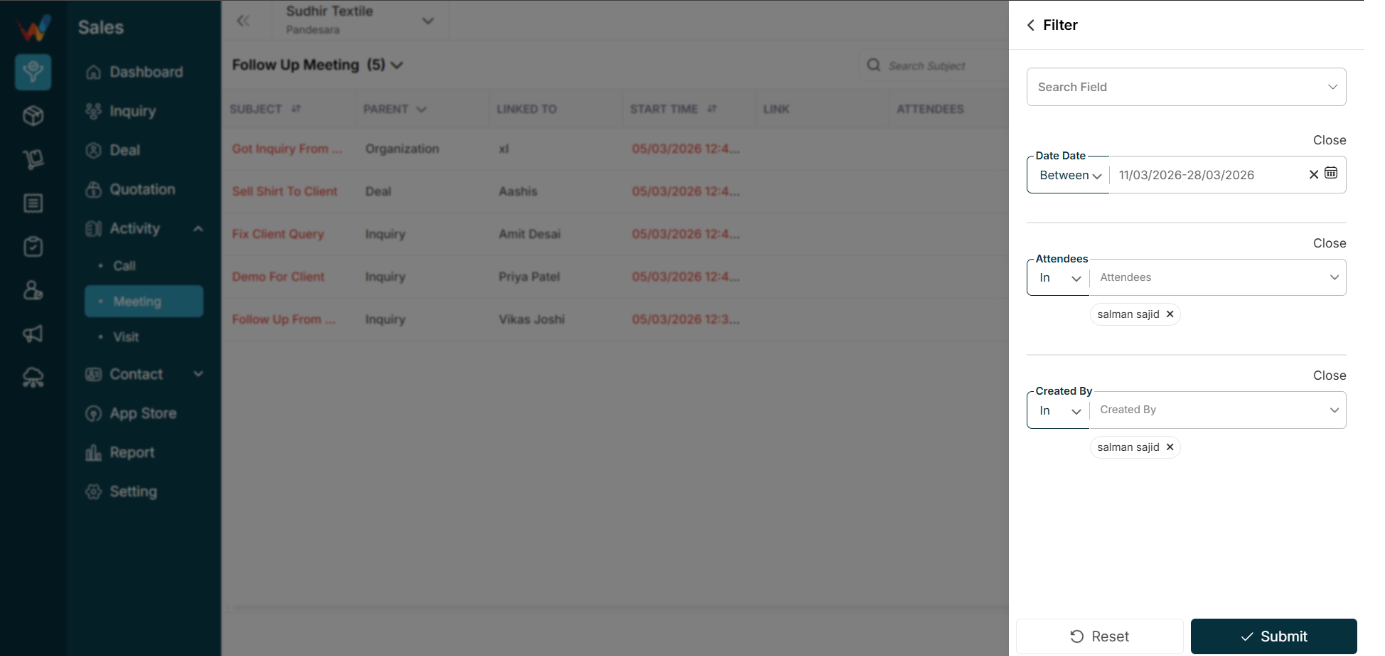
Open the filter panel (right sidebar).
Used to narrow down meetings based on selected fields.
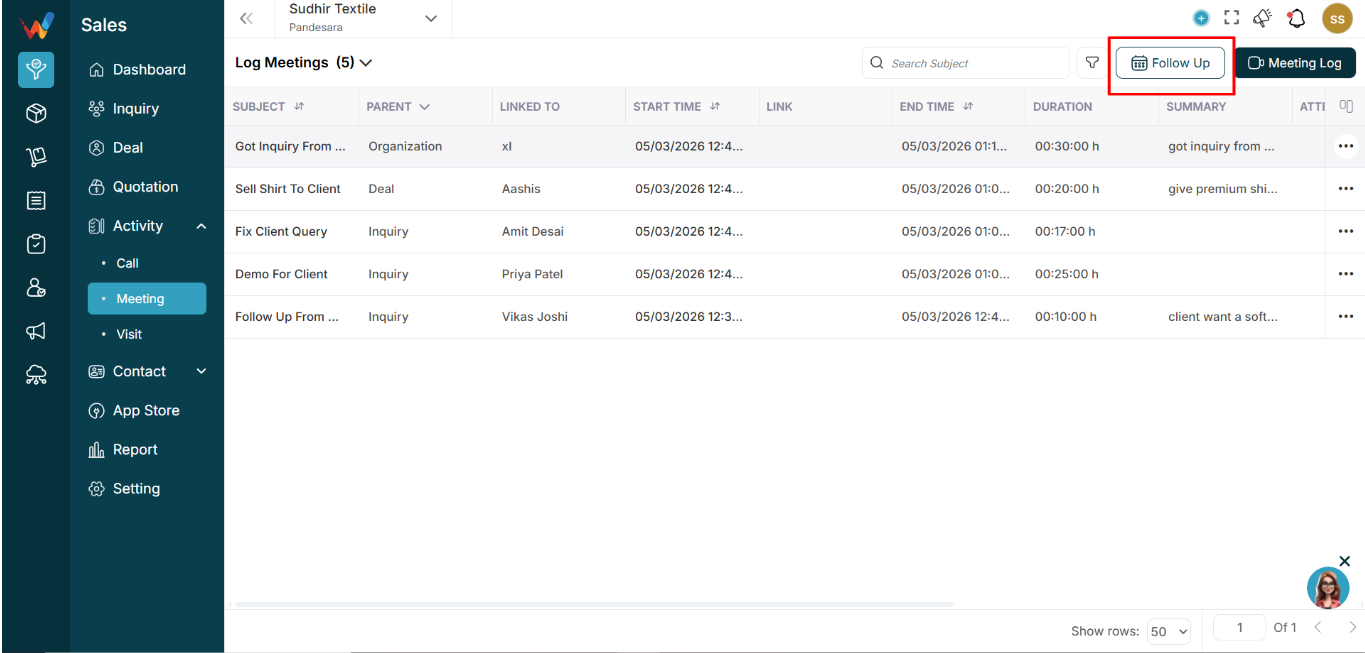
3.3 Follow Up Button
Navigation Path:
Sales Module → Activity → Meeting → Click on Follow Up

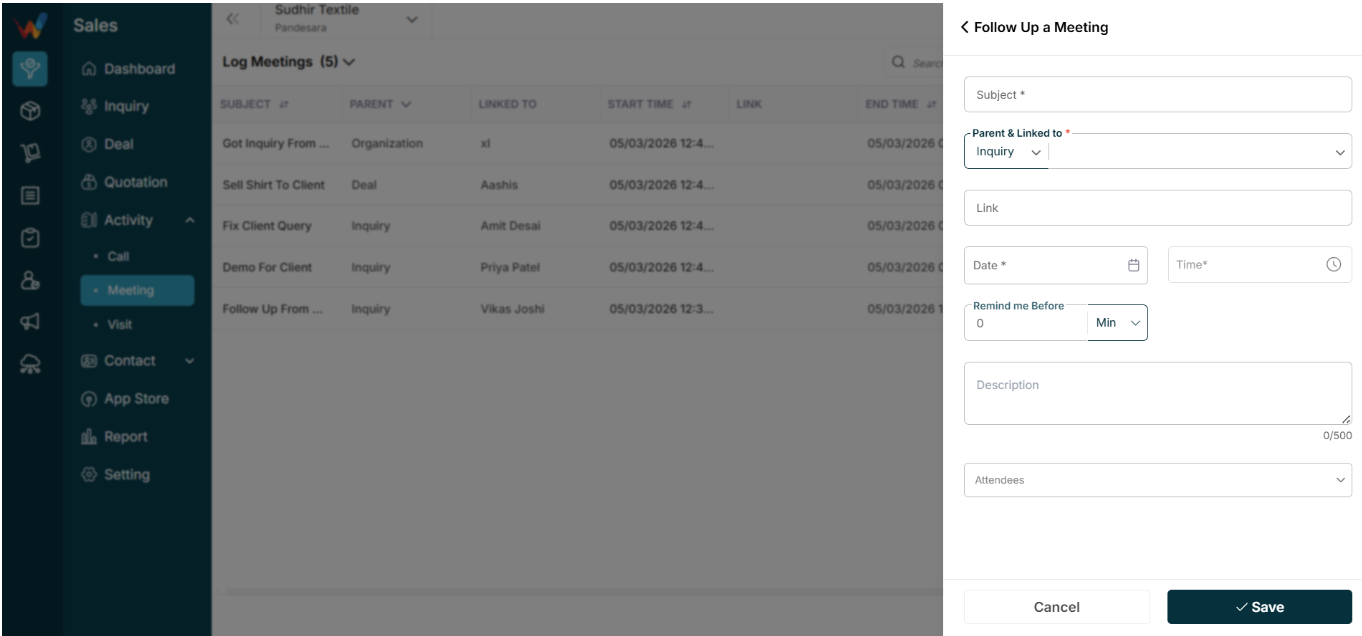
Used to:
- Schedule a future meeting follow-up (creates a follow-up entry).
3.4 Meeting Log Button
Navigation Path:
Sales Module → Activity → Meeting → Click on Meeting Log


Used to:
- Log a meeting that has already happened (creates a past meeting entry).
List View
Navigation Path:
Sales Module → Activity → Meeting
1.1 Purpose of This Screen
This screen shows all meeting records in a table format so users can quickly track:
- Who met whom
- When the meeting happened
- Duration
- Outcome and notes
- Who logged it
Introduction
The Meeting Module in WORTAL CRM enables efficient planning, logging, and tracking of meetings associated with Leads, Person, Organization and Deals. It allows users to schedule meetings, capture detailed information such as subject, date, time, attendees, and summaries, as well as attach relevant documents. The module also supports setting follow-ups to ensure timely engagement and continuity. All meeting records are systematically linked to their respective Leads, Person, Organization and Deals, ensuring complete visibility, better coordination, and streamlined communication throughout the sales process.
