Call Types & Business Logic Flow
Difference Between Log Call and Follow Up Call
Log Call
- Past activity
- Has duration
- Records what happened
- Impacts productivity metrics
- Can attach recording
Follow Up Call
- Future scheduled activity
- Has reminder
- Schedules what will happen
- Impacts upcoming tasks
- Typically cannot attach recording
Business Logic Flow (Example)
Call logged → Response = Not Answering
User clicks Follow Up
Follow-up scheduled for tomorrow
System reminds the user
Next day, the user logs a new call
Outcome:
No lead or deal follow-up is forgotten.
Log Call and Follow-up Flow
1.1 Log a Call (Completed Activity)
Navigation Path:
Sales Module → Activity → Call → Click on Call Log
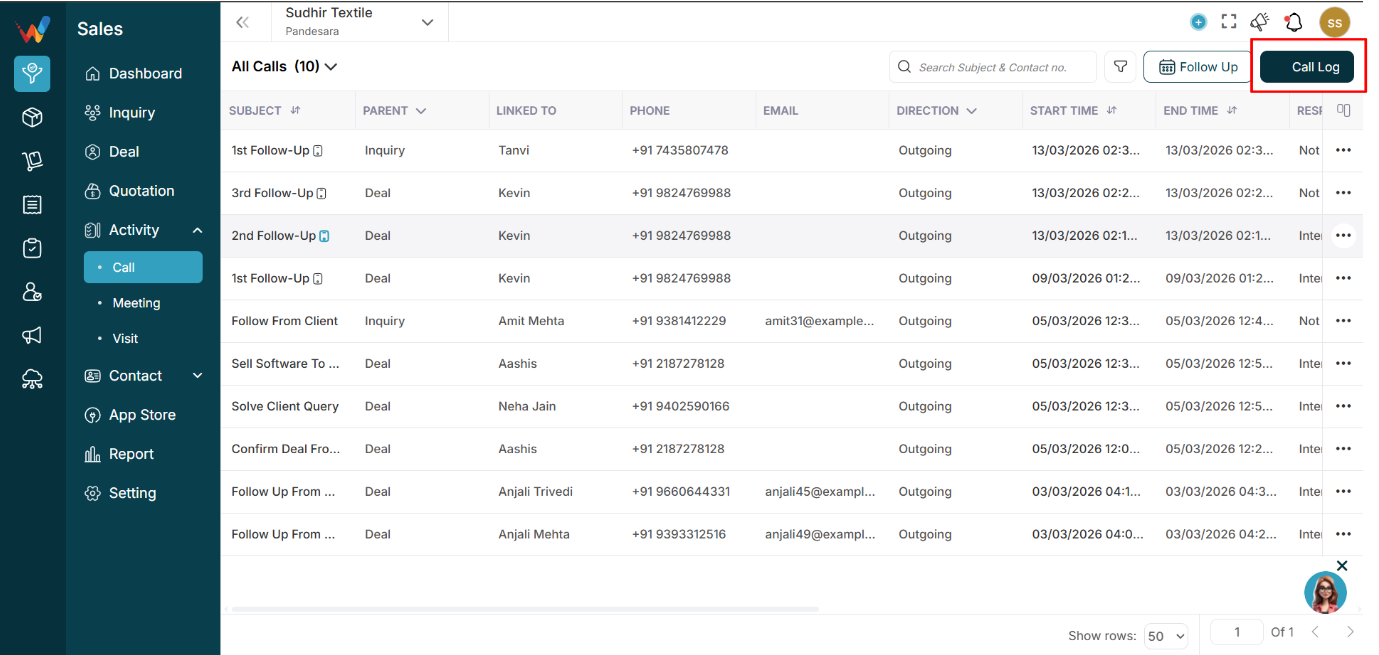
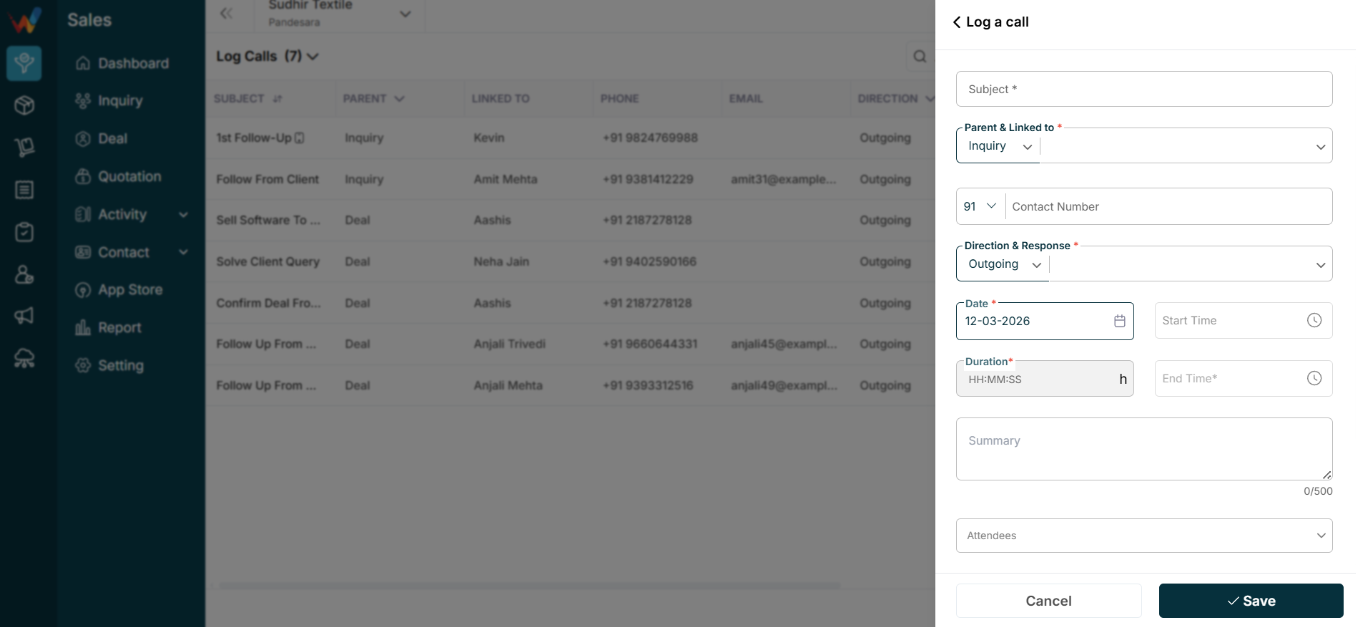
Use this when the call is already completed and you want to add its details in the system
Parent and Linked To *
Dropdown (Lead / Deal / Cold / etc.)
Defines:
- Which module the call belongs to
- Where it appears (Lead timeline or Deal timeline)
- Which reports it impacts
Example:
Parent = Lead → visible in Lead Activities
Contact Number
Enter or select the phone number.
Used for:
- Identifying the contact
- Tracking communication history
If a matching contact exists, it may auto-link.
Direction and Response *
Two key fields:
Direction
Defines who initiated the call.
Response
Outcome examples:
- Interested
- Not Answering
- Call Later
- CNR
- Held
This affects:
- Follow-up decisions
- Reporting metrics
Date *
Date the call occurred.
Start Time
Time the call started.
(Optional depending on configuration.)
End Time *
Time the call ended.
System may auto-calculate this depending on duration rules.
Duration *
Format: HH:MM:SS
Used for:
- Productivity tracking
- Call quality analysis
Summary (0/500)
Short note about the conversation.
Example:
“Client asked for pricing details.”
Appears in:
- Call list Summary column
- Lead or Deal activity timeline
Attendees
Used when multiple users were involved.
Useful for:
- Collaboration and accountability tracking
Attachment (Upload Audio File)
Upload call recording.
Useful when:
- Dialer integration exists
- Recording is fetched automatically
- Manual recording upload
Stored against the activity record.
Follow Up Button (Inside Log Call)
Used to immediately schedule the next activity based on this call.
Options can include:
Purpose:
Reduces the chance of missed follow-ups.
9.2 Follow Up a Call (Scheduled Future Activity)
This is not a completed call. It is a future scheduled follow-up.


Subject *
Example:
“Call for Pricing Confirmation”
Parent and Linked To *
Same as Log Call.
Defines where the follow-up will appear.
Date *
Future follow-up date.
Time *
Scheduled time.
Used for reminder notifications.
Remind Me Before
Examples:
- 0 minutes
- 15 minutes
- 30 minutes
- 1 hour
System may trigger:
- In-app reminders
- Mobile push notifications (if enabled)
Description (0/500)
Details about what needs to be discussed.
Attendees
Assign responsible users who will be part of the call.
Used for:
- Work allocation and team management
Practical Call Usage And Example Scenario
Practical Call Usage
1.1 For Managers
- Monitor calling discipline across the team
- Check daily call volume
- Identify low-engagement leads
- Track missed calls and patterns
1.2 For Sales Team
- Review past call history before calling again
- Track upcoming follow-ups
- Plan the next follow-up action
- Log missed interactions properly
1.3 What Owners Can Measure
- Total calls per day
- Outgoing vs incoming ratio
- Average call duration
- Response effectiveness
- Team performance
Example Scenario
Salesperson calls a client
→ Client does not answer
→ Call is logged with response “No Response”
→ Duration = 6 seconds
Manager reviews the call list
→ Sees multiple short calls
→ Understands engagement is low
→ Plans a strategy change
Category Dropdown
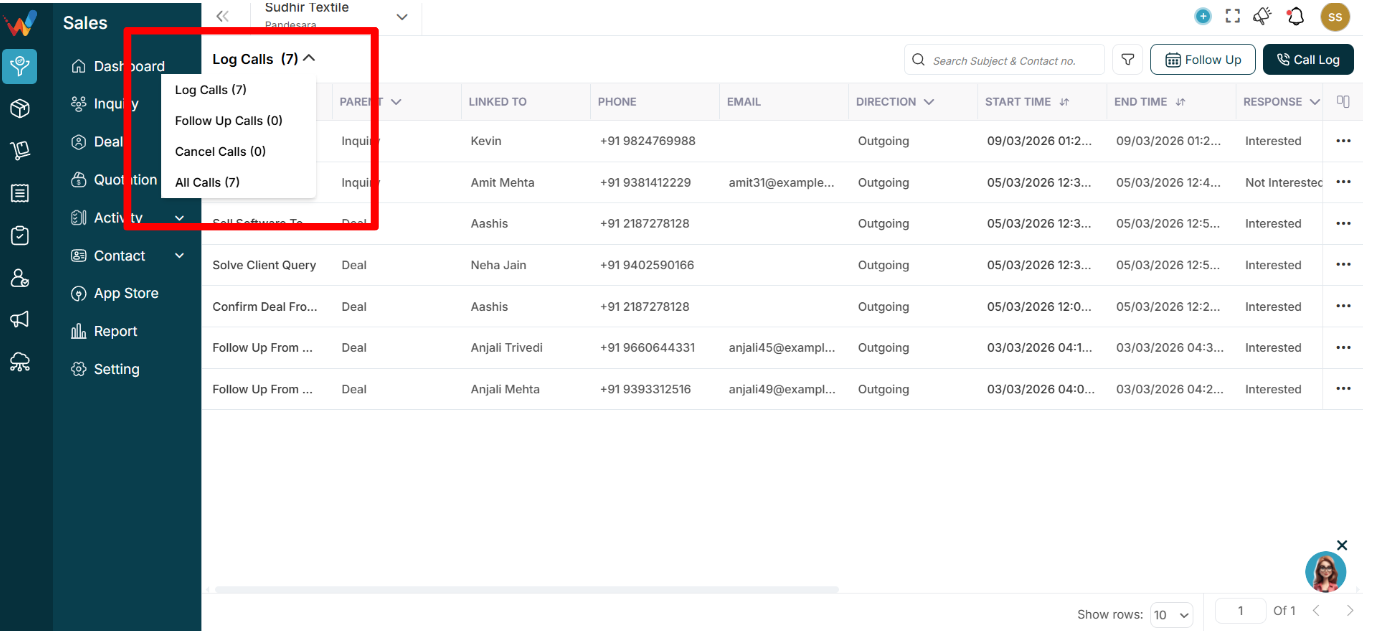
1.1 What Is This Dropdown?
This dropdown filters calls by activity type and status (completed vs scheduled vs cancelled).
1.2 Available Options
1) Log Calls (7)
Shows:
- Only completed call logs
- Calls that already happened
- Incoming, outgoing, and missed calls
This is usually the default operational view.
2) Follow Up Calls (0)
Shows:
- Scheduled future calls
- Planned calls that are not completed
- Calls created via the Follow Up flow
Used for:
- Checking upcoming calls
- Managing pending follow-ups
If count is 0, there are no scheduled calls.
3) Cancel Calls (0)
Shows:
- Calls that were scheduled but later cancelled
- Activities marked as cancelled
Useful for:
- Monitoring dropped follow-ups
- Reviewing potential missed opportunities
4) All Calls (7)
Shows:
- Log calls
- Follow-up calls
- Cancelled calls
(All combined)
Best for:
Detail Behavior
When user click on a row
Navigation Path:
Sales Module → Activity → Call → Click on Subject
1.1 What Happens When You Click a Subject?
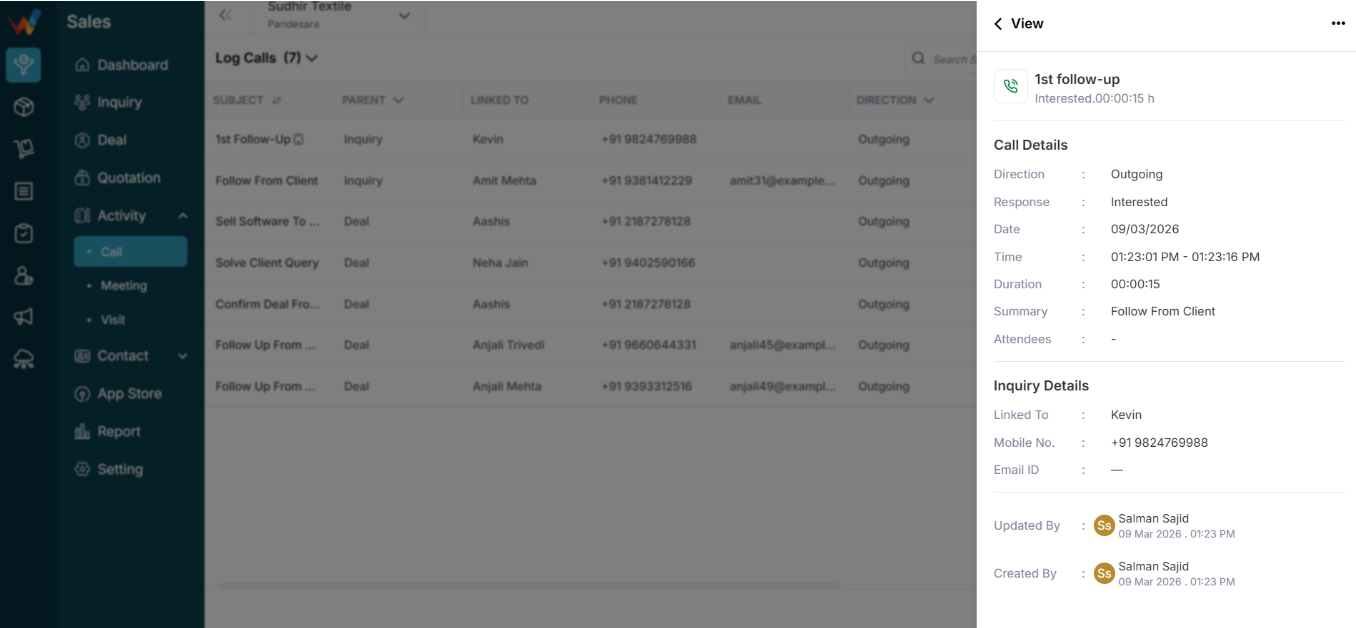
Typically:
- Opens an activity detail sidebar
- Shows full call details
Table Columns
1.1 Subject
Call title.
Examples:
- Initial Call
- Call Skipped
- Follow-up
Clickable and usually opens the detailed view sidebar.
1.2 Parent
Indicates the entity type linked to the call, such as:
Purpose:
Helps understand the call context and where the activity belongs.
1.3 Linked To
Shows the person or deal name (example: ABC).
Clicking may open the linked Lead or Deal detail screen.
1.4 Phone
Phone number used for the call.
Important when a contact has multiple numbers.
1.5 Direction
Indicates call direction and type:
- Incoming → client called
- Outgoing → team called
- Missed → not answered
Used for:
- Sales performance analysis
- Call behavior reporting
1.6 Start Time
When the call started.
1.7 End Time
When the call ended.
Used to verify the actual call window.
1.8 Duration
Call duration.
Examples:
Very short duration often indicates a missed or rejected call.
1.9 Response
Selected outcome of the call.
Examples:
- Interested
- No Response
- Call Later
- Not Answering
Why it matters:
Critical for follow-up planning and outcome reporting.
1.10 Date
Date of the call.
Used for daily productivity reports.
1.11 Summary
Short note entered while logging.
Helps users understand context without opening details.
1.12 Created By
User who logged the call.
Used for tracking salesperson activity.
1.13 Attendees
Mostly relevant for meetings.
For calls, this may remain blank in many setups.
1.14 Updated By
User who last modified the call entry.
1.15 Created At
Timestamp of record creation.
1.16 Updated At
Timestamp of last update.
1.17 Row Action Menu (⋮)
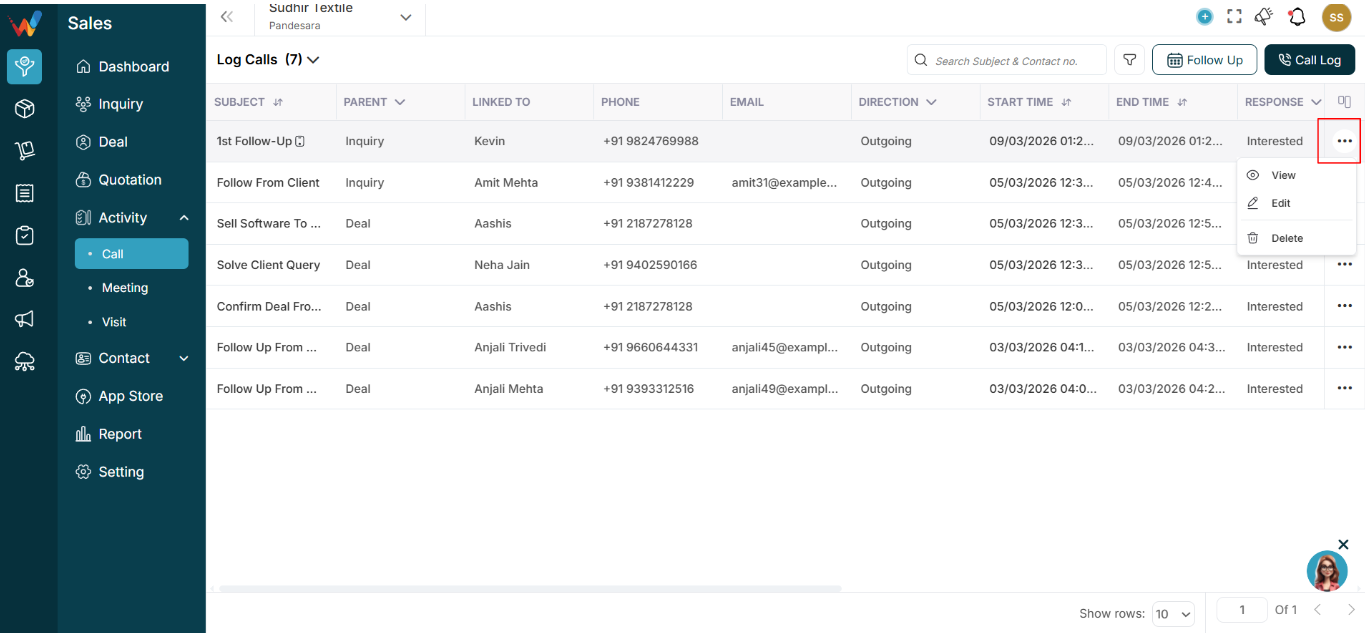
may include:
Availability depends on permissions (RBAC).
Top Right Actions
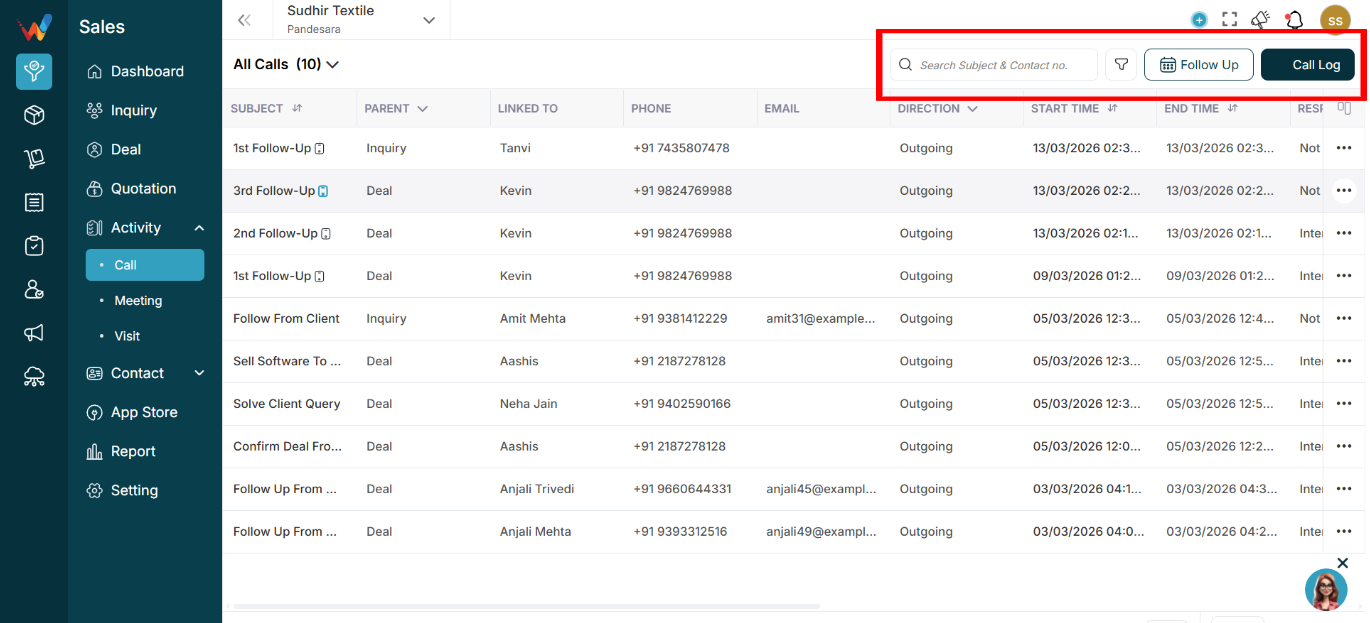
3.1 Search (Subject and Contact No.)
Shortcut Key: Ctrl + K
Used to search calls by:
- Call subject (Initial Call, Follow-up, etc.)
- Phone number
Behavior:
- Real-time filtering
- Changes the visible list only, not the data
3.2 Filter Icon
Opens the filter panel.
Navigation Path:
Sales Module → Activity → Call → Click on Filter Icon
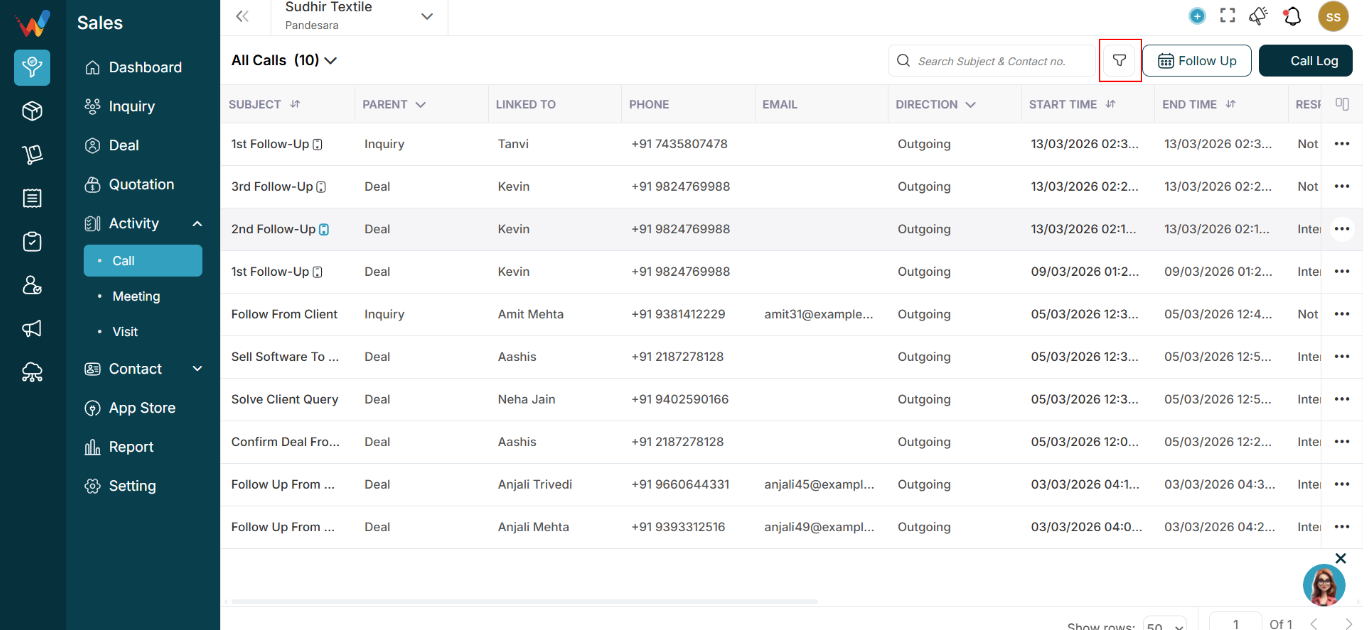

Likely filters include:
- Date range
- Response type
- Direction
- Created by
- Parent (Lead / Deal)
3.3 Follow Up Button
Navigation Path:
Sales Module → Activity → Call → Click on Follow Up
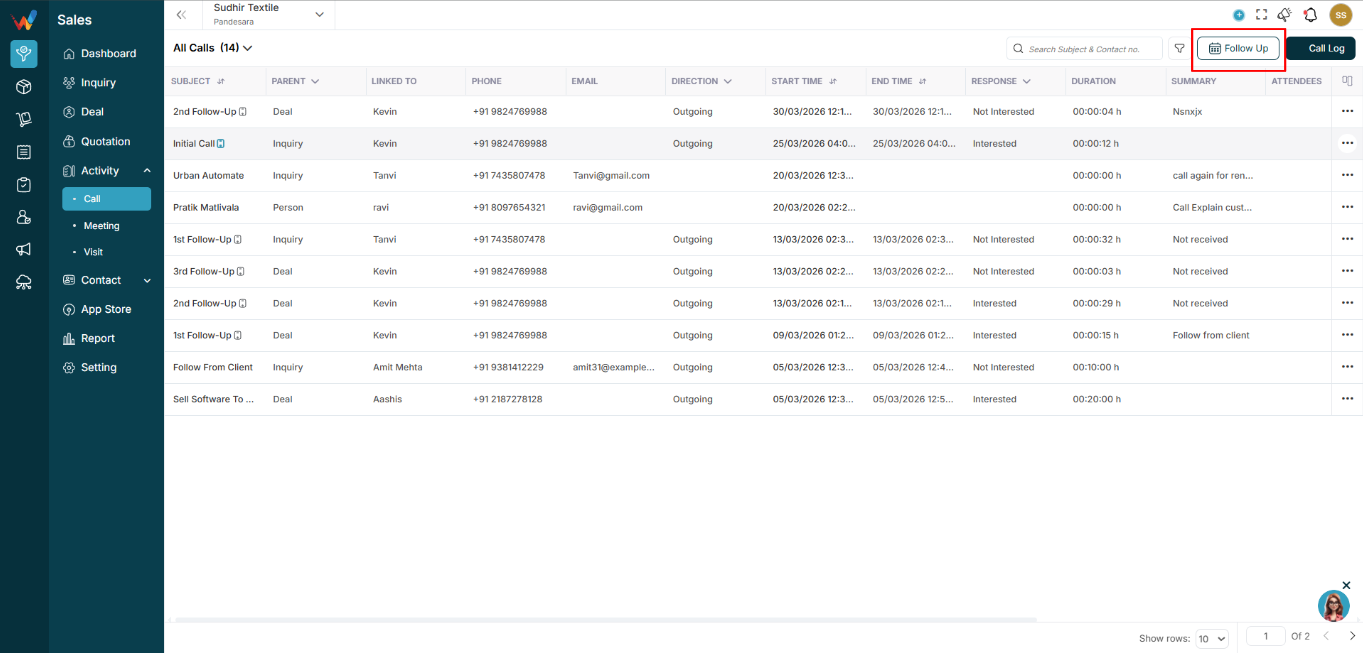
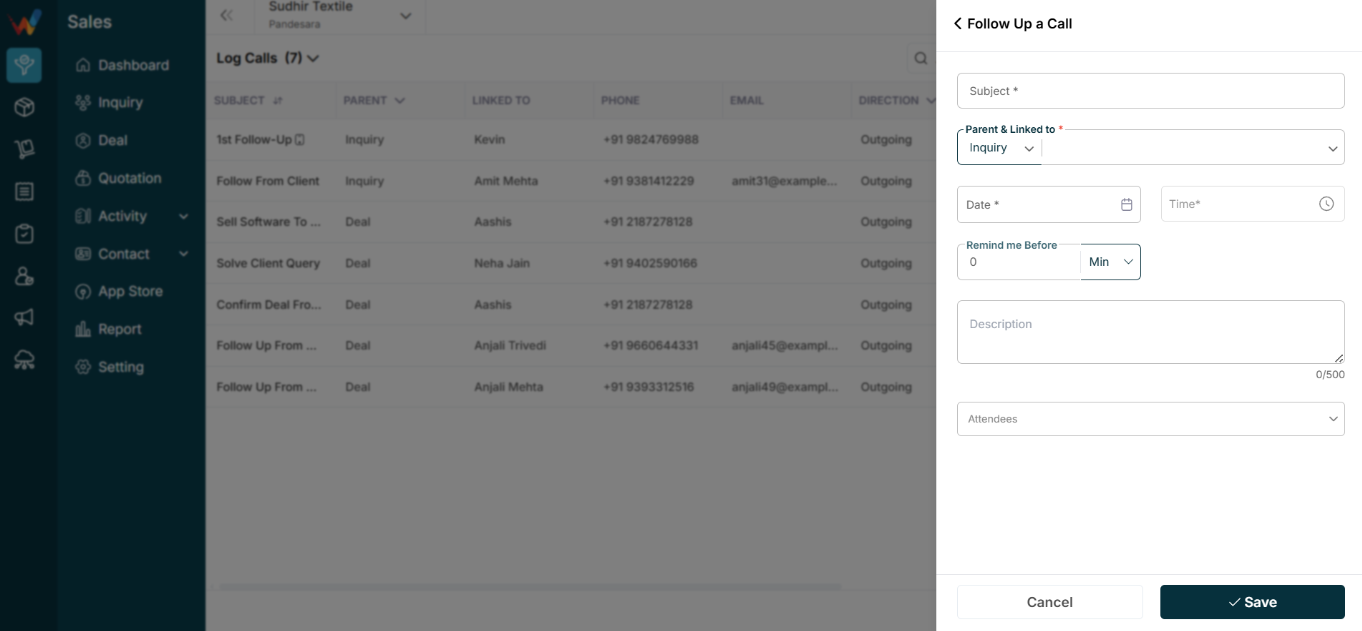
Used to:
- Create a follow-up activity from a selected call
Opens:
- Follow-up scheduling popup
3.4 Call Log Button
Navigation Path:
Sales Module → Activity → Call → Click on Call Log
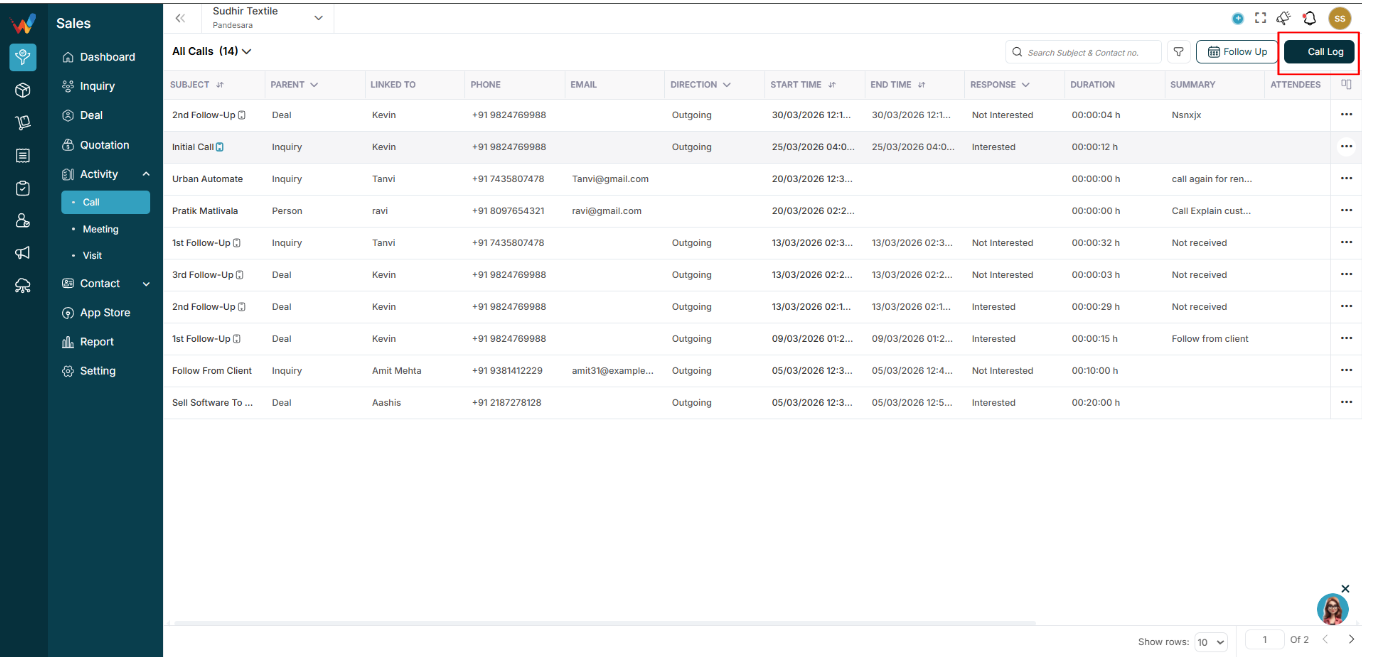
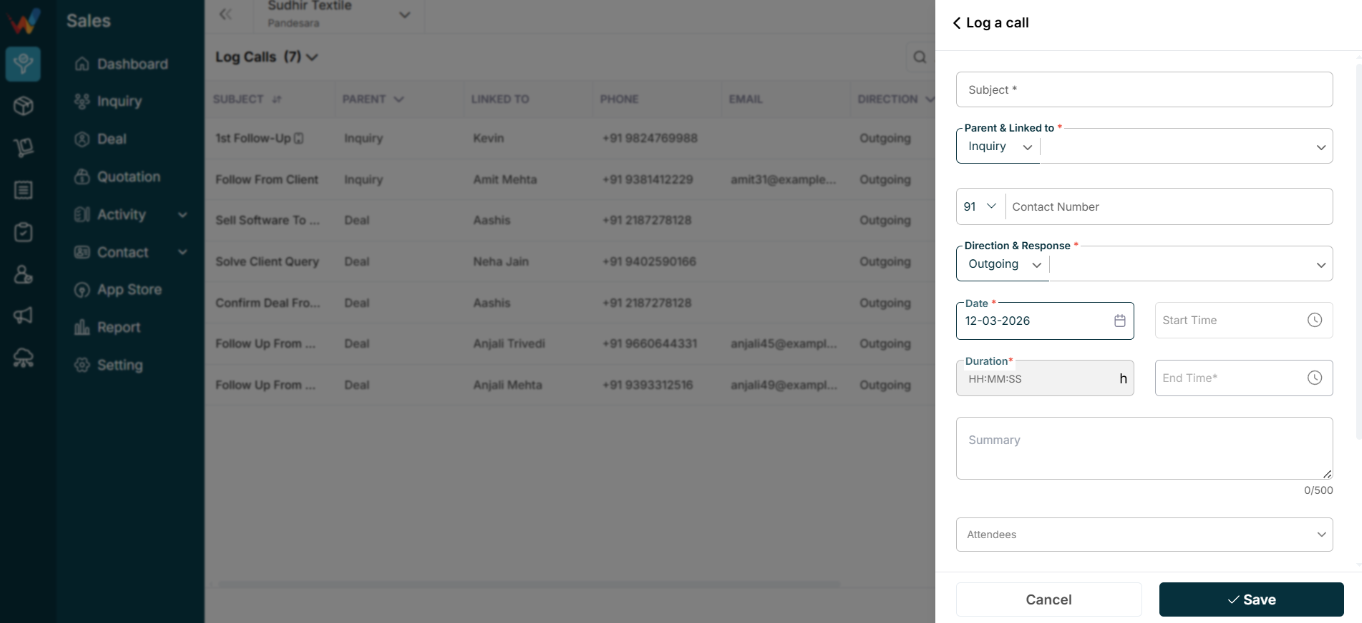
Used to:
- Manually log a new call record
Opens:
3.5 Column View / Customize Columns
Click column icon → Customize Columns
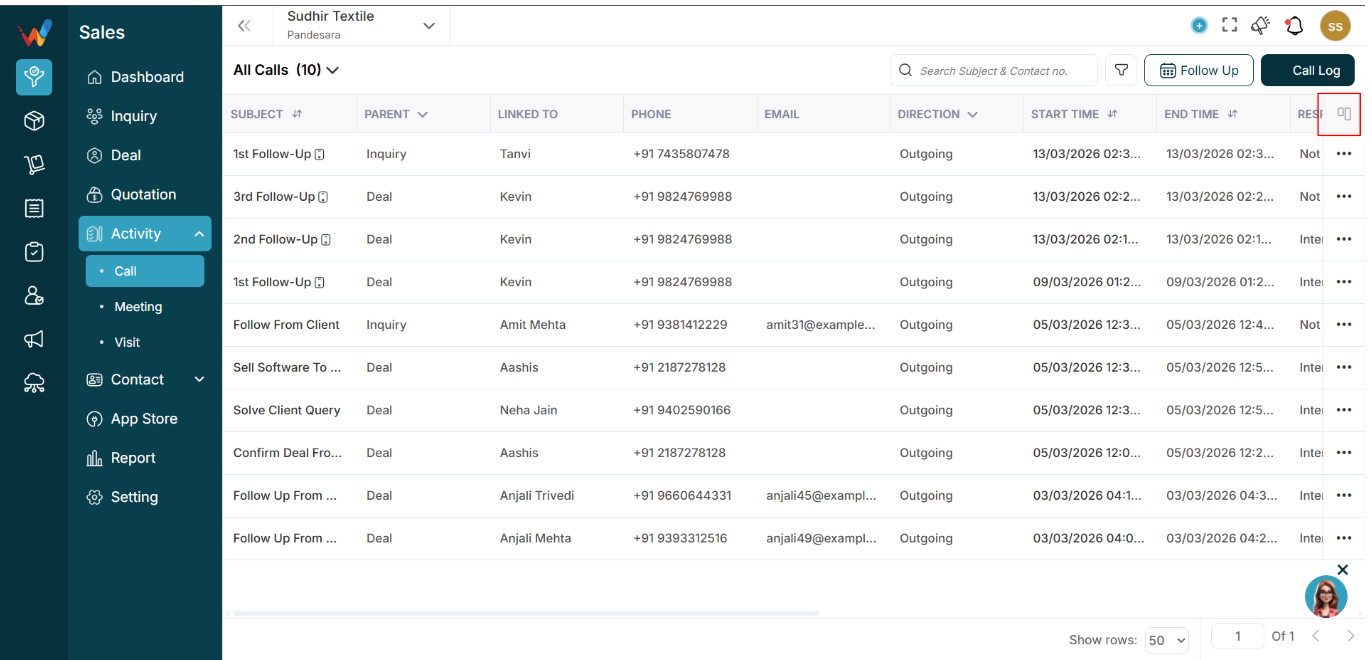
You can:
- Enable or disable columns
- Reorder columns
- Reset to default
Notes:
Locked columns (🔒) cannot be removed.
List View
Navigation Path:
Sales Module → Activity → Call
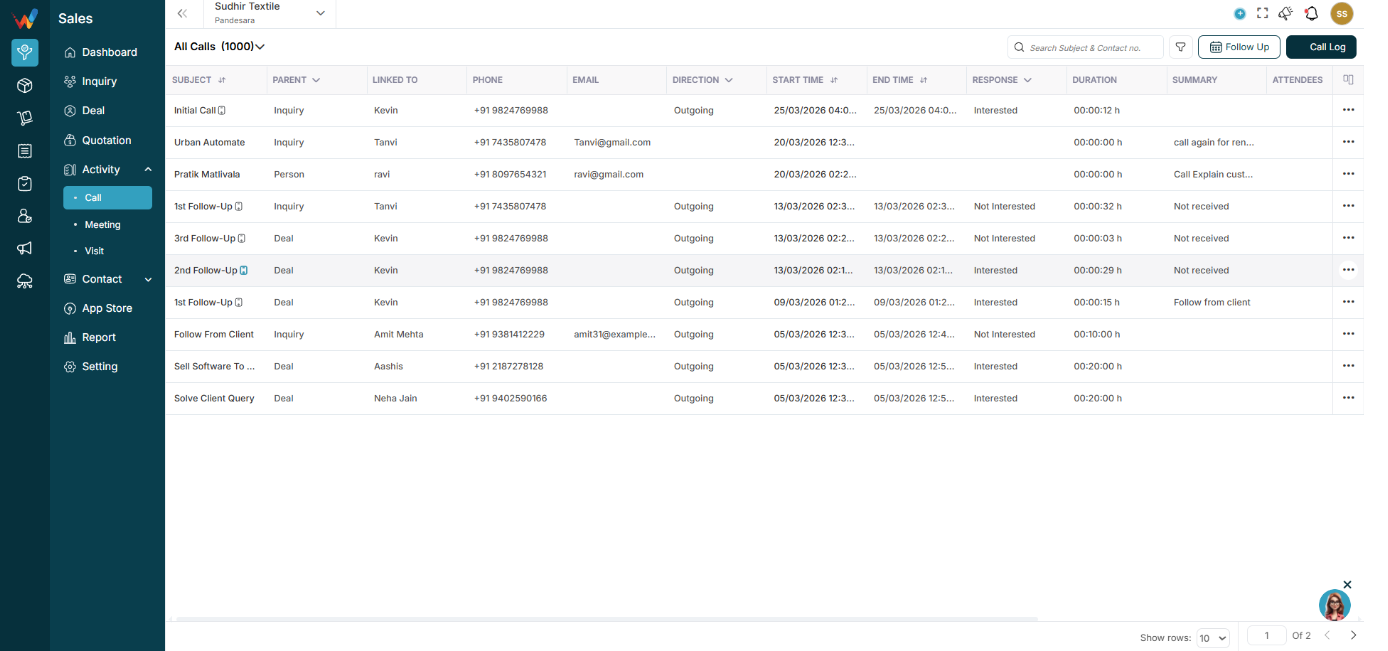
Page Header
Title: Log Calls (1000)
Shows the total number of call records in the system.
Includes:
- Incoming calls
- Outgoing calls
- Missed calls
- Skipped calls
- Manually logged calls
This is a global call register across the CRM.
Introduction
1.1 What is the Call Module?
The Call Module is used to log, track, and manage all call interactions with leads and deals inside WORTAL CRM. It ensures that every phone conversation, whether incoming or outgoing, is recorded systematically and linked to the correct Lead or Deal.
The purpose of the Call Module is to create:
- Transparency
- Accountability
- Continuity in the sales process
1.2 Why the Call Module is Important
In most businesses, important discussions happen over calls. Without proper logging:
- Follow-ups get missed
- Managers cannot review call outcomes
- Team performance cannot be measured
- Conversations depend on memory
The Call Module ensures:
- Every call is recorded with proper details
- Call duration and response are tracked
- Follow-ups are scheduled immediately
- Managers can review call activity
- Full call history is available under Lead and Deal records
Testing Call
rnadom
