Introduction
1.1 What is the Quotation Module?
The Quotation Module is used to create and share formal price quotations with customers based on deal and product details. It helps businesses generate standardized quotations quickly, maintain a complete quotation history, and track quotation movement from creation to approval and conversion.
Quotations are typically created after a lead is qualified and converted into a deal, once:
- Product selection is finalized
- Quantity is confirmed
- Pricing is agreed internally
- Commercial terms are clear enough to share with the customer
1.2 Why the Quotation Module is Important
The Quotation Module ensures:
- Professional quotation documents are generated in a consistent format
- Pricing and product details remain structured and traceable
- Quotations are stored deal-wise for future reference
- Teams avoid manual errors and repeated formatting work
- Owners and managers get visibility into quotation activity and pipeline movement
Activity Panel For Lead
Navigation Path:
Sales Module → Lead → Click on a lead’s name
1.1 Tasks Tab
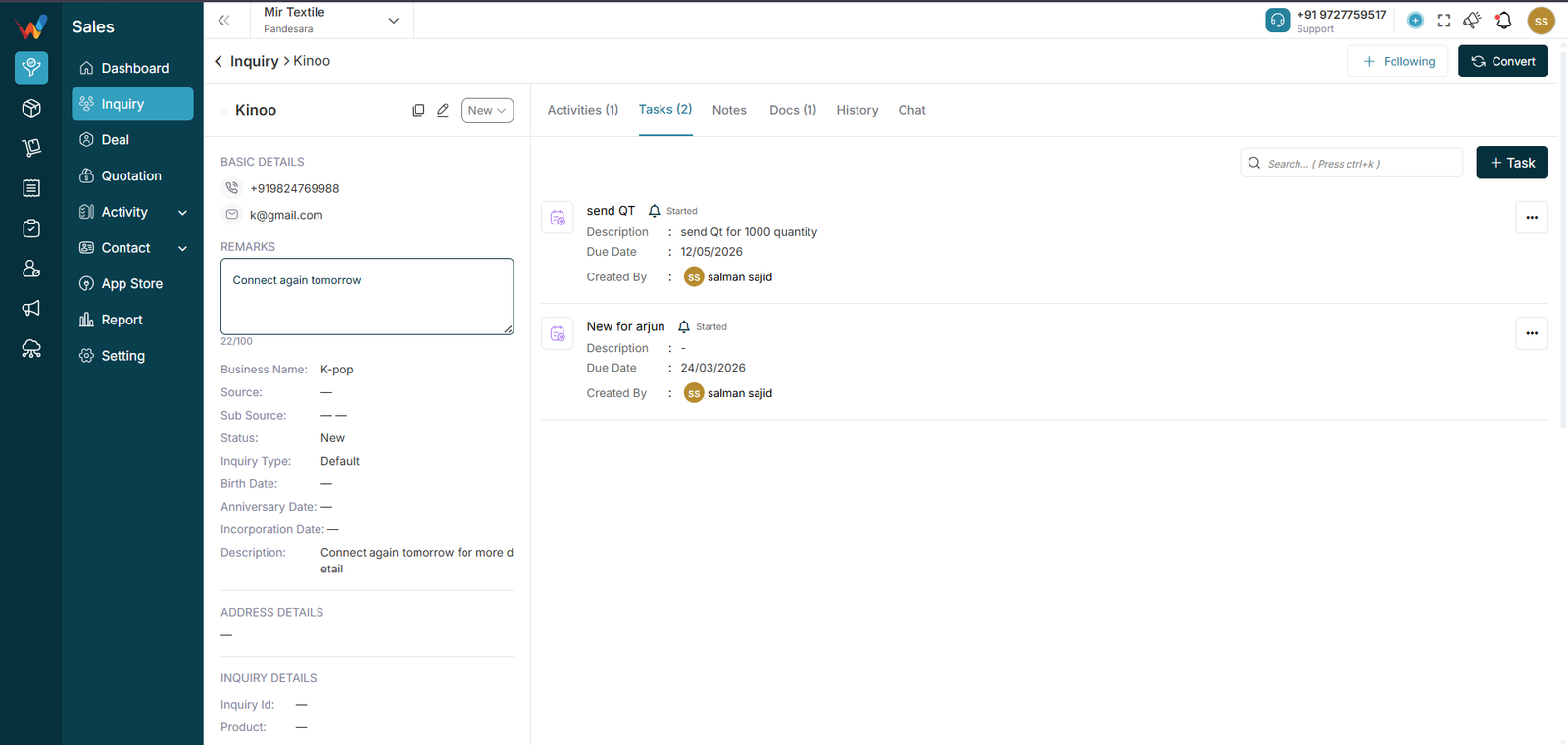
Used to assign tasks related to the lead, such as:
- Send quotation
- Call tomorrow
- Visit warehouse
1.2 Notes Tab
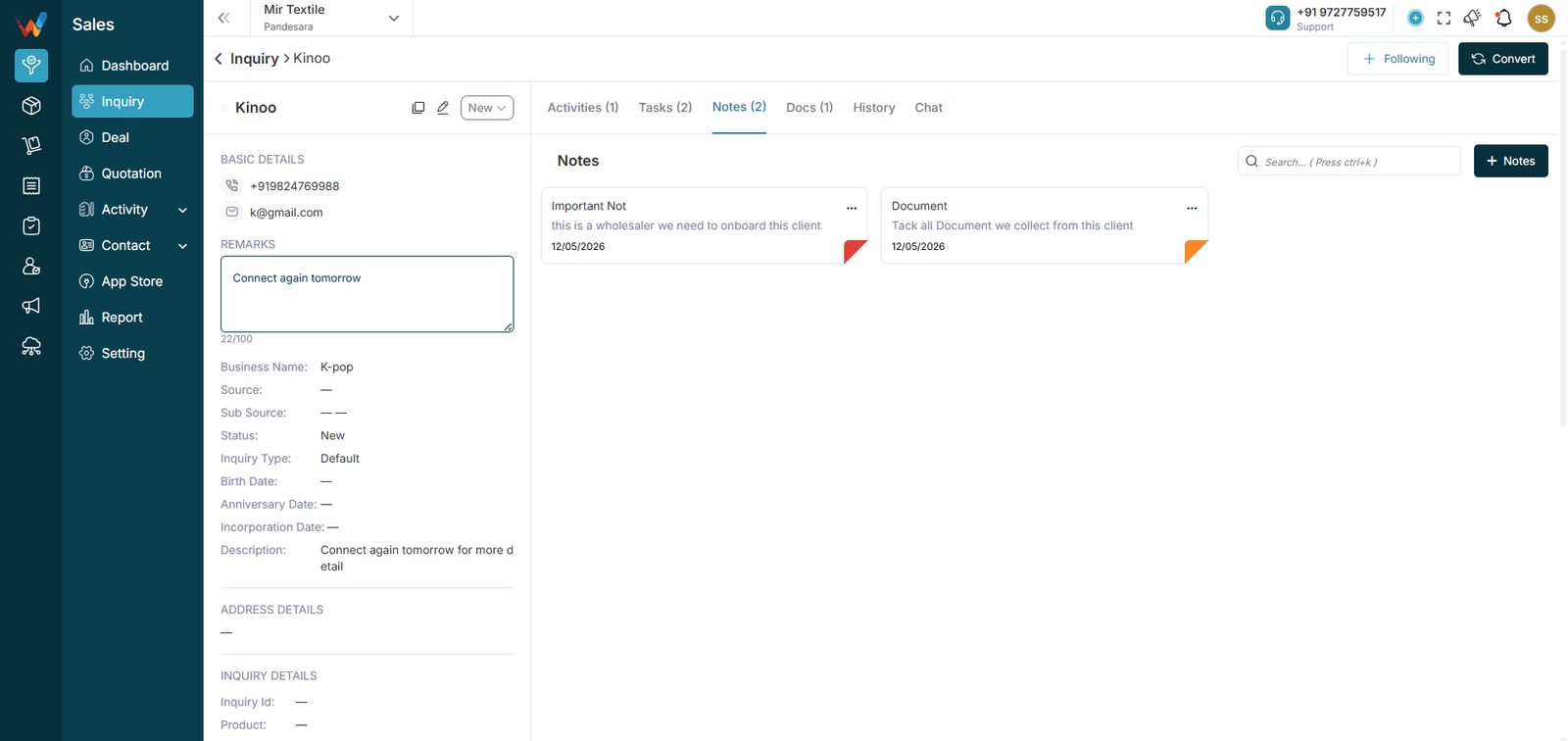
Used for internal notes and future reference.
1.3 Docs Tab
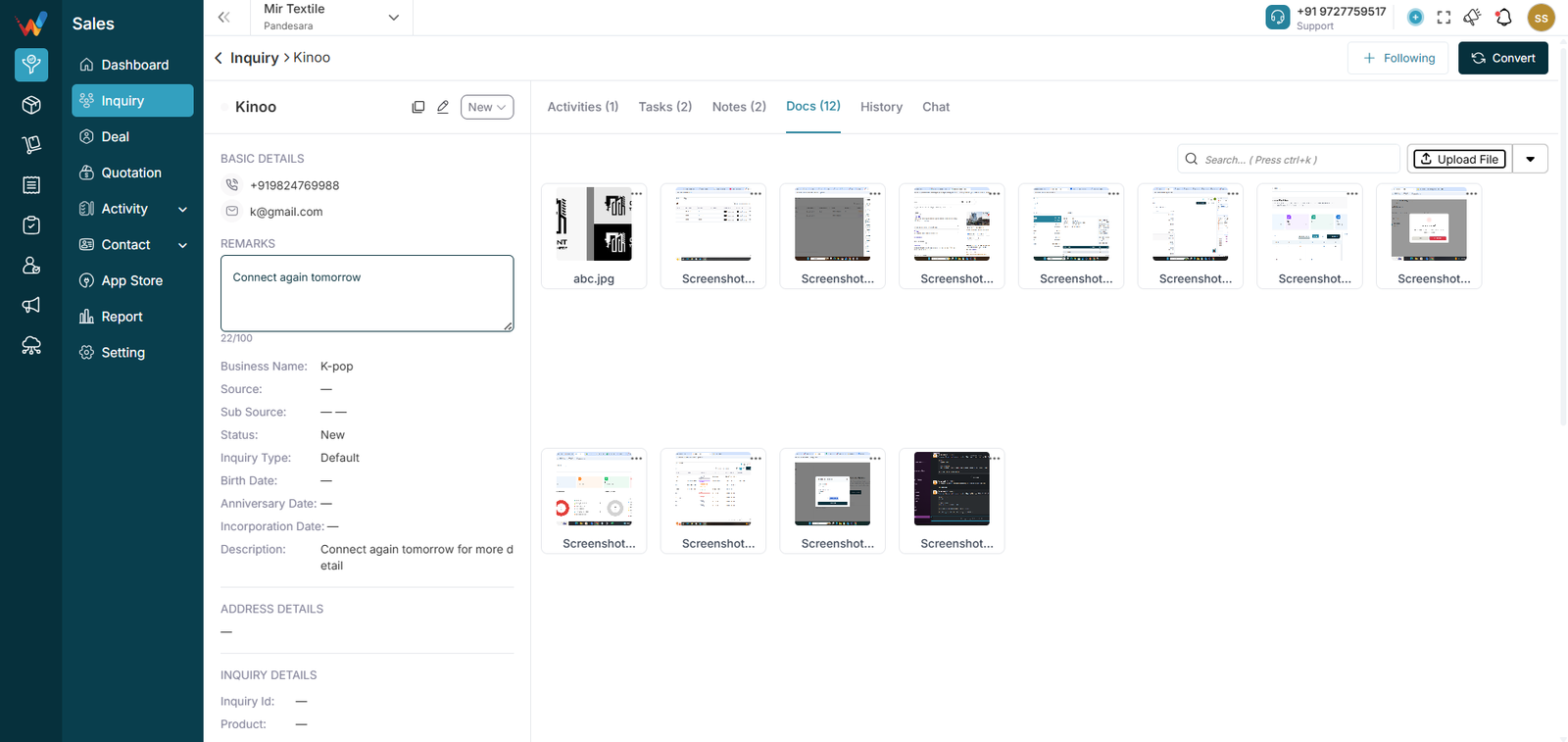
Used to store lead-wise documents:
- Quotation PDF
- Product catalogue
- Agreement copy
1.4 History Tab
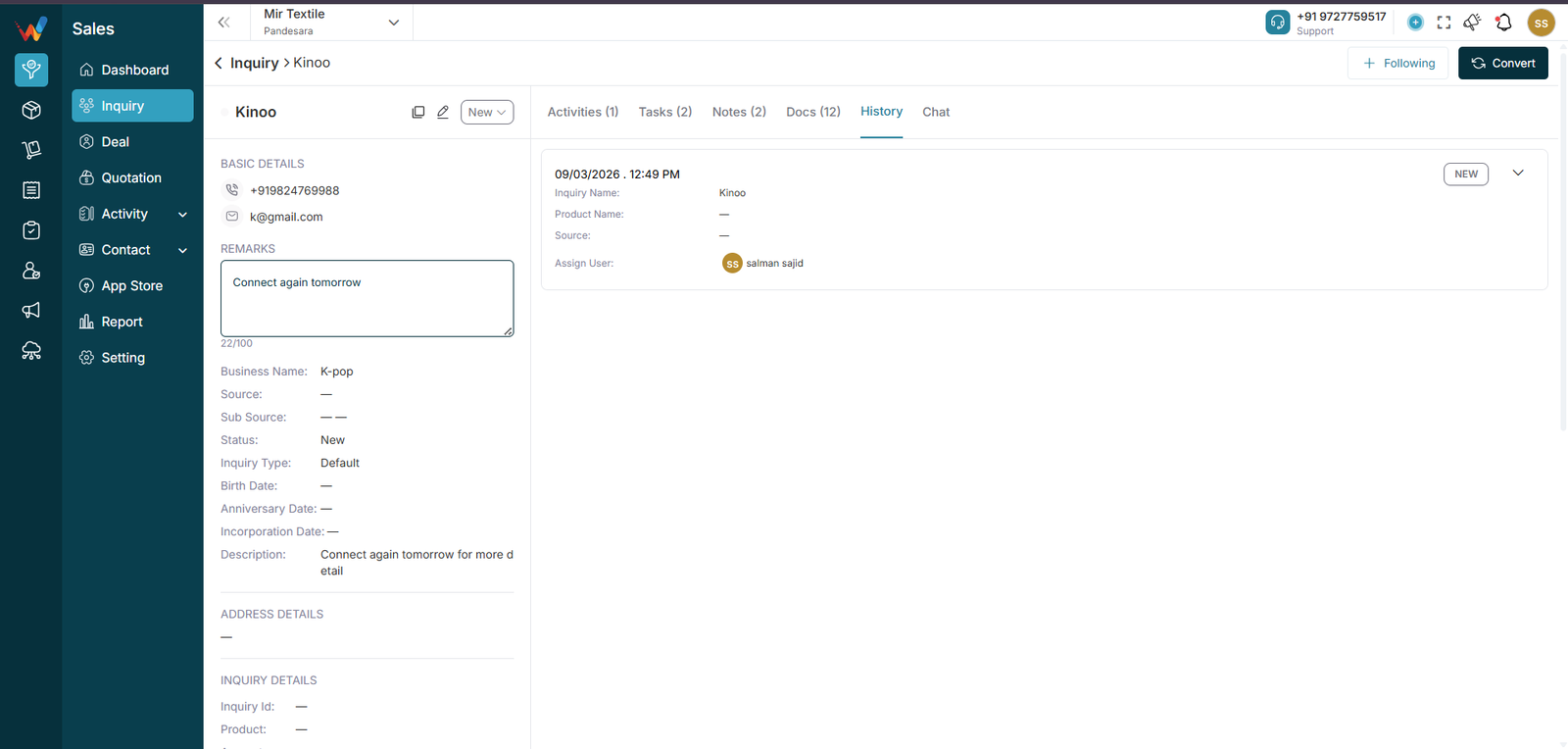
Shows complete change history, such as:
- Lead created
- Status changes
- Assigned user changes
- Product updates
- Other modifications
(Also used for transparency and audit.)
1.5 Chat Tab
Used to chat with clients when WhatsApp API integration is enabled.
Activity Logged Detailed View
1.1 When It Appears

Triggered when the user opens any logged activity such as:
- Follow-up call
- Initial call
- Demo meeting
- Visit
1.2 What It Shows
View mode (read-only)
Three-dot menu (edit/delete if permitted)
Activity type header:
- Activity title
- Response status (Held, Unheld, Interested, etc.)
- Duration
Detailed fields:
- Direction
- Date and time
- Summary
- Attendees
- Linked lead
- Mobile number
- Email ID
- Updated by / created by
1.3 Why This Sidebar Matters
It ensures:
- No activity can be denied
- Managers can review call quality
- Timeline integrity
- Team accountability
- Strong sales tracking discipline
salman
ftyfyhgjhg
Create Deal
Click on +Create Deal button
Deal Deatils:
Deal Name * (Mandatory)
Defines the deal title.
Examples:
Used in:
- Deal table
- Search
- Reports
- Activity logs
If empty, the form will not submit.
Stage (Dropdown)
Default: Prospecting
Typical stages:
- Prospecting
- Qualification
- Proposal
- Negotiation
- Won
- Lost
Impacts:
- Pipeline placement
- Reporting
- Forecast probability (if configured)
Source
Origin of deal.
Examples:
- Reference
- Facebook
- IndiaMART
Used in marketing ROI reporting and filtering.
Close Date
Expected closing date.
Used for:
- Forecasting
- Ageing analysis
- Overdue tracking
Remark
Short internal note.
Visible in both:
Description
Long-form deal explanation.
Used for internal understanding and review.
Does not affect calculations.
Contact Details Section
Person Name * (Mandatory)
Dropdown supports:
- Selecting an existing person
- Creating a new person
If new is created:
A Person record is created in the system for future use.
Organization Name (Optional)
Links deal to an organization.
Supports selecting existing or creating new.
Contact Number
Primary phone number.
Plus icon allows multiple numbers.
Stored in Person record.
Used in call logging and communications.
Email
Primary email with option to add multiple.
Used for communication and templates.
Special Date Checkbox
When enabled, shows:
- Birth date
- Anniversary date
These dates are saved in the Person profile and can support reminders and relationship management.
Person Address Details
Billing Address
Select existing or add new (+ Address).
Stored in the person record.
Can be used for quotation and invoicing flows.
Shipping Address
Select existing or add new (+ Address).
Used for delivery and invoicing contexts.
Product Details Section
This section drives revenue and quotation generation.
Product table fields:
- SR. NO.
- ITEM NAME
- QTY
- RATE
- AMOUNT
- ACTION
How it works:
- Select product from dropdown.
- Add new product instantly via + product / New Product option (if enabled).
- Amount is auto-calculated:
Quantity × Rate
- New Row adds another product line.
- Delete (trash) removes a row.
Total Amount is auto-summed and becomes the Deal Amount.
Product details support one-click quotation generation.
Recurring Deal Section
Options: Yes / No
If Yes:
- Deal may repeat (if recurring automation is enabled)
- Useful for subscriptions and monthly retainers.
Other Details Section
Displays all custom fields configured by the business.
Business Logic Flow
Create Deal
→ Stage = Prospecting
→ Add Product
→ Schedule Activity
→ Move to Proposal
→ Move to Negotiation
→ Mark Won
→ Revenue booked
Common Mistakes to Avoid
Creating a deal without products
Not setting the close date
Selecting the wrong stage
Creating duplicate Person records
Forgetting to update amount
Bulk Actions (Mass Operations)
When multiple deals are selected, a floating bar appears showing:
- Selected count (e.g., “3 Selected”)
Actions:
- Update
- Delete
- Send Template
- Close (X)
Update (Mass Update)
Opens “Opportunities Mass Update” panel with tabs:
Stages Tab
Shows all stages.
Select a stage and submit:
- Stage updates for all selected deals
- Change is logged in each deal’s History
Assigned User Tab
Reassigns selected deals to another sales user.
After submission, all selected deals reflect the new owner.
Delete (Bulk Delete)
Deletes all selected deals.
Send Template
Sends a pre-defined message or email template to selected deals.
Used for bulk communication.
Close (X)
Closes the bulk bar without changes.
Customize Columns Panel
Opens a side panel (e.g., “Customize Columns 31/31”).
Allows toggling column visibility.
Locked columns cannot be removed (e.g., Name, Stage).
Reset to Default restores original columns.
Affects only the user’s view, not global data.
Column-Level Filters
Stage Filter Dropdown (From Column Header)
Filters table by stage.
Does not update deal stages.
Source Filter Dropdown (From Column Header)
Filters table by source.
Does not update deal source.
Deal List View
Page Header & Context Controls
Back Arrow (Top Left)
Returns to the previous module or dashboard.
Does not change any data.
Branch / Company Selector (e.g., “WORTAL NEXGEN – HQ”)
Shows which branch or business data you are viewing.
If changed:
- Deal list refreshes
- Only the selected branch’s deals are shown
Page Title
Deal (300) indicates:
- The total number of deals currently visible
- If filters are applied, the count changes accordingly
Top Action Bar (Right Side)
Search Bar (Press Ctrl+K)
Searches deals instantly.
Supported search fields:
- Deal name
- Person name
- Organization
- Phone
Search affects display only. It does not modify data.
Filter Icon (Funnel)
Opens the filter panel.
Used to filter deals by:
- Stage
- Source
- Date
- Owner
- Amount range
Filters affect display only. They do not edit deal records.
View Toggle
Indicates which view is currently active (Table vs Pipeline).
Switching views changes layout only, not data.
Deal Button
Opens the Create Deal screen.
After submission, the new deal appears in the table.
Deal Table Columns
Checkbox Column
Used to select one or more deals.
When at least one deal is selected:
- Bottom bulk action bar appears.
Header checkbox selects all visible rows.
Name
Deal name (clickable).
Opens the Deal Detail screen.
Sorting controls allow alphabetical sorting.
Person Name
Primary contact linked to the deal.
Not clickable in this view.
Sorting supported.
Organization
Organization linked to the deal (if applicable).
If blank, the deal is treated as an individual deal.
Phone
Contact number for quick reference.
Amount
Expected deal value.
Sorting supported.
Used for forecasting.
Stage
Current pipeline stage (e.g., Prospecting, Won, Lost).
Clicking the stage opens a dropdown.
Selecting a new stage updates the deal stage.
Created At
Deal creation date.
Used for ageing analysis.
Source
Origin channel (e.g., Reference, Facebook).
Dropdown can be used for filtering.
Remark
Short internal note visible directly in the table.
Helps provide context without opening the deal.
Row Action Menu (⋯ Three-Dot Menu)
When opened, the actions may include:
- View
- Edit
- Duplicate
- Call
- Meeting
- Visit
- Delete
View
Opens Deal Quick View.
Read-only.
Edit
Opens Edit Deal form.
Allows updating:
- Stage
- Amount
- Close date
- Product
- Contact
- Source
- Other deal fields
After saving, the table updates immediately.
Duplicate
Creates a copy of the deal:
- Same details
- New ID
- Stage may reset to default
Used for repeat deals.
Call / Meeting / Visit
Opens the respective activity logging panel linked to the deal.
After saving, the activity appears in the deal’s Activities.
Delete
Deletes the deal (usually requires confirmation).
After confirmation, the deal is removed.
Introduction
This document explains how the Deal Module works in WORTAL CRM, including the deal lifecycle, the Deal List (Table View), creating a deal, and the Deal Detailed View. It is written as a website-ready product explainer with clear sections and scannable formatting.
What is the Deal Module?
The Deal Module is used to manage qualified sales opportunities. It helps teams track deals through pipeline stages, maintain commercial details, log activities, generate quotations, and manage the full deal lifecycle until the deal is marked Won or Lost.
Core Features of Deal Module
View deals in:
- Table View
- Pipeline (Kanban) View
Search and filter deals
Manage pipeline stages (from Prospecting to Won/Lost)
Create new deals and link them with Person and Organization
Add products and auto-calculate deal amount
Log activities:
- Calls
- Meetings
- Visits
- Follow-ups
Bulk update:
Send templates for bulk communication
Generate quotations
Maintain supporting records:
- Notes
- Docs
- History
- Chat (WhatsApp API dependent)
Ensure traceability via history logs
Deal Lifecycle Flow
Standard flow:
Create Deal
→ Stage = Prospecting
→ Add Product
→ Schedule Activity
→ Move to Demo
→ Move to Proposal
→ Move to Negotiation
→ Mark Won
→ Revenue booked
Conversion to Deal
Purpose of Convert Button
Navigation Path:
Sales Module → Lead → Click Lead’s Name → Convert
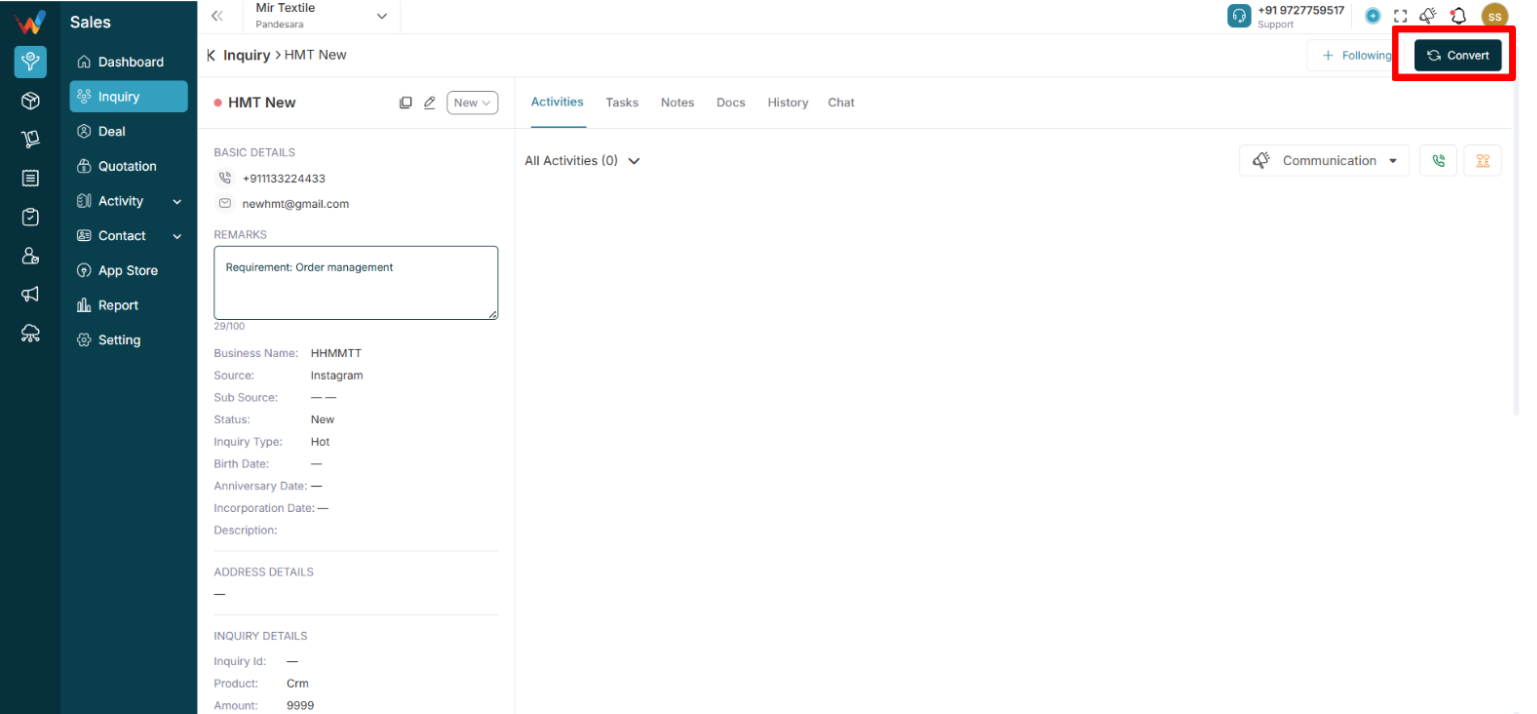
When the user clicks Convert (top right of Lead Detail), the system:
- Opens “Convert to Deal” screen
- Pre-fills lead data
- Creates a Deal record
- Moves lead into Deal pipeline
Important notes:
- Lead remains as a history record
- Deal becomes the active sales opportunity
- Logged communications can move to the deal (as per system design)
Convert to Deal – Screen Structure
Sections:
- Deal details
- Contact details
- Person address details
- Product details
- Recurring deal
- Other details (custom fields)
Deal Details Section
Deal name * (auto-filled from lead, editable)
Stage * (defines pipeline stage, e.g., Prospecting)
Source (auto-filled, editable)
Close date (forecasting and reporting)
Remark
Description
Contact Details Section
Converts lead into:
- Person
- Organization (optional)
Includes:
- Person name * (auto-filled, new marked as “NEW” where applicable)
- Organization name (optional)
- Contact number (auto-filled, editable)
- Email (auto-filled, editable)
- Special dates (optional)
Person Address Details
Billing address (select or create if missing)
Shipping address (select or create if missing)
Product Details (Expandable)
Used to add products linked to the deal for:
- Quotation generation
- Commercial readiness
Typical fields:
- Product name
- Quantity
- Rate
Recurring Deal
Yes / No
If Yes, deal can repeat automatically (if enabled)
Submit Button (Conversion Result)
On Submit, the system typically:
- Creates a new Deal
- Links deal to lead
- Creates person (if new)
- Creates organization (if new)
- Links address
- Moves opportunity into Deal pipeline
- Marks lead as Converted (based on logic)
What Happens After Conversion (System View)
Lead status → Converted
Deal stage → Prospecting (or selected stage)
Data flow:
Lead → Person → Deal → Revenue pipeline
Activities can be moved into the deal to maintain a single timeline (if configured)
When to Convert (Business Logic)
Convert only when:
- Buyer shows serious interest
- Product discussion is done
- Pricing discussion has started
- Revenue expectation is defined
Do not convert:
- On the first call
- Without qualification
- Without product confirmation
Common Mistakes and Best Practices
Common mistakes
Converting without setting stage
Not adding close date
Not adding product details
Creating duplicate person records
Best practice checklist (before convert)
Product selected
Estimated amount entered
Next follow-up planned
Decision maker identified
Lead Detailed View
Purpose of This Screen
Navigation Path:
Sales Module → Lead → Click Lead’s Name
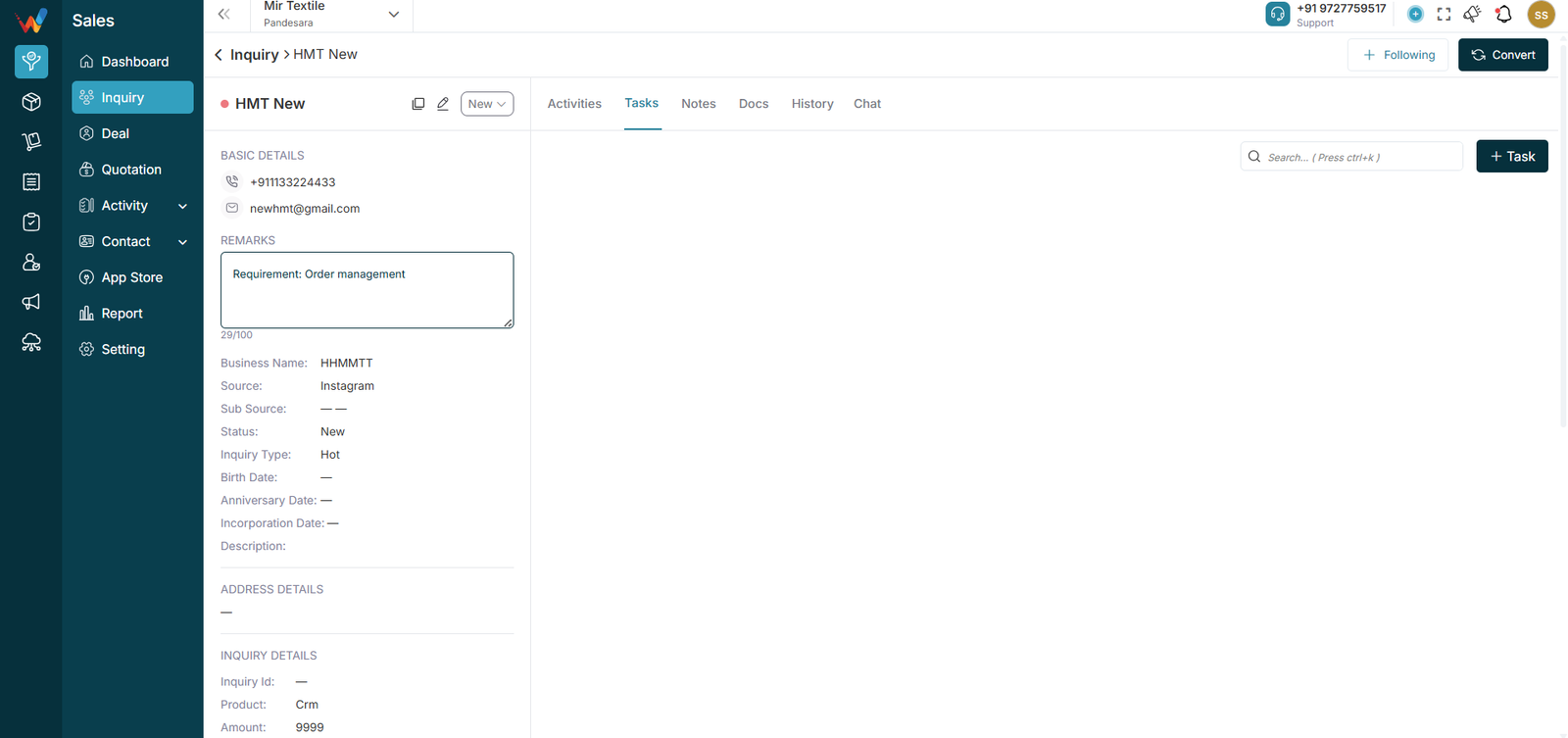
The Lead Detail screen is used to:
- View complete lead information
- Update status
- Add follow-ups
- Log calls, meetings, and visits
- Send WhatsApp or Email
- Add tasks
- Store notes and documents
- Track full lead history
- Convert lead into Deal
Top Header Area
Back to Lead List
Lead name with icons:
- Edit icon (opens Edit Lead form)
- Copy icon (duplicates lead)
- Status dropdown (editable)
- Follow button (subscribe to updates, if enabled)
- Convert button (convert to Deal)
Left Panel – Lead Information Summary
Typically includes:
Basic details: phone, email
Remarks box (quick entry, often limited length)
Business information:
- Business name
- Source / sub-source
- Status
- Lead type
- Special dates
- Description
Address details
Lead details:
- Lead ID
- Product
- Amount
- Website
- Assigned user (owner)
Right Panel – Activity Management
Tabs Available
- Activities
- Tasks
- Notes
- Docs
- History
- Chat
Activities Tab
Includes:
Filters:
- All
- Call
- Meeting
- Mail
- Visit
Activity cards with:
- Type
- Description
- Created by
- Created date
- Status tag (Log, Held, Call Later, Interested, etc.)
Three-dot menu (edit/delete based on permissions)
Log and Follow-up
Log records a completed interaction
Follow-up schedules the next interaction
Communication Button
Options includes:
(Depends on integrations.)
Activity Logged Detailed View
When It Appears
Triggered when the user opens any logged activity such as:
- Follow-up call
- Initial call
- Demo meeting
- Visit
What It Shows
View mode (read-only)
Three-dot menu (edit/delete if permitted)
Activity type header:
- Activity title
- Response status (Held, Unheld, Interested, etc.)
- Duration
Detailed fields:
- Direction
- Date and time
- Summary
- Attendees
- Linked lead
- Mobile number
- Email ID
- Updated by / created by
Why This Sidebar Matters
It ensures:
- No activity can be denied
- Managers can review call quality
- Timeline integrity
- Team accountability
- Strong sales tracking discipline
Tasks, Notes, Docs, History, Chat
Tasks Tab
Used to assign tasks related to the lead, such as:
- Send quotation
- Call tomorrow
- Visit warehouse
Notes Tab
Used for internal notes and future reference.
Docs Tab
Used to store lead-wise documents:
- Quotation PDF
- Product catalogue
- Agreement copy
History Tab
Shows complete change history, such as:
- Lead created
- Status changes
- Assigned user changes
- Product updates
- Other modifications
(Also used for transparency and audit.)
Chat Tab
Used to chat with clients when WhatsApp API integration is enabled.
Edit Lead
Opened via the Edit icon.
Fields commonly include:
- Lead name
- Contact number
- Email
- Source
- Status
- Lead type
- Product
- Business name
- Address
- Amount
Make changes and click Submit to save changes.
